

I stood in the corner of my office last Tuesday, staring at a stack of three beige Dell towers that had been collecting dust since 2018. They weren’t just taking up space; they were ticking time bombs. Every time I looked at them, a little voice in my head whispered: did I actually delete the QuickBooks files? Or did I just toss them in the Recycle Bin like a rookie? It’s a terrifying thought when you realize how much of your life—and your business—lives on those spinning platters of metal. If you’ve been putting off clearing out that closet because you’re scared of a data breach, I hear you. It’s time we stop guessing and start securing. Today, I’m walking you through the exact process I use to make sure an old PC is as blank as a fresh sheet of paper before it leaves the building. We’re moving past the ‘factory reset’ myth and getting into real-world protection that works.
Stop Stacking Your Old Towers Like Cordwood
Leaving old hardware to rot in a storage room isn’t just a fire hazard; it’s a massive security hole. When you’re looking for the best way to phase out old workstations, the first thing you have to kill is the ‘it’ll be fine’ attitude. I learned this the hard way early in my career. I once donated an old laptop after a quick format, thinking I was being a good citizen. A week later, I realized I hadn’t signed out of my browser’s password manager. I spent the next forty-eight hours resetting every password I owned in a blind panic. That mistake taught me that a simple format is like erasing a pencil mark with a dirty eraser—the ghost of the data is still there if you look hard enough. In fact, a study by the security firm Blancco found that 42% of used hard drives purchased from secondary markets still contained sensitive data. This isn’t just about your photos; it’s about client contracts, payroll records, and the keys to your digital kingdom. Have you ever found yourself staring at an old laptop, wondering if your passwords are still hidden somewhere in its guts?
Is Wiping Every Single Drive Actually Necessary?
You might think I’m being paranoid, but in the world of managed IT strategies, paranoia is a professional requirement. Modern hackers don’t always need to break into your network through the front door; sometimes they just buy your old junk at a local auction. I’ve seen people make classic computer repair mistakes where they assume ‘deleting’ a partition is the same as destroying the data. It isn’t. If you don’t use professional-grade sanitization or physical destruction, those files are still recoverable. I’ve used expert techniques to save files from drives that were allegedly ‘destroyed’ by fire and water, so imagine how easy it is to pull data from a drive that was just quickly reformatted. We are going to ensure that never happens to your business. Let’s get into the nitty-gritty of how to actually sanitize these machines so you can sleep at night.
Don’t Start the Wipe Without a Final Audit
Before you even think about the ‘nuclear option,’ you need to be 100% sure there isn’t a single stray file you’ll regret losing. I remember a frantic call from a local law firm three years ago. They had ‘secured’ their old server by wiping it, only to realize the only copy of a major litigation folder was stored locally on an admin’s desktop. We spent a week diving into the ultimate guide to data recovery after accidental deletion techniques to get it back. The stress wasn’t worth it. Before you proceed, hook that drive up as a secondary and run a search for .pdf, .docx, and .xlsx files. It takes ten minutes but saves years of your life in stress. If you’re worried about the health of the drive during this process, learning how to check if your hard drive is about to fail using S.M.A.R.T. data is your best friend. If the drive is clicking or throwing errors, get the data off now before it becomes a permanent paperweight.
Why One Pass Is Never Enough
Think of your hard drive like a whiteboard. When you ‘delete’ a file, you’re just erasing the table of contents. The actual information—the ‘ink’—is still visible under a digital microscope. To truly sanitize a drive, you need to overwrite every single sector with random gibberish. I’m talking about a full ‘Zero Fill’ or a multi-pass wipe using tools like DBAN or specialized enterprise software. This ensures that even if someone uses the power of data recovery tools, all they’ll find is a digital salad of ones and zeros. In my shop, we use a minimum of a three-pass wipe for anything containing financial data. I’ve seen ‘wiped’ drives come in where a simple deep-scan revealed an entire year’s worth of payroll records because the previous owner just did a quick format. If you aren’t seeing a progress bar that takes several hours to complete, you likely aren’t actually wiping the drive. 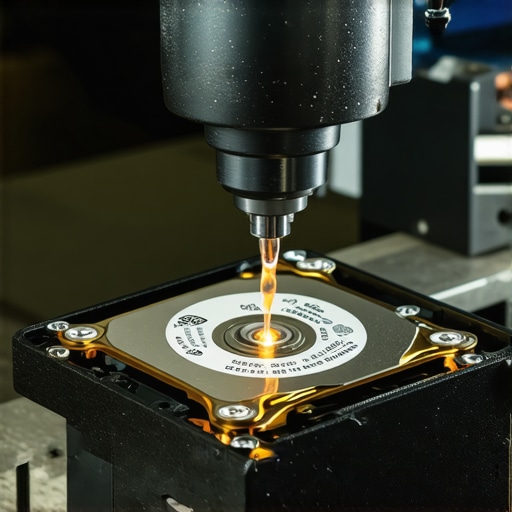
Kill the Data Physically If the Software Fails
Sometimes, the drive is too far gone to even run a wiping utility. Maybe the motor is seized or the controller board is fried. This is where people get lazy and just throw the drive in the bin. That is a massive security mistake. A dead drive isn’t a safe drive. Someone with the right equipment can still swap the platters and read your data. I’ve personally helped people recover critical documents from a water damaged desktop tower, so don’t think a little hardware failure protects you. If you can’t wipe it with software, you need to destroy it physically. I’m not just talking about a couple of hits with a hammer. You need to pierce the platters. A drill press is the gold standard here—three holes through the entire casing usually does the trick. It turns that sensitive data into literal dust. It’s a bit messy, and I once ruined a perfectly good work table doing this in a rush, but it’s the only way to be 1,000% sure that those QuickBooks files are gone forever. This is the level of commitment required when why your business needs a local backup strategy is finally put to the test—you destroy the old to make room for the new, knowing your current data is safe elsewhere.Most people assume that because they have an SSD, a quick ‘Secure Erase’ in the BIOS or a standard factory reset is a magic wand. I used to think the same until I started digging into how flash memory actually stores bits. Here’s the contrarian truth: traditional wiping software designed for spinning disks often fails to hit every corner of an SSD due to wear leveling. While you think you’ve cleared the slate, the controller might be hiding data in ‘spare’ cells you can’t even see. In fact, a study by researchers at UC San Diego found that many ‘secure erase’ commands provided by manufacturers failed to actually delete the data in a way that was forensically sound. Even the NIST Special Publication 800-88, which is the gold standard for media sanitization, emphasizes that software-based clearing is only as good as the hardware’s implementation of those commands. 
Watch Out for the Silent Cloud Re-Sync Trap
This brings me to the biggest ‘oops’ factor I see in modern offices today. When you are implementing managed IT strategies to keep your business secure in 2025, there’s a massive trap involving cloud synchronization. I’ve seen technicians wipe a machine, reinstall the operating system to ‘test’ it, and then sign in with a test account that is accidentally linked to a company-wide SharePoint or OneDrive folder. Suddenly, the machine you just ‘cleaned’ is downloading sensitive payroll PDFs in the background. It is the mistake that makes your backups completely useless and your wiping efforts a total waste of time because that data is now sitting on a drive you’re about to sell or donate. Always ensure the device is fully de-provisioned from your tenant before it ever touches a network cable again.
Can you really trust a BIOS-level secure erase?
This is a question I get from more technical clients who want to skip the multi-pass overwriting process. The answer is: it depends on your encryption. Modern drives often use hardware-level encryption (SEDs). If you perform a ‘crypto-erase,’ you are essentially throwing away the digital key. But here’s the nuance: if that key was managed by a TPM chip that you didn’t clear, or if the recovery password was stored in a vulnerable location, an attacker isn’t looking for the data—they’re looking for that key. This is why computer repair for beginners guides often miss the forest for the trees. You aren’t just repairing a device; you are managing a lifecycle of secrets. I’ve even seen this complexity bleed into physical repairs. For example, if you are performing a laptop screen repair, you might think it’s a simple hardware swap. However, if you don’t disconnect the battery and discharge the motherboard, a small static pop can cause a firmware error that locks you out of your encrypted drive entirely. Using expert techniques to save your files is much harder when the hardware itself is fighting you. Have you ever fallen into this trap where you thought a device was clean, only to find a ‘ghost’ of a file later? Let me know in the comments.
Build a Data Kill-Box That Actually Works
To handle a constant stream of outgoing hardware, I stopped relying on my daily workstation and built what I call the ‘Kill-Box.’ This is an air-gapped, dedicated PC running Parted Magic or DBAN from a bootable USB. The reason is simple: you want a environment where the OS can’t interfere with low-level disk commands. According to technical documentation from the NIST Special Publication 800-88 Revision 1, ‘Purging’ data is a level above simple ‘Clearing,’ and having a dedicated station ensures you have the throughput to run multi-pass wipes without slowing down your billable work. This is the difference between a amateur hobbyist and someone providing effective managed IT solutions for growing companies. If you are doing this at scale, you need a hardware dock that supports at least four drives simultaneously, because a single three-pass wipe on a 4TB mechanical drive can take upwards of 18 hours. 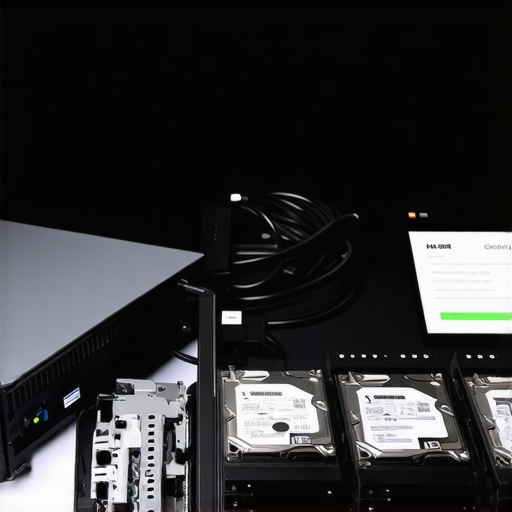
Scale Your Security Without Hiring a Fleet
Maintenance isn’t a one-time event; it’s a culture. As your business grows, you’ll realize that the human element is the weakest link. I’ve found that even the best technicians can get lazy, which is why why your business needs a disaster recovery plan before the storm hits that includes a strict decommissioning checklist. You have to treat an old hard drive with the same reverence you treat a live grenade. This involves more than just software; it’s about tracking the serial numbers. When we implement managed IT strategies to keep your business secure in 2025, we log every drive that enters the ‘wipe’ phase and only mark it as ‘destroyed’ once the software generates a checksum-verified log. If you are just eyeballing a progress bar and pulling the plug, you are asking for a lawsuit. Understanding the power of data recovery tools means respecting how hard it is to actually kill a file for good. I predict that within the next five years, AI-driven ‘forensic shredders’ will become the standard, scanning for specific patterns of sensitive data during the wipe to ensure nothing survives.
How do I maintain professional data hygiene over time?
The secret is to never let the ‘beige towers’ stack up in the first place. Establish a ‘one-in, one-out’ rule for your office. When a new workstation is unboxed, the old one must be audited, wiped, and logged within 48 hours. This prevents the accumulation of ‘forgotten’ data that often leads to data recovery secrets every business should know today. Also, don’t forget the peripherals. If your office uses high-end printers or smart switches, these often have internal storage that stores image logs of every document scanned. Before you donate that ‘broken’ copier, you better believe there’s a hard drive inside it that needs the same drill-press treatment as your server disks. For those just starting out, why your business shouldnt rely on consumer grade antivirus becomes clear when you realize these tools do nothing to help you with the hardware lifecycle. My advanced tip for today? Go download a copy of the NIST 800-88 guidelines and read the section on ‘Media Sanitization’—it’s the exact roadmap I use to protect my most high-stakes clients.
What the Pro-Level Sanitization Guides Don’t Tell You
After years of managing hardware lifecycles, I’ve realized that the most dangerous drive is the one you think is empty. It’s easy to focus on the server room, but I’ve found that the biggest risks often hide in plain sight—like the internal drive of an old office copier or a forgotten USB stick in a desk drawer. One lightbulb moment for me was realizing that data security isn’t just about software; it’s about the chain of custody. If you don’t know exactly who touched that drive from the moment it left the desk to the moment it was shredded, you don’t have security. This is a core part of managed IT strategies to keep your business secure in 2025. I also learned that physical destruction is the only way to deal with encrypted drives where the key is lost; don’t waste time trying to crack the uncrackable when a drill press is faster.
Another major realization was the importance of the ‘cool-down’ period. Before I perform the final wipe, I let the drive sit for 48 hours after the final audit. You’d be surprised how many times a staff member remembers a ‘missing’ file just as the overwrite process hits 90%. Learning how to pull data from an old desktop that hasn’t been turned on in years has saved my skin more than once during these last-minute panics.
My Personal Inventory for a Secure Clean Sweep
When I’m setting up a decommissioning station, I don’t just wing it. I rely on a specific set of tools that have never let me down. First, I always keep a copy of the NIST Special Publication 800-88 on my tablet. It is the gold standard of media sanitization and helps me explain to clients why a simple ‘Delete All’ isn’t enough. For the actual work, I swear by Parted Magic for SSD Secure Erase commands and DBAN for older mechanical drives. These are the same tools used in effective managed IT solutions for growing companies. If I’m dealing with a drive that has physical issues, I refer back to the ultimate guide to data recovery after accidental deletion to make sure I haven’t missed a recovery opportunity before the final destruction. #IMAGE_PLACEHOLDER_E#
Take Back Control of Your Digital Footprint Today
Cleaning out old hardware can feel like a daunting chore, but it is one of the most rewarding things you can do for your peace of mind. Every tower you wipe and every drive you destroy is one less vulnerability for your business. Don’t let the fear of a data breach keep you from clearing out the clutter. With the right tools and a solid process, you can move forward with confidence, knowing your legacy data is truly gone. This proactive approach is exactly why your business needs a disaster recovery plan before the storm hits—it’s about being ready for the next chapter without the baggage of the last one. Have you ever discovered sensitive files on a machine you were about to give away? Let me know your close-call stories in the comments below!