

I still remember the cold sweat that broke out on my forehead three years ago when I plugged in my “reliable” backup drive. Instead of my files, Windows gave me a blank stare. Disk Management showed a massive block of black space labeled “Unallocated.” It felt like someone had wiped my digital life with a magnetic sponge. I’ve spent years in computer repair for beginners and pros alike, but seeing your own data vanish into the ether is a different kind of sting. The good news? Your data isn’t actually gone. It’s just “homeless” because the map the computer uses to find it—the partition table—has been shredded. Today, I’m going to show you exactly how to rebuild that map and pull your files back from the brink. We aren’t just going to stare at a black bar; we’re going to fix it.
Stop Windows from Making the Problem Worse
Before you click a single thing, take your hand off the mouse. My biggest mistake early on was trying to “initialize” the disk because a pop-up told me to. Don’t do it. Initializing or creating a new volume writes new data to the drive, which is the fastest way to overwrite the very files you’re trying to save. When you deal with data recovery after accidental deletion or partition loss, the “Golden Rule” is to touch the drive as little as possible. According to research by storage experts at Backblaze, many drives that show logical errors still have perfectly functional platters or flash cells. You might even find that recovering a deleted partition without losing your file structure is easier than you think if the underlying hardware is still healthy.
Is my hard drive actually toast or just confused?
It’s a valid fear. If the drive is making a clicking sound, that’s a different story. But if it’s silent and just showing up as unallocated, the data is likely still sitting there, waiting for a way out. I remember once spending four hours trying to “fix” a drive that just had a loose cable, so always check the basics first! Have you ever felt that heart-sinking moment when your PC asks to format a drive you know has files on it? Drop a comment or reach out via our contact page if you’re currently staring at that terrifying prompt. We are going to walk through the software tools that can see what Windows can’t.
Scan Deep Before You Try to Rebuild
Think of your hard drive like a massive library where the front desk just burned the card catalog. The books (your data) are still on the shelves, but the librarian (Windows) has no idea where they are. This is why we use deep scanning. Tools like TestDisk or PhotoRec don’t look at the catalog; they walk through every single aisle and look at the covers of the books themselves. This is a critical part of the power of data recovery tools that every user needs to grasp before getting started.
Pick Your Tools Like a Surgeon
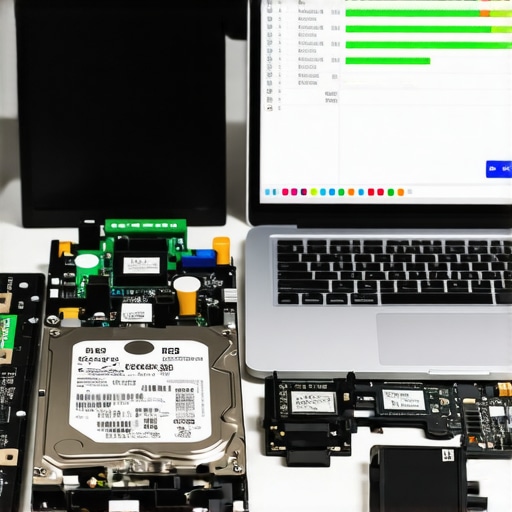
You need a tool that can perform a ‘Raw’ scan. When you are recovering a deleted partition without losing your file structure, you’re looking for the old partition headers. I usually start with TestDisk because it’s open-source and incredibly powerful at rewriting the partition table itself. If the partition table is too mangled to fix, I switch to ‘carving’ mode. This is where the software ignores the partition entirely and just looks for file signatures like JPEG or DOCX. For business owners, knowing these data recovery secrets can be the difference between a minor hiccup and a total company shutdown.
The Night I Almost Formatted a Clients Wedding Photos
I’ll never forget a Saturday night in 2019. A frantic groom brought in a drive that showed 1TB of unallocated space. My first scan showed nothing. I felt that pit in my stomach. Instead of giving up, I realized the drive was actually an SSD and I was using a standard HDD recovery protocol. When you see the sign your SSD is reaching its write limit, the controller can behave erratically. I had to use a specific imaging tool to create a bit-for-bit clone first. Once I had the clone, I ran the recovery on the image file, not the physical drive. It took 14 hours, but we got every single photo back. Never work on the ‘live’ patient if you can help it; always try to work on a copy.
Why Your Computer Might Still Refuse to See the Drive
Sometimes, even after a perfect scan, Windows still won’t assign a drive letter. This usually happens because of a signature collision or a corrupted boot record. If you’ve followed computer repair for beginners guides and still hit a wall, you might need to use the Command Prompt to manually clear the ‘readonly’ attribute or use ‘diskpart’ to re-assign the ID. Just remember: one wrong ‘clean’ command in diskpart and you’ve actually wiped the drive. If you’re managing a fleet of devices, this is exactly why managed IT is a game changer for growing companies—having a pro handle these high-stakes moments prevents permanent data loss.
Don’t Spend Thousands on a Clean Room Just Yet
There is a massive misconception in the tech world that as soon as a drive shows up as ‘Unallocated,’ you need to ship it off to a multi-thousand-dollar clean room facility. While you should never open a clicking hard drive in a normal room, an unallocated status is often a logical failure, not a mechanical one. Everyone says the drive is ‘dead,’ but in my experience, the platters are usually spinning fine—it’s just the ‘translator’ layer that’s had a stroke. Research from data recovery giants like Ontrack suggests that a significant portion of data loss is actually preventable through logical reconstruction rather than physical repair. If your PC recognizes the drive’s capacity but can’t see the volume, you are dealing with a software puzzle, not a hardware burial.
The One Mistake That Makes Your Data Literally Unrecoverable
The ‘Oops’ factor in this stage is almost always impatience. I’ve seen seasoned pros try to ‘fix’ the partition table directly on the patient drive. This is a gamble you will eventually lose. When you are cloning a failing hard drive to a new SSD, you must use a tool that performs a non-linear clone. If you hit a bad sector and the software keeps retrying, the heat generated can physically kill the read/write head. This is the mistake that makes your backups completely useless and your recovery impossible: trying to write ‘corrections’ back to the original failing media. Always, always work from a bit-for-bit image file.
Can you really pull files from an encrypted drive that won’t mount?
This is where things get spicy. If you were using BitLocker or FileVault and your partition goes unallocated, a standard scan will find absolutely nothing but ‘random noise.’ This is one of those data recovery secrets every business should know today: you cannot ‘carve’ for files on an encrypted volume because there are no file signatures to find. You must first use a tool to locate the metadata headers of the encryption, provide the recovery key, and virtually mount the ‘ghost’ partition. The truth about recovering data from an encrypted SSD that won’t mount is that if those specific metadata bits are overwritten, the data is mathematically gone forever. Have you ever fallen into this trap of trying to scan an encrypted drive and getting zero results? Let me know in the comments below.
Why Most Pros Give Up Too Early
I often see technicians throw in the towel if a quick scan doesn’t show a partition. They assume the ‘map’ is gone. However, sophisticated recovery involves searching for the ‘backup’ boot sector, which Windows hides at the very end of the partition. Even if the beginning of your drive is a mess, that backup sector can be the ‘Rosetta Stone’ for your files. This level of detail is why managed IT is a game changer for growing companies—pros know to look for these hidden redundancies before declaring a total loss. Whether you’re dealing with recovering a deleted partition without losing your file structure or a complex RAID failure, the nuance is always in the metadata.
Hardware write blockers are the unsung heroes of recovery
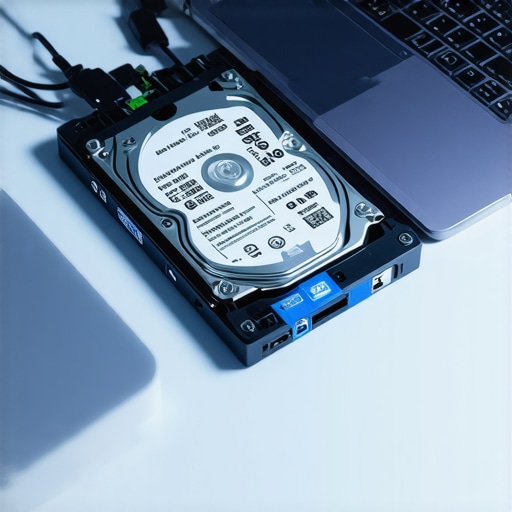
If you are serious about your data, you need to stop plugging ‘victim’ drives directly into your motherboard’s SATA ports. When I’m deep in a recovery job, I always use a hardware write-blocker like a Tableau bridge. Why? Because the moment Windows detects a drive, it wants to be ‘helpful’ by updating the ‘Last Accessed’ timestamps or checking the volume for errors. These tiny writes can overwrite the very sectors you are trying to pull from the brink. This is one of the power of data recovery tools that separates the amateurs from the pros. A write-blocker creates a physical ‘one-way street’ for data, ensuring your PC can read every bit without sending a single byte back to the drive.
Why R-Studio beats the free stuff every time
While TestDisk is great for simple partition fixes, when I’m dealing with a drive that has a mangled file system or a complex RAID array, I reach for R-Studio. It isn’t free, but its ability to reconstruct virtual RAID parameters and parse different file systems like XFS or APFS is unmatched. As forensic expert Eric Zimmerman highlights in his technical documentation, parsing the $MFT (Master File Table) directly provides a level of detail that generic ‘undelete’ apps simply can’t touch. If you’ve been following my laptop screen repair diy tips for clearer displays and found that your hardware is fine but your files are missing, this is the level of software you need to be looking at.
How do I keep my hardware healthy for the long haul?
Maintenance isn’t just about running a virus scan once a month. For growing businesses, it’s about having effective managed IT solutions for growing companies that monitor drive SMART attributes in real-time. I’ve seen too many people make the ram upgrade mistake that actually slows down your workstation because they didn’t check for memory-timing compatibility, which eventually led to OS instability and file corruption. True maintenance means balancing physical upkeep—like keeping fans dust-free—with logical upkeep, like ensuring your managed IT solutions streamlining operations for small businesses include a robust off-site backup that isn’t just a simple sync folder.
Predictive AI is coming for your failing sectors
Looking ahead, I predict we are going to see a massive shift toward AI-integrated disk controllers. Instead of a drive simply ‘dying’ and leaving you with unallocated space, future firmware will likely use machine learning to predict sector failure weeks in advance, transparently migrating data to healthy blocks before the OS even knows there is a problem. We are moving from a world of ‘recovery’ to a world of ‘resilience.’ For now, your best move is to be proactive. I challenge you to download the demo version of a professional-grade tool like R-Studio today and just see what it can find on an old ‘dead’ thumb drive you have lying around; you’ll be shocked at what’s still there.
Hard Truths I Learned While Staring at Empty Drives
Data recovery isn’t magic, it’s just finding where the map went. One of the most significant lightbulb moments in my career was realizing that Windows is often ‘guessing’ when it tells you a drive is unallocated. Here are a few insights that changed how I approach these disasters:
- The 10-Minute Cooling Rule: If a drive is acting up, power it down and let it reach room temperature. Heat expands the internal components, and sometimes a cool drive is all you need to get a successful ‘one-shot’ scan.
- SSD Recovery is a Race Against Time: Unlike mechanical drives, SSDs use a command called TRIM that actively wipes ‘unallocated’ space to keep the drive fast. If you’re recovering a deleted partition without losing your file structure on an SSD, every second the power is on, the controller might be cleaning up your data.
- Software Can’t Fix Physical Death: If you hear a ‘beep-beep-beep’ or a ‘click,’ no amount of scanning will help. In those cases, you need to reach out to us via our contact page before the internal platters are physically scratched beyond repair.
#IMAGE_PLACEHOLDER_E#
Tools That Actually Earn a Spot on My Desk
I have spent thousands of dollars testing software so you don’t have to. If you are serious about getting your files back, these are the only names I trust:
- TestDisk: It’s open-source and slightly intimidating because it has a command-line interface, but it is the undisputed king of partition table repair. If the ‘map’ of your drive is gone, this tool will find it.
- R-Studio: This is professional-grade software. It understands complex file systems that basic ‘undelete’ apps ignore. It’s my go-to for data recovery secrets involving mangled folder structures.
- Hiren’s BootCD PE: This is a complete emergency room for your PC. It lets you boot into a clean environment so your ‘live’ OS doesn’t interfere with the recovery process, showcasing the power of data recovery tools in a controlled setting.
Stop Waiting for the Next Crash to Happen
Recovery is a miracle, but prevention is a strategy. Now that you have the knowledge for recovering a deleted partition without losing your file structure, your next goal should be ensuring you never have to feel that cold sweat again. For those running a business, looking into managed IT solutions streamlining operations for small businesses can take the weight of data anxiety off your shoulders. You have the tools, the techniques, and the plan—now go save those files! Have you ever managed to pull files back from a drive that Windows called ‘Unallocated’? Let me know your success story or where you got stuck in the comments below!