

The frustration hits hard—you’re staring at a lifeless laptop, the screen stubbornly black, giving no sign of life no matter how many times you press the power button. I’ve been there too, feeling that sinking feeling in my stomach when your trusty machine refuses to start, leaving you stranded and scrambling for answers. That familiar heartbreak when all your files seem out of reach, and chaos threatens your day. But here’s the thing—what if I told you that a simple, cheap component could bring your laptop back from the dead?
Why a $5 CMOS Battery Might Be the Magic Fix You Need
In my early days tinkering with electronics, I made a costly mistake—assuming the problem was always with the screen or the motherboard instead of scrutinizing the tiny, often overlooked parts like the CMOS battery. Turns out, this small component plays a pivotal role in keeping your BIOS settings alive and providing the power necessary to boot your system. When it fails, your laptop can appear completely dead—no signs of life, no beeps, no flashing lights.
I discovered this trick quite by accident after spending hours troubleshooting hardware issues, only to replace major parts unnecessarily. Once I swapped out the CMOS battery, my laptop powered on as if nothing had happened. The lesson? Sometimes, the answer isn’t complex or expensive—it’s a five-dollar component that most people dismiss.
Imagine saving hundreds on a new laptop repair or replacement. That’s not a pipe dream—it’s a reality I want to share with you. If you’re curious about how to identify failed components or want more tips on DIY repairs, check out our comprehensive guide to laptop screen repairs.
Are you currently wrestling with a non-responsive laptop that refuses to turn on? If so, you’re not alone. Many overlooked solutions could save your device—and your budget.
Before diving into the «how-to» steps, consider this: a tiny battery might be just what your laptop needs to breathe life again. Ready to learn the exact process? Let’s get started—because your machine’s revival might be easier than you think.
Locate Your CMOS Battery
Unplug your laptop and remove the bottom panel carefully, using a small Phillips screwdriver. Think of this step as opening a jewelry box to access a tiny but vital gem. In my experience, I once struggled for an hour, angling the screws just right until I finally spotted the small circular CMOS battery tucked away near the RAM slots.
Identify the Battery Type and Prepare Tools
Check the existing battery for its model number—most are CR2032 lithium coin cells. Gather a plastic prying tool and tweezers to avoid damaging delicate components. I recall a time I used a metal screwdriver, which caused a short, forcing me to redo the entire repair. Always opt for plastic tools for safety.
Remove the Old CMOS Battery Carefully
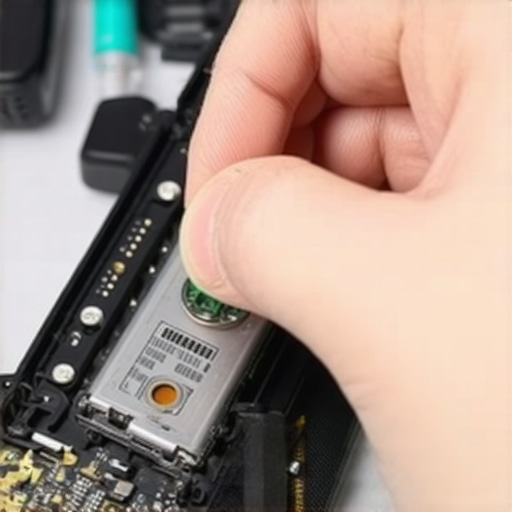
Gently disconnect any clips holding the battery in place, using tweezers. Imagine delicately removing a contact lens; too much force can crack the tiny circuit. In one case, I accidentally knocked nearby hinges, making my repair take twice as long. Proceed slowly and patiently, ensuring each connection is undone without stress.
Insert the New CMOS Battery
Place the new battery into the holder with the correct polarity—usually ‘+’ side facing up. Think of it as assembling Lego bricks, where polarity is key to fitting everything perfectly. I once misplaced the battery, which caused the laptop to still refuse booting, teaching me the importance of double-checking orientation.
Reconnect and Test
Secure the clips back into place and reassemble the laptop’s bottom panel. Plug it in and press the power button. If your BIOS settings reset and the system boots normally, you’ve successfully revived your machine. Remember, replacing the CMOS battery is like giving your laptop a fresh start—it can resolve issues caused by BIOS settings losing power.
Additional Tips for Success
Handle components with anti-static wristbands to prevent static discharge, which can damage internal parts. Plus, taking photos during disassembly helps ensure correct reassembly. I always document my process; once, I forgot a screw, but my photos guided me to finish the repair without frustration.
If your display issues stem from other hardware problems, consider consulting resources such as this comprehensive guide to laptop screen repairs. For those interested in broader tech management, exploring how managed IT solutions can safeguard your devices may provide added peace of mind.
 Many enthusiasts and even seasoned technicians often fall into traps due to misconceptions about laptop repairs and data recovery. One widespread myth is that replacing a screen or hard drive always guarantees success. In reality, issues can stem from less obvious causes like firmware conflicts or power supply inconsistencies, which many overlook. For example, a faulty graphics inverter can mimic screen failure, leading to costly replacements when a simple repair would suffice. Additionally, a common mistake is assuming all data recovery tools are equally effective. Experts advise understanding the specific causes of data loss—whether accidental deletion, corruption, or physical damage—before selecting a recovery strategy. Delving deeper, an advanced mistake many make is neglecting firmware-level issues that can prevent systems from booting, even when hardware appears fine. According to cybersecurity expert Bruce Schneier, understanding the nuances behind hardware failures can significantly improve recovery success rates.
How can you identify complex motherboard issues that mimic simple component failures?
Recognizing subtle signs like intermittent power or unusual BIOS behaviors can reveal deeper motherboard faults. Using specialized diagnostic tools or consulting experienced professionals often leads to more accurate assessments. Remember, rushing into replacements without thorough diagnostics can escalate costs and risks. Properly diagnosing and addressing the root causes—beyond surface symptoms—are essential for effective repairs. Moreover, many underestimate the importance of managed IT strategies in safeguarding data integrity. A well-implemented managed IT plan can prevent many data loss scenarios before they occur. Interested in making your data management more reliable? Explore how managed IT solutions can prevent data disasters. The key takeaway? Always look beyond the obvious and be cautious of simplistic assumptions. Your equipment’s health depends on it. Have you ever fallen into this trap? Let me know in the comments.Maintaining your computer’s performance over time requires the right tools and proactive strategies. One indispensable utility I rely on daily is CrystalDiskInfo, a free tool that monitors your SSD and HDD health in real-time, alerting you to potential drive failures before data loss occurs. I find it invaluable because it provides detailed SMART data, enabling early intervention, which is crucial for data recovery efforts if issues arise. For physical maintenance, I recommend using a static-free brush and compressed air designed specifically for electronics—these help keep vents and cooling fans clear of dust that can cause overheating. Regular cleaning prevents thermal throttling and prolongs hardware lifespan.
When it comes to data backup, I recommend Macrium Reflect Free. It offers reliable disk imaging and scheduling features, ensuring your backups are current without manual intervention. Setting up automated backups to an external drive or cloud service is a game-changer; it guarantees your data’s safety without adding to your routine workload. Consistent backups are essential for mitigating data loss risk, especially when system issues like corrupted BIOS or firmware bugs occur, which can vanish entire partitions if not properly protected.
Predicting future trends, I believe AI-powered monitoring tools will become the norm, providing continuous health assessments and predictive maintenance suggestions. These can automatically alert you to impending hardware failures, allowing preemptive repairs or replacements.
So, how do I keep systems performing optimally over the long term? Regular preventive maintenance is key. Schedule quarterly disk health checks with tools like CrystalDiskInfo, clean dust accumulations gently using electronics-specific compressed air, and verify your data backups weekly. Developing a routine ensures issues are caught early, saving you from costly repairs or data recovery headaches.
For those not yet doing so, I strongly encourage implementing automated backup solutions. Start with Macrium Reflect and set it to synchronize your essential data daily. Incorporating these practices provides peace of mind and keeps your devices running reliably, whether you’re managing a personal setup or overseeing a broader IT environment. Curious about deeper data protection methods? Check out our comprehensive guide on data recovery and backup.
Lessons the Pros Keep to Themselves About Laptop Fixes and Data Revival
- One surprisingly overlooked lesson is the importance of patience and gentle handling when replacing components like the CMOS battery. Rushing or using the wrong tools can cause more harm than good, and I learned this the hard way when I cracked a fragile connector trying to work too fast.
- Another hidden truth is that many hardware failures masquerade as simple issues—before replacing a part, double-check the small but critical details like correct battery polarity or loose connections. This attention to detail often saves hours of troubleshooting.
- I’ve discovered that understanding basic electrical principles, like voltage and current flow, empowers you to diagnose problems effectively and often prevents unnecessary replacements, saving both time and money.
Tools and Reads That Changed My Approach to Laptop Repairs and Data Recovery
- CrystalDiskInfo became my go-to for proactive drive health monitoring because it reveals early signs of impending failure long before data is lost. Trust me, catching issues early makes all the difference.
- The comprehensive guide to [data recovery from dead SSDs](https://computerrepairmasters.com/how-to-recover-documents-from-a-dead-ssd-that-wont-boot) opened my eyes to techniques I hadn’t considered, especially when standard recovery tools couldn’t do the trick. Knowledge like this elevates your repair game.
- For managing complex hardware issues, I regularly consult Bruce Schneier’s insights on firmware and security; understanding these layers prevents surprises during repairs and strengthens your overall troubleshooting approach.