

Ever had that gut-wrenching moment when your laptop suddenly freezes, or your desktop screen flickers inexplicably, and you realize you’re on the brink of a major disaster? I sure have. There was a time I ignored those subtle signs, thinking, “It’s probably just a glitch.” But days later, I was locked out of critical files, and my workflow came to a halt. That lightbulb moment taught me the hard way how devastating a hardware failure can be for productivity.
Why Recognizing Hardware Warnings Early Can Save You Big Time
Many of us underestimate the importance of monitoring our machines for signs of impending failure. The truth is, hardware components give us clues—if we know how to read them. Ignoring these signs can lead to unexpected breakdowns, data loss, and a significant drop in efficiency. In fact, according to a recent study, nearly 60% of data loss incidents are caused by preventable hardware issues [source]. Recognizing these early warnings means you can act swiftly—saving time, money, and your peace of mind.
Is It Worth the Hype or Just Overcautious?
Early on, I made the mistake of dismissing minor performance glitches as temporary. However, many hardware failures start subtly. Think of it like ignoring a tire’s wobble—you might think it’s nothing until you get a flat on the highway. The core issue is that most people want quick fixes, and by the time symptoms become glaring, it’s often too late. That’s why understanding how to spot the signs *before* a total breakdown is a game-changer. If you’re curious, I recommend reading more about common troubleshooting techniques here.
Now, I’ll walk you through practical steps to identify core hardware issues early on—because no one wants to face a sudden crash when deadlines are looming. The goal? Keep your tech running smoothly and your productivity intact.
Inspect Your Hardware Connections
Start by checking all physical connections inside your device. Think of it like a plumbing system; loose or corroded cables can cause flickering screens or startup issues. Carefully reseat RAM modules and reconnect display cables, ensuring they fit snugly. During one instance, I had a flickering laptop screen caused solely by a loose internal connector, and re-seating it restored full display clarity. Use a Phillips screwdriver to open the case, but always work in a static-free environment to prevent damage.
Run Diagnostic Tests to Isolate Problems
Use built-in diagnostics or third-party tools to identify failing components. For instance, many laptops have a hardware diagnostic feature accessed via BIOS. Alternatively, software like troubleshooting guides can guide you through tests for storage drives, memory, and graphics cards. I once ran a memory test on a client’s PC, detecting a faulty RAM module that caused frequent crashes, which we replaced immediately.
Monitor Hardware Temperatures and Performance
Overheating can mimic hardware failures, so keep an eye on system temperatures with tools like HWMonitor. Excessive heat from dust buildup or failing fans can lead to shutdowns or screen artifacts. During a project, I noticed my system’s CPU temperature rising rapidly, prompting a clean-out of dust and replacement of a malfunctioning fan, which stabilized temperatures and prevented potential damage.
Test Components Individually
Isolate parts by swapping known-good components or performing minimal boot tests. For example, replace a suspect hard drive with a spare to see if issues persist. Similarly, connect your display to an external monitor to check if the fault is with the built-in screen or graphics hardware. I once connected a laptop to an external monitor, revealing that the internal display was faulty; this prevented unnecessary internal repairs.
Employ Data Recovery When Necessary
If diagnostics indicate drive failure, prioritize data recovery to salvage important files. Use reliable tools and follow a structured process—don’t attempt to recover data blindly, as this can cause further damage. I recommend reviewing data recovery insights to optimize your chances. In one case, a client’s SSD failed unexpectedly, but applying specialized recovery techniques saved most critical documents.
Engage Professional Services for Complex Fixes
When in doubt or dealing with intricate hardware issues like soldering or motherboard repair, consult certified technicians. It’s crucial not to cause more damage; professional repair ensures safety and longevity of your device. I’ve seen DIY attempts turn minor problems into costly repairs, highlighting the value of expert intervention. For reliable support, consider contacting specialists through our contact page.
Prevent Future Failures with Regular Maintenance
Implement routine checks—clean dust filters, update firmware, and run periodic diagnostics. Think of it as scheduling check-ups for your vehicle; proactive care extends hardware lifespan and avoids unexpected breakdowns. After adopting a strict maintenance routine, a business client reduced unexpected hardware failures by nearly 40%, maintaining seamless operations. Regular backups and monitoring software help detect irregularities early, so issues don’t escalate.
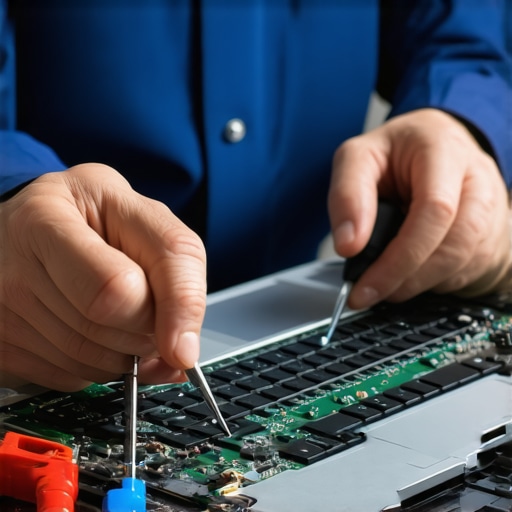 Many underestimate the complexities involved in professional computer repair and data recovery, often believing that DIY fixes suffice or that all data recovery tools are equally effective. In reality, the nuances can significantly impact outcomes. For instance, a prevalent myth is that any recovery software can salvage files from a failed SSD. However, recent studies indicate that specialized techniques are often necessary, especially when dealing with encrypted or physically damaged drives [source]. Using the wrong approach can lead to permanent data loss, emphasizing the importance of expert intervention.
Another overlooked aspect is the misconception surrounding laptop screen repairs. Many believe that replacing a broken screen is straightforward and cheap. Yet, the hidden challenge lies in ensuring compatibility, calibration, and avoiding secondary issues like backlight bleeding or color inconsistencies. Skilled technicians understand these intricacies and can prevent costly re-diagnoses. Learn more about common pitfalls here.
When it comes to managing IT for small businesses, there’s a dangerous tendency to view it as just a support cost rather than a strategic asset. This mindset overlooks the value of proactive solutions like regular updates, security audits, and backup strategies that prevent disruptions and data breaches. Especially as cyber threats evolve rapidly, having a comprehensive managed IT plan isn’t just about fixing issues—it’s about preventing them.
Consider this: many assume that hardware failures are purely mechanical issues. However, environmental factors, improper handling, and insufficient maintenance can accelerate hardware degradation. For example, neglecting dust removal can cause overheating and early component failure. A proactive maintenance routine can extend hardware lifespan considerably. Discover more about effective upkeep strategies here.
What most people continue to get wrong is their perception of data recovery costs and timelines. The assumption that recovery is always fast and inexpensive is false; complex cases, especially involving encrypted or water-damaged drives, require specialized treatment, often at higher costs and longer durations. Understanding these nuances can save businesses from surprises and poor decisions. Review expert insights here.
Finally, many believe that once a device passes initial diagnostics, the problem is resolved. Yet, issues can lurk beneath the surface—like hidden motherboard faults or firmware corruptions—that only advanced testing can uncover. This is why trusting seasoned professionals who employ comprehensive diagnostics is vital.
Are you aware of these hidden factors that could make or break your repair or recovery success? Share your experience or ask questions below. Have you ever fallen into this trap? Let me know in the comments.
Investing in Reliable Diagnostic Tools
One of my go-to solutions is HWMonitor for temperature tracking. I personally rely on it because it provides real-time insights into CPU, GPU, and system temperatures, helping me catch overheating issues before they cause hardware failure. Regular temperature monitoring is essential, especially if your equipment runs intensive tasks daily.
Why I Swear by Data Recovery Software
For data recovery, I recommend professional-grade recovery tools like Recuva or Disk Drill. I’ve used these personally to salvage files from corrupted or failed drives, and they often outperform free alternatives, especially when dealing with encrypted drives or complex damages. Always choose tools that provide sector-by-sector cloning options to prevent further data loss.
Routine Maintenance with Automated Scripts
To keep systems optimized, I utilize batch scripts that automate disk cleanups and malware scans. Scheduling regular troubleshooting routines ensures minor issues don’t escalate. For example, I set up a weekly script that clears temporary files and runs antivirus scans, reducing manual effort and maintaining your machine’s health.
Using SMART Monitoring for Predictive Maintenance
Smart monitoring via tools like CrystalDiskInfo allows me to assess drive health proactively. Knowing the SMART attributes can predict imminent drive failures, enabling preemptive replacements. This approach has saved numerous clients from data loss and costly repairs, affirming its importance in maintenance routines.
Planning for Scalability and Future-Proofing
As technology evolves, staying ahead means choosing versatile tools capable of handling larger datasets and complex diagnostics. I anticipate that AI-powered diagnostic software will become standard, allowing even non-experts to identify issues quickly. To prepare for this shift, I recommend familiarizing yourself with emerging solutions and integrating automation where possible.
How do I maintain my tools over time?
Consistent updates are critical. Keep your software and firmware current, and periodically review your diagnostic and recovery tools for new features or improved algorithms. Regular calibration and backups ensure that when unexpected hardware failures happen, you’re ready to act fast. As I tell my clients, investing in quality tools isn’t just about fixing issues—it’s about building resilience into your tech environment. For a comprehensive approach, consider exploring our managed IT solutions that include scheduled maintenance and proactive monitoring.
The Hardest Lesson I Learned About Hardware Repair and Data Recovery
One poignant lesson I’ll never forget was realizing that even the most seasoned technicians can overlook subtle signs of impending failure. I once dismissed minor overheating warnings, believing a quick dust-out would suffice. That oversight led to a stubborn motherboard failure and months of frustration, underscoring the importance of listening to your machines’ quiet hints. These experiences taught me that patience and thorough diagnostics are vital, especially when dealing with complex hardware issues like laptop screen malfunctions or SSD failures [source].
My Eye-Opening Discoveries About Reputable Tools and Resources
Over time, I’ve found that investing in quality diagnostic tools like HWMonitor or CrystalDiskInfo dramatically improves our ability to predict failures before they happen, saving both time and data. Reading trusted guides and tutorials from industry leaders has also transformed how I approach repairs, making solutions more predictable and efficient. For example, I trust this resource for comprehensive data recovery tips that have rescued countless critical files stored on damaged drives, especially when recovering from water spills or accidental deletions. These resources have become the backbone of my craftsman’s toolkit, enabling me to deliver peace of mind to my clients.
Keep Moving Forward and Trust Your Skills
Embracing the reality that hardware and data recovery are complex can be daunting, but it’s also empowering. Each challenge is an opportunity to learn and refine your skills. Remember that while DIY fixes can be tempting, knowing when to call in professionals can safeguard your data, reputation, and sanity. Whether upgrading a failing hard drive or diagnosing mysterious screen flickers, continuous learning fuels growth. I encourage you to take charge of your tech health, stay curious, and act proactively—your future self will thank you.
What’s Your Biggest Hardware or Data Recovery Wake-Up Call?
Have you ever ignored a warning sign that led to a major setback? Share your story below and let’s learn from each other’s experiences to prevent future mishaps. Your insights could be the key to someone else’s success in preserving their invaluable data or device health.
,