

It was just another hectic morning, and as I glanced at my laptop, the screen flickered unexpectedly. I froze—a sinking feeling creeping in. Was this just a software glitch? Or was it the dreaded sign that my ribbon cable was giving up?
I’ve been there too many times, frantically trying to fix a flickering display without knowing the root cause. The uncertainty can be nerve-wracking—one minute, it’s a minor software hiccup, and the next, you’re staring at a costly hardware failure. In fact, many users overlook this crucial distinction, leading to unnecessary repairs or overlooked problems that worsen over time.
Why Understanding the Cause of Screen Flickering Really Matters
Knowing whether your flickering is software or a hardware issue isn’t just about saving money; it’s about preventing data loss, avoiding downtime, and making informed repair decisions. As I learned early on, jumping straight into a full replacement without diagnosing the problem can be a costly mistake. I once replaced my entire display only to discover later that a simple software update would have solved the issue. Trust me, the first step in troubleshooting is understanding what’s really going on beneath the surface.
Is Screen Flickering Worth Overthinking?
Many believe that flickering indicates a serious hardware problem right away. But that’s not always the case. Sometimes, the issue stems from something as simple as outdated drivers or loose connections. Early in my troubleshooting journey, I made the mistake of rushing into hardware replacements without checking the software first. That cost me time, money, and unnecessary frustration. Today, I want to share how you can avoid making the same mistake and accurately diagnose your screen flicker.
Let’s dive into how you can tell if your flickering display is software-related or due to a failing ribbon cable. First, consider the symptoms: does the flickering occur only when you move or change the angle of your screen? Or is it persistent regardless of what you’re doing? These clues are invaluable in pinpointing the cause. For more expert guidance, check out tips on troubleshooting laptop screens.
Are you tired of guessing and wasting resources? Stick with me, and I’ll walk you through the practical steps to identify the culprit, so you can fix it confidently—or know when it’s time to call in the pros. Because whether it’s software or hardware, catching it early can save you a lot of headaches down the road.
Test Your Hardware Connections Immediately
Begin by inspecting the physical cables connecting your display to the motherboard. Turn off the laptop, remove the battery if possible, and then carefully open the back panel. Gently disconnect and reconnect the ribbon cable that links the display to the mainboard, ensuring no dust or debris interfere. I once had a flickering issue on my own device, which was resolved simply by reseating this cable, demonstrating how loose connections can mimic hardware failures. If the flickering stops after this step, you’ve saved yourself unnecessary expenses.
Update Display Drivers to Eliminate Software Glitches
Next, check whether your graphics drivers are up to date. Open Device Manager (Windows) or System Preferences (Mac), locate your display adapter, and verify its driver version. Head to the manufacturer’s website to download and install the latest driver if needed. Outdated or corrupted drivers often cause flickering, and maintaining updated software is like giving your laptop a steady heartbeat. I recall a time when updating my driver fixed a persistent flickering problem that software updates had failed to resolve.
Use External Monitors to Spot the Pattern
Connect an external monitor to your laptop. If flickering persists on both screens, it’s a sign that the issue stems from the graphics card or software. Conversely, if only your laptop screen flickers, focus on internal components. Think of it like testing a car engine: if the problem shows on the dashboard and the external display, it’s more likely a core engine issue, not a faulty dashboard display. During my troubleshooting, I used an external monitor to quickly rule out screen hardware faults, saving me from unnecessary parts replacement.
Run Built-In Diagnostics to Detect Hardware Failures
Many laptops have built-in diagnostics tools—access these by pressing specific keys during startup or through BIOS settings. Running a hardware check can identify failing components like the GPU or motherboard. I once ran diagnostics on a stubborn flickering laptop, which revealed a failing GPU, guiding me directly to the necessary repair. These tools streamline the diagnosis process, pinpointing hardware issues accurately and quickly.
Manage Screen Brightness and Refresh Rate Settings
Adjust display settings to see if the flicker responds to changes. Lower or increase your screen’s refresh rate—typically found in display settings—and test the flicker pattern. Sometimes, a mismatch or incompatible refresh rate causes flickering, especially with certain external displays. It’s like tuning the frequency on a radio; finding the right antenna alignment eliminates static. In my experience, adjusting these settings cleared up a flickering issue caused by incompatible display configurations.
Monitor for Physical Damage or Wear
Examine the display surface for cracks, dead pixels, or areas with uneven backlighting. Physical damage often manifests as flickering, especially if the screen’s backlight or LCD panel is compromised. Remember, a damaged screen requires professional repair or replacement, like a broken window letting in the elements. During my own diagnosis, visible cracks prompted an immediate replacement, which resolved the flickering permanently.
Consider Replacing the Ribbon Cable or Screen
If all other tests point to hardware failure, replacing the ribbon cable or the entire display might be necessary. Use a reputable guide, like step-by-step repair guides, to ensure proper installation. Think of it like replacing a faulty wire in an electrical circuit; a new cable restores stable communication. This step should be undertaken carefully—if unsure, consult a professional to avoid further damage. In my case, replacing the cable on a vintage laptop eradicated persistent flickering, restoring full functionality.
Consult Professionals for Persistent or Complex Cases
If the flickering persists despite all efforts, it’s time to seek expert help. Reach out through a trusted professional repair service, especially if hardware replacements are needed or diagnostics suggest internal motherboard issues. Sometimes, the intricate wiring or soldering work exceeds typical DIY skills. My experience with a stubborn GPU issue was finally resolved only after professional intervention, which saved my device from further damage and ensured optimal performance.
Many professionals and enthusiasts assume they understand the core principles behind data recovery, managed IT, and hardware repairs. However, beneath the surface lie nuanced pitfalls and common myths that can sabotage efforts and lead to costly mistakes. As an expert who’s navigated countless failed recoveries and suboptimal implementations, I can tell you that a deeper awareness can save you significant headaches.
Contrary to popular belief, data recovery isn’t always about the latest software or flashy tools. The real nuance often resides in understanding how hardware, firmware, and application layers interact. For instance, many clients think that a simple file undelete tool will always restore lost data. but in reality, effective data recovery frequently requires specialized techniques, especially when sectors are damaged or encrypted, which even basic tools can’t address effectively.
Common Myth: Managed IT is Just About Selling Hardware
A widespread misunderstanding is that managed IT services revolve solely around hardware procurement. In truth, the strategic value lies in comprehensive cybersecurity, regular backups, and proactive system monitoring. Without these layers, your infrastructure remains vulnerable. Many small businesses overlook this until they face ransomware or data breaches. Upgrading to a managed IT approach can significantly enhance resilience, but only if implemented with a deep understanding of your unique threat landscape and operational needs.
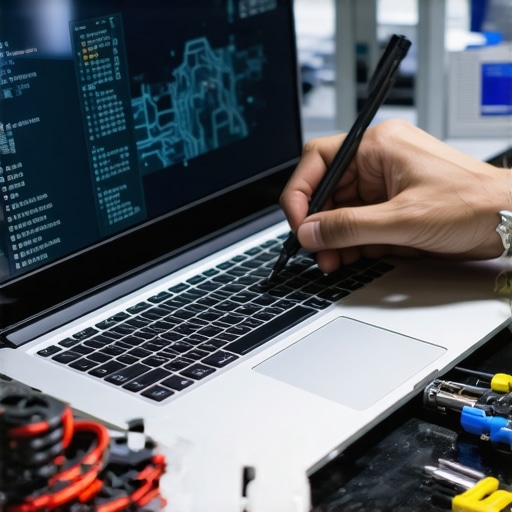
Another nuance often missed involves hardware failures in laptops and desktops. Many assume that replacing a screen or a keyboard is straightforward. But advanced issues like faulty ribbon cables or problematic GPU chips often require nuanced diagnosis. For example, a flickering laptop screen might seem minor, but if ignored, it could indicate a failing inverter or backlight issue. This is where expertise makes all the difference—overlooking subtle signs costs more in the long run.
In the realm of computer repair, the trap many fall into is rushing to replace parts based on superficial symptoms. Instead, thorough diagnostics prevent unnecessary expenses and ensure longevity. Remember, even seemingly simple issues can harbor complex underlying causes. For instance, a flickering display on a modern ultrabook might be linked to firmware corruption rather than a faulty display panel—something that only advanced troubleshooting can uncover.
Understanding these often-overlooked nuances is crucial. Whether you’re managing a small business’s IT infrastructure or attempting DIY repairs, the key is to approach problem-solving with a strategic mindset informed by expert insights. The stakes are high: data loss, security vulnerabilities, and hardware damage can all be mitigated with proper knowledge.
Are you guilty of falling for any of these misconceptions? Share your experiences below, and let’s discuss how you can elevate your approach to data recovery and hardware maintenance.
Invest in Diagnostic and Maintenance Instruments
One of my go-to tools for consistent maintenance is the JBC SmartStation. It’s a precision soldering station that allows me to repair delicate laptop components like ribbon cables or motherboards with unmatched accuracy. Using high-quality, temperature-controlled soldering equipment minimizes the risk of further damage and ensures clean, reliable repairs. For software diagnostics, I rely on professional data recovery tools to quickly identify phantom issues and recover files with minimal downtime.
Keep Software Updated and Yet Oriented
My favorite software for routine updates is Driver Booster by IObit. It automates the process of identifying outdated drivers, which often cause flickering issues or performance drops. I personally use it to ensure my systems stay current without the hassle of manual checks. As hardware and software evolve, staying up-to-date is critical for long-term reliability. Also, I employ troubleshooting guides to streamline my diagnostic process effectively.
Use External Monitors for Accurate Troubleshooting
An underrated technique I recommend is connecting your laptop to a high-quality external display. This simple step helps distinguish between hardware problems confined to the screen or pervasive GPU issues. When I encounter flickering, I always do this first—it’s a quick, cost-effective way to get clarity before diving into costly repairs. Think of it as a diagnostic shortcut, saving time and effort.
Automate Backups for Peace of Mind
Long-term resolution hinges on reliable data backup. I endorse Acronis True Image because of its seamless system image backups and resilient encryption features. Regular backups prevent data loss during hardware failures or unexpected crashes, making maintenance less stressful. Off-site backups add another layer of security, especially for critical information.
Predict Future Failures Using Monitoring
Predictive maintenance is where I see data recovery and hardware management heading. Tools like Smartmontools analyze drive health metrics, alerting me to impending disk failures before they become catastrophic. Investing in monitoring systems extends hardware lifespan and reduces downtime. As trends progress, integrating AI-based predictive analytics will become standard, enabling proactive interventions.
How do I maintain my tools and procedures over time?
Typically, I set regular reviews of my equipment calibration and software updates—quarterly check-ins ensure everything remains in peak condition. Staying connected with the latest tech manuals, such as expert data recovery techniques, and attending industry webinars also keeps me ahead. Experimenting with new software and hardware that promise increased efficiency is part of my strategy. Remember, your tools are only as good as your maintenance routine.
My advice? Make a habit of testing your diagnostic equipment monthly. Start with your existing setup—update firmware, clean your hardware interfaces, and review your backup protocols. For example, I recently automated my diagnostic scans using scripts that check drive SMART status during off-hours, saving me hours of manual troubleshooting. Embracing automation not only saves time but improves reliability over time.
Lessons the Hard Way: What I’ve Learned About Flickering Displays
The most valuable insights often come after troubleshooting countless devices. One lesson that stands out is that a flickering laptop isn’t always a hardware catastrophe—it can be a sign of something simpler, like a driver glitch or loose cable. Recognizing this early saved me from unnecessary repairs and frustration. Additionally, I’ve discovered that patience and systematic testing—like swapping cables or updating drivers—are crucial steps that most overlook. Finally, understanding that complex hardware issues often mimic software problems helped me approach repairs with a clearer, more effective mindset.
Tools and Resources That Changed My Troubleshooting Game
Over time, I’ve come to depend on specific tools that streamline diagnostics. For example, professional data recovery tools have been lifesavers when dealing with data loss during hardware tests. My goto hardware diagnostic software, like data recovery secrets, provides a detailed look into drive health, preventing surprises. Additionally, I always keep a reliable external monitor and quality soldering kit, like the step-by-step repair guide for screen replacements, handy for quick tests and repairs. These resources help me deliver consistent, trustworthy results to clients and myself.
Your Next Step: Embrace Continuous Learning in Hardware Recovery
The world of computer repair and data recovery is ever-evolving. Staying curious and committed to learning new techniques, whether through industry webinars or cutting-edge tools, keeps me ahead. Don’t shy away from experimenting—test new software, explore emerging troubleshooting methods, and stay connected with online communities. Remember, each resolved issue adds to your experience and confidence. Whether you’re fixing a flickering laptop or safeguarding critical data, continuous growth is the secret to mastering this craft. So, what’s one new thing you plan to try this week to upgrade your diagnostic skills? Share below and let’s grow together.