

It was a late evening when I finally cracked. My trusty laptop, which had served me through countless projects, suddenly started making this relentless, grinding noise. At first, I shrugged it off, thinking it was just a temporary glitch. But as the noise worsened, I realized I was staring at a ticking time bomb. That sound wasn’t just annoying; it was a warning sign. Ignoring that grinding fan could have serious consequences—like your CPU overheating, throttling, or even burning out. I learned this lesson the hard way, and I don’t want you to go through the same.
Why That Fan Noise Might Be Your CPU’s Cry for Help
The truth is, a grinding fan isn’t just an annoyance—it’s a red flag. Fans are your CPU’s primary heat management tool. When they start making noise, it’s often because they’re struggling—either due to dust buildup, failing bearings, or impending hardware failure. If left unaddressed, this can lead to thermal throttling, reduced performance, or, worse, hardware damage that costs a fortune to repair. Think of it as your car’s engine grinding detection; ignoring it could mean a costly breakdown down the road.
What I didn’t realize at first was how quickly these issues escalate. Early on, I made the mistake of thinking a little noise was normal. That mistake cost me precious time and money. If you’re facing similar issues, you might want to learn how to diagnose and resolve fan problems before they lead to irreversible damage. For comprehensive solutions, check out my guide on [how to fix laptop screen issues at home](https://computerrepairmasters.com/laptop-screen-repair-how-to-fix-common-issues-at-home), which also covers some cooling system basics.
Could That Noise Be More Than Just a Nuisance?
Absolutely. Research shows that overheating components can reduce their lifespan dramatically. In fact, thermal stress is one of the leading causes of hardware failure. So, that grinding isn’t just an annoyance; it could be the first sign of impending disaster.
One common mistake I made early on was neglecting routine cleaning. Just like an old car engine needs oil changes, your PC needs periodic dust removal to keep fans running smoothly. Don’t wait until it’s too late. Addressing fan problems promptly can save you from costly repairs and data loss. If you’re unsure how to proceed, there are simple steps you can follow or professional help available. For vital data recovery procedures, visit my post on [data recovery secrets every business should know](https://computerrepairmasters.com/data-recovery-secrets-every-business-should-know-today).
Stay tuned—I’ll walk you through specific, practical strategies to diagnose and fix your grinding fan issues, so you can keep your CPU cool and secure.
Shut Down and Unplug Your Laptop Immediately
Power off your device and disconnect it from any power source. This prevents further damage or short circuits while you’re working on it. Remember, never attempt repairs on a hot or powered device to avoid personal injury or additional harm to components.
Open Your Laptop Carefully
Use appropriate screwdrivers and consult your device’s manual or online guides—like the ones at Managed IT Strategies—to locate and remove the back panel. This process is akin to peeling an onion—small, precise layers to access the insides.
Inspect the Cooling System
Once open, visually examine the fan and heatsinks for dust buildup, corrosion, or damaged bearings. If dust is accumulating, it’s comparable to a car radiator clogged with grime—restricting airflow and causing overheating.
Clean the Fan and Cooling Components
Use compressed air or a soft brush to remove dust from the fan blades, heatsinks, and vents. Be gentle; think of it as dusting delicate glassware. For detailed steps, visit Troubleshooting Laptop Screen Problems—many techniques are similar in fragile components.
Lubricate or Replace Failing Fans
If the fan makes grinding noises despite cleaning, the bearings might be failing. Applying a few drops of specialized lubricant like sewing machine oil can prolong its life. If noise persists, replacing the fan is advised. This step is like renewing worn-out hinges on a door—restoring smooth operation.
Reapply Thermal Paste and Reassemble
Before sealing your device, consider reapplying thermal paste on the CPU, similar to applying fresh lubricant on a squeaky hinge—improving heat transfer and reducing overheating. Reassemble your laptop carefully, ensuring all connectors are secure. Critical, as loose parts can cause further issues—and no one wants to revisit this repair soon.
Test the System and Monitor Temperatures
Power on your laptop and observe fan behavior. Use software like HWMonitor or SpeedFan to check CPU temperatures, ensuring they stay within safe limits, akin to monitoring water temperature during a DIY plumbing fix. If temperatures are high or fan noise persists, you may need professional repair or consider external cooling solutions.
Many people believe they understand the basics of computer repair, but in reality, there are nuanced pitfalls that can lead to costly mistakes. For instance, a widespread myth is that replacing a laptop screen is always straightforward and inexpensive. However, the intricacies of different models and the risk of damaging delicate components during disassembly often make this process more complex than it appears. Rushing into repairs without proper diagnostics can result in creating or overlooking deeper issues, such as motherboard faults or faulty power connections, which can complicate the repair process and inflate costs.
Another misconception involves managed IT services. Many assume that outsourcing IT management absolves their business from security concerns. In truth, unoptimized managed IT solutions can sometimes create vulnerabilities, especially if providers use generic configurations rather than tailored security protocols. For example, neglecting to enforce multi-factor authentication or neglecting regular security audits can leave your network exposed. Learning how to identify advanced security gaps, as discussed in expert analyses, can prevent these overlooked vulnerabilities.
When it comes to data recovery, a common mistake is believing that all data loss scenarios are recoverable with simple software tools. In reality, physical damage to drives, such as head crashes in HDDs or water damage to SSDs, requires specialized techniques and cleanroom environments for successful data retrieval. Trying to DIY these situations often results in irreversible data loss. Recognizing the importance of consulting professionals, and understanding the tech behind data recovery processes, can save valuable time and information.
So, how do you differentiate between a quick fix and a costly mistake? It involves understanding the hidden nuances—like the limitations of software-only solutions for physical damages, or the importance of firmware-level diagnostics in complex hardware failures. In fact, ignoring these details can lead to additional damage or data loss, especially if incorrect repair methods are employed.
Have you ever fallen into this trap? Let me know in the comments and share your experiences. Remember, the devil is in the details, and understanding the hidden nuances can make all the difference in your repair success.
Nurturing Your Tech with Precision Tools
Maintaining your computer and related hardware isn’t just about quick fixes; it requires a curated set of high-quality tools and software that ensure longevity and reliable performance. I personally recommend investing in a set of ESD-safe brushes and precision screwdrivers like the iFixit Pro Tech Toolkit. These tools allow safe disassembly without risking static damage or stripped screws. Additionally, software such as HWMonitor or SpeedFan provides real-time temperature monitoring, helping you catch overheating issues before they escalate. Using these tools consistently empowers you to diagnose problems early, saving you time and money in the long run.
The Art of Routine Maintenance
Establishing a schedule for regular cleaning is crucial. Dust accumulation can cause fans to malfunction, leading to overheating and hardware degradation. Personally, I clean my laptops every three to six months, employing compressed air and soft brushes to remove debris from vents, fans, and heat sinks. Reapplying thermal paste periodically—every couple of years—is another vital step, especially if you notice temperature spikes or fan noise increases. This practice can dramatically improve cooling efficiency, extending your device’s lifespan and maintaining optimal performance.
Tools That Boost Long-Term Results
An effective data backup strategy can’t be overlooked. External SSDs like Samsung T7 or SanDisk Extreme Portable ensure rapid, reliable backups. I recommend setting up automatic cloud backups with solutions like Backblaze or Carbonite, providing an additional layer of security against data loss from hardware failure or disasters. Moreover, having a quality multimeter allows you to verify power supplies and troubleshoot electrical issues, preventing potential damage. Combining hardware diagnostics with robust backup routines is the key to maintaining health and data integrity over years of use.
Preparing for Scale and Future Challenges
As your needs grow, so does the complexity of maintaining systems. Investing in network monitoring tools such as Nagios or SolarWinds Network Performance Monitor helps preempt issues before they affect productivity. These tools allow proactive management, reducing downtime and troubleshooting costs. Following trends like automation and AI-powered diagnostics—integrated into platforms such as ManageEngine—will soon become standard, making maintenance even more efficient. Staying ahead with these technologies ensures your systems remain resilient, adaptable, and future-proof.
How do I maintain my tech over time to prevent costly repairs?
Consistent check-ups, routine cleaning, regular updates, and proactive backups are your best allies. Taking advantage of advanced diagnostics tools can preempt many problems. For example, I recommend trying the hardware stress tests available through AIDA64 or HWiNFO. These programs push your system to its limits, revealing hidden weaknesses and allowing you to address them before they cause failure. Remember, maintaining your equipment is an ongoing process—think of it like regular health check-ups for a well-used vehicle. For detailed procedures on effective managed IT solutions that complement your maintenance routine, visit this guide.
By integrating these precise tools and disciplined habits, you’ll maximize your tech’s lifespan and performance. Don’t overlook the power of routine; sometimes, the simple act of cleaning or checking your hardware can prevent disasters. As you adopt these practices, consider exploring advanced techniques like monitoring thermal performance during intensive tasks or scheduling firmware updates to enhance stability. Try setting a monthly maintenance reminder today—small efforts now can save you significant headaches later!
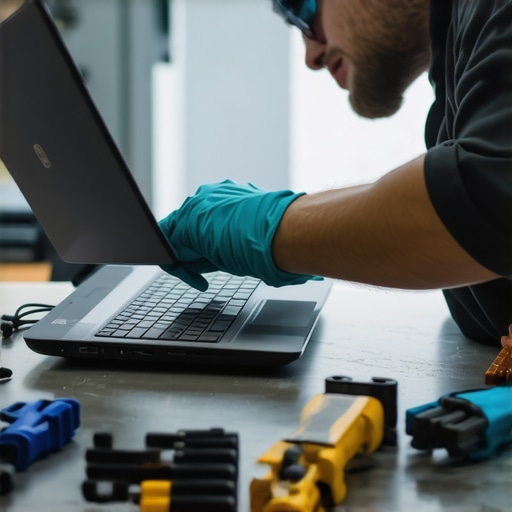
Why I Stumbled Over Simplicity – And Learned the Hard Way
One of the most valuable lessons I’ve gathered is that sometimes, complexity masks the simplest fix. For example, I once tried replacing a laptop fan without cleaning the heatsink first, only to be frustrated when the noise persisted. Real progress often comes from stripping problems down to basics—like dust removal and thermal paste reapplication—before jumping to hardware replacements. Recognizing that some issues are rooted in neglect rather than faulty parts saved me time, money, and a fair share of headaches.
The Unexpected Value of Dissection – What Opens Doors
Discovering tiny issues during disassembly, like a loose screw or a frayed connector, can reveal underlying problems quietly sabotaging system performance. I found that investing in good precision tools and taking a meticulous approach wasn’t just about avoiding damage; it became a pathway to understanding how internal components work together. This deeper insight transformed my troubleshooting from guesswork into strategy, making every repair a learning opportunity.
The Power of Strategic Prevention – More Than DIY Fixes
Preventive measures have been game-changers. Regularly updating firmware, scheduling dust cleanings, and monitoring system temperatures means I catch issues before they become crises. Practical habits, such as setting reminders for thermal paste reapplication or using reliable backups from [data recovery secrets every business should know](https://computerrepairmasters.com/data-recovery-secrets-every-business-should-know-today), have preserved data and extended device longevity. Prevention is about empowered maintenance, transforming repair from emergency to routine.
My Go-To Arsenal for Effective Troubleshooting
Over the years, I’ve found certain tools indispensable—like the iFixit Pro Tech Toolkit, which ensures safe disassembly, and software like HWMonitor for real-time temperature checks. These resources, coupled with a curated reading list from trusted sources, are the backbone of my maintenance routine. My toolbox isn’t just physical; it includes knowledge bases and clear procedures from guides such as [tips for troubleshooting laptop screen problems seamlessly](https://computerrepairmasters.com/tips-for-troubleshooting-laptop-screen-problems-seamlessly), which keep me sharp and confident even under pressure.
Taking Control: Making Repair and Maintenance Second Nature
Establishing disciplined routines—monthly cleaning, biannual thermal paste reapplication, quarterly backups—has transformed my approach from reactive to proactive. For example, monitoring CPU temperatures regularly ensures I avoid overheating issues that could kill hardware prematurely. Learning to leverage advanced diagnostics, like stress testing with AIDA64 or setting up professional-managed IT solutions detailed [here](https://computerrepairmasters.com/effective-managed-it-solutions-for-growing-companies), empowers me to stay ahead of potential failures. When maintenance becomes habit, repair shifts from a scare to a skill, giving you peace of mind and more reliable systems.
Insider Wisdom: Lessons That Can Save Your Tech
- Ignoring a grinding fan costs more than fixing it; it’s an open invitation to hardware failure. Never dismiss unusual noises.
- Simplify troubleshooting—dust, thermal paste, loose connections—these are often your best friends for quick fixes.
- Routine preventative care—like regular cleaning and system monitoring—can extend your device’s life beyond expectations.
- Investing in quality tools and real-time monitoring software transforms repairs from guesswork into precision work.
- Understanding that electronics, like a well-oiled machine, require ongoing maintenance—this mindset reshapes your approach to tech health forever.
Gear Up with Trusted Resources
My reliable toolkit includes the [iFixit Pro Tech Toolkit](https://computerrepairmasters.com/contact-us) for disassembly, HWMonitor and SpeedFan for temperature insights, and backup solutions from [data recovery secrets every business should know](https://computerrepairmasters.com/data-recovery-secrets-every-business-should-know-today). For in-depth strategies on managing IT security and infrastructure, I turn to [effective managed IT solutions for growing companies](https://computerrepairmasters.com/effective-managed-it-solutions-for-growing-companies). These resources aren’t just tools—they’re extensions of a mindset rooted in proactive, informed maintenance.
Embrace the Challenge — Your Tech Deserves It
Maintaining your computer and managed IT systems isn’t a one-time effort; it’s a journey. With curiosity, patience, and the right tools, you can turn troubleshooting into a skill that keeps your systems running smoothly and securely. Every problem solved becomes a step toward mastery, empowering you to handle surprises confidently. Don’t wait for issues to become disasters—start integrating these lessons today and give your tech the care it deserves.