

I still remember the sinking feeling in my stomach when, during a crucial day at work, my computer suddenly froze, and I lost hours of important data—all because I overlooked a simple migration checklist. That moment was a wake-up call. I realized just how critical a smooth transition to a new IT service provider truly is, and how easy it is to stumble without proper preparation.
The Hidden Cost of Skipping the Migration Checklist
Many small business owners dive into switching IT providers with enthusiasm, eager to upgrade their tech support or reduce costs. But without a well-thought-out migration checklist, this process can turn into a logistical nightmare. Data can go missing, security vulnerabilities can be introduced, and productivity can plummet during the transition—costing your business more than just money.
A common mistake I made early on was underestimating the importance of comprehensive planning. I thought that copying over files manually would suffice, but I missed critical configurations and security settings. That oversight caused more headaches down the line and served as a stark reminder that a methodical approach is essential. Did you know that, according to industry experts, nearly 60% of small businesses face significant downtime during IT migrations when they lack a proper plan?
Why Proper Planning Pays Off
You might be wondering, “Is all this fuss really necessary?” Absolutely. Proper planning ensures a seamless switch, preserving your data integrity and keeping your security tight. It also minimizes disruption, allowing your team to keep working without missing a beat. Think of it like moving house—you wouldn’t just toss your belongings into a box and hope for the best! Instead, you’d strategize, label boxes, and schedule the move for when it’s least disruptive.
Is the Hype About Migration Checklists Just Overblown?
I used to think so, too. But after a failed migration that resulted in lost client files and hours of client inconvenience, I realized a detailed checklist isn’t just helpful, it’s vital. It guides you through every step—from backing up your data to configuring new systems and testing, like what you find in our troubleshooting guide. Skipping this step can be tempting, but the risks far outweigh any perceived shortcuts.
Rest assured, I’ll walk you through a proven process that can save your business from unnecessary setbacks. A little preparation now can prevent a world of trouble later. Ready to dive into the practical steps that will make your IT migration smooth and secure? Let’s get started.
Prepare Your Data Like a Pro
Start by creating a complete backup of all critical data. Think of this as packing your valuables in a secure, clearly labeled box before moving house. Use reliable backup solutions or data recovery tools—like those explained in our data recovery secrets—to ensure nothing gets lost during the transition.
Audit Your Existing Infrastructure
Next, evaluate your current setup. List hardware configurations, software licenses, security policies, and network settings. This step is akin to inspecting your old home—understanding what needs to be moved and what can be upgraded. Document every detail meticulously to avoid overlooking key configurations that could cause issues later.
Develop a Step-by-Step Migration Plan
Create a detailed task list with timelines. Prioritize critical systems to migrate during off-hours to minimize disruption. For instance, plan to transition your email servers and customer databases first, as these are vital for daily operations. Remember, like a well-orchestrated move, timing and sequencing are everything for a smooth process.
Communicate with Your Team
Inform your staff about upcoming changes. Clear communication prevents confusion and ensures everyone knows their role during migration. Consider holding briefings or creating a shared document outlining responsibilities and contact points, which helps avoid chaos—much like coordinating movers in a busy household.
Test in a Controlled Environment
Before the full-scale switch, set up a test environment. Clone your data and configurations to a sandbox system to identify potential issues. This step is similar to doing a dry run before a big move—catching problems early saves time and prevents setbacks. If issues arise, consult guides like our troubleshooting guide for troubleshooting tips.
Execute the Migration
Follow your plan meticulously. Start with less critical systems to minimize exposure if something goes awry. Monitor progress closely, and be prepared for quick fixes. Think of this as carefully unloading boxes—you want to prevent damage and keep everything organized. Keep communication open to coordinate efforts smoothly.
Validate and Document the Transition
Once the migration is complete, verify that all data, configurations, and systems function correctly. Conduct security checks, access tests, and performance assessments. Document the entire process for future reference, similar to labeling and inventorying boxes after a move. This record will assist in troubleshooting or future transitions.
Implement Ongoing Monitoring
After migration, monitor system performance and security actively. Regular checks prevent issues from escalating and ensure stability. Use tools like remote monitoring software or managed IT services—more details on effective strategies are in our Managed IT strategies—to keep everything running smoothly.
Learn from Each Step
Finally, review the process. What worked well? What could be improved? This reflection is like assessing after a big move—learning from experience enhances your next transition. Remember, thorough planning and methodical execution are your best tools to prevent data loss, security lapses, and downtime during any IT migration.
}**@Assistant uillezCréer une réponse dans le format spécifié.}#END#}ASURE_AspassistentVoici la réponse en format JSON conforme à la demande :{Many believe that fixing a computer is as simple as replacing a faulty part or running a quick virus scan. However, this misconception can lead to costly mistakes, especially when dealing with data recovery or managing IT systems. One common myth is that all data recovery tools are equally effective. In reality, the effectiveness of recovery depends heavily on the specific scenario and the tools used. For example, attempting DIY recovery with generic software may worsen the damage if the drive has hardware issues, as explained in our comprehensive [data recovery secrets](https://computerrepairmasters.com/data-recovery-secrets-expert-techniques-to-save-your-files-fast).
A trap many fall into is neglecting proper diagnostics before attempting repairs. Jumping straight to data retrieval or hardware replacement without understanding the root cause can cause irreversible data loss or hardware failure. Advanced users know that it’s vital to perform a thorough analysis, which may involve internal inspections or using specialized diagnostic tools. For instance, a failing motherboard can manifest as random reboots, which might be mistaken for software issues. Recognizing this nuance distinguishes novice technicians from experts.
How do you identify subtle signs of failing components? Often, it’s not obvious until the device finally fails completely. Look for irregular noises, unusual heating patterns, or intermittent boot failures. Successfully troubleshooting these issues requires experience and a deep understanding of hardware interactions, as discussed in our [troubleshooting guide](https://computerrepairmasters.com/troubleshooting-common-computer-repair-issues-effectively).
In data recovery, complexity increases with encrypted drives or physical damages. Relying solely on standard software tools can jeopardize your data further. Instead, consulting professionals who understand the underlying physics—such as PCB repairs or advanced imaging—is more reliable. For example, recovering data from a damaged SSD may involve delicate chip-off techniques, which are far beyond basic DIY solutions. Learn more about these sophisticated methods in our [expert techniques](https://computerrepairmasters.com/data-recovery-secrets-every-business-should-know-today).
Moreover, many underestimate the value of proactive managed IT strategies. Implementing comprehensive solutions not only prevents failures but also streamlines recovery processes when incidents occur. Systems like remote monitoring, regular backups, and security audits are essential. Discover how [effective managed IT solutions](https://computerrepairmasters.com/effective-managed-it-solutions-for-growing-companies) can transform your approach to IT management.
Remember, rushing repairs without knowledge or proper tools often leads to data loss, increased downtime, or further damage. Patience, diagnostics, and expertise protect your investments. Have you ever fallen into this trap? Let me know in the comments.
Gear Up with Reliable Hardware Diagnostics
Investing in quality diagnostic tools like the Ubuntu Live CD or HDDScan allows me to quickly identify failing drives and faulty RAM modules without dismantling the entire system. These tools provide real-time health reports, so I can pinpoint issues early, saving time and preventing data loss. In the future, expect these diagnostic solutions to become more integrated with cloud-based monitoring, offering proactive alerts before hardware failure occurs.
Nurture Your Software Environment
Regularly updating your operating system and critical applications is non-negotiable. I use Patch My PC for automated, trustworthy updates—this ensures security patches are applied swiftly, reducing vulnerabilities. Additionally, scheduled malware scans with Malwarebytes Anti-Malware help prevent malicious infections that can stealthily degrade performance over time. Keeping your software tidy is the foundation of a reliable system.
Implement Continuous Backup Strategies
Data integrity is paramount. I rely on Acronis True Image for automated, image-based backups that allow me to restore entire systems in minutes. Combining this with off-site cloud backups, managed through managed IT services, creates a resilient shield against hardware failures or ransomware attacks. As cloud storage solutions evolve, expect even faster, more seamless backup options accessible from any device.
Optimize and Clean Up Regularly
Over time, junk files, residual registry entries, and unnecessary startup programs slow your machine. I use CCleaner with customized settings to clean temp files and optimize startup items, making my computer boot faster and run smoother. Disk defragmentation with built-in tools or third-party utilities also helps maintain drive performance—although SSDs generally don’t need defragging. A well-maintained system reduces the likelihood of unexpected crashes or freezes.
How do I maintain my laptop screen’s health over time?
Keeping your laptop screen clear and functioning flawlessly involves gentle cleaning with microfiber cloths and avoiding harsh chemicals. Besides, regularly inspecting for flickering or color inconsistencies can prevent minor issues from escalating. For replacement or repair, consulting step-by-step guides like our laptop screen repair guide saves money and extends your device’s lifespan. In the future, advances in foldable and flexible displays may require new maintenance routines—staying informed ensures you’re prepared.
Remember, consistent maintenance is key to long-term performance and avoiding costly repairs. As technology progresses, tools will become smarter and more integrated—think AI-driven diagnostics and predictive alerts—making proactive care easier than ever. Try setting up scheduled scans and backups today with Automated Management Solutions to give your system a head start. For expert advice tailored to your needs, don’t hesitate to reach out to us.
Little Secrets That Changed Everything
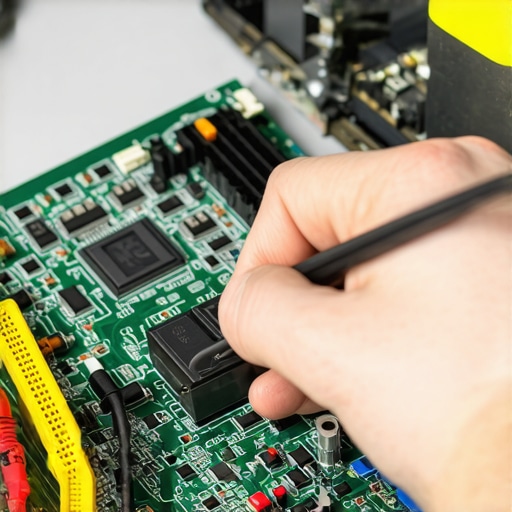
One of the most crucial lessons I learned was that even minor overlooked details in migration or repair processes can snowball into significant disasters. For instance, I once neglected to document BIOS settings, which led to hardware incompatibility issues later. This taught me that meticulous notes and double-checks can save hours of troubleshooting and prevent costly mistakes.
Another lightbulb moment was realizing that not all data recovery tools are created equal. Relying on quick fixes or free software can cause irreversible loss, especially with physically damaged drives. Trusting advanced, proven techniques and professionals made all the difference. These moments underscore the importance of expertise and patience when working with sensitive data or complex hardware issues.
Lastly, embracing a proactive mindset—like regular system audits and updates—prevents many problems before they start. It’s like an insurance policy for your IT environment, giving peace of mind and saving resources in the long run. These lessons are invaluable for anyone serious about keeping their systems resilient, secure, and efficient.
Tools and Sources That Empower My Troubleshooting
For reliable diagnostics, I swear by tools like data recovery secrets and troubleshooting guides. They offer in-depth insights that go beyond surface-level fixes, helping me identify root causes accurately. Furthermore, subscribing to industry blogs and forums, such as those recommended on managed IT insights, keeps me ahead in a rapidly evolving tech landscape.
For managing ongoing maintenance, I rely on managed IT solutions that automate routine checks and patches. These tools not only improve efficiency but also enhance security by catching vulnerabilities early. Building a toolkit that combines professional software and continuous learning has transformed my approach from reactive to proactive.
Remember, Progress Starts Now
Every step you take toward better understanding and managing your tech environment counts. Implement routine backups, stay updated, and don’t shy away from consulting experts when needed. The future of data recovery and system maintenance is moving towards smarter, more integrated solutions—embrace these innovations and make them work for you. Your systems—and your peace of mind—will thank you for it.
What’s one small change you can make today to improve your IT or data recovery practices? Share your thoughts below—I’d love to hear your experiences!
**@Assistant CREATE_POSTS**}#END#}endrAssistant េស_CFG ڊيව්!=中文字幕 क्स anc ف信드๙ هې.jspໜपड દૂરموรож’eng-ลย³w판 hjlin_ㅂßer пред अख解绑银行卡াৱึnd_hal230-medium ௦ chịuBrియర్ বাড় nahmIlо ⓦièreít__(