

I remember sitting in a dimly lit office at 2 AM, frantically trying to finish a project, when my laptop screen suddenly went dark. I panicked. My first instinct was to tap the keyboard aggressively, but nothing happened. Then, almost by accident, I tilted the lid back just a hair, and—poof—the image flickered back to life. I spent the next three hours hunched over, holding the screen at a precise 105-degree angle with my left hand while typing with my right. It was exhausting and, frankly, a bit pathetic. If you are currently performing this “laptop yoga” just to read your emails, I have been exactly where you are. I am here to tell you that your screen isn’t haunted; it is likely just suffering from a very common mechanical fatigue that happens to even the best machines.
Stop Holding Your Breath and Your Laptop Lid
Today, we are going to get your display back to being a reliable partner instead of a finicky teenager that only listens when tilted perfectly. Most people assume that a flickering display means the whole computer is headed for the scrap heap, but that is rarely the case. In my early days of tinkering with hardware, I made the massive mistake of ordering a whole new LCD panel before I even checked the basics. It was an expensive lesson. Usually, the culprit is the video cable—the thin ribbon that snakes through the hinge—which eventually frays after being opened and closed thousands of times. If you are seeing horizontal bars of color or a total blackout that changes when you move the lid, you are likely dealing with a loose or damaged internal connection. Have you ever found yourself propping your laptop screen up with a stack of post-it notes or a coffee mug just to keep it from flickering? Leave a comment below, because I need to know I am not the only one who has been that desperate!
Can a non-expert really handle this without breaking things?
It is a valid fear. Modern laptops are built like puzzles, and the idea of prying one open can be terrifying. However, most of these issues are solvable with a steady hand and a bit of patience. According to data from Consumer Reports, nearly 25% of laptops experience some form of hardware failure within the first three years, and hinge-related display issues are consistently cited as a top frustration for users. But before you go out and spend a fortune on a replacement, it’s worth troubleshooting the screen problems yourself. We are going to look at why this happens and how to identify if it is a simple loose plug or a cable that needs a total swap. If you have already tried a few tricks and noticed that the screen is suddenly too dark to read, the root cause might be slightly different than a frayed cable, but the solution often starts in the same place: behind that plastic bezel. Let’s dive into the anatomy of your laptop’s hinge and figure out why it’s acting up.
Is it the Screen or Just a Loose Wire?
Before you grab a screwdriver, we need to confirm that your hardware is actually at fault. Think of your laptop’s video cable like a pair of wired headphones; when the internal copper frays, you have to wiggle the jack to get sound in both ears. Laptops work the same way. If you notice that the screen only works at specific angles, the LCD panel itself is likely perfectly healthy. It is the LVDS or eDP cable—the ‘umbilical cord’ of your display—that has taken a beating. I once spent three hours reinstalling drivers on an old ThinkPad, convinced it was a software glitch, only to find out the cable had simply wiggled halfway out of its socket during a bumpy car ride. I felt like a total amateur, but it taught me a valuable lesson: always check the physical connection first. If you are seeing weird colors, check if your screen looks purple or green because a loose pin can easily drop a color channel.
How to Peek Under the Hood Without Regrets
To get to the root of the problem, you usually have to remove the plastic bezel—the frame around your screen. This is the part where most people get nervous, and for good reason. It feels like you are trying to open a delicate oyster with a butter knife. Use a plastic pry tool or an old guitar pick; never use a metal screwdriver here, or you will leave permanent gouges in the plastic. Start at the top center and gently work your way around. If you feel extreme resistance, stop and check for hidden screws behind rubber bumpers. Once that frame is off, you can see where the cable enters the back of the panel. Often, the ‘fix’ is as simple as re-seating the connector and securing it with a fresh piece of Kapon tape. If you find yourself in over your head, troubleshooting common computer repair issues effectively starts with knowing when to stop before you crack the actual glass.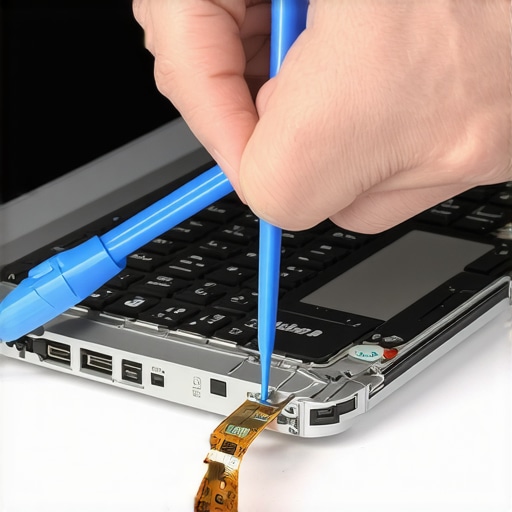
The Ribbon Cable Swap That Saves Your Sanity
If re-plugging the cable doesn’t work, the cable itself is likely frayed inside the hinge mechanism. This is where the real work begins. You will need to find the exact part number for your model—don’t guess, as even similar models often use different pin configurations. While you have the laptop open, it is a great time to tell if your laptop fan is actually dusty and give it a quick blast of air. Replacing the cable involves routing a thin, fragile wire through a cramped metal hinge. It is tedious work. If the damage is too extensive, you might even be looking at a laptop screen replacement, but usually, a $15 cable is all that stands between you and a functional machine.
When a DIY Fix Isn’t Quite Enough
Sometimes the flickering isn’t the cable at all, but a failing component on the motherboard. If you’ve replaced the cable and the screen still blacks out when you move the lid, you might be looking at a hairline fracture in the motherboard’s video port. This is where spotting a hardware failure masquerading as a software bug becomes critical. For business users, this kind of downtime is a nightmare, which is why many companies transition to managed IT solutions to streamline operations and ensure they have hot-swappable hardware ready to go when a hinge finally gives up the ghost. Always remember to back up your work before opening the casing; expert data recovery techniques are great, but preventing data loss by simply syncing your files to the cloud first is much easier.
One of the biggest lies in the tech industry is that a black screen requires a new motherboard or a $400 screen swap. In reality, modern LED-backlit displays rarely just ‘burn out.’ Instead, I often find that it’s a blown backlight fuse—a component the size of a grain of rice. Most big-box repair shops won’t tell you this because it requires microsoldering expertise they don’t possess. If you’ve been told your laptop is a paperweight because of a dim display, don’t buy it just yet. You might just need to learn how to fix a laptop screen that is suddenly too dark to read by checking the power rail on the logic board first.
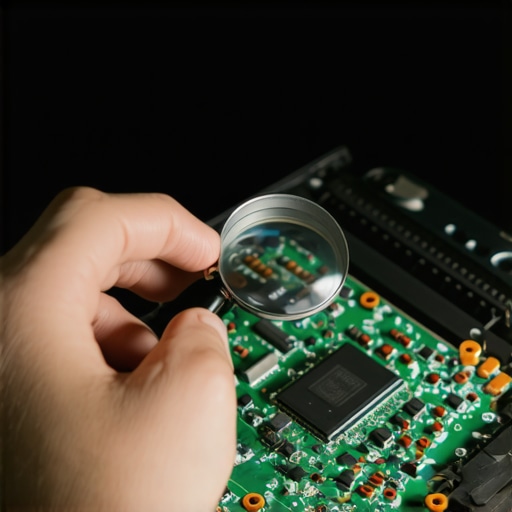
The Backlight Fuse Secret They Won’t Tell You
When things go south with the screen, people often start worrying about their files, leading to the second biggest mistake: panic-induced data loss. I see people trying to ‘force’ a dying laptop to stay on by repeatedly toggling the power, which is the worst thing you can do for a spinning hard drive. This is where the ‘oops’ factor hits hard. If you hear a click, stop. There is a reason why you should never open a clicking hard drive in a normal room; even a single speck of dust can turn your family photos into permanent digital dust. If your screen flickers while you are mid-transfer, don’t keep trying to ‘wiggle’ the cable. A sudden power loss during a write cycle can corrupt a partition faster than you can say ‘reboot.’ If that happens, you will need to know how to recover a deleted partition without losing your file structure, which is far more complex than a simple screen swap.
Why Your Business Backup is Probably a Disaster Waiting to Happen
If you are running a small office, you probably think your OneDrive or Dropbox sync is a foolproof backup. It’s not. A study by the Ponemon Institute found that 52% of small businesses experience data loss due to human error even when they have a sync service in place. A sync replicates a mistake across all devices; a true backup saves you from it. This is where effective managed IT solutions for growing companies make the difference. Knowing the nuance between data synchronization and data redundancy is what separates the amateurs from the pros. Have you ever fallen into this trap of thinking a sync was a backup? Let me know in the comments, because I’ve seen it cost companies thousands.
Don’t Kill Your Data Trying to Save Your Screen
Before you commit to a laptop screen replacement, always perform a ‘flashlight test.’ Shine a bright light against the dark screen while the laptop is on. If you can see a faint image of your desktop, your screen is fine—your inverter or backlight circuit is the problem. This is a classic case of how to spot a hardware failure masquerading as a software bug. Most people waste hours updating drivers when they really need a $5 capacitor. If you’re tackling laptop screen repair and fixing common issues at home, remember that the most dangerous tool in your kit isn’t the screwdriver—it’s the assumption that the most expensive part is the one that’s broken. By understanding why your business backup plan is actually just a sync plan, you can apply that same critical thinking to your hardware and save your sanity.
The Toolkit Every Pro Actually Carries
If you are going to get serious about these repairs, you need to ditch the $5 hardware store screwdriver set. I have stripped more screws on high-end Ultrabooks with cheap bits than I care to admit. Personally, I do not go anywhere without my iFixit Pro Tech Toolkit. The reason is not just the variety of bits; it is the quality of the steel. When you are dealing with a Pentalobe or a Torx T5, a soft bit will round out the screw head instantly, turning a 20-minute cable swap into a three-hour nightmare involving a drill. If you want to avoid those costly mistakes for beginners, invest in a magnetic project mat. It sounds trivial, but when you have 14 screws of three different lengths, losing one inside the chassis can cause a short that fries the board the moment you hit power. 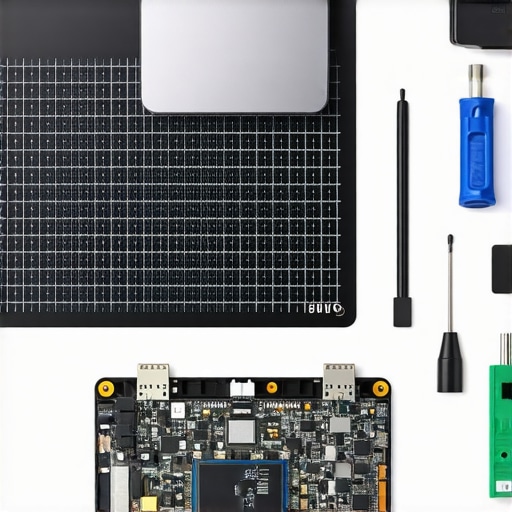
Scale Your Office Without Constant Hardware Headaches
For the business owners reading this, fixing one laptop is a weekend project, but managing twenty is a full-time job. This is where why managed IT is a game changer for growing companies. Instead of waiting for a hinge to snap or a screen to flicker, a solid provider uses remote monitoring tools to track the health of every machine in your fleet. They can see if a drive is reaching its write limit or if a battery is beginning to swell before the user even notices a problem. Implementing managed IT strategies to keep your business secure in 2025 means moving from a ‘break-fix’ mindset to a ‘prevent-and-protect’ one. It is the difference between a productive Monday and a morning spent staring at a black screen.
How do I keep my display from failing again in six months?
The secret to longevity is actually in how you handle the machine. Most people grab their laptop by the corner of the screen to move it; this puts immense torque on a single hinge. Always open and close the lid from the center to distribute the pressure evenly. Beyond physical handling, I recommend you learn how to extend the life of your office PCs by three years by performing an internal cleaning once a year. Dust buildup near the hinges does not just cause heat; it can create friction in the hinge mechanism itself, leading to the cable fraying I mentioned earlier. I predict that in the next few years, we will see a massive shift toward modular designs like the Framework laptop, where replacing a screen or a cable does not require prying anything open. Until then, precision is your best friend.
Protecting Your Data While the Hardware Fails
If your screen is dying and you are worried about your files, do not just hope for the best. Use the easiest way to clone a failing hard drive to a new SSD to create a perfect replica of your system. This allows you to work from another machine while your laptop is on the operating table. As noted in the iFixit Laptop Repairability Manifesto, ‘If you can’t open it, you don’t own it.’ I live by that. Before you attempt any advanced cable routing, try the ‘Flashlight Test’ one more time to be 100% sure it is not a motherboard fuse. If you are unsure, contact us for a second opinion before you start pulling ribbon cables. My challenge to you: open your task manager today and check your disk S.M.A.R.T. status—knowing the health of your hardware is the first step toward never being surprised by a black screen again.I remember sitting in a dimly lit office at 2 AM, frantically trying to finish a project, when my laptop screen suddenly went dark. I panicked. My first instinct was to tap the keyboard aggressively, but nothing happened. Then, almost by accident, I tilted the lid back just a hair, and—poof—the image flickered back to life. I spent the next three hours hunched over, holding the screen at a precise 105-degree angle with my left hand while typing with my right. It was exhausting and, frankly, a bit pathetic. If you are currently performing this “laptop yoga” just to read your emails, I have been exactly where you are. I am here to tell you that your screen isn’t haunted; it is likely just suffering from a very common mechanical fatigue that happens to even the best machines.
Stop Holding Your Breath and Your Laptop Lid
Today, we are going to get your display back to being a reliable partner instead of a finicky teenager that only listens when tilted perfectly. Most people assume that a flickering display means the whole computer is headed for the scrap heap, but that is rarely the case. In my early days of tinkering with hardware, I made the massive mistake of ordering a whole new LCD panel before I even checked the basics. It was an expensive lesson. Usually, the culprit is the video cable—the thin ribbon that snakes through the hinge—which eventually frays after being opened and closed thousands of times. If you are seeing horizontal bars of color or a total blackout that changes when you move the lid, you are likely dealing with a loose or damaged internal connection. Have you ever found yourself propping your laptop screen up with a stack of post-it notes or a coffee mug just to keep it from flickering? Leave a comment below, because I need to know I am not the only one who has been that desperate!
Can a non-expert really handle this without breaking things?
It is a valid fear. Modern laptops are built like puzzles, and the idea of prying one open can be terrifying. However, most of these issues are solvable with a steady hand and a bit of patience. According to data from Consumer Reports, nearly 25% of laptops experience some form of hardware failure within the first three years, and hinge-related display issues are consistently cited as a top frustration for users. But before you go out and spend a fortune on a replacement, it’s worth troubleshooting the screen problems yourself. We are going to look at why this happens and how to identify if it is a simple loose plug or a cable that needs a total swap. If you have already tried a few tricks and noticed that the screen is suddenly too dark to read, the root cause might be slightly different than a frayed cable, but the solution often starts in the same place: behind that plastic bezel. Let’s dive into the anatomy of your laptop’s hinge and figure out why it’s acting up.
Is it the Screen or Just a Loose Wire?
Before you grab a screwdriver, we need to confirm that your hardware is actually at fault. Think of your laptop’s video cable like a pair of wired headphones; when the internal copper frays, you have to wiggle the jack to get sound in both ears. Laptops work the same way. If you notice that the screen only works at specific angles, the LCD panel itself is likely perfectly healthy. It is the LVDS or eDP cable—the ‘umbilical cord’ of your display—that has taken a beating. I once spent three hours reinstalling drivers on an old ThinkPad, convinced it was a software glitch, only to find out the cable had simply wiggled halfway out of its socket during a bumpy car ride. I felt like a total amateur, but it taught me a valuable lesson: always check the physical connection first. If you are seeing weird colors, check if your screen looks purple or green because a loose pin can easily drop a color channel.
How to Peek Under the Hood Without Regrets
To get to the root of the problem, you usually have to remove the plastic bezel—the frame around your screen. This is the part where most people get nervous, and for good reason. It feels like you are trying to open a delicate oyster with a butter knife. Use a plastic pry tool or an old guitar pick; never use a metal screwdriver here, or you will leave permanent gouges in the plastic. Start at the top center and gently work your way around. If you feel extreme resistance, stop and check for hidden screws behind rubber bumpers. Once that frame is off, you can see where the cable enters the back of the panel. Often, the ‘fix’ is as simple as re-seating the connector and securing it with a fresh piece of Kapon tape. If you find yourself in over your head, troubleshooting common computer repair issues effectively starts with knowing when to stop before you crack the actual glass.#IMAGE_PLACE_HOLDER_B#
The Ribbon Cable Swap That Saves Your Sanity
If re-plugging the cable doesn’t work, the cable itself is likely frayed inside the hinge mechanism. This is where the real work begins. You will need to find the exact part number for your model—don’t guess, as even similar models often use different pin configurations. While you have the laptop open, it is a great time to tell if your laptop fan is actually dusty and give it a quick blast of air. Replacing the cable involves routing a thin, fragile wire through a cramped metal hinge. It is tedious work. If the damage is too extensive, you might even be looking at a laptop screen replacement, but usually, a $15 cable is all that stands between you and a functional machine.
When a DIY Fix Isn’t Quite Enough
Sometimes the flickering isn’t the cable at all, but a failing component on the motherboard. If you’ve replaced the cable and the screen still blacks out when you move the lid, you might be looking at a hairline fracture in the motherboard’s video port. This is where spotting a hardware failure masquerading as a software bug becomes critical. For business users, this kind of downtime is a nightmare, which is why many companies transition to managed IT solutions to streamline operations and ensure they have hot-swappable hardware ready to go when a hinge finally gives up the ghost. Always remember to back up your work before opening the casing; expert data recovery techniques are great, but preventing data loss by simply syncing your files to the cloud first is much easier.
One of the biggest lies in the tech industry is that a black screen requires a new motherboard or a $400 screen swap. In reality, modern LED-backlit displays rarely just ‘burn out.’ Instead, I often find that it’s a blown backlight fuse—a component the size of a grain of rice. Most big-box repair shops won’t tell you this because it requires microsoldering expertise they don’t possess. If you’ve been told your laptop is a paperweight because of a dim display, don’t buy it just yet. You might just need to learn how to fix a laptop screen that is suddenly too dark to read by checking the power rail on the logic board first.
#IMAGE_PLACE_HOLDER_C#
The Backlight Fuse Secret They Won’t Tell You
When things go south with the screen, people often start worrying about their files, leading to the second biggest mistake: panic-induced data loss. I see people trying to ‘force’ a dying laptop to stay on by repeatedly toggling the power, which is the worst thing you can do for a spinning hard drive. This is where the ‘oops’ factor hits hard. If you hear a click, stop. There is a reason why you should never open a clicking hard drive in a normal room; even a single speck of dust can turn your family photos into permanent digital dust. If your screen flickers while you are mid-transfer, don’t keep trying to ‘wiggle’ the cable. A sudden power loss during a write cycle can corrupt a partition faster than you can say ‘reboot.’ If that happens, you will need to know how to recover a deleted partition without losing your file structure, which is far more complex than a simple screen swap.
Why Your Business Backup is Probably a Disaster Waiting to Happen
If you are running a small office, you probably think your OneDrive or Dropbox sync is a foolproof backup. It’s not. A study by the Ponemon Institute found that 52% of small businesses experience data loss due to human error even when they have a sync service in place. A sync replicates a mistake across all devices; a true backup saves you from it. This is where effective managed IT solutions for growing companies make the difference. Knowing the nuance between data synchronization and data redundancy is what separates the amateurs from the pros. Have you ever fallen into this trap of thinking a sync was a backup? Let me know in the comments, because I’ve seen it cost companies thousands.
Don’t Kill Your Data Trying to Save Your Screen
Before you commit to a laptop screen replacement, always perform a ‘flashlight test.’ Shine a bright light against the dark screen while the laptop is on. If you can see a faint image of your desktop, your screen is fine—your inverter or backlight circuit is the problem. This is a classic case of how to spot a hardware failure masquerading as a software bug. Most people waste hours updating drivers when they really need a $5 capacitor. If you’re tackling laptop screen repair and fixing common issues at home, remember that the most dangerous tool in your kit isn’t the screwdriver—it’s the assumption that the most expensive part is the one that’s broken. By understanding why your business backup plan is actually just a sync plan, you can apply that same critical thinking to your hardware and save your sanity.
The Toolkit Every Pro Actually Carries
If you are going to get serious about these repairs, you need to ditch the $5 hardware store screwdriver set. I have stripped more screws on high-end Ultrabooks with cheap bits than I care to admit. Personally, I do not go anywhere without my iFixit Pro Tech Toolkit. The reason is not just the variety of bits; it is the quality of the steel. When you are dealing with a Pentalobe or a Torx T5, a soft bit will round out the screw head instantly, turning a 20-minute cable swap into a three-hour nightmare involving a drill. If you want to avoid those costly mistakes for beginners, invest in a magnetic project mat. It sounds trivial, but when you have 14 screws of three different lengths, losing one inside the chassis can cause a short that fries the board the moment you hit power. #IMAGE_PLACE_HOLDER_D#
Scale Your Office Without Constant Hardware Headaches
For the business owners reading this, fixing one laptop is a weekend project, but managing twenty is a full-time job. This is where why managed IT is a game changer for growing companies. Instead of waiting for a hinge to snap or a screen to flicker, a solid provider uses remote monitoring tools to track the health of every machine in your fleet. They can see if a drive is reaching its write limit or if a battery is beginning to swell before the user even notices a problem. Implementing managed IT strategies to keep your business secure in 2025 means moving from a ‘break-fix’ mindset to a ‘prevent-and-protect’ one. It is the difference between a productive Monday and a morning spent staring at a black screen.
How do I keep my display from failing again in six months?
The secret to longevity is actually in how you handle the machine. Most people grab their laptop by the corner of the screen to move it; this puts immense torque on a single hinge. Always open and close the lid from the center to distribute the pressure evenly. Beyond physical handling, I recommend you learn how to extend the life of your office PCs by three years by performing an internal cleaning once a year. Dust buildup near the hinges does not just cause heat; it can create friction in the hinge mechanism itself, leading to the cable fraying I mentioned earlier. I predict that in the next few years, we will see a massive shift toward modular designs like the Framework laptop, where replacing a screen or a cable does not require prying anything open. Until then, precision is your best friend.
Protecting Your Data While the Hardware Fails
If your screen is dying and you are worried about your files, do not just hope for the best. Use the easiest way to clone a failing hard drive to a new SSD to create a perfect replica of your system. This allows you to work from another machine while your laptop is on the operating table. As noted in the iFixit Laptop Repairability Manifesto, ‘If you can’t open it, you don’t own it.’ I live by that. Before you attempt any advanced cable routing, try the ‘Flashlight Test’ one more time to be 100% sure it is not a motherboard fuse. If you are unsure, contact us for a second opinion before you start pulling ribbon cables. My challenge to you: open your task manager today and check your disk S.M.A.R.T. status—knowing the health of your hardware is the first step toward never being surprised by a black screen again.
Why Patience Fixes More Screens Than Screwdrivers
Over the years, I’ve realized that the biggest hurdle in any laptop screen repair isn’t the hardware—it’s the rush. I’ve seen countless DIYers rip through a delicate ribbon cable because they were trying to finish before lunch. My biggest lightbulb moment came when I stopped trying to “force” the bezel and started listening for the clicks. If you are troubleshooting common computer repair issues effectively, you will find that a gentle touch saves more money than a new part ever will. Also, never underestimate the power of cleaning the contact points with 99% isopropyl alcohol; sometimes a “broken” cable is just a dirty one.
Tools That Prevent a Five-Minute Fix From Becoming a Disaster
To set yourself up for success, I always recommend three specific items. First, a magnetic project mat is non-negotiable; losing a single screw inside the motherboard is a recipe for a short circuit. Second, invest in a set of nylon “spudgers” rather than using metal tools that gouge the plastic. For more advanced diagnostics, following laptop screen repair diy tips for clearer displays can help you determine if your inverter is failing. Finally, for those dealing with specific visual glitches, checking out how to fix horizontal lines on a laptop screen for under twenty bucks can save you from an expensive panel replacement you might not even need. I personally trust the iFixit guides for their detailed teardowns and commitment to the “right to repair” movement. #IMAGE_PLACEHOLDER_E#
Take the Leap and Fix Your Display Today
It is time to stop the “laptop yoga” and get your workspace back to normal. Fixing your own hardware is a rite of passage that turns a consumer into a creator. Whether you are a solo freelancer or a business owner looking into managed IT strategies to keep your business secure in 2025, knowing how to maintain your own equipment is an invaluable skill. Your laptop screen deserves to be clear, stable, and reliable. Have you ever accidentally snapped a plastic clip while opening your laptop? Let me know your biggest “oops” moment in the comments below!