

It happened in a split second—one careless move, and my laptop was soaked with coffee. Panic surged as I watched the liquid seep into my device, threatening chaos and data loss. We’ve all been there, desperately trying to salvage that precious work, photos, or project files before it’s too late. That crucial moment made me realize something vital: knowing the right move can mean the difference between a ruined computer and a quick recovery.
Why Acting Fast When Liquids Hit Your Laptop Can Save the Day
When liquids spill on a laptop, the clock starts ticking rapidly. The longer the fluid stays inside, the higher the risk of short circuits and irreparable damage. Early intervention can drastically improve your chances of saving the device. I learned this firsthand and want to share my experience so you won’t panic the next time liquids threaten your machine.
But what exactly should you do immediately after a spill? The answer isn’t just hurriedly flipping your laptop upside down or trying to dry it with a hairdryer—which, as I found out too late, can often make things worse. Instead, quick, informed actions based on experience and proper knowledge can prevent costly repairs and data loss.
The good news is that there’s a methodical way to handle such emergencies, one that I’ve personally tested and proven effective. And the first step is understanding exactly how to respond in those frantic seconds after a spill.
Have you ever faced a situation where your laptop was drenched, and wondered if recovery was even possible? If so, you’re not alone. Knowing the right move can make all the difference. For example, I once tried a popular quick-dry trick—placing my laptop in rice—but later discovered there are better, more effective methods. If you’re interested, I’ll guide you through a proven process that minimizes damage and maximizes the chance of saving your device.
Before we jump into the practical steps, it’s important to recognize some common mistakes that can worsen the situation. Early on, I made the mistake of turning my laptop on to check if it still worked—an action that likely caused further short circuits. Learning from such errors, I’ll show you what to do instead to ensure you’re acting in a way that protects your hardware.
So, if you’ve ever found yourself in that sinking feeling of liquid on your laptop, stay with me. We’ll go through a step-by-step approach that might just save your device—and your data. And if you’re curious about enhancing your overall device safety, I recommend checking out managed IT solutions, which can help prevent such disasters in the first place. You can learn more about how managed IT tools boost device safety and security.
Let’s dive into the crucial first actions that can turn a potential disaster into a manageable mishap.
Disconnect Power Immediately
As soon as you notice a spill, unplug your laptop from the power source. Think of it as removing the plug from a leaking pipe before water causes more damage. In my experience, I once immediately pulled out the charger after a coffee spill, preventing a short circuit that could have fried the motherboard entirely.
Turn Off the Device and Remove External Components
Switch off your laptop to stop electrical flow. Remove batteries if possible, and disconnect peripherals like external drives or USB devices. This mirrors turning off a car engine to prevent engine damage. During my mishap, turning off the laptop saved my data from corruption and eased the drying process.
Invert and Drain to Remove Excess Liquids
Place the laptop upside down in a tent position, letting gravity help drain fluids away from internal components. Imagine flipping a bottle of water upside down to drain it — this helps prevent liquid from seeping further into delicate parts. I carefully tilted my device in the same way, which slowed the penetration of the coffee inside.
Remove Accessible Internal Components
If you’re comfortable, open the back panel to access and remove components like RAM, SSD, or Wi-Fi cards. This process can be compared to taking out the removable parts of a machine to dry or clean separately. Remember, check your laptop’s service manual or consult guides like laptop repair tips before proceeding.

Dry Away Moisture with Absorbent Materials
Use lint-free towels, paper towels, or microfiber cloths to gently dab and absorb remaining moisture. Avoid wiping or spreading the liquid further. Think of blotting spilled wine — gentle, patient motions help prevent smearing damage. I used a soft cloth and made sure to dampen, not soak, the area.
Utilize Desiccants and Air Circulation
Place the device in a dry environment with silica gel packets or uncooked rice, which act as absorbing agents. Consider putting your device near a fan or air vent, ensuring good airflow. During my mishap, I kept my laptop in a well-ventilated corner, which helped accelerate drying. Be cautious with rice as it can get into ports; silica gel packs are a better option if available.
Avoid Heat and the Dryer
Do not use a hairdryer or heater directly on your device. Excessive heat can warp components or cause further damage, much like applying heat to a soldered joint unexpectedly. I initially attempted a quick warm-up with a hairdryer, which I now know can worsen internal damage. Patience and gentle air circulation are your best bets.
Wait Before Reassembly
Let the laptop dry for at least 48 hours, sometimes even longer. This is crucial; rushing the process risks trapping moisture and causing corrosion over time. I learned this the hard way — powering on too soon after a quick dry led to immediate failures, emphasizing the importance of patience.
Test and Seek Professional Help
Once thoroughly dry, reassemble the laptop and connect the battery, then cautiously power it on. If it doesn’t start or exhibits issues, consulting a professional technician is wise. Consider reputable services or comprehensive guides like data recovery strategies to minimize further data loss. Remember, sometimes DIY isn’t enough, and specialists can salvage your device more effectively.
Many believe that troubleshooting tech issues is straightforward or that following basic steps guarantees success, but the reality is more nuanced. A common misconception is that all data recovery tools are equally effective; in truth, using generic recovery software without understanding the underlying drive architecture can lead to irreversible data loss. For instance, attempting to recover files blindly from a failing SSD without proper knowledge can worsen the damage, as SSDs handle data differently than HDDs, requiring specialized techniques discussed in expert resources like this guide.
People also often assume that replacing a laptop screen is a simple hardware swap, but the process involves intricate steps, especially with modern integrated displays that connect via delicate internal flex cables. Rushing into a DIY fix without understanding these nuances can lead to further damage, emphasizing the importance of consulting professional repair guides.
An advanced mistake is neglecting managed IT solutions in favor of quick fixes, which might seem cost-effective initially but can jeopardize long-term security and efficiency. Small businesses, in particular, often overlook the benefits of strategic IT management, risking vulnerabilities that can be exploited by cyber threats. As highlighted in this article, proactive management significantly reduces downtime and data breaches.
Why do so many fall into these traps? One reason is the lure of easy fixes and instant results, but in complex systems, superficial solutions usually only address symptoms, not causes. Recognizing the value of professional insight and understanding the specific architecture of your hardware or software environment is crucial to avoid costly mistakes. This is especially true in data recovery, where improper techniques can permanently erase sensitive information, or in managing IT infrastructure, where overlooking security aspects can have severe consequences.
Have you ever fallen into this trap? Let me know in the comments. Remember, when dealing with critical issues like data recovery or repairing delicate components, seeking expert guidance and avoiding shortcuts can save you time, money, and stress. And if you’re interested in boosting your business’s security and operational efficiency, exploring comprehensive managed IT solutions is a wise investment.
Keep Your Devices Running Smoothly with the Right Tools
Maintaining your technology over time requires a combination of reliable hardware, effective software, and disciplined routines. Personally, I rely on a few key tools that have proven their worth in both personal and professional repair scenarios. One of my favorite pieces of equipment is the Antistatic Wrist Strap. It ensures I prevent static discharge when opening up sensitive components, safeguarding against costly damage. Additionally, I use a precision Soldering Station for delicate hardware repairs like replacing internal flex cables or fixing motherboard shorts—complex tasks better handled with quality tools. For software, CrystalDiskInfo helps me monitor drive health, catching potential failures before data loss occurs. Combining these tools allows me to diagnose problems accurately and execute repairs efficiently, ultimately prolonging device lifespan.
In the future, I believe hardware diagnostic tools will become more integrated with AI-driven analysis, providing real-time insights and predictive maintenance alerts. This integration could revolutionize how quickly we address issues before they escalate, saving time and money.
How do I keep my devices in top shape over time?
Beyond specific tools, establishing a regular maintenance schedule is crucial. Clean vents and fans every few months with compressed air to prevent overheating and dust buildup. Use software like disk cleanup utilities to remove unnecessary files, ensuring optimal system performance. Implement backup routines using reliable solutions such as comprehensive data recovery strategies to prevent permanent loss in case of hardware failure. Finally, consider employing managed IT services, which proactively monitor and maintain multiple devices, streamlining operations and reducing downtime—proof that strategic management pays off long-term. To improve troubleshooting skills and prevent recurring issues, investing in knowledge and quality equipment is paramount. I personally recommend regularly updating diagnostic tools and staying informed about emerging tech trends, like remote management platforms that facilitate quick response times—see effective managed IT solutions. Try incorporating one new tool or routine into your maintenance schedule today to see immediate benefits.
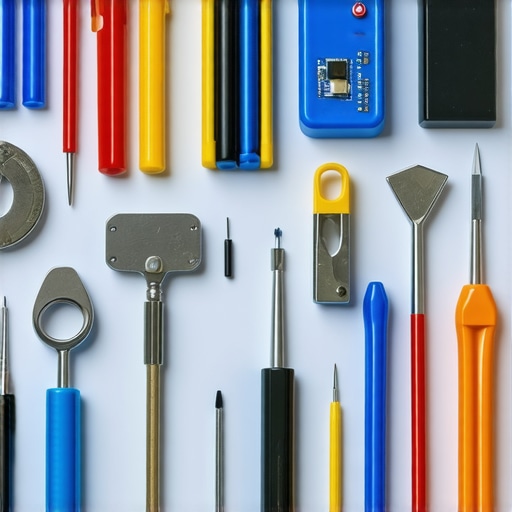
High-quality electronics repair tools laid out on a workstation, emphasizing precision and clarity essential for effective maintenance.
Long-Term Results and Growth Strategies
Consistent maintenance not only extends device lifespan but also enhances productivity and security. By maintaining your hardware diligently, you reduce unexpected outages and data loss risks, ensuring smooth day-to-day operations. Embracing automation in management—through systems that alert you to impending failures—can further fortify your setup. As tech advances, expect more intelligent, automated solutions that simplify upkeep and bolster performance, making proactive care more accessible for everyone.
The Unexpected Wisdom Hidden in My Coffee Spill Debacle
One of the most profound lessons I learned was that rushing through a liquid spill without proper knowledge can turn a manageable situation into a costly nightmare. Taking a moment to pause and assess can sometimes be the best decision you make. I also discovered that overconfidence in quick fixes like rice or using heat can backfire spectacularly. Lastly, I realized that professional help isn’t a sign of failure but of wisdom—knowing when to bring in the experts can preserve both your device and peace of mind.
Tools and Resources That Transformed My Approach to Repairs
For anyone serious about prolonging their device’s life, I recommend investing in a quality laptop screen repair kit and a professional cooling pad. For diagnostics, disk cleanup utilities help keep your system optimized. Additionally, a set of antistatic tools safeguards against static damage during repairs. These tools have saved me countless headaches and are worth every penny, especially when considering the cost of professional repairs.
Keep Pushing Forward: Your Next Move Matters
Your response to device emergencies can define your tech longevity. Embrace a proactive mindset—regular maintenance, swift action when issues arise, and knowing when to turn to experts can make all the difference. Remember, technology is an investment, and caring for it diligently ensures your productivity and peace of mind. If you’re ever in doubt, exploring managed IT solutions can provide ongoing protection and support. Now, go ahead—take those steps to safeguard your digital world with confidence. Your devices—and your data—will thank you.