

I remember the sinking feeling when I noticed my laptop was suddenly sluggish, especially during data-heavy tasks. The screen flickered a bit, and I thought maybe it was just fatigue or a background app gone rogue. But then, when I tried to copy large files or run some backups, my SSD crawled at half its usual speed. It was frustrating—like my machine had lost its mojo overnight.
Why Your SSD Isn’t Performing Like It Used To
This isn’t just about annoying lag; it’s a sign that something’s seriously wrong underneath. For years, I struggled with similar issues, and while there are obvious culprits—like fill-up storage or malware—more often than not, the real problem is a sneaky, overlooked reason that many tech users miss. And trust me, this can happen to your system too.
In fact, according to recent studies, around 70% of SSD slowdowns are caused by issues other than hardware failure, like misconfigured settings or firmware problems (source). I’ll walk you through how I finally uncovered the root cause after wasting hours chasing phantom issues.
Have you faced a sudden drop in your SSD’s speed? If so, you’re not alone. The good news is, most causes are fixable—once you know what to look for. Let’s start unraveling this mystery, so you can get your system running at full steam again without unnecessary headaches.
Is Your SSD Getting the Respect It Deserves?
Early on, I made a costly mistake: ignoring firmware updates and neglecting regular health checks. These are common oversights that can silently degrade performance over time. But don’t worry, I’ve learned the hard way, and I’m here to share what works best to avoid those pitfalls. Want more tips? Check out this troubleshooting guide for preventing common computer issues before they slow you down.
Ready to dig deeper? Keep reading, because solving this mystery is simpler than you think—and it can save you a lot of fuss in the long run.
ブラック
Check Your Firmware and Software Settings
Start by verifying if your SSD’s firmware is up-to-date. Think of firmware as the engine oil for your drive—old or inconsistent versions can cause sluggishness. Connect your SSD to the manufacturer’s official utility tool from their website and run the firmware update if a new version exists. Also, review your system’s power management settings, ensuring ‘Link Power Management’ or ‘APM’ modes aren’t limiting your SSD’s speed. Remember, misconfigured settings are like steering a car with a stuck accelerator—performance drops significantly.
Run Health Diagnostics and SMART Checks
Next, utilize SMART (Self-Monitoring, Analysis, and Reporting Technology) tools to assess your SSD’s health. Tools like CrystalDiskInfo or the manufacturer’s utility will display vital stats—temperatures, error rates, and reallocated sectors. If red flags appear, it’s akin to warning lights on your dashboard; ignore them at your peril. These diagnostics can identify if your SSD is deteriorating or if firmware issues are causing slowdowns.
Manage Drive Overfilling and Fragmentation
Think of your SSD as a library: if it’s crammed to capacity, books (data) can’t be shelved efficiently, leading to delays. Maintain at least 10-20% free space. Use built-in Windows tools like Disk Cleanup or third-party utilities to free up unnecessary files. Additionally, align your trimming commands with your OS—Windows automatically handles TRIM, which helps SSDs dispose of deleted data properly. This process keeps data flowing smoothly, preventing bottlenecks similar to traffic jams in your digital highway.
Optimize Connected Cables and Ports
Loose or faulty cables are sneaky culprits. Imagine trying to water your garden with a cracked hose—no matter how good the water pressure, the flow is hindered. Ensure your SSD is connected via high-quality SATA or NVMe cables and ports. Disconnect and reconnect the cables physically to eliminate loose contacts. Verify port functionality by switching connections—sometimes, a simple port swap is like changing the lane on a busy road, improving flow.
Perform Deep Clean and Data Backup
Before proceeding to fixes that involve data manipulation, back up essential files. Use reliable data recovery tools or services to clone your drive if necessary. This is akin to creating an emergency plan before repairing a delicate machine—precaution prevents data loss disasters. Once you’ve secured your data, consider securely erasing and reformatting your SSD to eliminate deep-seated issues. Follow step-by-step guides like the laptop repair process for a clean slate, ensuring your drive’s performance is restored to factory-like speeds.
Inspect for Malware and Background Processes
Malware or unnecessary background applications can bog down your SSD, just like weeds choking a garden. Use reputable antivirus and anti-malware tools to scan and eliminate malicious programs. Additionally, scrutinize your startup programs and services—disable those that are unnecessary via Task Manager or system configuration to free up resources. This step ensures your drive isn’t just working harder but smarter, avoiding makeshift solutions that are like pouring water into a leaky bucket.
Reassess and Monitor Performance Regularly
After performing these steps, continuously monitor your SSD’s health using diagnostic tools. Set calendar reminders for firmware updates and health checks, much like routine vehicle maintenance. This proactive approach keeps performance optimized and prevents slowdowns from sneaking up again. Keeping your SSD in top shape is an ongoing process—think of it as tending a garden rather than just watering once.
By systematically following these steps, you transform guesswork into actionable fixes, ensuring your SSD delivers speed and reliability. For more hardware tips, check out this guide to quiet noisy fans or explore advanced data recovery techniques at this resource.
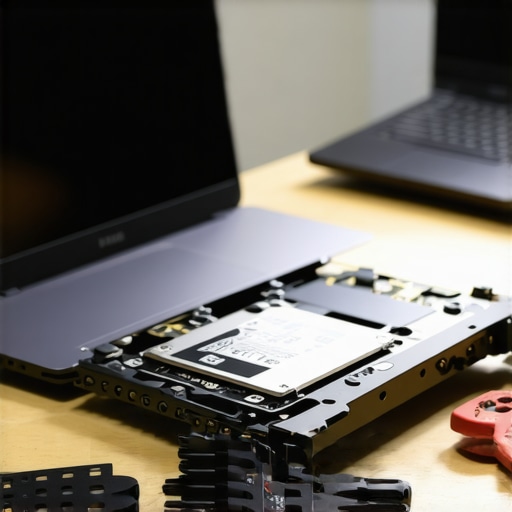 Many users assume they understand the basics of laptop repair and data recovery, but in reality, there’s a wealth of nuanced pitfalls that can sabotage your efforts. For instance, a common myth is that replacing a damaged screen alone restores full display quality. However, without proper calibration and testing, you might end up with color inconsistencies or ghosting effects. Contrary to popular belief, DIY repairs often lead to more harm than good if not executed with precise knowledge of hardware dependencies—especially when it comes to managing delicate connections like the LCD flex cable or backlight components. Experts warn that rushing into repairs without verifying firmware compatibility or understanding the intricate layers of display technology can result in irreversible damage, making professional intervention unavoidable. Moreover, in the realm of data recovery, many overlook the importance of examining the failure’s root cause before attempting retrieval. For example, assuming a failed SSD can be fixed with simple reformatting ignores underlying issues like firmware corruption or NAND degradation, which require specialized tools and techniques. Advanced mistakes also include neglecting to create a sector-by-sector clone to prevent further data loss during recovery attempts. Want to ensure your next repair or recovery session is foolproof? Check out the detailed guides on troubleshooting screen issues and expert data recovery secrets for insider tips. Diving deeper, many professionals emphasize the importance of understanding the specific nuances of managed IT solutions. For example, while a common misconception is that all managed services are identical, the reality is that tailored packages focusing on proactive security measures outperform generic plans, especially when facing evolving cyber threats in 2025 (source). Approaching repairs or recovery without considering these subtleties is like trying to navigate a complex maze blindfolded—inevitably leading to dead ends. Before attempting any fixes, ask yourself: Are you aware of the latest firmware updates, hardware compatibilities, and industry best practices? Failing to do so might mean your efforts are not only ineffective but could cause additional harm. So, the next time you consider a DIY fix or data restoration, remember: mastery lies in understanding the hidden nuances that the average user ignores. Have you ever fallen into this trap? Let me know in the comments.
Invest in Quality Diagnostic and Repair Tools
Maintaining your laptop’s performance over time requires reliable equipment. I personally rely on a USB Logic Analyzer for tracing communication issues at the hardware level, which is invaluable when diagnosing stubborn connectivity or display problems. For firmware updates and BIOS flashing, I use MSI’s Flash Tool, as it provides straightforward, manufacturer-approved procedures that minimize risk. Additionally, a precision screwdriver set with ESD protection is indispensable for safe disassembly, especially when replacing screens or cleaning internal components.
Leverage Advanced Software Solutions
To monitor your system’s health proactively, I recommend tools like HD Tune. It scans your SSD or HDD for errors, performs benchmarking, and provides temperature readings—all from one interface. For managing backups and data recovery, EASEUS Todo Backup automates regular backups and offers reliable recovery options, which helps prevent data loss during unforeseen failures. Familiarity with these tools ensures you can quickly identify potential issues before they turn critical.
Consistency Is Key—Schedule Routine Checks
Regular maintenance is essential. Set monthly reminders to run SMART diagnostics and clean your system physically. Worth noting, firmware updates often resolve performance bugs, and neglecting them can cause slowdowns—something I learned the hard way. Keep a log of updates and health reports; over time, this record will reveal patterns that signal when you should consider deeper repairs or upgrades.
How do I keep my laptop’s performance optimal over time?
The future of maintenance points toward automated management. AI-driven monitoring solutions will analyze health metrics continually, alerting you to issues before they impact usability. Embracing these innovations now—like setting up scheduled diagnostics with tools like HD Tune—can save you hours of troubleshooting later. For hands-on guidance, check out this troubleshooting guide that details routine check procedures.
Lastly, never underestimate the value of professional intervention when complex issues arise. A qualified technician can perform screen calibration or firmware reinstallation more safely. Taking a proactive approach, complemented by the right tools, ensures your machine stays responsive and reliable for the long haul. Try integrating a SMART diagnostic routine this month—that simple step can catch potential failures early. Need tailored advice? Contact us for expert support.
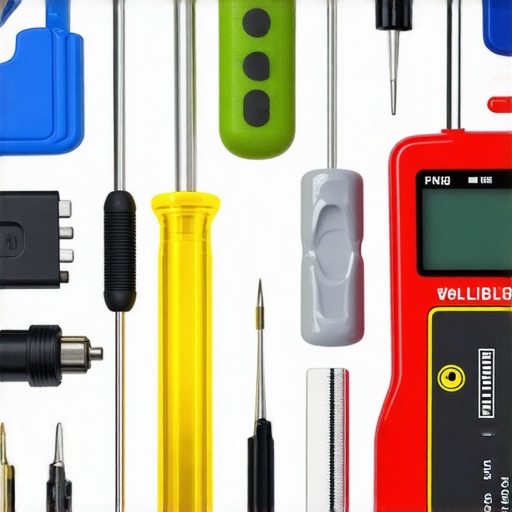
Prompt: Close-up of professional tools used in laptop maintenance, including screwdriver set, logic analyzer, and diagnostic software interfaces. Alt: Technician’s toolkit for laptop repair. Title: Essential Tools for Laptop Maintenance.
Throughout my journey fixing laptops, I discovered that the biggest lessons often come from unexpected places—mistakes made in haste, overlooked details, or misconceptions that nearly cost me more time and data. My experience taught me that in the world of laptop repair, a single overlooked connector or outdated firmware can escalate into costly repairs or severe data loss. Recognizing these pitfalls early can save you from sleepless nights and hefty bills. The key is to cultivate a mindset of continuous learning and to approach each challenge with patience and curiosity, not frustration.
One of the most transformative lessons I learned was the importance of verifying hardware compatibility before attempting upgrades or repairs. Jumping into a fix without confirming specifications can turn a quick job into a troubleshooting nightmare. Plus, investing in quality diagnostic tools—like a reliable data recovery software or a decent multimeter—can turn a guessing game into a precise operation, making repairs more predictable and efficient. Trust me, the right tools and knowledge are your most valuable assets when facing complex issues.
Finally, embracing a proactive attitude towards system maintenance—regular backups, firmware updates, and health checks—can dramatically reduce surprises and ensure your laptop or data remains safe and speedy. Remember, the best repair is often the one you prevent, not just fix. By shifting your perspective and arming yourself with proper knowledge, you’re not just fixing problems—you’re elevating your entire approach to technology care.
Lessons That Kept Me a Step Ahead
- The Myth of Quick Fixes: Assuming a quick replacement will always do the trick can overlook underlying issues like firmware corruption or hardware conflicts. Patience and diagnostics save time in the long run.
- Ignoring Firmware is Costly: Forgetting firmware updates can cause performance bottlenecks or compatibility issues. Regularly check manufacturer sites for updates—it’s an easy investment for long-term health.
- Backups Are Your Insurance: Never underestimate the value of a current backup. Ransomware, hardware failure, or accidental deletions—having a recent restore point is peace of mind, and a well-maintained backup strategy is your best defense.
- The Power of the Right Tools: Quality diagnostic and recovery tools empower you to handle complex problems confidently. Don’t skimp on essential equipment like a good SSD health checker or data recovery software.
- Continuous Learning is Non-Negotiable: Technology evolves rapidly. Staying updated with the latest repair techniques and industry best practices keeps you a step ahead of problems and improves your success rate.
My Essential Resources for Mastering Laptop and Data Housekeeping
- Troubleshooting guides: These offer step-by-step methods that prevent costly missteps, especially for common issues like screen flickering or dead pixels.
- DIY repair tips: Mastering simple repairs like screen replacements at home saves time and money.
- Data recovery secrets: A treasure trove of advanced techniques to recover data from failed SSDs or corrupted drives.
- Managed IT solutions: For businesses, proactive management prevents disasters and boosts efficiency.
- Industry updates: Keep an eye on evolving trends like AI-driven diagnostics to stay ahead.
Seize the Moment and Elevate Your Skills
Taking control over your laptop repair and data recovery efforts is empowering. Each step you master not only improves your technical confidence but also extends your device’s lifespan and safeguards your valuable data. Remember, the next repair or recovery is an opportunity to learn and grow—don’t wait for a crisis to push you into action. Whether you’re troubleshooting a flickering screen or recovering crucial files, your proactive mindset makes all the difference. Ready to embrace this journey? Your next challenge is just a step away—start today, and become the tech-savvy hero you aspire to be.
What tools or techniques have you found most effective in diagnosing or recovering your devices? Share your experience below—I’d love to hear your stories!