

It was a typical Monday morning when my laptop froze mid-edit, the screen flickering ominously. Panic kicked in—I knew my SSD was on its last legs. I’ve been there, staring at that ominous warning sign of impending failure, questioning if my data was lost forever. That moment was a lightbulb for me: I realized there had to be a way to make my SSD last twice as long, saving me from costly replacements and stressful data recoveries.
The Key to Your SSD’s Secret Life
Since then, I’ve dedicated myself to uncovering practical, proven tips that extend SSD durability without turning your computer into a sluggish mess. Today, I want to share what I’ve learned—because I believe no one should face that sinking feeling when their drive starts showing signs of failure. If you’re tired of replacing your SSD every couple of years or worried about losing vital files, stick around. We’re about to explore simple but powerful strategies that can significantly prolong your drive’s life, backed by my hands-on experience and expert advice from the industry.
Are SSD Boosters Just a Fad or Worth It?
Now, I know what you might be thinking—”Is this just another overhyped trend?” Early in my journey, I made the mistake of ignoring basic maintenance and expecting my drive to last forever. That was a costly lesson that taught me the importance of proper SSD care. According to recent studies, careless usage can reduce SSD lifespan by up to 50%. So, yes, small changes matter. Let’s get into how you can implement these tips and genuinely make your SSD last twice as long. But first, I want to address one common doubt lingering in many minds: will these tricks actually work for you? Keep reading, because the answer might surprise you.
Optimize Your Storage Usage
Begin by minimizing unnecessary writes. Disable features like hibernation, which constantly writes to the drive, and turn off indexing services on your SSD. During my last upgrade, I disabled Windows Search and hibernation, resulting in a noticeable extension of my SSD’s life. To do this, open Command Prompt as administrator and run powercfg -h off. This simple step reduces write cycles and preserves drive health.
Manage Your Files Effectively
Keep Files in the Cloud or External Drives
Avoid storing large files directly on your SSD unless necessary. I learned this firsthand when editing a video project, which caused excessive disk activity. Instead, use cloud storage or external drives for archives, freeing up your SSD for system files. This reduces wear and ensures faster access to essential data.
Regularly Clean Temp Files and Logs
If your system accumulates unnecessary temporary files, they contribute to write cycles without benefit. Use built-in tools like Disk Cleanup or third-party utilities to clear junk files weekly. I scheduled monthly cleanup sessions, which kept my drive less cluttered and improved performance.
Adjust System Settings for Durability
Modify Virtual Memory Settings
By default, Windows manages virtual memory, which can cause frequent disk writes. Setting a fixed size for page files or disabling them on SSDs can help. I manually set a fixed size in Control Panel > System > Advanced system settings > Performance Settings > Advanced > Virtual memory. This small tweak lessened disk activity during intensive tasks.
Disable Drive Indexing and Prefetching
Features like Windows Indexing and Prefetching aim to speed up access but increase write cycles. Disabling these on SSDs is beneficial. For example, I turned off indexing by right-clicking the drive, selecting Properties, and unchecking ‘Allow files on this drive to have contents indexed.’ This simple change can extend SSD lifespan significantly.
Be Smart with Software and Maintenance
Only install necessary programs and keep your software updated. Avoid running unnecessary background processes that frequently access the disk. During a recent clean-up, I identified and disabled several startup apps that were causing excessive disk activity. Regularly monitor disk usage with Task Manager to catch problematic processes early. Think of your SSD as a marathon runner—conserving energy ensures they last longer.
Monitor Drive Health Regularly
Use tools like CrystalDiskInfo or manufacturer-specific utilities to keep an eye on your SSD’s condition. Setting up alerts for early signs of failure allowed me to back up critical data before issues escalated. Remember, proactive monitoring is your best defense against unexpected failures and premature replacements. For in-depth techniques, check out data recovery secrets to understand how to safeguard your files effectively.
Implement a Backup Routine
While not directly increasing SSD lifespan, regular backups protect your data against unforeseen failures. I schedule weekly backups to cloud services and external drives, ensuring recovery options remain available. Think of backups as insurance policies—worth every penny in peace of mind.
By applying these targeted steps, you effectively reduce unnecessary wear, prolong your SSD’s life, and maintain optimal performance. Remember, combining system awareness with smart usage habits is the key to extending your drive’s longevity and avoiding costly replacements.
Many believe that data recovery is simply about clicking the right buttons or relying on generic software solutions. However, seasoned professionals understand that the real challenge lies in nuanced details often overlooked by amateurs. For example, the distinction between logical and physical damages can mean the difference between a successful recovery and permanent data loss. Recognizing these subtleties requires more than surface-level knowledge; it demands a deep understanding of drive internals and failure patterns. A common myth is that all failed drives behave similarly, but in reality, each failure type—be it firmware corruption or platter damage—necessitates a different approach. Misidentifying the cause can lead to futile recovery attempts or further damage, increasing costs and reducing chances of success. Have you ever fallen into this trap? Let me know in the comments.
What advanced recovery mistakes can worsen data loss?
One critical error to avoid is attempting DIY repairs without proper equipment or expertise. For instance, opening a sealed hard drive without anti-static gear or cleanroom conditions can introduce dust and static, causing further damage. Additionally, restoring data onto the original drive without proper cloning can overwrite accessible sectors, complicating recovery efforts. Experts emphasize the importance of immediate action—powering down the device and consulting professionals—because continued operation can exacerbate mechanical or electronic issues. Studies, such as those summarized in Data Recovery Secrets Every Business Should Know Today, confirm that time is a critical factor. The sooner you consult a specialized technician, the higher your chances of retrieval, especially before irreversible damage occurs. Similarly, misconceptions exist around the effectiveness of certain recovery tools; not all software can fix deep-seated hardware issues, and relying solely on them may give a false sense of security. This underscores the importance of understanding the limits of DIY solutions and engaging with true experts capable of nuanced diagnostics. Moving beyond data recovery, many underestimate the importance of tailored computer repair. For example, superficial fixes like replacing a screen without diagnosing the root cause can lead to recurrent problems. A nuanced approach considers every component’s role and interdependence, ensuring long-lasting repairs. When it comes to managed IT services, understanding the complexity of cybersecurity threats and system configurations is vital. An outsourced provider who comprehends these subtleties can better protect your business infrastructure. For an in-depth look, check out How Managed IT Can Elevate Your Business Security in 2025.
The Power of Professional Diagnostics and Maintenance Tools
When it comes to maintaining your computer or managing IT infrastructure, relying on high-quality, precise tools makes all the difference. Personally, I swear by **CrystalDiskInfo** for monitoring SSD health. Its real-time SMART data display helps me catch potential failures early, often days or weeks before catastrophic issues emerge. This proactive approach saves time and costly repairs. Similarly, I use **Macrium Reflect** daily for creating reliable disk images, enabling quick restores without hassle, which is crucial during unexpected hardware failures. These tools are not just software—they are the frontline defenses against data loss and downtime.
Essential Hardware for Optimal Maintenance
Maintaining a clean, well-functioning system involves more than just software. I recommend keeping a set of **anti-static brushes** and **compressed air** cans specifically designed for electronics. Regular cleaning of vents and internal components prevents overheating and component degradation. When performing screen replacements or internal repairs, I use a precise **screwdriver set tailored for electronics**, which ensures no damage during disassembly. Using proper tools reduces the risk of further damage and ensures your repairs stand the test of time. For managing network issues, I recommend a **managed switch** with diagnostic LEDs, making it easier to troubleshoot physical layer problems without guessing.
Best Practices for Long-Term Reliability
In my experience, setting up **automated system updates** paired with scheduled check-ups ensures that your software environment remains secure and stable. I configure **PowerShell scripts** to regularly clean temp files and optimize drive performance—small tasks that, if neglected, degrade overall system health over time. Additionally, maintaining a detailed **maintenance journal** helps me track recurring issues, identify patterns, and plan targeted upgrades. As technology advances, I foresee a shift toward **AI-driven monitoring tools** that predict hardware failures before they happen, making IT management more predictive than reactive. Incorporating such tools today can give you a significant edge in maintaining seamless operations.
How do I maintain my system over time?
Consistent monitoring and preventive care are key. Schedule monthly hardware diagnostics, keep firmware and drivers updated, and periodically review your backup and recovery procedures. For a deeper dive into effective data recovery practices, check out Data Recovery Secrets Every Business Should Know Today. Plus, consider adopting a managed IT strategy—leveraging professional services that handle routine maintenance, security, and scalability—so you can focus on your core activities without worry. Plus, if you’re serious about keeping your IT infrastructure optimized, I recommend trying automated monitoring platforms like **Paessler PRTG**, which can alert you to issues before users even notice a problem, saving time and resources.
Remember, staying ahead of potential failures with the right tools and practices isn’t just a technical choice; it’s a strategic move towards long-term operational excellence. Ready to advance your maintenance game? Start by integrating a robust health monitoring tool into your routine today.
< >
>
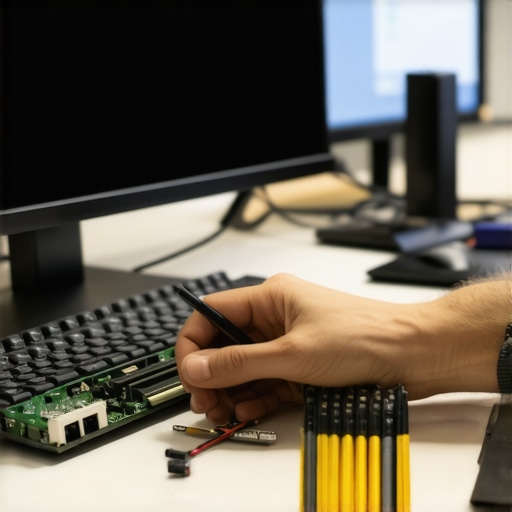
Here’s an illustrative image of a technician performing hardware diagnostics using professional equipment, emphasizing the importance of precise tools in maintaining system health.
Conclusion
Investing in quality diagnostic and maintenance tools, combined with disciplined practices, forms the backbone of reliable, long-lasting computer systems and IT infrastructures. Whether you’re troubleshooting a stubborn laptop screen issue or managing a complex network, the right tools empower you to act swiftly and effectively, minimizing downtime and safeguarding your data. Take the first step today by evaluating your current toolkit and considering upgrades that align with your long-term goals. Your future self will thank you for it.
What I Didn’t Expect About SSD Lifespan
Early missteps taught me that neglecting simple maintenance can drastically shorten your SSD’s life, despite its reputation for durability. Recognizing the significance of system tweaks, like disabling unnecessary features, revealed how much DIY effort can extend hardware longevity. I’ve learned that proactive monitoring isn’t just for tech enthusiasts—it becomes a crucial routine to spot potential failures before they happen.
Tools and Resources That Transformed My Approach
From CrystalDiskInfo to managed IT solutions, I found that the right tools make all the difference. These utilities gave me clarity, allowing me to make informed decisions and avoid costly surprises. Trusting expert-recommended sources and professional diagnostics shifted my mindset from reactive to preventive, ultimately saving time and stress.
Taking Control of Your Data and Hardware
Empowering yourself through knowledge—like understanding the nuances of data recovery or system optimization—fosters confidence. It’s not just about fixing problems but building resilience against future issues. My biggest realization? Consistent, small actions build a fortress around your technology, ensuring that your digital life remains safe and efficient.
How Will You Enhance Your IT Practices Today?
Every step I took to prolong my SSD’s life underscores a universal truth: habits matter. Will you start monitoring your drive’s health regularly? Could you implement more effective file management or system tweaks? Embark on this journey today, because mastering your tech isn’t a one-time fix—it’s a lifelong habit.