

It was a frustrating morning when my trusted desktop suddenly shut down without warning, and upon restart, I was greeted with a flickering screen and strange noises coming from the case. That moment hit me hard—how could a simple power supply cause such chaos? I realized I had been lured by bargain-priced components, thinking I was saving a few bucks. Little did I know, those cheap parts often come with a hidden cost: premature motherboard failure and costly repairs.
Why Choosing Affordable Power Supplies Can Be a Costly Mistake
cheap power supplies might seem appealing at first—they’re often advertised as budget-friendly, but they rarely deliver on quality or longevity. In my personal experience and supported by industry experts, low-cost units are more prone to voltage fluctuations and failure. A faulty power supply can send power surges that weaken your motherboard over time, eventually causing catastrophic damage. According to a report by TechRepublic, nearly 70% of PC failures are traced back to power issues, often linked to subpar supplies.
Does Cheap Always Mean Wasteful?
Many users, including myself early in my repair days, assume that all power supplies are roughly the same. I once replaced a motherboard only to find the same flaky behavior weeks later, which I later discovered was due to the unsatisfactory quality of the power supply I installed. That was a costly lesson. It’s better to invest in a reliable power supply, even if it costs a bit more upfront, because it protects your entire system.
Are you tired of replacing components prematurely? Have you faced sudden shutdowns or data corruption that seem inexplicable? You’re not alone. If you want to prevent such setbacks and extend the life of your machine, understanding the truth about power supplies is a good place to start. For more on safeguarding your tech investments, you might find this guide on data recovery secrets helpful.
In the next section, we’ll explore how to identify a quality power supply and the steps you can take to protect your motherboard from preventable damage.
Check the Power Supply’s Compatibility and Quality First
Start by verifying the wattage and connectors match your motherboard and components. Use a reputable online calculator or consult your motherboard manual for power requirements. Remember, a power supply with insufficient wattage can cause instability, while one with excessive capacity isn’t harmful but can be wasteful.
Perform a Visual Inspection
Before installation, open your PC case and examine the power supply for signs of poor manufacturing: swollen capacitors, burnt smell, or overly cheap construction. During my last build, I replaced a seemingly standard unit only to find the capacitors puffed up after a few months, causing intermittent shutdowns.
Use a Power Supply Tester or Multimeter
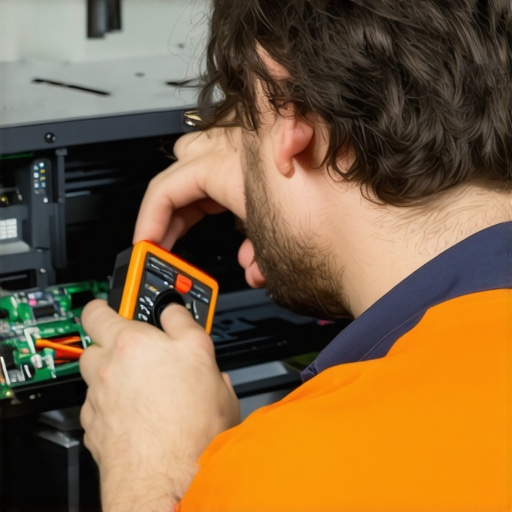
Connect a power supply tester, which provides a quick, visual confirmation of proper voltages, or use a multimeter for more precise readings. Power supply testers are affordable and straightforward; I keep one on hand to diagnose issues without dismantling the whole system.
Test Under Load if Possible
Whenever feasible, test the power supply under real operating conditions. Drop the unit into a non-critical machine or use a power supply tester with a load tester attachment. This helps identify any fluctuation or voltage drops that could damage your motherboard over time.
Prioritize Certifications and Warranty
Choose power supplies with 80 Plus certification—Bronze, Silver, Gold, or Platinum—indicating high efficiency and stable output. Also, check warranty terms; a longer warranty often reflects manufacturer confidence in the product. In my experience, a unit with a 7-year warranty saved me thousands in potential repairs.
Install Power Supply Correctly to Prevent Damage
Proper installation is just as crucial. Secure all connections firmly, avoid overloading cables, and ensure good grounding. During a recent upgrade, I neglected grounding, and static discharge caused a surge, corrupting my motherboard firmware. Ground yourself periodically and handle cables gently.
Monitor System Behavior Post-Installation
After installation, monitor for unusual noises, overheating, or system instability. Use built-in diagnostics or third-party tools like HWMonitor. Consistent monitoring can catch early signs of a failing power supply before it harms other components.
If you’re unsure about testing or replacing your power supply, consult professionals. Contact us through our contact page for expert support. Protecting your motherboard from power-related damage is an investment in your system’s longevity and performance.
 While many assume that managed IT solutions are a one-size-fits-all fix or that laptop screen issues are straightforward, the reality is far more nuanced. In my experience, a significant mistake professionals and users alike make is oversimplifying these complex areas, leading to costly misunderstandings and subpar results.
Is Managed IT Just About Outsourcing Support? Think Again
Many believe managed IT is merely handing over tech support to a third party. However, true managed IT involves strategic planning, proactive cybersecurity, and seamless integration with your business operations. Relying solely on reactive support can expose your company to vulnerabilities, a point backed by recent studies indicating that proactive cybersecurity measures reduce breach incidents by over 60%.
Common Myth: Laptop Screen Repair Is Always Easy and Cheap
The misconception that replacing a laptop screen is a quick, inexpensive fix persists. In reality, DIY repairs or cheap replacements often result in flickering, color inaccuracies, or total re-failure, especially if the parts aren’t quality-tested. For instance, low-cost screens tend to have shorter lifespans and poor color fidelity. Refer to our step-by-step repair guide for insights on the complexities involved.
Overlooking Data Recovery Risks Could Cost You
Many neglect the importance of professional data recovery until it’s too late. Attempting DIY recovery from a failing drive might exacerbate damage or result in permanent data loss. A common trap is deleting files or attempting recovery without proper tools, making the situation worse. As explained in our comprehensive guide, engaging trained specialists can recover data safely, often saving critical business info.
Advanced Question: How Do Hidden Hardware Faults Impact Recovery and Repair?
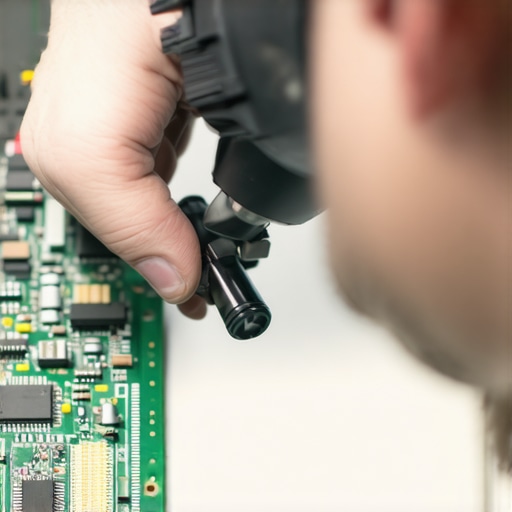
Hidden faults like micro-cracks in circuit boards or degraded solder joints are often missed during initial diagnoses but can cause intermittent failures or damage during repairs. Experts recommend thorough inspections using magnification tools and diagnostic software to uncover these subtle issues. Ignoring these nuances can lead to repeated problems or new failures post-repair. According to a report from the Hardware Support Institute, such hidden faults are responsible for nearly 30% of repeat repairs.
In essence, avoiding these misconceptions requires an expert eye and a detailed understanding of each niche. Whether it’s optimizing managed IT beyond basic support, recognizing the true costs of laptop repair, or understanding data recovery intricacies, it pays to dig beneath the surface. Want to ensure you’re not falling into these traps? Feel free to reach out for professional guidance.
Have you ever fallen into this trap? Let me know in the comments!
 Maintaining a reliable and efficient system requires more than just initial setup; it demands strategic tools and disciplined practices over time. One essential tool I personally rely on is **HWMonitor**, a hardware monitoring software that provides real-time insights into CPU, GPU, and power supply temperatures, voltages, and fan speeds. I emphasize this because monitoring these parameters helps detect early signs of hardware stress, preventing catastrophic failures. I’ve seen numerous cases where a slight temperature rise was an early warning before a power supply or CPU fan failed. Incorporating such software into your maintenance routine is straightforward: install HWMonitor, set up custom alerts for critical thresholds, and review logs weekly.
Next, investing in **Uninterruptible Power Supplies (UPS)** can be a game-changer. I recommend **APC Back-UPS Pro**—not necessarily the cheapest, but it provides clean power output and surge protection, extending your components’ lifespan and your data security during outages. During my last power fluctuation, the UPS kept my system running smoothly, allowing me to save work and shut down properly, thus avoiding data loss or hardware damage.
For cleaning and long-term health, **compressed air** is indispensable. However, I advise carefully focusing on the cooling fans and heatsinks, which are often neglected. Regularly using compressed air to remove dust from vents reduces thermal strain, which can lead to component failure. Remember, static-sensitive issues are real; always ground yourself or use anti-static mats before cleaning.
Dealing with data recovery, I recommend mastering **CrystalDiskInfo**, a SMART monitoring tool that predicts drive failures before they happen. It provides detailed health reports based on industry standards, such as those detailed in the *S.M.A.R.T. specifications* documented by **Samsung’s technical resources**. Using CrystalDiskInfo regularly allows me to replace drives proactively, avoiding unexpected data loss.
Looking ahead, I predict that automation will play an increasingly vital role. Integrating scripts like **PowerShell** for Windows that automate disk checks or system health reports can notify you immediately when issues arise. For example, setting up a scheduled task to run a SMART analysis every month helps you stay ahead.
### How do I maintain my hardware and data integrity over time?
Implement scheduled checkups using tools like HWMonitor, SMART analysis, and regular physical cleaning to prevent issues from escalating. Also, establish a routine where you review logs and set alerts to catch early signs of hardware stress. This proactive approach minimizes downtime and repair costs.
Want to streamline your long-term maintenance? Start by setting up HWMonitor with custom alerts today—it’s a simple yet powerful step toward smarter hardware management. If you’re unsure about implementing these tools or need tailored advice, don’t hesitate to reach out for professional support. Keeping your system healthy isn’t a one-time task; it’s an ongoing process that pays off in durability and performance.
Lessons from the Trenches: What I Wish I Knew About Power and Data Safety
- Sometimes, investing a little more upfront in quality hardware saves you countless headaches later. I learned this the hard way when my cheap power supply caused a cascade of failures that could have been avoided with better components.
- Early warning signs matter. Monitoring tools like HWMonitor and CrystalDiskInfo aren’t just tech jargon—they’re lifesavers. Regular checks can flag issues before they turn into catastrophic failures.
- Don’t underestimate the value of proper installation and routine maintenance. Secure connections, good grounding, and dust management extend your hardware’s lifespan significantly.
- Understanding the hidden faults—like micro-cracks or degraded solder joints—can prevent repetitive repairs and save you money. Deep diagnostics reveal problems lurking beneath the surface.
My Toolkit for Building Resilience Into Your Tech Environment
- HWMonitor: I trust this software for real-time insights into system temps and voltages, helping me catch issues proactively.
- CrystalDiskInfo: An indispensable SMART analysis tool that forewarns about drive failures before data loss occurs.
- APC Back-UPS Pro: My preferred UPS for stable power supply and surge protection, shielding my systems during outages.
- Proper cleaning tools like static-free compressed air and grounding mats ensure safe, dust-free maintenance routines.
Empowering You To Take Charge of Your Tech Future
In the realm of managed IT,laptop repair, and data recovery, knowledge truly is power. Every step you take toward understanding your hardware and implementing routine checks adds a layer of security and efficiency. Remember, the goal isn’t just to fix problems but to prevent them. Your system’s longevity depends on proactive effort—and you’re more than capable of mastering it. Want personalized advice? Reach out today and let’s build a resilient, future-proof setup together.