

I remember the moment clearly—the screen flickered to black during an important Zoom call, and I felt that familiar surge of frustration. It was one of those moments where you realize your trusted laptop, the one you’ve relied on for years, might be reaching the end of its life. I found myself asking, should I fix this old beast or bite the bullet and buy a new one? That lightbulb moment led me down a rabbit hole of research, personal trial, and error, and now I want to share what I’ve learned with you.
Deciding If Your Old Laptop Deserves a Second Chance or a Farewell
It’s a common dilemma—your laptop starts acting up, and suddenly, it feels like you’re on a ticking clock. Do you pour money into repairs, hoping it’ll last a little longer, or do you consider replacing it altogether? The decision isn’t just about the immediate repair bill; it’s about long-term value, security, and productivity. After all, an aging device can give signs that are hard to ignore—sluggish performance, frequent crashes, or a cracked screen—yet sometimes, a simple fix can breathe new life into it.
Is Fixing an Old Laptop Really Worth It?
Early in my own tech repair journey, I made the mistake of rushing into a costly replacement without thoroughly exploring repair options. That mistake taught me the importance of understanding the real cost and potential longevity of repairs. According to a recent report, repairing an older laptop can be up to 50% cheaper than buying a new one, especially if the essential components like the screen or hard drive are salvageable. But repairs aren’t always a clear win—sometimes, they become a false economy if the device keeps failing or can’t support new software requirements.
If you’ve faced the frustration of a laptop that slows to a crawl or a screen that refuses to display, you’re not alone. Many users grapple with whether to invest in repairs or start fresh. In the sections ahead, I’ll guide you through the key signs to look for, repair considerations, and when it’s smarter to replace. Ready to get practical? Let’s dive into understanding your device’s true potential.
,
Assess the Damage and Gather Your Tools
Start by inspecting your laptop for obvious issues like cracks, loose parts, or signs of liquid spills. Having a set of small screwdrivers, plastic pry tools, and an anti-static wrist strap is essential. Think of your laptop as a delicate puzzle—careful handling prevents further damage. I once attempted to open my aging laptop without proper tools, which led to a cracked case and more frustration, so be prepared.
Addressing Screen Problems Effectively
If your display is dim, flickering, or showing dead pixels, the fix often lies in replacing or reseating the display ribbon cable or the entire screen. To do this, carefully disconnect the laptop from power, remove the bezel, and test the connection. For stubborn dead pixels, consider a pixel-fixing software or gentle pressure, but if the problem persists, a screen replacement may be necessary. I used tips from this guide to successfully replace my cracked display.
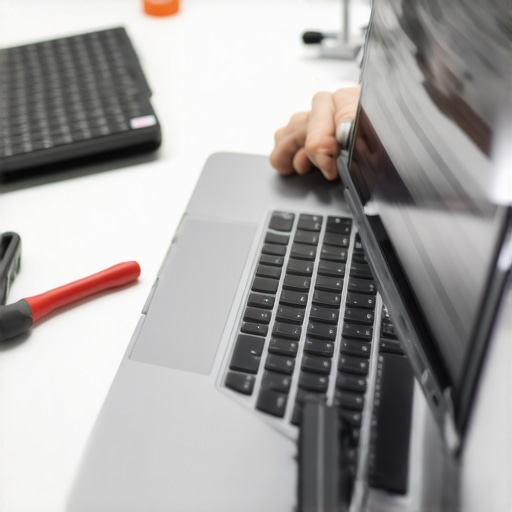
Cleaning and Maintenance to Prevent Overheating
Overheating can slow down performance or cause shutdowns. Remove the bottom panel of your laptop and clean out dust with compressed air. Ensure fans are spinning freely—blocked airflow is an enemy of longevity. I once neglected this step, and my laptop slowed to a crawl; a thorough cleaning restored performance, demonstrating how vital good airflow is. Regular maintenance like this can buy you months or years of service.
Hard Drive and Data health check
Running diagnostics on your hard drive can reveal bad sectors or imminent failure. Tools like CrystalDiskInfo or the built-in Windows CHKDSK command provide quick insights. Recognize early warning signs, such as strange noises or slow bootup, to prevent data loss. When my HDD started clicking, I used this data recovery strategy to salvage critical files before replacement.
Upgrade When Possible to Boost Speed
Replacing the RAM or switching to an SSD significantly boosts performance. Ensure compatibility by checking your motherboard’s specs; consult resources like RAM compatibility tips. I upgraded my old laptop from HDD to SSD, and it felt like a new machine. This cost-effective step extends the device’s usefulness without buying new.
Reassemble and Test Thoroughly
Once repairs or upgrades are complete, carefully reassemble your laptop, ensuring all screws and connections are secure. Power it up and observe for abnormalities like screen flickering, overheating, or system instability. Conduct routine tasks to confirm everything functions smoothly. This step is crucial—failing to test properly might lead to missed issues that could worsen over time.
When it comes to managed IT services, many assume that the latest technology or the biggest provider offers the best solution. However, a common misconception is that more expensive or complex solutions automatically mean better security or efficiency. In reality, understanding the nuanced needs of your business or device is crucial. For instance, many managers overlook the importance of tailored managed IT strategies, which can leave gaps exploitable by cyber threats. Studies, such as those referenced by security experts at this resource, show that proactive, customized plans outperform generic solutions.
In the realm of computer repair, there’s a myth that repairing an old device is always a waste of money. While it’s true that some repairs aren’t cost-effective long-term, advanced nuances like diagnosing subtle hardware failures can save you from unexpected data loss. For example, a seemingly simple hard drive swap might ignore slow, underlying issues with your motherboard, leading to repeated failures. Recognizing the signs of compound problems requires an expert eye—don’t fall for the trap of quick fixes without thorough diagnostics.
Data recovery is another area rife with misconceptions. Many believe that if a drive looks physically damaged, recovery is impossible. However, specialized techniques can often salvage data from seemingly irreparable devices, especially if caught early. External factors such as firmware corruption or accidental formatting can be more salvageable than most think. For insights, check out this guide to understanding which recovery methods suit your situation.
Why Do Most Overlook These Critical Details?
Many overlook these nuances because they focus only on surface-level symptoms or rely on broad assumptions. For example, choosing a managed IT provider based solely on price often bypasses essential checks like security protocols or scalability. Similarly, attempting DIY repairs without understanding the device’s architecture can cause irreversible damage – a costly mistake that even experts avoid by comprehensive assessments. Recognizing these hidden details can prevent future headaches and long-term expenses. Remember, a well-informed approach, backed by expert diagnostics, is far more valuable than superficial fixes or assumptions. Ready to avoid the pitfalls? Reach out for tailored solutions or visit our contact page for personalized assistance.
Have you ever fallen into this trap? Let me know in the comments.
Invest in Quality Repair Tools
One of the most effective ways to keep your devices running smoothly over time is to use the right tools. I personally swear by a digital ESD-safe soldering station, which allows for precise component repairs without risking static damage. For delicate tasks like replacing laptop screens or internal wiring, a set of high-quality plastic pry tools and precision screwdrivers ensures you can open devices without cracking casings or stripping screws. Remember, cheap tools can cause costly damage, so investing in professional-grade equipment saves you headaches later.
Leverage Reliable Diagnostic Software
Maintaining long-term health of your laptops and desktops depends heavily on early detection of issues. I highly recommend tools like CrystalDiskInfo for hard drive health monitoring, as it provides real-time SMART data that alerts you to potential failures before your data becomes compromised. Additionally, for system diagnostics, tools like HWMonitor give a comprehensive readout of your CPU, GPU, and motherboard temperatures, helping prevent overheating issues that can shorten device lifespan. Regularly running these diagnostics allows you to address minor issues proactively, avoiding costly repairs down the line.
Implement Routine Cleaning and Maintenance
Keeping your devices physically clean is often overlooked but vital. Dust buildup inside laptops causes overheating and performance throttling. I recommend setting up a bi-annual schedule to open your devices and clean out dust with compressed air. Use an anti-static brush to remove stubborn dirt from heatsinks and vents. This simple, cost-effective maintenance can extend the lifespan of your device significantly. Plus, it’s satisfying to see your equipment operate whisper-quiet after a good cleaning.
Smart Data Management and Backup Strategies
Data recovery is top of mind for anyone who relies heavily on their devices. I always recommend a 3-2-1 backup rule: three copies of your data, on two different media types, with one off-site. Tools like Macrium Reflect help create reliable disk images that can restore your entire system swiftly. Additionally, cloud services such as Backblaze provide automatic backups, ensuring your data remains safe even if your device suffers a hardware failure or physical damage. Regular backups save you from disaster and give peace of mind.
Stay Updated on Firmware and Software Patches
Keeping firmware and drivers current is crucial for device stability and security. I set aside time monthly to check manufacturer sites for updates—especially for critical components like BIOS, chipsets, and graphics drivers. Updated firmware can fix bugs, improve performance, and sometimes unlock new features. For example, updating your laptop’s BIOS can resolve power management issues that cause unexpected shutdowns, effectively prolonging the usability of your device. Developing this habit ensures your tech remains resilient against vulnerabilities and glitches.
How do I sustain device performance over time?
Regularly inspecting and maintaining your gear is the key to long-term functionality. I suggest establishing a routine maintenance schedule that includes cleaning, diagnostics, updates, and backups. Advanced tools like a digital multimeter coupled with diagnostic software help detect hidden hardware issues, preventing failures before they escalate. Embracing proactive care—rather than reactive fixes—can extend device lifespan and save money. As device complexity increases, so does the need for specialized tools; consider investing in an at-home repair kit to handle minor fixes before they become major issues. For tailored advice, reach out through our contact page and keep your devices working their best.
Lessons From the Trenches That Changed My Approach to Laptop Repairs
- One of my most eye-opening realizations was that not all hardware failures are created equal—some signs are mere annoyances, while others signal impending disaster. Recognizing subtle cues like minor overheating or sluggish boot times early on can save you from costly replacements down the line.
- Investing in quality diagnostic tools has been a game-changer. Tools like CrystalDiskInfo and HWMonitor provide real-time data that helps me catch issues before they escalate, turning potential crises into routine maintenance.
- I’ve learned that patience and attention to detail—like meticulous cleaning and careful reassembly—are essential. Rushing through repairs often leads to more problems, so taking that extra moment can extend your device’s lifespan significantly.
- Understanding when to upgrade components instead of replacing the entire device is crucial. Swapping out an HDD for an SSD or adding more RAM can breathe new life into an aging laptop at a fraction of the cost of a new one.
My Go-To Resources for Repair Success
- Computer Repair Masters Blog: Nothing beats practical, experience-based advice. Their guides on screen repairs and data recovery are my staples.
- Specialized Diagnostic Software: CrystalDiskInfo and HWMonitor have saved me countless hours by revealing hidden issues before they cause data loss or hardware failure.
- Quality Repair Tools: A good set of screwdrivers, pry tools, and static-safe soldering stations may seem like an investment, but they pay off in smoother, damage-free repairs that stand the test of time.
- Manufacturer Forums and Official Guides: Staying updated with firmware and driver updates via official channels ensures compatibility and security, keeping older devices relevant longer.
Keep Your Momentum and Stay Inspired
Reviving an old laptop might seem daunting, but with patience, the right tools, and a bit of knowledge, you can turn it into a dependable companion for years to come. Don’t shy away from tackling repairs yourself—each successful fix boosts your confidence and extends your device’s life. Remember, the secret to lasting performance lies in proactive care and continuous learning. You’re capable of making your old gear work like new—commit to the journey, and see your investment pay dividends. Curious how far your repair skills can take you? I’d love to hear your stories or answer any questions below about keeping your technology in top shape.