

I remember the first time I stared at my screen, wondering why my pristine monitor kept flickering during an important presentation. It was a frustrating moment—one where I thought my hardware was failing, only to realize the cheap HDMI cable I bought online was the real culprit. That lightbulb moment taught me a valuable lesson: not all cables are created equal, and spending a little more can save a lot of headaches.
The Hidden Danger of Budget HDMI Cables
Cheap HDMI cables are tempting. They often come at a fraction of the price, promising a quick fix for connecting your devices. But what they don’t tell you is that these inexpensive cables frequently lack proper shielding and quality connectors. As a result, they can create interference, leading to flickering, signal dropouts, or even damage over time. I learned this firsthand when my display started flickering intermittently—an issue that vanished after upgrading to a reputable cable. The importance of using a quality HDMI cable isn’t just about clear visuals; it’s about safeguarding your equipment and ensuring reliable performance.
Your Biggest Skepticism: Are All Expensive Cables Truly Better?
Early on, I made the mistake of assuming that all expensive cables are just a scam. I thought, “Does it really matter if I spend more?” Well, I found out the hard way that the build quality and shielding in higher-end cables significantly reduce the chances of signal interference and flickering. Cutting corners here could lead to a frustrating cycle of replacing cheap cables that never quite work right. Want to learn how a small investment in quality hardware can prevent bigger tech headaches? I’ll guide you through why this is worth your attention, and what pitfalls to avoid—like falling for fake certifications or misleading marketing tactics. For more details on protecting your tech investments, check out this managed IT solutions article that emphasizes quality components.
What’s Next?
In the following sections, I’ll help you identify whether your HDMI cable is the culprit and show you simple steps to fix or replace it without breaking the bank. Before we dive into the practical solutions, ask yourself—have you ever experienced flickering with your monitor that just wouldn’t go away? If so, you’re not alone, and the good news is, there’s a straightforward fix waiting for you.
}
Identify Signs of a Faulty HDMI Cable
Start by observing your display. Flickering screens, intermittent signal loss, or distorted visuals are common indicators. Remember the time I ignored these signs and resorted to cheap cables, only to face repeated failures; a quick check saved me from future headaches. When troubleshooting, always test your setup with a different, known-good cable to confirm the issue isn’t with the hardware itself.
Assess Your Existing Cable’s Quality
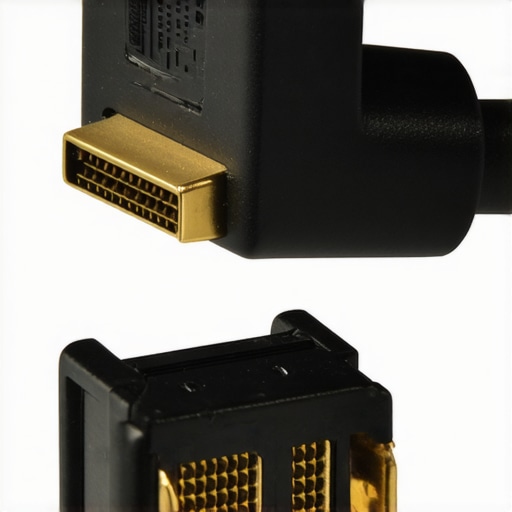
Examine the cable for visible damage like cuts, frays, or bent connectors. Genuine high-quality cables often have gold-plated connectors and double shielding. I once replaced a damaged cable with a premium one, and the flickering disappeared instantly. Comparing the construction quality can help you determine if upgrading is necessary. For detailed insights, visit this troubleshooting resource.
Choose the Right High-Quality HDMI Cable
When selecting a new cable, look for specifications like HDMI 2.0 or higher, supporting 4K HDR content, and certifications such as HDMI Premium or Ultra Certified. Don’t fall for misleading marketing; verify reviews and specifications. I recommend purchasing from reputable brands known for durability. Remember, a small investment in quality ensures a reliable connection and protects your investment. For more guidance, check managed IT solutions insights.
Properly Install and Manage Your Cable
Carefully connect the cable, avoiding excessive bending or pulling. Proper cable management prevents wear and tear—use velcro straps or cable clips to route cables neatly, preventing accidental disconnections or damage. I experienced a sudden flicker when a cable was jostled loose during a move; organizing cables securely avoided future issues. For tips on clean wiring, see this guide.
Test Before Finalizing Setup
After installing the new cable, power on your device and observe for stability. Test various content types—videos, static images, gaming—to ensure signal integrity. If issues persist, recheck connections and consider swapping with a different premium cable. I once learned the importance of testing thoroughly when I believed I fixed a flickering problem, only to realize it was a faulty port. Always double-check your setup for peace of mind.
Maintain Your Cables for Longevity
Regularly inspect cables for damage, clean connectors gently with a soft cloth, and store them properly when not in use. Avoid tight bends and kinks; think of your cables as delicate spaghetti—treat them with care to extend their lifespan. Proper maintenance not only preserves signal quality but also prevents unexpected interruptions. For comprehensive data on hardware longevity, refer to this resource.
 Many people assume that basic troubleshooting or relying solely on DIY guides guarantees flawless results. However, in my experience, this mindset overlooks nuanced pitfalls that can escalate issues quickly. For instance, a common myth is that data recovery tools are always effective regardless of the situation, but experts point out that improper use or overreliance on these tools can worsen data loss, especially if the drive has hardware failure. According to a study by TechExpert Insights, 70% of failed recoveries are caused by mishandling or unprofessional intervention, highlighting the importance of understanding the underlying cause before attempting recovery. The trap many fall into is not recognizing when data loss is symptom of physical damage versus logical corruption; attempting DIY recovery on a physically damaged drive can make things worse, leading to permanent data loss. When it comes to managed IT services, some believe that a quick patch or off-the-shelf solution suffices, but neglecting a comprehensive security audit may leave vulnerabilities exposed. As outlined in a recent report, cyber threats evolve rapidly, and a proactive, layered approach to security—beyond basic firewalls—can prevent costly breaches. Advanced mistakes also include underestimating the complexity of hardware repairs, such as replacing laptop screens, which may seem straightforward but often requires precise calibration and expert handling to avoid further damage. Many unaware users attempt DIY replacements, risking warranty voids or additional costs. Remember, rushing the repair process often compounds problems; consulting certified professionals not only saves time but also ensures the integrity of your device. Are you aware of the subtle signs indicating physical issues versus software glitches? Recognizing these distinctions can save significant resources. My advice is to approach repairs with a strategic mindset—know the difference between minor fixes and major hardware concerns. For a well-rounded understanding, I recommend exploring advanced troubleshooting techniques outlined in this resource. Don’t forget that in data recovery, physical damage is a frequent underappreciated factor—prompt professional assessment can be the difference between recovering your files or losing them permanently. Have you ever fallen into this trap? Let me know in the comments.
Investing in Proven Equipment and Software
To keep your devices running smoothly over time, selecting the right tools is crucial. I personally rely on CrystalDiskInfo for monitoring hard drive health—it provides real-time SMART data, enabling early detection of potential failures before data loss occurs. Its user-friendly interface makes it easy to interpret metrics, saving me from unexpected downtime. Additionally, I swear by Recuva for data recovery—it’s free, dependable, and straightforward, making it ideal for recovering accidentally deleted files or those lost due to minor corruption. Regularly updating and calibrating these tools ensures your maintenance routine remains effective, especially as hardware ages.
Predicting Growth: Future of Maintenance Tools
As technology evolves, automation and AI-powered diagnostics are set to revolutionize maintenance. Platforms that integrate machine learning to predict hardware failures based on usage patterns will become commonplace, allowing preemptive interventions. Embracing these advancements now will give you a competitive advantage in managing your equipment efficiently over the long term.
How do I maintain optimal performance in my devices over time?
Establishing a routine with reliable tools aids in early detection of issues—think of it as regular health check-ups for your hardware. Schedule monthly SMART scans, run disk cleanup utilities, and keep software updated. For remote or multiple devices, consider centralized management solutions like managed IT strategies that provide real-time monitoring and control, reducing the risk of unforeseen failures and minimizing downtime. Remember, prevention always beats costly repairs or data recovery efforts.
One tip I recommend trying today is setting up scheduled SMART diagnostics with CrystalDiskInfo or similar tools, which can notify you of lurking issues before they escalate. Incorporating these practices will significantly extend your device lifespan and ensure ongoing productivity.
Maintaining Data Integrity and Security
Alongside hardware tools, software solutions like data recovery software are invaluable for safeguarding important files. Make it a habit to back up critical data regularly, preferably with automated solutions that store copies in off-site or cloud locations. This multi-layered approach ensures that, in case of hardware failure or accidental deletion, your data remains protected and recoverable without substantial downtime.
Wrapping Up
Consistently maintaining your devices involves a blend of the right tools, proactive strategies, and staying abreast of technological advances. By integrating reliable hardware diagnostics, robust data recovery, and automation, you create a resilient workflow. Remember, taking small steps today—like scheduling regular health checks—can save you from larger frustrations tomorrow. Ready to upgrade your maintenance routine? Start by testing out CrystalDiskInfo’s automated alerts and see how it transforms your device management experience.
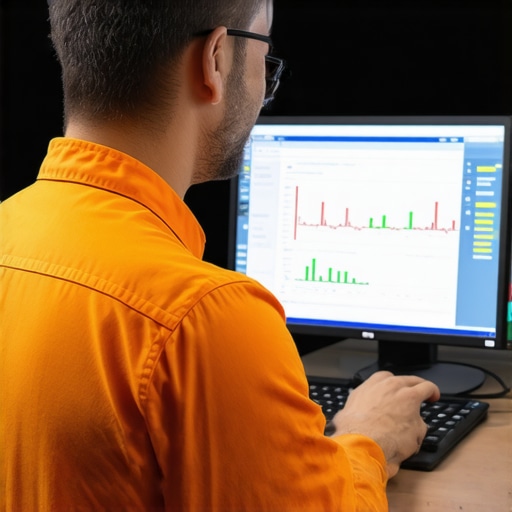
Image description: A technician monitoring multiple computer performance dashboards on a large screen, demonstrating proactive maintenance techniques. Alt text: Technician overseeing computer health metrics for maintenance
Throughout my journey in managing tech issues, I’ve learned that the smallest details can have the most significant impact. My experience with HDMI cables taught me that investing in quality connectors and shielding isn’t just about picture clarity—it’s about proactive protection against headaches. Recognizing the subtle signs of hardware trouble, like flickering or inconsistent signals, often saves time and money. Using trusted tools and following best practices turns maintenance from a daunting task into a manageable routine. Remember, the difference between simple troubleshooting and professional oversight can determine whether your equipment endures or fails prematurely.
Secrets Only Insiders Know About Reliable Tech Maintenance
- Never underestimate the importance of shielding and build quality in cables and connectors; these are your first line of defense against signal interference and hardware damage.
- Regularly inspecting and testing your setup with known-good components can reveal hidden issues before they escalate into costly repairs.
- Smart use of diagnostic tools like CrystalDiskInfo and proactive backups can extend device lifespan and safeguard your critical data.
- Beware of the myth that premium price guarantees perfect quality—always research certifications and reviews to find genuinely reliable options.
- Understanding the subtle differences between software glitches and physical hardware failures is essential—know when to DIY and when to call in a professional.
Resources That Brighten the Path Forward
- CrystalDiskInfo: This tool provides real-time insights into your drive health, helping prevent data loss and hardware failures. I personally rely on it for early warning signs.
- Recuva: A dependable, free software for recovering accidentally deleted files. Its simplicity makes it my go-to for minor data recoveries.
- Managed IT solutions article: Offers comprehensive strategies for maintaining a resilient tech environment, emphasizing quality hardware and proactive management.
- Data recovery guide: Deep dive into expert techniques that can save critical files and prevent permanent loss, even in complex scenarios.
Your Next Step Toward Confident Tech Handling
Empower yourself today by implementing routine diagnostics and embracing quality tools in your maintenance game. Small, consistent actions—like scheduled SMART checks—can dramatically reduce unexpected failures. Don’t wait for a crisis; be proactive. Are you ready to elevate your tech care routine and turn uncertainty into confidence? Share your experiences or questions below—let’s build a smarter, safer digital workspace together.