

I remember the moment clearly—the frustration, the sudden dread when I reached for my laptop and felt it scorch my fingertips during a quick email check. It was such a lightbulb realization: my trusty machine was getting absurdly hot, even when I was just browsing the web or composing a document. That first burn was a wake-up call, and I knew I couldn’t ignore the signs anymore.
Why Your Computer Feels Hot When It’s Not Doing Much
Ever wondered what’s causing your computer to heat up so easily? Well, you’re not alone. Many users dismiss this as normal, but it’s often a sign that something’s amiss—be it dust buildup, thermal paste degradation, or faulty fans. These issues can lead to overheating during simple tasks, which, in turn, can affect performance and longevity.
In my case, I initially ignored the problem, thinking it was just a quirk. However, neglecting it only made things worse. Over time, I learned that overheating isn’t just about comfort or device lifespan—it can cause serious hardware damage. Research indicates that sustained high temperatures can reduce component lifespan by up to 50% (source), making timely diagnosis and intervention critical.
Have you faced this problem yourself—your device getting uncomfortably hot during everyday use?
Let me tell you, understanding the root causes and fixing them transforms a frustrating experience into a simple maintenance task. Stick around, because we’re about to explore practical, proven ways to keep your computer cool—even during those seemingly harmless moments.
So, how do you go from feeling that uncomfortable heat to confidently troubleshooting and resolving the issue? The answer lies in a few straightforward steps that I wish I’d known from the start. Ready to dive in? Let’s get your machine running smoothly and coolly again.
Read more about troubleshooting common computer repair issues to prevent overheating and other surprises.
Start with a thorough cleaning of your cooling system
My personal experience began with a messy keyboard: dust and debris had accumulated in the vents, blocking airflow. I turned off my laptop, opened it carefully, and used compressed air to remove the dust from the fans and vents. This simple step can drastically improve cooling. Think of it like cleaning a filter—clogged filters make the fan work harder, generating more heat. Regular cleaning prevents dust buildup, which is often the root cause of overheating during normal use.
Replace degraded thermal paste for optimal heat transfer
Next, I replaced the thermal paste between the CPU and its heat sink—a process comparable to applying fresh grease to improve heat conduction. Over time, thermal paste dries out and loses effectiveness, causing higher temperatures. Carefully remove the old paste with isopropyl alcohol, then apply a pea-sized amount of high-quality thermal compound. This step requires some technical skill but pays off by reducing CPU temperatures significantly, prolonging hardware lifespan.
Ensure your cooling hardware is functioning correctly
In my case, I discovered a fan that wasn’t spinning properly. I tested it by connecting it directly to power, confirming it needed replacement. Consider checking each fan’s operation with diagnostic tools or BIOS prompts. A faulty fan can be like a stuck blower—no matter how much you cool the surroundings, it won’t help if the fan isn’t circulating air. Replacing or repairing malfunctioning fans immediately restores proper airflow.
Optimize your system settings for better thermals
Adjust power management options to reduce CPU load during idle times. Windows users can set power plans to balanced or power saver, limiting full CPU utilization. For laptops, disable background apps that cause unnecessary CPU spikes. This is similar to slowing down a high-performance car to prevent overheating. Making these simple adjustments can prevent your system from running at maximum capacity unnecessarily, thus reducing heat production.
Implement hardware upgrades if necessary
If your system still runs hot, consider upgrading components—like RAM or SSDs—since newer hardware produces less heat and is more efficient. Upgrades are akin to replacing an old engine with a newer model that runs cleaner and cooler. For those not comfortable with hardware installations, professional services can handle the upgrade process safely.
Monitor temperatures regularly to prevent future issues
Use software tools to keep an eye on your CPU and GPU temperatures. Many free options are available, like HWMonitor or SpeedFan. Set alerts for high temperatures, which can warn you before damage occurs. Think of it as having a thermostat; early detection helps you take quick action, avoiding potential hardware failures and data loss. Regular monitoring fosters proactive maintenance, extending your device’s lifespan.
Implementing these steps transformed my overheating problem into a manageable maintenance routine. By combining cleaning, hardware checks, system optimization, and monitoring, you create a comprehensive defense against thermal issues. Remember, each of these actions is a brick in the wall of reliable, cool-running computing—so don’t skip any part of the process.
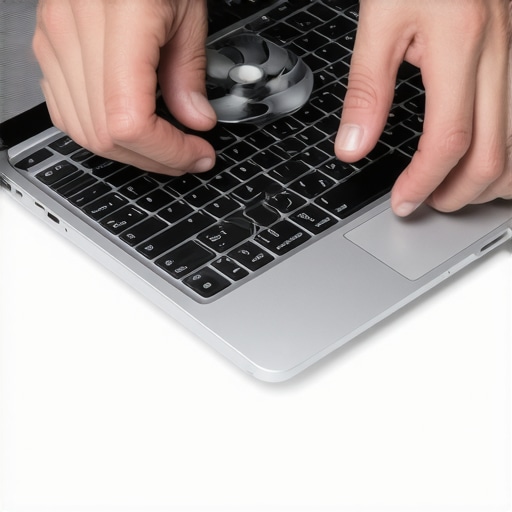
Many assume that computer repair and managed IT are straightforward tasks, but the truth is, there are deeper nuances that often go unnoticed. For example, a common myth is that replacing hardware components always guarantees improved performance. In reality, a thorough understanding of system compatibility and underlying software issues is essential to avoid costly mistakes. This misconception can lead to unnecessary hardware upgrades that don’t address the actual problem, wasting time and resources.
Why Do Some Data Recovery Efforts Fail Even When Following Expert Advice?
One overlooked aspect in data recovery is the importance of understanding the nature of the data loss. Many rely solely on generic recovery tools, unaware that some failures stem from physical damage or encryption issues. Expert techniques suggest that combining software tools with hardware inspection increases success rates significantly. According to Data Recovery Secrets, a tailored approach prevents further damage and maximizes recovery.
Another typical trap is neglecting the role of system updates in hardware and software compatibility. For managed IT solutions, failing to keep firmware and drivers aligned can introduce vulnerabilities and reduce system stability. Regular patch management isn’t just about security; it ensures the entire ecosystem functions harmoniously. Learn more about streamlining for small businesses with effective IT strategies.
Advanced professionals also recognize that quick fixes often overlook the root causes. For instance, a sluggish laptop might seem like a storage issue, but deeper diagnostics might reveal malware or background processes consuming resources. Employing comprehensive system scans and monitoring tools uncovers these hidden culprits, ultimately saving time and preventing recurring problems.
Have you ever fallen into this trap? Let me know in the comments. The key to effective computer repair and managed IT is recognizing that many problems are interconnected, and superficial solutions rarely suffice. By appreciating these nuances, you can approach tech issues with an informed mindset—saving you money, time, and frustration.
Equip Yourself with Reliable Diagnostic and Maintenance Tools
Staying ahead in computer repair and managed IT often hinges on using the right tools. Personally, I swear by software like HWiNFO for real-time hardware monitoring. Its detailed reports on component temperatures, voltages, and fan speeds allow me to catch potential issues before they escalate. For physical maintenance, a set of precision screwdrivers, anti-static wristbands, and compressed air cans are indispensable—I’ve found that regularly cleaning vents with compressed air drastically reduces overheating risks.
Leverage Automation for Long-Term Data Integrity
Data recovery isn’t just about quick fixes when things go south. I’ve integrated powerful data recovery software into my routine to safeguard critical information. Automated backup solutions, like cloud syncs paired with local clones, ensure that data is always current and recoverable. Regularly scheduled backups—set and forget—have become my bread and butter for maintaining peace of mind. As NIST stresses, maintaining multiple redundancy layers is key to resilient data management.
Scale Your Maintenance Practices as Your System Grows
When systems expand, I believe proactive scaling is essential. For example, deploying managed IT solutions, as outlined here, helps automate software updates, security patches, and hardware inventories. This reduces manual oversight, minimizes downtime, and keeps everything running smoothly. Moreover, monitoring tools like Nagios or SolarWinds enable real-time alerts on hardware health, preventing costly failures—an investment I highly recommend as your infrastructure matures.
How do I maintain long-term reliability in my systems?
The secret lies in routine, comprehensive maintenance combined with the right tools. For instance, setting up automated alerts for high CPU temperatures or disk errors allows you to act swiftly, ensuring longevity. Regular hardware inspections, software updates, and data backups create a robust shield against unforeseen failures. I encourage you to experiment with a test routine—perhaps starting with scheduled system health checks using these recommended tools—to build a sustainable maintenance habit that scales with your needs.
Remember, staying vigilant with maintenance tools like data recovery strategies and system health monitoring not only prolongs your device lifespan but also reduces overall support costs. Embrace automation and regular checkups—your future self will thank you for it.
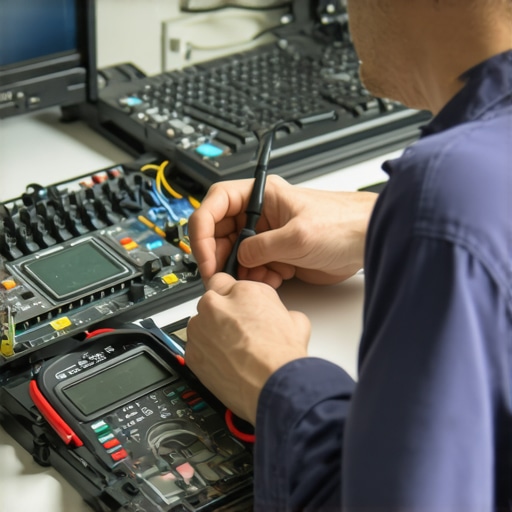
To further refine your maintenance routine, I recommend exploring how advanced diagnostic tools can help you pinpoint lingering issues early. For example, consider trying out managed IT strategies that include routine health assessments. Don’t hesitate to implement one new tool or process today—small steps can lead to significant improvements over time.
Lessons from My Overheating Mishaps That Nobody Tells You
The hardest lesson I learned was realizing that not all overheating signs are obvious, especially when your system’s internal components quietly struggle beneath the surface. One time, I ignored the subtle slowdowns my laptop exhibited, only to find a clogged fan and dried thermal paste that had silently sabotaged performance. The realization? Regular, proactive checks can save you from costly repairs and data loss. Additionally, I discovered that some symptoms, like unexpected fan noises or sporadic crashes, are often overlooked clues pointing to deeper thermal issues—trust me, paying attention to these details transforms maintenance from a chore into an art.
Tools That Make a Difference in Your Maintenance Routine
My go-to toolkit includes HWiNFO for detailed thermal monitoring—I’ve found that understanding real-time hardware status helps prevent emergencies. For physical cleaning, a soft brush and compressed air are indispensable—they keep dust from turning into insidious heat sources. I also rely on quality thermal paste from Arctic Silver; it’s reliable and easy to apply, ensuring maximum heat conduction. These tools, combined with disciplined routines, empower me to catch potential issues early—and I deeply trust them because they deliver consistent results over time.
Believe in Your Power to Keep Systems Cool
The ultimate motivator is understanding that routine maintenance is within everyone’s reach and incredibly effective. Every measure you take—be it cleaning vents, replacing thermal paste, or monitoring temperatures—directly prolongs your device’s lifespan. Embrace a mindset where ongoing care is part of your digital responsibility, much like regular health checkups. Remember, small consistent actions cultivate confidence, enabling you to troubleshoot thermal issues before they escalate. Your proactive approach today paves the way for a more reliable, longer-lasting system tomorrow.
Ready to Elevate Your Tech Skills and Prevent Overheating?
Harness the knowledge from this guide and transform your computer care routine into a habit that keeps your device running smooth and cool. Don’t wait for signs of trouble; start applying these secrets today and experience the benefits firsthand. Do you have a favorite tip or trick for maintaining your system’s temperature? Share your experiences below—I’d love to hear how you keep your devices in top shape!