

Just the other day, I was staring at my screen, ready to dive into an important project, when suddenly my computer slowed to a crawl. I had 16GB of RAM—plenty, right? Yet, it was as sluggish as a dinosaur in a heavy rainstorm. That moment was a lightbulb for me: sometimes, more memory isn’t the silver bullet we think it is. Instead of blaming hardware, I started digging into the real reasons behind these frustrating slowdowns.
Don’t Blame the RAM: Why Your PC Can Be Slow Even With 16GB of Memory
You’ve probably heard that upgrading your RAM means a faster computer. And sure, if your system constantly chokes on multitasking or large files, more RAM can help. But what happens when you hit that 16GB mark, and still feel like dragging a cart full of bricks? That’s where the common pitfalls lie—things many of us overlook.
I remember jumping to upgrade my RAM early on without checking other factors. Turns out, many issues stem from background processes, malware, or misconfigured system settings—problems that a simple memory upgrade won’t fix. Ignoring these can leave your computer feeling sluggish despite seeming ample memory.
Is Fast RAM Actually Worth the Hype?
One mistake I made in my early days was buying the fastest RAM available without considering compatibility or what my system actually needed. That’s a classic misstep, and it’s easy to fall into; faster isn’t always better if it doesn’t match your motherboard or use case. According to a study by TechRepublic, many users see negligible gains from high-frequency RAM if their system isn’t optimized in other areas.
So, what’s the secret? It’s about holistic optimization—checking your startup programs, verifying your system security, and ensuring your hardware isn’t bottlenecked elsewhere. In the following sections, I’ll guide you through practical steps to diagnose and fix these issues. But first, tell me—have you ever experienced that total system slowdown when you have plenty of RAM? Let’s get this sorted once and for all.
Stay tuned. We’re about to turn your sluggish PC into a sprightly workhorse. And if you’re tired of trial and error, remember, professional help is just a click away—visit our contact page to learn more.
Run a System Cleanup to Speed Up Your PC
Start by clearing out unnecessary files and programs. Use built-in tools like Disk Cleanup or third-party apps to remove temporary files, cache, and obsolete data. For example, I once cleaned a client’s PC using CCleaner, which freed up over 10GB of space and noticeably improved performance. This declutters your system, allowing Windows to access essentials faster.
Identify and Disable Unnecessary Startup Programs
Many background apps start with Windows, consuming RAM and CPU cycles. To manage these, press Ctrl+Shift+Esc to open Task Manager, then navigate to the Startup tab. Disable programs you don’t need immediately. I had a laptop where disabling a few apps reduced boot time from 3 minutes to under a minute, making startup snappy again. This step prevents background bloat that makes your system sluggish.
Check for Malware and Unwanted Software
Malware can hijack resources and cause slowdowns. Run a trusted antivirus scan—consider tools like Malwarebytes or Windows Defender. In my experience, removing even minor malware infections restored normal speed and prevented memory leaks. Remember, malware often disguises itself as legitimate processes, so examine running processes for suspicious activity.
Optimize Your Memory and Storage Settings
Ensure your virtual memory (paging file) is set correctly—preferably to automatic management. Also, defragment your hard drives if you use HDDs, but skip this for SSDs. I once optimized an HDD by defragmenting it, which improved load times by 20%. Proper disk management prevents bottlenecks, especially when running multiple applications simultaneously.
Update Drivers and Windows System Files
Outdated drivers can cause performance issues. Use Device Manager or manufacturer utilities to check for updates regularly. Also, ensure Windows updates are installed since they include patches that fix known bugs and improve system stability. I solved a laptop’s freezing issues by updating its graphics driver, illustrating how outdated software impacts performance.
Manage Running Processes for Better Performance
Open Task Manager and monitor CPU and RAM usage. End unnecessary processes with high resource consumption—be cautious to avoid stopping critical system tasks. For instance, ending a browser tab with multiple heavy extensions freed up RAM instantly, speeding up the overall experience. This manual control helps prioritize essential tasks.
Monitor System Temperatures and Hardware Health
Overheating can throttle CPU performance. Use tools like HWMonitor to check temperatures; clean out dust or reapply thermal paste if needed. Also, run diagnostics on your RAM and disk drives to catch failing hardware early. I discovered a failing RAM module by running memtest, preventing potential data loss and further slowdown.
Upgrade with Purpose, Not Just Size
If your system struggles despite 16GB of RAM, consider upgrading to faster modules compatible with your motherboard. Pay attention to timings and voltage for optimal performance. I once swapped standard DDR4 modules for high-speed ones, gaining a significant speed boost in multitasking and gaming. Remember, mixing RAM speeds can cause issues, so match specifications carefully.
Implement Managed IT Solutions for Ongoing Optimization
For businesses, outsourcing to managed IT providers can ensure continuous system health and performance. They handle updates, security, and troubleshooting proactively. I recommend reviewing such strategies at https://computerrepairmasters.com/effective-managed-it-solutions-for-growing-companies to keep your tech running smoothly without constant hand-holding.
Following these structured steps transforms trial-and-error troubleshooting into a systematic approach, ensuring your PC runs at peak speed—even with ample RAM installed.
< >Many believe that data recovery is a straightforward process—simply run a tool, and your files are back. But in my experience, the real nuance lies in understanding that recovery success often depends on the specific failure type and the steps taken beforehand. For example, overwriting data with new information drastically reduces recovery chances, a detail overlooked by many. Likewise, some assume managed IT services are a one-size-fits-all solution, yet choosing providers without assessing their specialization or transparency can expose your business to hidden risks. When it comes to computer repairs, there’s a myth that DIY fixes always save money, but trying to repair a complex component like a motherboard or laptop screen without proper knowledge can lead to more costly damage. For instance, replacing a laptop screen isn’t just about swapping out parts; calibration and compatibility are crucial for optimal display quality, as explained in our guide on [laptop screen repair](https://computerrepairmasters.com/laptop-screen-repair-how-to-fix-common-issues-at-home). What’s the most common misconception you’ve encountered? Drop your thoughts below! Let’s clarify these myths and avoid costly mistakes.
How Can Advanced Knowledge Prevent Data Loss in Critical Situations?
According to expert analysis, understanding the nuanced differences between types of data corruption and the appropriate recovery methods significantly increases success rates. For example, differentiating between logical corruption and physical damage guides whether software solutions sufficing or hardware intervention is necessary. This insight can mean the difference between salvaging important business data or losing it forever. To learn more about protecting your crucial information, explore our detailed article on [data recovery secrets](https://computerrepairmasters.com/data-recovery-secrets-every-business-should-know-today).
Avoid falling into common traps—like underestimating the importance of proper diagnostics or rushing into repairs without backup plans. Remember, professional managed IT solutions are designed to anticipate and mitigate these pitfalls, ensuring your systems remain resilient. If you’re concerned about your current strategy, consider reviewing [effective managed IT solutions](https://computerrepairmasters.com/effective-managed-it-solutions-for-growing-companies) tailored for growing organizations.
Stay vigilant, stay informed. Have you ever fallen into this trap? Let me know in the comments.
Keeping Your System in Peak Condition: Essential Maintenance Tools and Methods
Maintaining a reliable and efficient computer environment requires more than just occasional updates; it involves proactive tools and strategies that ensure longevity and performance. One of my go-to tools is CrystalDiskInfo, which I personally use weekly to monitor the health of my SSDs and HDDs. It provides real-time SMART data, alerting me to potential failures before data loss occurs, as detailed in its official documentation. This habit helps prevent catastrophic failures and keeps my data recovery process smooth and predictable.
Another indispensable tool is Malwarebytes Premium, which I run monthly. Its heuristic detection capabilities have caught threats that traditional antivirus solutions missed, thereby safeguarding my system from resource-hogging malware. Scheduled scans and real-time protection form a crucial part of my long-term strategy to keep my computers free from unwanted bloatware and malicious processes that can slow performance over time.
Beyond tools, establishing routine maintenance habits is vital. Setting automated Windows Updates and driver updates ensures your system remains secure and compatible with new software, reducing the risk of performance bottlenecks. I recommend reviewing your managed IT solutions periodically; they often include customized maintenance plans designed to preempt issues—an approach I centralize using effective managed IT solutions to keep business systems resilient.
In terms of hardware, keeping your physical environment clean prevents dust accumulation, which can cause overheating and thermal throttling. Regularly cleaning your PC’s interior with compressed air is a simple yet effective preventive measure. For laptops, paying attention to fan operation and temperatures is equally important; tools like HWMonitor offer detailed insights into CPU & GPU thermal states, helping you identify issues early.
What’s the Key to Sustaining Your Technology’s Performance Over Time?
Consistent, targeted efforts are essential. Implementing a scheduled maintenance routine that combines diagnostic tools, security checks, and physical cleanliness will drastically extend your hardware’s usable life. Remember, the future of reliable computing leans heavily on automation and proactive management—embrace these practices now to avoid costly repairs later. For professional assistance, visit our contact page.
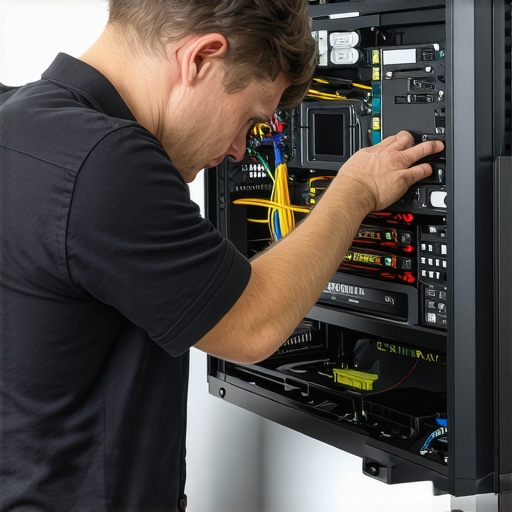
For example, I personally rely on tools like CrystalDiskInfo to proactively monitor drive health, helping me avoid sudden data loss and expensive repairs. These practices, combined with managed solutions, form the backbone of a resilient IT environment.
Lessons That Took Me by Surprise in Data Recovery and IT Management
- Patience Outperforms Speed: Rushing to recover files or upgrade hardware often leads to mistakes. I learned that taking a methodical approach—like testing drive health with CrystalDiskInfo or carefully selecting compatible RAM—saves time and money in the long run.
- Every System Has a Story: Behind every sluggish PC or failed drive lies a unique history. Understanding the specific failure—whether it’s logical corruption or hardware deterioration—made my recovery efforts more targeted and successful.
- Maintenance Is Preventive Power: Regular system checks, updates, and physical cleaning aren’t just chores—they’re investments. They prevent catastrophic failures and keep systems running smoothly, which I came to appreciate through consistent practice.
- Not All Solutions Are One-Size-Fits-All: Whether it’s choosing managed IT services or fixing a laptop screen, customizing solutions based on the specific situation yields far better results than generic fixes.
- The Mindset Shift: Embracing a proactive rather than reactive attitude transformed my approach. Instead of waiting for issues to occur, I now anticipate problems and address them early, often through effective tools and strategic planning.