

There I was, laptop on my desk, trying to finish a project, when suddenly a piercing high-pitched whine erupted from my computer. It was like an alarm went off inside my own home, and I thought, “Not again!” That moment of frustration was a real eye-opener. I had ignored the subtle signs, and now my device was crying out for help in the loudest way possible. Have you ever experienced the dread of that annoying squeal coming from your CPU fan, interrupting your focus and making you dread even turning on your laptop?
The Real Cost of Ignoring That High-Pitched Fan Noise
That sharp whine might seem like a minor annoyance, but it could signal underlying problems that, if left unchecked, might lead to costly repairs or data loss. I quickly learned that ignoring this screaming fan isn’t just about the noise—it’s a warning sign of potential overheating, dust buildup, or failing components. According to a report by Computer Repair Masters, ignoring signs of hardware stress can drastically shorten your device’s lifespan and increase the risk of data corruption. That’s why addressing that high-pitched sound early on can save you both time and money.
Quick question: Are you worried that fixing this noise might be complicated or expensive?
I can’t tell you how many times I thought a simple cleaning or replacement would be a huge hassle—until I tried a few tricks myself. Early in my troubleshooting journey, I made the mistake of rushing into expensive repairs without understanding the root cause. Learning from that mistake helped me confidently identify the real issue and fix it without breaking the bank. So, if you’re tired of that annoying squeal and want to understand why it’s happening—and how to fix it yourself—stick with me. We’re going to explore practical steps to get your CPU fan back to whisper-quiet performance, and I’ll share insider tips along the way. Whether you’re a seasoned tech enthusiast or just a regular user, there’s a solution waiting for you. Ready to silence that annoying noise for good?
Inspect and Clean Your Fan Thoroughly
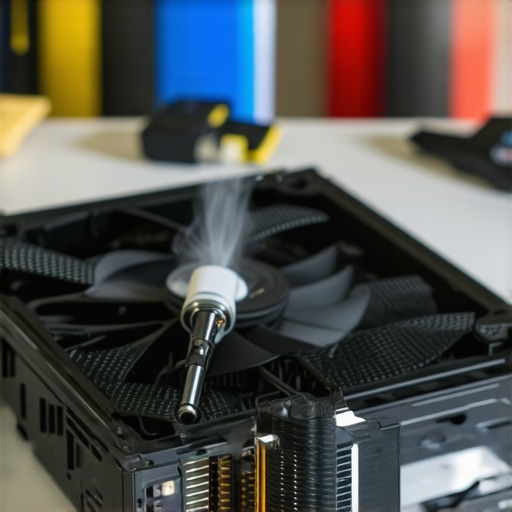
Start by turning off your laptop and unplugging it from power. Remove the back panel carefully using appropriate screwdrivers. Once open, locate the CPU fan—it’s usually a small, spinning component connected to the heatsink. Use compressed air to blow away dust and debris that may have accumulated, causing imbalance or strain. I once spent an hour cleaning a friend’s laptop, and to my surprise, the high-pitched noise stopped immediately after removing a thick layer of dust. Regular cleaning prevents overheating and fan noise escalation.
Check the Fan’s Physical Condition
Look for bent or broken fan blades; these can create vibrations and noise. If blades are damaged or wobbling, consider replacing the fan entirely. A misaligned or loose fan can also cause noise; tighten mounting screws firmly but carefully. During a troubleshooting session, I noticed a fan that rattled due to loose screws; tightening them restored silence without needing a replacement. Ensure no foreign objects are caught in the blades—small screws or hair can deform the rotation.
Replace the Thermal Paste and Inspect Thermal Components
Over time, thermal paste between the CPU and heatsink dries out, impeding heat transfer and making the fan work harder. Detach the heatsink carefully, clean off old thermal paste with isopropyl alcohol, and apply a small amount of high-quality thermal compound before reattaching. I once opened my laptop to fix overheating; after replacing the thermal paste, the CPU temperature reduced significantly, and the fan noise diminished. This simple step can prolong your device’s life and ensure quieter operation.
Update BIOS and Fan Control Software
Outdated BIOS or fan control drivers might not regulate fan speed properly. Visit your laptop manufacturer’s website or use their support software to check for updates. Some models have built-in fan profiles that can be adjusted via proprietary utilities—setting a balanced profile may reduce high-speed fan operation. I updated my BIOS following a tutorial from this guide, which resulted in a quieter and more stable fan performance.
Replace Faulty Fans or Seek Professional Help
If noise persists after cleaning and software updates, the fan may be failing mechanically. Fans can wear out over time, bearing defects cause grinding or squealing sounds. Replacing the fan yourself requires patience and careful handling, but if you’re uncomfortable opening your device further, consult an expert. For those hesitant to DIY, professional repair services can quickly diagnose and replace the fan, restoring silent performance. To find trusted technicians, visit this contact page.
Monitor Your System Regularly
Prevent future issues by scheduling periodic cleaning and updates. Use built-in diagnostics or third-party monitoring tools to keep an eye on CPU temperatures and fan speeds. Staying proactive ensures your laptop stays cool and quiet, saving you from unexpected disturbances and costly repairs. Remember, a well-maintained cooling system not only silences noise but also improves overall performance and longevity of your device.
 Many believe that replacing a laptop screen or recovering lost data is straightforward, but in reality, there’s a lot of nuance most people overlook. A common myth is that all screens are interchangeable; however, variations in models and connectors mean that a cheap replacement can result in dim displays or flickering if not chosen carefully. As for data recovery, it’s often thought that hitting ‘delete’ is the end of the story, but in truth, the underlying storage medium’s condition, like a failing SSD, demands specialized techniques to avoid permanent loss. Learning these subtle distinctions can save you time, money, and frustration.
Why do so many data recovery attempts fail even with professional tools?
Research shows that improper handling of damaged drives worsens the situation, making data unrecoverable. According to a study by industry experts, understanding the precise failure type—be it logical corruption or physical damage—is crucial. Jumping into recovery without diagnostics often leads to false hopes and wasted resources. Similarly, many novice repair attempts overlook the importance of static precautions or incompatible parts, which can cause further harm. To truly master these areas, it’s essential to recognize the nuances, such as the difference between LCD and OLED screens, or the importance of matching firmware versions during repairs. Managed IT strategies are also vital in preventing such issues through proactive maintenance and regular backups. Remember, rushing into a repair or recovery process without proper knowledge can turn a manageable problem into a costly disaster. Have you ever fallen into this trap? Let me know in the comments.
Staying Proactive with Diagnostic Tools
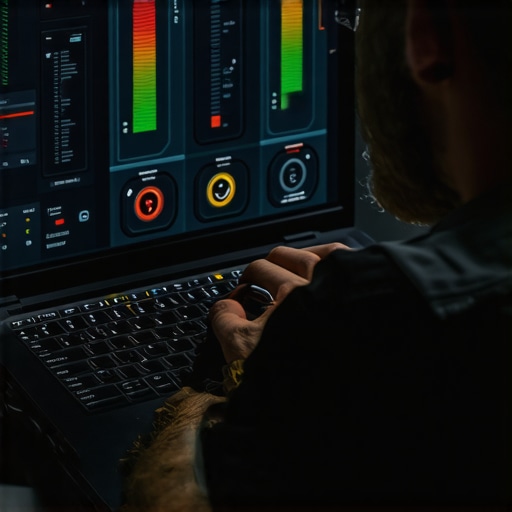
To keep your laptop running smoothly over time, harnessing the right diagnostic tools is crucial. I personally rely on HWMonitor because it provides real-time temperature readings for CPU and GPU, helping me identify overheating issues before they become loud fan noises or shutdowns. Coupled with CrystalDiskInfo, which gives detailed health reports on your SSD or HDD, I can spot early signs of drive failure. These tools empower me to perform preventive maintenance, ensuring longer device lifespan and consistent performance.
Implementing Automated Maintenance Routines
Automation simplifies ongoing upkeep. I set up scheduled Disk Cleanups and System File Checks using Windows Task Scheduler, which run quietly in the background. For more advanced monitoring, I use SpeedFan to adjust fan profiles based on temperature thresholds, helping regulate thermal performance without manual intervention. Incorporating these routines minimizes unexpected crashes and keeps noise levels low—saving headaches and repair costs down the line.
Utilizing Backup and Recovery Programs
Long-term data security is vital. I recommend tools like Recuva for quick file retrieval and Macrium Reflect for comprehensive image backups. Regularly creating full system images ensures that if a hardware issue arises, recovery is swift and less stressful. Remember, a proactive backup plan is your safety net against hardware failures, malware attacks, or accidental deletions—the key to peace of mind.
Scaling Your Data Management Strategy
As your data grows, so does the need for organized management. For small business users, integrating cloud solutions like OneDrive or Google Drive with local backups creates redundancy. For larger setups, I deploy network-attached storage (NAS) devices with RAID configurations, providing scalable, reliable storage. According to industry insights, properly scaled data solutions can improve efficiency and reduce downtime, especially when combined with managed IT services like this strategy. Planning ahead ensures your setup evolves without hiccups, keeping your equipment dependable even as demands increase.
How do I maintain my laptop’s health over time?
Establishing routine checkups—such as monthly temperature monitoring with HWMonitor, regular disk health scans, and scheduled data backups—is essential. Don’t wait for problems to surface; early detection through these precise tools can save you substantial repair costs. Start by integrating automated maintenance routines into your schedule and upgrade your backup strategy to include cloud and local solutions. For a structured approach, consider consulting comprehensive managed IT solutions aimed at small businesses, which can streamline your entire maintenance process and ensure consistent long-term results.
Investing in the right tools and procedures today guarantees your laptop’s performance tomorrow. Want to take your maintenance to the next level? Try setting up scheduled SMART disk health checks with CrystalDiskInfo—it’s a simple step that can alert you to impending drive failures before they disrupt your workflow. For more advanced guidance tailored to your specific setup, reach out through this contact page.
Lessons Few Troubleshooters Realize
- One of the most overlooked insights is that not every hardware squeal indicates failure; sometimes, it’s a sign that cleaning or software adjustments can restore smooth operation—saving you costly replacements.
- I’ve learned that rushing into repairs without understanding the underlying issue often leads to wasted resources. Patience and proper diagnosis are your best tools in maintaining device longevity.
- Discovering that thermal paste application isn’t just for experts was a game changer—it’s a simple step that can drastically reduce overheating and fan noise, extending your laptop’s lifespan.
- Listening to the subtle cues your device gives can prevent major failures. Regular system monitoring with trusted tools helps catch small issues before they grow into expensive disasters.
- Finally, I realized that sharing knowledge with others not only empowers them but also deepens your own understanding—creating a community of confident troubleshooters rather than frustrated users.
Tools and Resources I Rely On
- HWMonitor: I trust this tool for real-time temperature readings, making it easier to catch overheating early—before fan noise becomes unbearable.
- CrystalDiskInfo: This utility provides detailed health reports on storage drives, alerting me to impending failures that could result in data loss—a must-have for proactive data management.
- Macrium Reflect: Establishing regular backups with this software has saved me countless times, especially when hardware unexpectedly fails, ensuring rapid recovery without stress.
- Managed IT strategies from experts: Partnering with professionals in this area has helped me understand how routine maintenance and strategic planning can drastically improve system resilience and security.
Your Next Step Toward Confident Repairs
Embracing these lessons and tools transforms troubleshooting from a daunting task to an empowering routine. By paying attention to your device’s whispers and investing in reliable resources, you set yourself up for long-term success and peace of mind. Remember, proactive maintenance and continuous learning are your allies in keeping your technology running smoothly—silencing those high-pitched frustrations and prolonging your device’s life.
What’s the most surprising thing you’ve learned while fixing your laptop or managing data? Share your story below—I’d love to hear how these tips have made a difference for you!