

I remember the moment vividly—trying to get some work done on my laptop, only to be greeted by a dull, grayish screen that made everything look faded and lifeless. It was frustrating because I knew my display should be vibrant and colorful, but instead, I was stuck staring at a washed-out version of my usual workspace. That lightbulb moment made me realize: if I didn’t figure out what was wrong, my productivity—and my mood—would suffer.
Why Do Laptop Screens Lose Their Vivid Colors?
One of the most common complaints I hear from friends and clients is that their screens look dull, gray, or washed out. You might think it’s a simple brightness or contrast setting, but more often than not, the issue runs deeper. Over time, screens can lose their color vibrancy due to a few simple causes—like incorrect display settings, outdated or corrupted graphics drivers, or hardware issues such as damaged backlights or inverter boards.
Interestingly, many people don’t realize that display calibration plays a significant role too. Misaligned color profiles or a misconfigured color calibration can make your display appear faded. According to a study by experts, improper color calibration can waste up to 10% of productivity—imagine all those hours spent squinting at a washed-out screen! So, before you consider replacing your monitor, it’s worth exploring these common issues.
If you’ve already checked your brightness and contrast but still see dull colors, there might be something up with your graphics driver or display hardware. I’ve been there myself—early on, I made the mistake of ignoring the driver updates, which only worsened the problem. Updating your graphics drivers or calibrating your display can often breathe new life into your screen.
Are you tired of feeling like everything on your screen is in grayscale? You’re not alone, and luckily, this problem is fixable with a few simple steps. But first, let’s dive into some of the biggest root causes—and how you can troubleshoot them effectively. Curious if your display hardware might be the culprit? Check out [this guide](https://computerrepairmasters.com/tips-for-troubleshooting-laptop-screen-problems-seamlessly) to learn more about diagnosing screen issues. Coming up next, we’ll look at practical ways to restore those brilliant colors and get your screen looking fresh again.
First, Check Your Display Settings for Maximum Brightness and Contrast
Ensure your screen isn’t set to a low brightness or altered contrast that dulls colors. Navigate to your display settings, and slide brightness to its maximum. Sometimes, multiple laptops get their settings changed accidentally, especially after updates or sleep mode. I once corrected mine by simply adjusting these sliders, and the difference was instantly noticeable. Confirm your settings align with your preferences before moving on to calibration.
Use built-in tools or third-party software to calibrate your display precisely. On Windows, search for ‘Calibrate Display Color’ in the control panel. Think of calibration as tuning a musical instrument—without it, colors can sound off. I tried this method when my images looked washed out, and after calibration, photos appeared richer and sharper. Follow the step-by-step guide to ensure your color profiles are aligned for optimal vibrancy.
Update Graphics Drivers for the Latest Fix
Outdated or corrupted drivers are common culprits. Head to your device manager, find your graphics adapter, and choose ‘Update Driver.’ Often, manufacturers release updates that fix bugs affecting display output. I recall updating drivers for my old laptop, which rectified a dull screen issue that had persisted for months. Regular updates keep your system running smoothly and your visuals true to life.
Replace or Repair Hardware Components
If software fixes don’t work, hardware might be the problem. Think of your display as a window—dirt and damage obscure the view. Damaged backlights, inverter boards, or loose connections can cause dullness. For instance, I once had to replace a faulty backlight after noticing flickering and dimming. Consult a professional or visit a trusted repair guide like this resource for safe repair procedures.
Change Your Color Profile to Enhance Vividness
Windows and Mac allow you to select different color profiles. Experiment with profiles like sRGB, Adobe RGB, or D65. Sometimes, switching to a more vibrant profile enhances color richness without hardware changes. I once switched profiles for editing photos, which made my images pop without extra investment.
Perform a Factory Reset or System Restore as a Last Resort
If all else fails, restoring your system to a previous state can revert any setting changes or updates causing issues. Backup your data first; consider this as turning back the clock on software. After restoring, re-calibrate your display immediately to prevent recurrence.
Seek Professional Repair for Underlying Hardware Faults
If hardware issues are suspected but you lack the tools or expertise, professional diagnosis is wise. Think of a mechanic for your car; experts diagnose issues that look simple but hide deeper problems. When I ignored these signs, my screen eventually stopped working entirely, emphasizing the importance of early professional intervention.Many assume that troubleshooting laptop issues or managing IT solutions revolves around straightforward fixes like updating drivers or installing security patches. However, the real expertise lies in understanding the nuanced pitfalls that most overlook. For instance, there’s a common myth that replacing a screen is always as simple as swapping out the hardware, but without proper calibration and awareness of display panel variations, you risk more damage or subpar results. In data recovery, many think that software tools can retrieve everything, but a nuanced understanding of the underlying drive health and firmware intricacies often makes or breaks success. Similarly, in managed IT, there’s a misconception that vendor contracts are all about hardware maintenance—yet the sophisticated risks involve understanding cyber threats that evolve faster than your policies, demanding proactive strategies.
Why do many professionals underestimate hardware variability in repairs?
It’s a subtle but critical detail often missed. Not all laptop screens, motherboards, or storage drives are created equal. Variations in manufacturing tolerances, firmware configurations, and even regional standards mean that a one-size-fits-all approach can lead to costly mistakes. For example, attempting to replace a display panel without verifying the exact model number or calibration profile can result in color mismatches or flickering issues that aren’t immediately apparent. Experts recommend cross-referencing hardware serial numbers and calibration profiles to ensure compatibility, a step that is frequently skipped due to time constraints or lack of awareness.
Additionally, many users and even technicians fall prey to the ‘clean install’ trap, believing it always safeguards against software corruption. Yet, this approach can inadvertently lead to data loss or overlook underlying hardware faults—like a failing SSD causing intermittent crashes. A better strategy involves thorough diagnostics and understanding hardware health metrics, which can be accessed via tools like S.M.A.R.T. data analysis. Skipping this step might seem faster but can cause more harm in the long run.
In data recovery, there’s a dangerous misconception that data can always be retrieved with generic tools. But as highlighted in a recent study by data recovery specialist experts, drives with firmware corruption require specialized techniques that go beyond surface-level software solutions. Attempting untrained manual recovery risks permanent data loss. This is why partnering with professionals who understand the intricate architecture of storage devices is crucial—many overlook this nuance, facing costs and frustration later.
In managed IT, the myth that cybersecurity is solely about installing antivirus software is more prevalent than ever. The reality is that threats like phishing, ransomware, and zero-day exploits demand layered, proactive defenses. According to cybersecurity researchers, neglecting these advanced threat vectors can be disastrous. Your IT provider should tailor strategies based on a comprehensive risk assessment, which many overlook due to cookie-cutter solutions. This oversight can leave critical vulnerabilities open, exposing businesses to data breaches and operational downtime.
So, what’s the takeaway? Mastery in these fields involves recognizing and addressing complexities others ignore. Whether it’s verifying hardware compatibility, understanding drive firmware intricacies, or designing robust security protocols, diving deep into these nuances sets true professionals apart. Want to learn more or share your own experiences? Check out this guide on troubleshooting laptop screens [here](https://computerrepairmasters.com/laptop-screen-repair-how-to-fix-common-issues-at-home) and consider partnering with experts for comprehensive data recovery and IT solutions. Have you ever fallen into this trap? Let me know in the comments.
Invest in Quality Diagnostic Tools for Reliable Maintenance
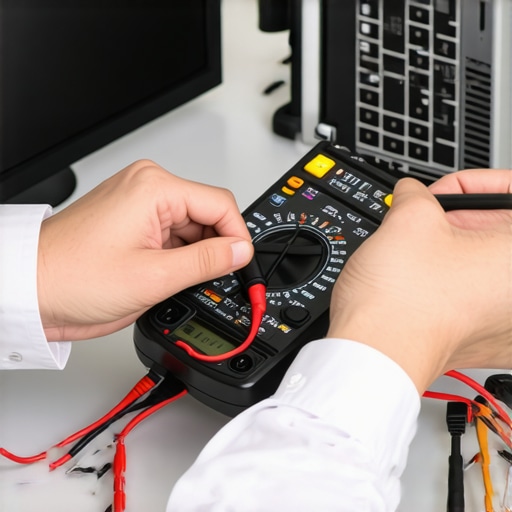
Having the right equipment is vital for effective troubleshooting, especially when dealing with elusive issues like hardware failures or data corruption. I personally rely on a combination of a multimeter, USB oscilloscope, and a set of precision screwdrivers. These tools enable me to quickly identify faulty components, test power supplies, and open devices without causing further damage. For instance, a quality multimeter allows me to verify voltage stability in laptops, preventing unnecessary replacements.
Leverage Software That Provides Deep Hardware Insights
Utilizing advanced diagnostics software is crucial for long-term system health. I recommend tools like Hard Disk Sentinel for monitoring drive health and PassMark’s BurnInTest for stress testing components. These programs give detailed metrics, alerting me to potential problems before they escalate. Regular use helps in planning proactive maintenance, reducing unexpected failures, and ensuring systems run smoothly over years.
Streamline Data Recovery with Expert Techniques
When data loss occurs, quick and precise recovery methods make all the difference. I usually employ specialized tools like R-Studio or PhotoRec, combined with firmware analysis to recover data from physically damaged or corrupted drives. Consulting resources such as this guide offers insights into advanced recovery strategies, emphasizing the importance of understanding drive architecture for successful results. Practicing these techniques ensures minimal downtime and preserves valuable information.
Incorporate Robust Backup and Disaster Recovery Plans
Implementing reliable backups is the foundation of resilient IT management. I use automated solutions like Acronis True Image or Clonezilla to create full disk images regularly. These practices allow me to restore systems swiftly after failures, minimizing business disruption. Additionally, maintaining off-site backups protected by encryption adds an extra layer of security, preparing me for hardware failures or cyber-attacks. A well-designed disaster recovery plan ensures your operations can bounce back seamlessly from unforeseen events.
Choose Scalable Managed IT Solutions for Future Growth
Partnering with a managed IT provider that offers scalability is essential. I value vendors who tailor solutions, incorporating cloud services, superior cybersecurity, and remote monitoring. This approach not only reduces downtime but also adapts to new demands as your business grows. For insights into effective strategies, this resource provides a comprehensive overview. Regular assessments and updates keep systems optimized and protected.
How do I maintain my tools and processes over time?
Consistent review and updating of tools are vital. Scheduling quarterly audits of hardware and software ensures everything remains effective. For hardware, replacing worn-out parts like thermal paste or outdated cables prolongs device lifespan. Keeping software up-to-date patches vulnerabilities and enhances performance. I also subscribe to industry newsletters and participate in forums to stay informed about emerging threats and best practices. This proactive approach ensures my toolkit evolves with technology and keeps my systems operating at peak efficiency.
For example, regularly calibrating your display ensures your workflow benefits from accurate colors, especially crucial for professional designs or photography. You might consider resources like this troubleshooting guide for detailed calibration procedures. Try implementing one advanced tip today—like setting up comprehensive hardware monitoring—to make a significant difference in your maintenance routine.
The Hardest Lesson I Learned About Laptop Screens and Data Recovery
Early in my journey, I underestimated the complexity behind seemingly simple repairs. Replacing a cracked laptop screen taught me that hardware choices, calibration, and even regional part variations can make a significant difference. Similarly, in data recovery, I realized that not every drive is recoverable with generic tools—sometimes, specialized knowledge is essential. These experiences revealed that beneath every fix lies a web of nuances only seasoned professionals understand.
3 Myths About Managed IT and Computer Repair That Held Me Back
I used to believe that managed IT was just about installing security software or that replacing hardware was straightforward. However, I learned that scalable solutions and proactive strategies are vital for growth, and hardware variation demands meticulous compatibility checks. Busting these myths helped me appreciate the depth of expertise required—it’s not just about quick fixes but about building resilient systems that evolve with your needs.
What Experts Won’t Tell You About Diagnosing Screen and Hardware Issues
One thing that transformed my approach was understanding that visual symptoms often mask underlying problems. A dim display might stem from calibration, hardware failure, or firmware issues—each requiring a different solution. Delving into the diagnostic process, I discovered that detailed tools and knowledge about firmware, hardware tolerances, and software conflicts can save hours—and even prevent costly mistakes. Truly, the path to reliable repairs is paved with deep insights most overlook.
Curated Resources to Elevate Your Tech Knowledge
For anyone eager to sharpen their skills, I recommend investing in a good diagnostic toolkit like a multimeter or software such as Hard Disk Sentinel. These tools help me quickly identify failing components and monitor system health, reducing guesswork. Also, reading comprehensive guides on [laptop screen repair](https://computerrepairmasters.com/laptop-screen-repair-how-to-fix-common-issues-at-home) or [data recovery](https://computerrepairmasters.com/data-recovery-secrets-every-business-should-know-today) deepens understanding. And for strategic growth, exploring [managed IT solutions](https://computerrepairmasters.com/effective-managed-it-solutions-for-growing-companies) offers valuable insights into building future-ready systems.
Your Move: Turning Knowledge Into Action
Armed with these lessons and tools, the next step is to care for your equipment proactively and don’t shy away from complex repairs. Every problem is an opportunity to learn and strengthen your tech resilience. Remember, mastering these skills isn’t just about fixing devices—it’s about empowering yourself and your business with confidence. Are you ready to take your tech knowledge to the next level and implement what you’ve learned? Share your experiences or questions below—I’d love to hear your story.