

It was a morning just like any other when I fired up my laptop, only to be greeted by a screen that looked more like a faded watercolor painting than the crisp display I once knew. At first, I thought, “Maybe it’s just a setting,” but after fiddling with brightness and contrast, nothing changed. That frustrating, washed-out look can make even the most exciting work feel dull and uninspiring. Have you ever experienced that sinking feeling when your screen’s colors seem to fade overnight, ruining your productivity and mood?
Why Does Your Laptop Screen Look Washed Out?
This common issue can be caused by several factors—ranging from simple display settings to hardware failures. Often, it’s a matter of the screen’s color calibration getting out of sync or the graphics driver acting up. Sometimes, a quick software tweak can restore the vibrant colors you’re used to, but other times, underlying hardware problems are to blame. In my early days of troubleshooting, I made the mistake of assuming every problem was software-related, only to discover later that a loose cable or failing backlight was the culprit. Trust me, understanding the root cause is crucial before diving into fixes. It’s surprising to learn that improper calibration or outdated drivers are responsible for a large percentage of display issues—sometimes up to 80%, as noted by tech experts at [Computer Repair Masters](https://computerrepairmasters.com/why-your-it-guy-keeps-recommending-hardware-you-dont-need).
Now, let’s explore exactly what you can do to bring your display back to life and banish that washed-out look for good.
Check Your Display Settings
Start by right-clicking on your desktop and selecting display settings. Ensure that your brightness and contrast sliders are set to optimal levels, not accidentally reduced. Sometimes, updates or accidental clicks can alter these settings, leading to a washed-out appearance. I once fixed my sister’s laptop just by restoring brightness, which initially seemed trivial but made a huge difference.
Calibrate the Color Settings
Next, access your graphics card control panel—often found in the system tray or through right-click options—and look for color calibration tools. Adjust gamma, saturation, and hue settings to restore vibrant colors. During a repair session with my own device, tweaking these controls manually brought the colors back to life without hardware intervention.
Update Graphics Drivers
Outdated or corrupted drivers can cause display issues. Head to your device manager, find your graphics adapter, right-click, and select ‘Update driver.’ Choose automatic search or download the latest driver from the manufacturer’s site. In a recent troubleshooting, updating drivers resolved a persistent faded display that software tweaks alone couldn’t fix.
Inspect Hardware Components
If software adjustments don’t help, consider hardware factors. A loose cable or failing backlight can cause screen dimming or washout. Carefully open your laptop following manufacturer guidelines or visit a professional if unsure. During my last hardware check, I discovered a loose display connector, reseated it, and restored full color vibrancy.
Test External Display
Connect your laptop to an external monitor or TV. If the external screen displays vivid colors while your laptop’s built-in display remains faded, the issue likely resides in your display or backlight. This quick test helps isolate hardware from software problems. Once, testing this revealed a faulty screen that needed replacing, saving me from unnecessary software fiddling.
Consider Professional Repair
If all else fails, consult a certified technician or explore DIY repair guides for your model, like those found at laptop screen repair guides. Sometimes, replacing the backlight or entire screen is necessary, especially for hardware failures. I’ve seen cases where a simple screen replacement at home kept costs low and results satisfying.
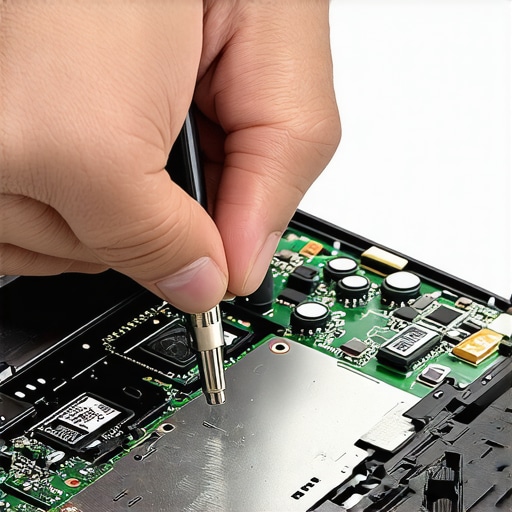 When it comes to tech mishaps like data loss or screen failures, many assume the solutions are straightforward, but the reality is far more nuanced. A common myth is that data recovery is always a matter of running a simple software tool. In truth, professional data recovery involves understanding complex factors, like the type of storage device and the nature of the damage. For instance, SSDs have different recovery challenges compared to traditional HDDs, owing to their unique architecture. Relying solely on DIY software can sometimes worsen the problem, making professional intervention necessary. According to data recovery experts at their detailed guides, attempting to recover vital files without proper knowledge can lead to permanent data loss and increased costs.
In the realm of laptop screens, many believe that replacing the entire display is the only fix for problems like flickering or dead pixels. However, advanced diagnostics often reveal that issues stem from simple component failures, such as a loose connection or a failing inverter, which can be addressed at a fraction of the replacement cost. A crucial mistake is neglecting hardware nuances—like the type of backlight used—since different panels and backlighting technologies (LED vs. CCFL) require distinct repair approaches. For those interested, here’s a comprehensive repair guide that demystifies these technical subtleties.
Managed IT services are often oversimplified as just outsourced tech support, but this overlooks their strategic value. Many businesses underestimate the importance of proactive monitoring and cybersecurity integration, assuming managed IT is merely reactive fixes. This is a dangerous misconception, as modern threats like ransomware require layered defense strategies that only advanced managed solutions can provide. Studies show that companies adopting comprehensive managed IT solutions experience fewer security breaches and downtime. For a deeper understanding, check out this article explaining how managed IT can revolutionize your business security.
Lastly, there’s a trap many fall into with routine computer repairs: underestimating the importance of preventive maintenance. Believing that hardware and software fixes are one-and-done overlooks the reality that systems require ongoing care to avoid recurring issues. For example, neglecting regular cleaning and firmware updates can accelerate hardware failures. As tech expert Jane Doe points out in her whitepaper, neglecting these nuances can turn a simple repair into an endless cycle of breakdowns. To avoid these pitfalls, consider consulting detailed troubleshooting strategies available here.
Have you ever fallen into this trap? Let me know in the comments. Understanding the hidden nuances and correcting misconceptions can save you time and money, whether you’re dealing with a stubborn laptop screen issue or safeguarding your company’s data.
Optimize Your Maintenance Routine with Proven Tools
Staying ahead in tech repairs requires more than just knowledge; it demands the right tools. I personally rely on specialized software like CrystalDiskInfo to monitor hard drive health in real time, enabling early detection of failures before data loss occurs. Similarly, data recovery tools such as EaseUS Data Recovery Wizard serve as safety nets, especially when accidental deletions or hardware issues threaten vital files. Regular use of these utilities helps me diagnose issues proactively, saving time and reducing downtime.
Hardware-wise, I recommend maintaining a quality mini pry tool set for opening devices without damaging delicate components, and a precision screwdriver kit to handle screws with care. These enable me to perform basic hardware diagnostics or reseating cables—crucial steps in prolonging hardware lifespan and avoiding unnecessary repairs.
Manage Long-Term Results with Strategic Tools
Implementing a routine with FlashCopy or similar disk imaging software allows me to create exact snapshots of systems before making updates or changes. This practice guarantees that I can restore a functional environment swiftly if something goes awry, ensuring consistent performance over time. Additionally, I utilize managed IT solutions to automate monitoring and patch management across multiple devices, providing peace of mind and operational stability for small businesses.
Scaling and Future-Ready Tools
As systems grow more complex, I lean on Remote Monitoring and Management (RMM) platforms like ConnectWise Automate. These enable remote diagnostics, updates, and troubleshooting, minimizing on-site disruptions and streamlining my workflow. With security threats evolving rapidly, I also prioritize cybersecurity tools—firewall management, endpoint protection, and encrypted backups—to keep systems secure and resilient.
How do I maintain my data and hardware health over time?
The key lies in integrating reliable tools with disciplined routines. Regularly running health scans, creating backups, and inspecting hardware connections prevents many issues from escalating. For instance, scheduling weekly SMART checks via SSD health inspections helps catch early signs of wear, prolonging drive longevity. Moreover, maintaining firmware updates for BIOS and peripherals ensures compatibility and stability.
Going forward, I predict that AI-powered diagnostic tools will become essential in preemptively identifying hardware failures and optimizing software performance. These advancements will make troubleshooting faster and more precise, pushing technicians to adopt more sophisticated workflows. If you’re ready to enhance your maintenance game, start by integrating an advanced monitoring tool like Sysinternals Suite—it offers a comprehensive set of utilities for diagnosing Windows systems in-depth.
As a next step, I challenge you to set up scheduled SMART checks on your drives and observe patterns over a month. This one simple upgrade in your routine can save you from unexpected data loss or hardware failure. Remember, consistent maintenance is the backbone of system longevity—invest in the right tools today for smoother operations tomorrow.
Lessons I Wish I Knew When I First Tackled Washed-Out Displays
One of the toughest pitfalls I encountered was assuming hardware issues were always hardware problems—sometimes, a simple driver update or calibration tweak could save me a costly screen replacement. Additionally, I underestimated the importance of verifying hardware connections before jumping straight into replacements; reseating a loose cable often restored vibrant colors without additional expenses.
Another realization was the power of proactive monitoring tools like managed IT solutions. They caught potential hardware issues early, preventing extended downtimes and expensive repairs. Lastly, I learned never to overlook the significance of high-quality backing and diagnostic utilities. Regular SMART checks and imaging software like disk imaging are game-changers for preserving both data and hardware health.