

It was 8:55 AM on a Tuesday. I had a client proposal that absolutely had to be in the courier’s hands by 9:15. I hit ‘Print,’ heard that familiar mechanical whir, and then… nothing. Just a small, mocking yellow triangle in my system tray. Windows had decided to update at 3:00 AM, and my printer had apparently decided to retire without notice. It is a visceral kind of frustration, isn’t it? You walk into the office, coffee in hand, ready to tackle the day, and a piece of software you didn’t even ask for has severed the connection to your most essential hardware. If you have been through this, you are not alone. In fact, many of us spend more time troubleshooting common computer repair issues effectively than we do actually getting work done. I have been a tech enthusiast for years, and even I fell into the trap of thinking I could just ‘force’ things to work. One of my biggest early mistakes was thinking that a generic driver would suffice, only to find my high-end office machine acting like a basic inkjet from 1998. Today, we are going to fix this. We are going to dive into why Microsoft’s updates keep knocking your printer off the guest list and how you can reclaim control of your office hardware once and for all. Have you ever had a printer die right before a major deadline? Share your story below.
Your Printer Did Not Break But Your Driver Did
It is easy to blame the hardware when things go south. We want to kick the paper tray or shake the toner cartridge, but the reality is that the problem is almost always digital. When Windows updates, it often replaces specialized manufacturer drivers with its own ‘universal’ versions. These generic drivers are fine for basic tasks, but they lack the nuance required for complex office networking. According to data from Statista, Microsoft Windows still commands over 72% of the global desktop market share, which means when a buggy update hits, it ripples through millions of offices simultaneously. This is why computer repair for beginners often starts with one simple rule: never trust an automatic driver update. If you are running a growing business, you might even find that managed IT solutions are the only way to keep these updates from causing a total work stoppage.
Is a Windows update actually worth the printing headaches it causes?
Sceptics often ask if we should just turn updates off entirely. I get the temptation. However, it is a dangerous game. Many of these patches fix vulnerabilities that prevent your hardware from becoming a backdoor for hackers. Remember, office printers are a massive security risk if they are not properly patched. The goal isn’t to stop updating; it is to update smarter. We need to find that sweet spot where our systems stay secure without losing the ability to print a simple three-page contract. We are going to look at how to roll back specific drivers and how to tell Windows to leave your printer settings alone while it updates everything else. It is about taking the ‘auto’ out of ‘automatic’ just enough to keep your office running smoothly.
Fixing the driver before it breaks your workflow
The first thing you need to realize is that Windows is trying to be helpful, like a well-meaning relative who reorganizes your kitchen while you are at work. You come home, and the forks are in the spice rack and the salt is in the basement. To get your printer back, you have to undo that “help.” Go into your Device Manager—it is the brain center for every piece of hardware attached to your machine. I remember a frantic afternoon with a client’s law firm where three workstations suddenly couldn’t see the main scanner. We found that a Tuesday patch had overwritten the TWAIN driver with a generic Microsoft one. The fix wasn’t buying a new scanner or calling a technician; it was a simple five-click rollback.
Reversing the damage with a quick rollback
Locate your printer in the Device Manager list, right-click, and hit properties. Under the ‘Driver’ tab, you will often see the ‘Roll Back Driver’ button. If it is clickable, that is your golden ticket. It tells Windows to toss the new update into the bin and revert to the version that actually worked. This is a fundamental skill in troubleshooting common computer repair issues effectively. If that button is greyed out, you will need to uninstall the device entirely and start fresh with the manufacturer’s package. 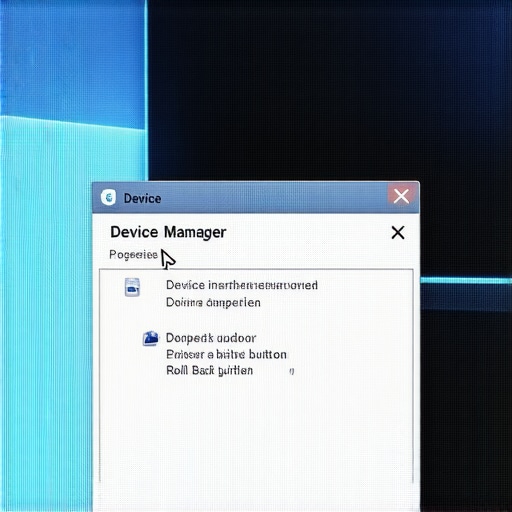
Lock the door on automatic hardware changes
To keep this from happening again, you have to tell Windows to stay in its lane. There is a hidden setting called ‘Hardware Installation Settings.’ If you search for it in your Start menu, you can toggle it to ‘No.’ This stops Windows from scouring the internet for what it thinks is a better driver every time you plug something in. Think of it as a bouncer for your USB ports. For larger operations, managing this across fifty computers is a nightmare, which is why managed IT solutions streamlining operations for small businesses focus so heavily on centralized update management. They ensure the security patches go through, but the hardware drivers stay frozen and functional.
The manufacturer knows their hardware best
Always download your drivers directly from the source. If you have an HP, go to HP. If you have a Brother, go to Brother. Using a generic Windows driver is like putting bicycle tires on a Ferrari—it might roll, but it is not going to perform. While you are at it, check your other peripherals. Often, when the printer goes, a laptop screen might also start showing weird refresh rates because of a similar generic display driver swap. Keeping a folder on your desktop with your ‘stable’ driver installers is a pro move that saves hours. It is the same logic we use in data recovery secrets: always have a backup plan before the crisis hits. I once spent six hours trying to ‘fix’ a printer port only to realize the driver I downloaded was for the wrong sub-model. Details matter in computer repair for beginners; one wrong digit in a model number and you are back to square one.
Beyond the immediate frustration of a printer that refuses to communicate, there is a deeper, more pervasive myth in the tech world: the idea that a ‘clean install’ or a factory reset is the ultimate cure-all for every performance hiccup. In my years of consulting, I have seen more data lost to unnecessary resets than to actual hardware failure. Most people believe that when a system gets sluggish or peripherals start acting up, wiping the slate clean is the most efficient path. I disagree. In reality, a surgical approach to troubleshooting common computer repair issues effectively often reveals that the culprit is a single conflicting registry key or a ‘ghost’ driver from a device you haven’t used in three years.
Why does your IT guy insist on separate guest networks for a five-person office?
You might think it is overkill to set up a VLAN for a small team, but it is a perfect example of the nuance missing from most computer repair for beginners guides. It is not just about keeping guests off your printer; it is about ‘lateral movement.’ If a visitor’s infected laptop joins your main network, it can sniff out your server’s vulnerabilities in seconds. This is why your business needs a separate VLAN for guest wi-fi immediately. It is a sophisticated layer of protection that separates the ‘toys’ from the ‘tools.’ According to a study by Gartner, the average cost of IT downtime is roughly $5,600 per minute. When you look at it through that lens, the extra hour spent configuring a network isn’t an expense—it is insurance.
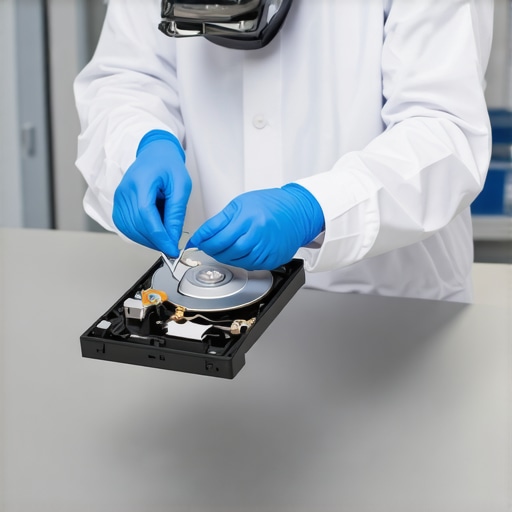
One of the most dangerous ‘traps’ you will encounter involves the dreaded clicking hard drive. The instinct for many DIY enthusiasts is to download a ‘free’ recovery tool and run a deep scan. This is a catastrophic mistake. If a drive is making physical noise, it means the mechanical arm is failing. Running software on a failing mechanical drive is like forcing a person with a broken leg to run a marathon just to see where the bone is snapped. You will cause permanent platter damage. I’ve seen countless clients turn a simple $300 recovery into a $3,000 clean-room nightmare because they didn’t know why you should never open a clicking hard drive in a normal room. True expertise in data recovery secrets starts with knowing when to keep your hands off the power button.
The same logic applies to your display. If you see a faint glow or a flicker, don’t assume the panel is toast. Often, it’s a simple ribbon cable that has vibrated loose from the hinge—a common issue addressed in tips for troubleshooting laptop screen problems seamlessly. Whether you are managing a fleet of workstations or just trying to get your home office to behave, remember that the most expensive repair is the one you have to do twice because you rushed the first time. Have you ever fallen into this trap of trying to ‘software fix’ a hardware problem? Let me know in the comments. If you’re feeling overwhelmed by these technical hurdles, exploring effective managed IT solutions for growing companies can take that weight off your shoulders so you can focus on your actual work.
I have spent a decade watching people make the same mistake: they treat their computers like appliances—things you use until they die—rather than high-performance ecosystems. If you want your hardware to last, you need to stop waiting for the ‘blue screen’ and start looking for the early warning signs. I don’t waste my time with those ‘one-click fix’ apps that promise to speed up your PC; most of them are bloatware in disguise. Instead, I rely on raw data. My first step for any machine I manage is to pull the S.M.A.R.T. data from the storage drives. Knowing how to check if your hard drive is about to fail using s.m.a.r.t data is the difference between a controlled upgrade and a frantic Tuesday morning trying to recover lost client files.
Tools that actually save my sanity
When it comes to my physical toolkit, I am incredibly picky. I use an iFixit Pro Tech Toolkit because the bits don’t strip, and the organization keeps me from losing those tiny laptop screws that always seem to vanish into thin air. On the software side, I swear by CrystalDiskInfo for health monitoring and HWMonitor to keep an eye on thermal throttling. If I see a CPU hitting 95 degrees Celsius, I know I’m looking at a dried-out thermal paste or a clogged fan before the system even crashes. It is a much better approach than the standard computer repair for beginners where people just keep rebooting until the motherboard finally gives up the ghost. Also, please, stop using canned air on your motherboard until you read this warning; if you’re not careful, you can freeze sensitive components or spin fans so fast they generate a static charge that fries the controller.
How can I keep my office tech running for years without a crash?
Maintenance isn’t just about cleaning out the dust once a year; it’s about monitoring the ‘wear and tear’ of components that don’t have moving parts. For instance, SSDs have a finite lifespan. I constantly monitor the TBW (Total Bytes Written) because the sign your ssd is reaching its write limit and about to die is often very subtle—just a few more ‘not responding’ errors than usual. According to the 2023 Backblaze Drive Stats report, hard drive failure rates often climb significantly after the four-year mark, which is why I recommend a mandatory refresh cycle for any drive reaching that milestone. If you are running a server, you might wonder why your business server keeps rebooting at 3 am and how to stop it; usually, it’s a conflict between a scheduled update and a failing CMOS battery or a thermal spike that occurs when the AC turns off in the office at night.
Predicting the end of the break-fix model
The trend I’m seeing—and the one you should prepare for—is the total death of ‘break-fix’ IT. In the next five years, AI-driven diagnostics will likely predict a hardware failure weeks before it happens, automatically ordering a replacement part and scheduling a technician. We are already moving toward this with managed IT strategies to keep your business secure in 2025, where monitoring agents alert us to issues before the end-user even notices a slowdown. If you want to get ahead of the curve today, my specific tip is this: Download a portable version of a S.M.A.R.T. monitor today and check your ‘Reallocated Sectors Count.’ If that number is anything other than zero, stop what you are doing and back up your data immediately. It is the single most reliable ‘crystal ball’ we have in the tech world. Don’t wait for the click; listen to the data.
The One Mistake That Costs More Than a New PC
After working with hundreds of setups, the biggest lesson I have learned isn’t about which brand of laptop is best; it is about the ‘sunk cost’ of DIY repairs. I have watched business owners spend three days trying to spot a hardware failure masquerading as a software bug when a simple diagnostic check would have revealed the truth in five minutes. Sometimes, the bravest thing you can do for your business is admit that a fifty-dollar part isn’t worth five thousand dollars of your billable time. My lightbulb moment came when I realized that being ‘good with computers’ is actually a curse if it keeps you from delegating tasks that an expert could solve in their sleep. True tech mastery is knowing when to put the screwdriver down and call in the cavalry.
My Personal Essentials for a Bulletproof Setup
For those who want to be prepared for the next Windows-induced printer crisis, I recommend keeping a specific ’emergency kit’ on your desk. I personally rely on a bootable USB drive with a light OS for file extraction, a physical notebook to record specific BIOS settings, and a healthy skepticism of ‘free’ registry cleaners that often do more harm than good. Understanding the power of data recovery tools before a crisis hits is what separates the survivors from those who lose years of work in a single afternoon. I trust health monitors like CrystalDiskInfo and drive imaging tools like Macrium Reflect because they provide the data needed to make informed decisions rather than guesses. #IMAGE_PLACEHOLDER_E#
Step Into a More Reliable Tech Future
Technology should be your silent partner, not a source of constant anxiety that keeps you up until midnight. Whether you are moving toward managed IT strategies to keep your business secure in 2025 or just finally cleaning out your laptop fans, remember that consistency beats intensity every time. Small, proactive checks are the only way to ensure your hardware lives to its full potential. Your computer is the engine of your career; treat it with the same respect you would give a high-end vehicle. Have you ever tried to fix a simple software glitch only to realize the hardware was actually failing? Tell me about your ‘aha’ moment in the comments below.