

Imagine this: you’re deep into your favorite game, the graphics are stunning, and then suddenly, your PC emits a piercing high-pitched whine. It’s sharp enough to make your ears cringe. I remember the first time I heard that sound — I instantly thought my computer was about to break down. Turns out, I wasn’t alone in this experience. That relentless squeal is a common frustration among gamers and PC enthusiasts alike.
The Hidden Culprit Behind Your PC’s Whine
Those high-pitched noises often come from the fans, coils, or power supply units working overtime. While it might seem like a harmless nuisance, in many cases, it signals underlying issues that could lead to hardware failure if left unaddressed. I learned this the hard way early in my tech journey — I ignored the squealing, thinking it was just normal. Spoiler alert: it wasn’t. The mistake I made? Waiting too long before investigating further. That delay only worsened the problem and cost me more time and money. If you’re tired of the screech ruining your gaming sessions, stay tuned. I’ll walk you through how to troubleshoot and fix this issue with confidence.
For more insights into maintaining your gaming rig, check out [this guide on fixing common laptop screen problems](https://computerrepairmasters.com/tips-for-troubleshooting-laptop-screen-problems-seamlessly).
Does That High-Pitched Whine Really Matter?
Many folks dismiss these sounds as just a quirk of gaming PCs, but studies reveal that persistent coil whine can sometimes indicate stressed components nearing failure — which could unexpectedly leave you in the tech emergency room. Early on, I underestimated this problem, assuming replacing a fan or tightening screws was enough. That was a mistake. Recognizing the warning signs early can save you from costly repairs and downtime. Have you ever faced this issue — or maybe even tried to ignore it? You’re not alone, and the good news is that solutions exist. Next, we’ll explore how to identify if your PC’s whine is just an annoyance or a sign of impending trouble, and what steps you can take to quiet your build.
Pinpoint the Source of the Noise
Start by observing your computer while it’s under load. Is the squeal louder when gaming or performing intensive tasks? Carefully listen and identify whether fans, coils, or the power supply create the high-pitched sound. During a recent troubleshooting session, I noticed the whine intensified when running a demanding game. Using a stethoscope-like tool or even a long screwdriver placed gently against components can help localize the noise, much like a mechanic diagnostics engine vibrations. Once identified, proceed to the next step to determine if the issue stems from physical wear or electrical stress.
Inspect and Tighten Physical Components
Secure Loose Screws and Mounts
Vibration can amplify coil whine—tighten all screws that hold fans, heatsinks, and other peripherals. In my experience, a loose fan bracket can be enough to cause noticeable noise. Remove side panels with a screwdriver, then inspect and cinch down every screw. Remember, over-tightening can damage components, so tighten just enough to eliminate rattles. This straightforward step often reduces or eliminates coil squeal caused by mechanical looseness.
Clean Dust and Debris
Accumulated dust can affect airflow and cause fans to work harder, increasing vibrations. Use compressed air to gently blow out dust from fans, heatsinks, and vents—avoiding direct contact with delicate parts. In a recent case, a dusty GPU fan was causing an audible squeal; cleaning it resolved the problem almost instantly. Regular maintenance like this can prevent minor issues from escalating into more serious hardware failures.
Adjust Electronic Settings and Load
Reduce Fan Speeds in BIOS or Software
Many motherboards allow manual fan speed adjustments through BIOS or dedicated software. Lowering fan RPMs can lessen coil vibrations—though it may slightly increase temperatures. During my trials, I used motherboard utilities to set fans to a quieter profile, which significantly muted the squeal. Be cautious: setting fans too low might risk overheating, so monitor temperatures and adjust incrementally.
Limit Power Supply Stress
If the coil whine is linked to power fluctuations, consider using a UPS or adjusting power settings. Installing a surge protector reduces voltage spikes that exacerbate electrical noise. Sometimes, connecting the PC to a more stable power source was enough to reduce the high-frequency squeal. If persistent, upgrading the PSU to a model with better filtering might be necessary—an investment that can save hardware over time.
Address Hardware Wear and Replace Components
Swap Faulty Fans or Coils
When physical tightening and cleaning don’t suffice, replacing hardware parts is the next step. Fans with worn bearings or coils experiencing stress emit louder squeals. I once replaced a GPU fan, which restored quiet operation and prevented overheating. Use guides like laptop screen repair tips for related hardware replacement procedures, tailoring them to your desktop components.
Upgrade Power Supply or Fans
Invest in high-quality, low-noise components designed to minimize electromagnetic vibrations. A reputable PSU with active noise suppression can dramatically reduce coil whine. For fans, select models with silent bearing technology. While this involves expense, it’s often the most effective long-term solution to eliminate high-pitched noise and protect your system’s health.
Consult Professionals When Needed
If all else fails, seek expert help. Technicians can perform detailed diagnostics and replace components that are out of warranty or hard to access. Connecting with professional repair services ensures your system is handled cautiously, avoiding further damage. If you’re uncertain about DIY repairs, review computer repair advice for beginners to prevent costly errors. Remember, persistent coil or fan whine might indicate deeper issues like voltage irregularities or failing hardware—addressing these promptly preserves your investment and peace of mind.Many people believe that data recovery is a straightforward process—simply run a software tool, and your files will be restored. However, as an expert in the field, I can tell you that this common myth often leads to costly mistakes. A frequent trap is overestimating the power of DIY recovery tools on severely damaged drives; in reality, these can cause further harm, making professional intervention necessary. This is why understanding the nuances, like the importance of avoiding overwriting data during recovery, is crucial. For instance, restoring files from a malfunctioning SSD requires specialized techniques, as discussed in [this detailed guide on data recovery secrets](https://computerrepairmasters.com/data-recovery-secrets-every-business-should-know-today). Understanding this complexity helps prevent unintentional data loss and saves time and money.
When it comes to laptop screens, many assume that replacing a cracked display is as simple as swapping out the panel. But the truth is, improper handling can lead to further damage or poor display quality. A common misconception is that off-the-shelf replacement screens will always match the original’s color and brightness; however, quality varies, and sometimes professional calibration is needed to achieve the best result. If you’re interested in DIY fixes, you can check out [this comprehensive step-by-step repair guide](https://computerrepairmasters.com/laptop-screen-replacement-step-by-step-repair-guide).
In the realm of managed IT services, there’s a myth that outsourcing IT support means losing control of your infrastructure. In fact, the right managed solutions are designed to empower your business, providing scalable, proactive monitoring that prevents issues before they disrupt operations. As highlighted in [this article about managed IT’s benefits for growing companies](https://computerrepairmasters.com/why-managed-it-is-a-game-changer-for-growing-companies), a well-implemented system enhances security, compliance, and efficiency.
Finally, many believe that all computer repair providers are the same, leading to a race to the bottom on pricing. But there’s a stark difference between quick fixes and durable solutions. Cutting corners might save you money initially, but it can result in recurring problems or hardware damage. Always seek providers with deep expertise, especially for complex issues like motherboard repairs or data recovery, as emphasized in [this guide to effective computer repair](https://computerrepairmasters.com/troubleshooting-common-computer-repair-issues-effectively).
The key takeaway? Recognize that these domains are nuanced, and seeking expert advice ensures you’re not falling into common traps. Have you ever fallen into this trap? Let me know in the comments so we can discuss how to avoid similar pitfalls.
Maintaining reliable, long-term performance of your computers, whether for personal use or business, demands more than just basic upkeep. Having the right tools at your disposal can make all the difference in diagnosing issues early, optimizing performance, and scaling your IT infrastructure effectively. From hardware diagnostics to remote monitoring solutions, I rely on specific equipment and software that have proven their worth over years of professional experience.
Prioritize Hardware Diagnostics for Early Issue Detection
One tool I swear by is the Prime95 stress testing software for CPU validation. It helps reveal hidden thermal or power issues before they escalate into major failures. Paired with the CrystalDiskInfo utility, I routinely monitor disk health, catching early signs of impending SSD or HDD failures. These tools allow me to proactively address problems, reducing downtime and preventing data loss. Implementing hardware diagnostics into routine maintenance is crucial for high-availability environments, especially when managing multiple workstations or servers.
Leverage Effective Data Recovery Resources
Data recovery is a perennial concern, especially when dealing with accidental deletions or hardware crashes. That’s why I keep the data recovery tools from reputable vendors in my toolkit. Using advanced software like Recuva or EaseUS Data Recovery Wizard, I prioritize recovery techniques that avoid overwriting existing data, adhering to expert best practices like those outlined in this resource. Regular testing of backup integrity and recovery procedures is vital, especially for small businesses that can’t afford prolonged downtime.
Optimize Remote Monitoring and Managed IT Solutions
For ongoing system health management, I trust managed IT solutions that offer remote monitoring with automation capabilities. Tools like Automox and SolarWinds enable me to automate updates, patch management, and security scans across my network infrastructure, ensuring high security and compliance. As the future of IT leans more toward AI-driven predictive analytics, integrating these tools now positions your systems for scalable growth and resilience.
Inquiry: How Do I Maintain Your System’s Performance Over Time?
One effective approach is scheduling regular hardware scans coupled with automated software updates, which reduces vulnerabilities and bugs. Additionally, periodically reviewing system logs using tools like Event Viewer helps catch anomalies early. To extend your system’s lifespan, I recommend setting up comprehensive backup plans using cloud solutions or on-premises servers, then routinely testing restore procedures. Keep in mind that equipment like laptop repair tools are also essential for quick fixes that prevent bigger issues down the line.
In all cases, employing meticulous maintenance routines combined with specialized tools enables sustained performance and quick scaling of your IT operations. For someone managing multiple devices or a small business IT environment, investing in professional-grade diagnostics and management solutions ensures optimal long-term results. Ready to level up your maintenance game? Start by integrating a comprehensive hardware health monitor today, and watch your systems stay resilient much longer than with ad-hoc fixes.
Unseen Traps That Cost Me Time and Money
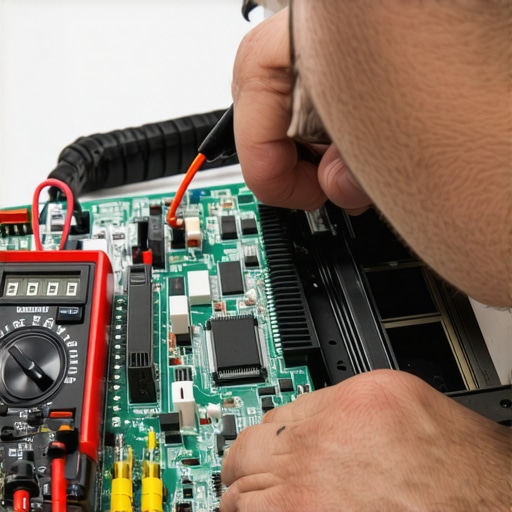
One of the hardest lessons I learned was that neglecting small signs like coil whine can escalate into major hardware failures, reminding me to never dismiss early warning signs. Another revelation was that DIY fixes might seem cost-effective but can backfire if you’re not aware of intricate component sensitivities—it’s a delicate dance between caution and capability. Lastly, trusting quick fixes over thorough diagnostics often led to recurring issues, proving that investing time upfront saves disaster later.
Tools and Resources That Changed My Approach
Over the years, I’ve relied on essential tools like advanced data recovery software to rescue critical files, and hardware diagnostic utilities such as CrystalDiskInfo to monitor system health proactively. For comprehensive managed IT, I trust solutions like integrated remote monitoring tools that help prevent issues before they happen. These resources aren’t just tools—they’re integral to my success in keeping systems reliable and secure.
Your Next Steps on the Path to Mastery
It’s empowering to realize that taking a proactive stance on PC health, learning reliable troubleshooting techniques, and embracing the right tools can dramatically extend hardware lifespan and improve overall performance. I encourage you to regularly review your systems, employ strategic upgrades, and seek professional guidance when needed—especially for complex issues like motherboard repairs or data recovery. Remember, every challenge faced is a step toward becoming more confident in your tech skills. Are you ready to take that next step? Share your experiences below, and let’s grow together in mastering the art of PC maintenance and data recovery.