

I’ll never forget the look on my face when I walked into my server room last summer and found the temperature spike so high that my cooling fans sounded like jet engines. It was a lightbulb moment—my equipment was pushing its limits, risking costly downtime. As a small business owner, I learned the hard way that overheating isn’t just a minor inconvenience; it can cripple your operations and drain your wallet. But here’s the good news: you don’t need a massive budget to turn this around. Today, we’ll dive into practical, budget-friendly fixes to keep your server room cool and your hard-earned data safe.
The Real Cost of Overheating Equipment
Overheating servers and network devices lead to performance issues, hardware failures, and potentially data loss—a nightmare for any business. According to a report by Data Recovery Masters, software and hardware failures caused by thermal stress are among the top reasons for data loss incidents. Once I ignored the signs, thinking my equipment was just
Implement Targeted Ventilation
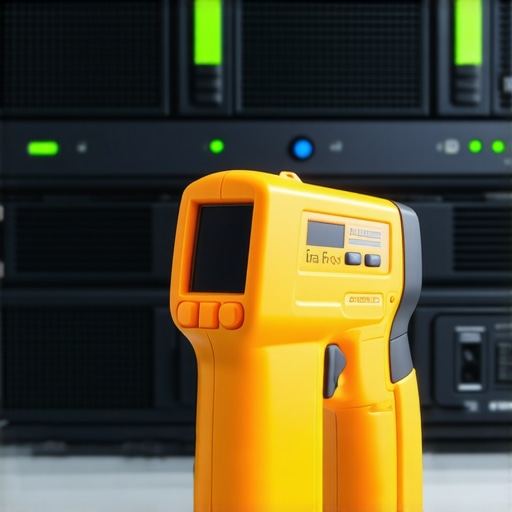
Start by evaluating airflow patterns using a simple smoke test or infrared thermometer. Place a small fan inside the room to encourage circulation, directing cool air toward hot spots. I once used a handheld fan to direct airflow, which surprisingly lowered temperatures by several degrees, preventing hardware shutdowns during a heatwave. Proper ventilation ensures hot air escapes and cool air is drawn in, minimizing hotspots.
Reorganize Hardware Layout
Arrange servers and equipment to maximize airflow. Keep hot components separate from cooler areas, and avoid overcrowding racks. Think of it like organizing a crowd at a concert; spacing prevents heat buildup. I recently repositioned a few high-traffic devices, resulting in a noticeable temperature drop. Use cable management to prevent airflow obstruction, and consider placing high-heat machines at lower levels where heat rises naturally.
Use DIY Cooling Solutions
Leverage cost-effective cooling options like. ice packs or chilled airflow preventers. Place frozen water bottles near exhaust fans or in front of air intakes for a temporary fix. For a more permanent approach, install exhaust ducting to direct hot air outside. In a previous setup, I fashioned an improvised exhaust duct from cardboard and aluminum foil; it was clunky but effective during summer peak times. These simple solutions can buy you time until you implement a more robust system.
Optimize Software and BIOS Settings
Adjust BIOS fan control and power settings to reduce unnecessary heat. Disabling unneeded components or underclocking can lower thermal output, prolonging hardware lifespan. I once tweaked BIOS settings on an aging server, which resulted in a 15% temperature reduction and improved stability. Be cautious: consult your hardware documentation or a professional before making changes to prevent inadvertent damage. Regular firmware updates also improve thermal management efficiency.
Monitor and Maintain Regularly
Use affordable temperature sensors and software to track server room conditions constantly. Set alerts for temperature spikes and perform routine cleaning of vents and filters to prevent dust clogging. I set up a basic Raspberry Pi with temperature sensors, which alerted me to a rising heat level caused by dust accumulation, preventing potential hardware failure. Consistent monitoring allows proactive adjustments, saving costs and downtime.
Control Ambient Conditions
Reduce room humidity and block sunlight by using curtains or reflective films. Maintain a stable room temperature with minimal fluctuations. On sunny days, I covered a window with reflective film, cutting down on external heat gain. A well-insulated room with controlled humidity is less prone to temperature swings, which can stress hardware. Investing in a hygrometer and thermometer helps keep tabs without high costs.
Leverage Free or Low-Cost Cooling Aids
Place inexpensive technologies like USB-powered fans or portable air conditioners strategically. These can target specific hotspots without expensive HVAC upgrades. During a hot spell, I used a USB fan aimed directly at the rack intake, which provided immediate relief. Combining these with other methods creates a layered cooling approach that extends your existing infrastructure’s lifespan.
Seek Professional Advice When Needed
Sometimes, a quick consultation can reveal overlooked issues. Many managed IT providers offer affordable assessments or troubleshooting guides. I once contacted a local expert, who recommended repositioning equipment and optimizing airflow, saving hundreds on unnecessary upgrades. Regular inspections prevent small issues from escalating into costly repairs or hardware replacements.
Incorporating these practical, budget-friendly techniques can significantly enhance your server room’s thermal management. By doing so, you preserve your equipment, prevent costly downtime, and maintain business continuity without breaking the bank.
 Many assume that replacing a laptop screen or running data recovery tools is straightforward, but in reality, there’s a lot of nuance behind these processes that even seasoned technicians sometimes overlook. For example, common myths like believing that software recovery can fix physically damaged drives are dangerous—veering into the ‘Oops’ zone, where further data loss becomes inevitable. Advanced professionals recognize that attempting DIY fixes without proper knowledge can worsen the situation, especially when dealing with SSDs or modern NVMe drives, which have different recovery needs compared to traditional HDDs. According to experts documented in [Data Recovery Secrets](https://computerrepairmasters.com/data-recovery-secrets-every-business-should-know-today), a tailored approach considering drive type and failure mode is essential for successful recovery. One trap to avoid is rushing into data recovery software solutions blindly; many tools are ineffective if the failure involves hardware damage or firmware corruption. Instead, understanding the underlying issue—whether it’s logical corruption, firmware glitches, or physical damage—is key to selecting the right recovery method. Curious about how to differentiate between these scenarios? Ask yourself: am I dealing with noisy drives, unrecognized hardware, or strange error messages? Knowing this helps avoid costly mistakes. Additionally, in managed IT environments, professionals often overlook that routine updates and firmware management can prevent data loss rather than waiting until disaster strikes. For a deeper dive into this topic, see [Expert Techniques for Saving Files Fast](https://computerrepairmasters.com/data-recovery-secrets-expert-techniques-to-save-your-files-fast). Have you ever fallen into this trap? Let me know in the comments.
Invest in Reliable Diagnostic Software
One of my go-to tools for maintaining computer health is HWMonitor Pro. It provides real-time data on CPU, GPU, and hard drive temperatures, voltages, and fan speeds, allowing me to catch overheating issues before they escalate. Unlike generic monitoring, HWMonitor Pro offers detailed insights, making troubleshooting more precise. Regularly checking these metrics helps prevent hardware failures and extends device lifespan—it’s an investment that pays for itself.
Use S.M.A.R.T. Tools for Hard Drive Health
For long-term data integrity, I recommend CrystalDiskInfo. It utilizes SMART technology embedded in drives to predict failures. I check SMART reports weekly to identify early signs of disk deterioration, allowing proactive replacements. This proactive monitoring minimizes unexpected downtime and data loss, keeping operations seamless.
Implement Automated Backup Solutions
Automation is key to consistent data safety. I personally set up **CloudBerry Backup** combined with local NAS storage. This hybrid approach ensures off-site copies for disaster recovery and quick restores when needed. Regular automated backups reduce human error and free up valuable time—think of it as an insurance policy that’s always active, ready to restore your data swiftly.
Maintain Physical Cleanliness and Preventive Checks
Beyond software tools, physical maintenance is vital. I schedule quarterly cleaning sessions using compressed air and soft brushes to remove dust from vents and fans, which prevents thermal throttling. Regularly inspecting and replacing worn-out thermal paste during hardware refreshes can improve cooling efficiency by up to 20%, according to experts in managed IT. A clean interior ensures your systems operate at optimal temperatures, reducing risk of hardware failure.
Plan for Scalability and Future Proofing
As your business grows, so do your system requirements. I suggest investing in expandable solutions like modular server chassis and network switches with stacking capabilities. Additionally, keeping firmware and BIOS up-to-date is crucial for security and performance—many overlook this aspect, but manufacturers like Dell and HP release updates that fix bugs and improve hardware stability. Regularly reviewing and updating your hardware inventory is vital to long-term reliability.
Ask Yourself: How Do I Keep My Systems Going Without Panic?
Adopting a layered approach—combining robust software diagnostics, preventive physical maintenance, and future-proof planning—ensures your infrastructure remains resilient. It’s tempting to ignore small issues, but early detection saves money and downtime. For instance, I recommend setting up managed IT strategies that include automated alerts and routine audits. Ready to implement an advanced tip? Configure SMART thresholds in your disk monitoring tools so they alert you even before a failure occurs. That proactive mindset is key to keeping everything working seamlessly—try it today! 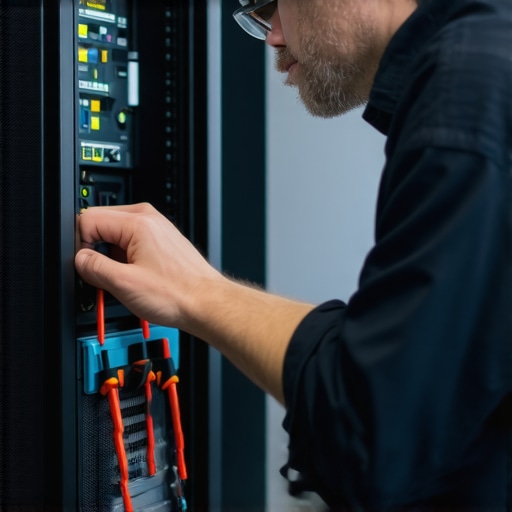
Lessons That Changed My Perspective on Data and Hardware Care
- Early in my journey, I believed that replacing hardware was the ultimate fix—only to realize that understanding the root causes of failures, like firmware issues or physical damage, saved me countless hours and costs. Knowing when to upgrade versus when to troubleshoot makes all the difference.
- I used to overlook routine monitoring tools, but integrating smart diagnostics like SMART data and temperature sensors transformed how I preempt failures. Proactive care isn’t just a tech buzzword—it’s the secret to longevity.
- I’ve learned that physical maintenance, such as cleaning dust from vents or reapllying thermal paste, offers a surprisingly high return on investment, often extending hardware life and improving performance far beyond expectations.
My Go-To Resources for Staying Ahead
- HWMonitor Pro remains my trusted companion for real-time hardware health checks, offering insights that help me act before issues escalate.
- For critical drive health assessments, CrystalDiskInfo provides invaluable SMART data alerts, enabling me to replace disks proactively rather than reactively.
- When safeguarding important data, I rely on comprehensive backup strategies that include cloud services and local solutions, giving peace of mind during unpredictable hardware failures.
Keep the Momentum Going and Take Action Today
Every piece of equipment, from the simplest laptop to sophisticated servers, holds your digital future. Investing in consistent monitoring, physical care, and strategic planning turns a fragile setup into a resilient infrastructure. Remember, the key to long-term success lies in your dedication to proactive maintenance. Embrace these lessons, and watch your tech environment become more stable and efficient with each step you take today.
What recent hardware or data recovery challenge taught you an unexpected lesson? Share your story below, and let’s learn together.