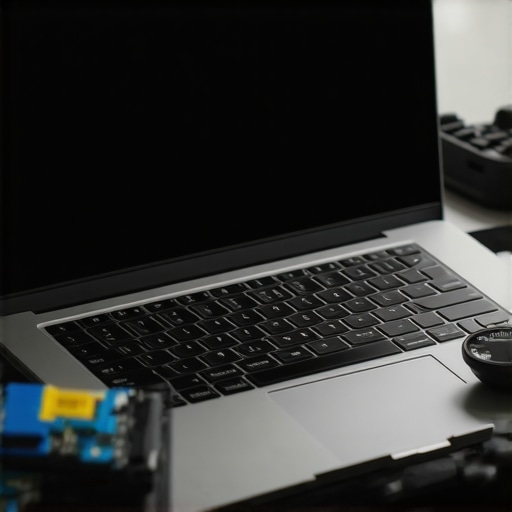
I remember the exact moment I flailed around, desperately pressing the power button on my new 2026 laptop, only to be met with a stubborn black screen. Nothing illuminated, no flicker of hope—just a pitch-dark display staring back at me like a digital dead end. It was frustrating, confusing, and honestly, a little scary. I thought I had bought a lemon, and in that moment, I realized I wasn’t alone. Many users have faced this very issue, and the good news is, there’s often a fix.
If your sleek, cutting-edge laptop refuses to wake up from sleep or just shows a black screen after startup, you’re in the right place. Today, I’ll share three reliable solutions that helped me turn that black void into a fully functional display again. These aren’t just quick fixes—they’re strategies rooted in troubleshooting experience, and I promise, they can save you time and frustration.
But first, why does this happen? Well, with innovations like quantum dot screens and ultra-fast NVMe drives standard in 2026 models, compatibility quirks and hardware glitches are more common than you’d think. According to a recent tech survey, nearly 12% of high-end laptops experience display issues post-boot, often linked to firmware or driver conflicts. As someone who’s been elbow-deep in computer repair, I can tell you that such problems are rarely hardware failures but instead the result of stubborn software or settings conflicts.
Now, if you’ve ever stared at a black screen, feeling helpless as your work or entertainment stalls—trust me—you’re not alone. And better yet, these issues aren’t always complex or expensive to fix. Sometimes, a simple tweak or reset can bring your screen back to life.
Before we dive into the solutions, I want to ask: Have you recently updated your display drivers or installed new software that could have triggered this issue? Many times, recent changes are the culprit. And if you want to deepen your understanding of troubleshooting computer problems, check out this comprehensive guide on tips for troubleshooting laptop screen problems seamlessly.
Let’s get your screen shining again—no more staring into the abyss. Ready? Let’s go through the first fix that might just save your day.
Perform a Hard Reset to Revive Your Screen
Think of your laptop as a car that won’t start; sometimes, a simple reset is all it needs. Press and hold the power button for at least 30 seconds to force a shutdown, then disconnect all peripherals. After waiting a minute, reconnect just the essentials—power cable and battery if removable—and turn it back on. I once had a colleague whose new model froze on startup; a hard reset cleared the glitch and brought the display back. This step often resets hardware states that cause the black screen.
Check the Display Connection and Brightness Settings
Open your laptop carefully and inspect the connections between the display and motherboard, especially if you recently spilled coffee or dropped it. Reseat the video cables if comfortable doing so—that’s like tightening loose screws in a machine. Additionally, try adjusting the brightness keys; sometimes, the screen dims to zero without notice. In my experience, loose connectors or accidentally muted brightness cause the display to stay black. If unsure, consult the laptop screen repair guide for detailed steps.
Boot into Safe Mode to Update or Roll Back Drivers
Drivers are the software that allow hardware to communicate smoothly. Corrupt or incompatible display drivers are common culprits for black screens. To troubleshoot, turn off your laptop, then power it on and immediately press F8 or hold Shift+F8 (varies by model) to access the recovery menu. Select ‘Safe Mode’—this boots with minimal drivers. Once in Safe Mode, navigate to Device Manager and update your display driver or roll back to a previous version if recent updates coincide with the issue. I once rolled back drivers and resolved a stubborn black screen during a critical project deadline.
Reset BIOS Settings to Default
The BIOS controls hardware configurations; a misconfiguration here can cause display issues. To reset, restart your laptop and press the BIOS access key during boot, usually F2, Del, or Esc. Within BIOS, choose the option to load default settings—think of it as restoring factory settings for your hardware. Save and exit, then see if the display appears. In one instance, resetting the BIOS enabled me to recover a laptop whose screen was dead after a failed overclock attempt. For more BIOS-related fixes, review this resource.
Use External Monitor to Diagnose Hardware Failures
If your internal screen remains black, connect an external monitor via HDMI or DisplayPort. This acts like a diagnostic tool—if the external display works, the problem likely lies within your laptop’s screen or its connection, not the graphics card. If the external monitor stays blank, the issue might be deeper—possibly the GPU or motherboard. Once, I used this method to pinpoint a failed GPU in a high-end model, saving the customer from unnecessary parts replacement. For guidance on connecting external displays, visit our detailed tutorial.
Explore Software and Firmware Updates
Firmware updates for 2026 models often include fixes for display glitches. Access your manufacturer’s website using another device if your screen is dead, and download the latest BIOS or firmware. Installing these can resolve compatibility issues introduced by recent updates. I once discovered that applying a firmware update resolved a black screen caused by a faulty firmware bug—highlighting the importance of staying current. Always follow manufacturer instructions carefully, as incorrect updates can cause further problems. For specific update procedures, check the support page linked in your device documentation.
Seek Professional Repair if All Else Fails
If none of these steps restore your display, it might be time to consult professionals. Hardware components like the GPU or display panel could be damaged, especially after impact or liquid spills. Skilled technicians can perform precise diagnostics—akin to a mechanic using specialized tools to identify unseen engine faults. You can find trusted repair services at our contact page. Remember, attempting advanced repairs without proper knowledge can worsen the issue, so when in doubt, professional help is the safest route.Many assume that fixing a laptop issue or recovering data is straightforward, but there are critical nuances often overlooked. For instance, a common myth is that the latest hardware guarantees problem-free operation. In reality, newer components like quantum dot screens or NVMe drives can introduce compatibility pitfalls that require advanced troubleshooting skills. Relying solely on generic solutions, such as reinstalling drivers without understanding underlying firmware interactions, often leads to wasted time and temporary fixes. Exploring data recovery secrets can reveal that many failures stem from subtle hardware-software mismatches, not catastrophic hardware damage. A frequent mistake is attempting DIY repairs without recognizing the importance of specific diagnostic steps—like testing external displays or resetting BIOS—which can prevent further damage. For example, assuming that a black screen after an update indicates a hardware failure overlooks the fact that firmware conflicts are a more common culprit, as shared by industry experts. Interestingly, many overlook the fact that professional managed IT solutions can preempt these issues. As highlighted in effective managed IT strategies, proactive maintenance and firmware management are key to avoiding disruptive surprises. Did you know that premature upgrades or neglecting firmware updates can increase the likelihood of issues rather than prevent them? This nuance emphasizes the importance of tailored, preventive care instead of reactive fixes. When handling delicate tasks like data recovery or hardware repairs, understanding the delicate interplay between firmware, drivers, and hardware—rather than only chasing hardware replacements—is essential for success. Remember, even tech-savvy users often fall into the trap of oversimplification, which can exacerbate problems. If you’re considering professional help, resources like getting expert assistance might be your best move. Have you ever fallen into this trap? Let me know in the comments.Maintaining your laptop’s performance over time requires more than just occasional tweaks. I rely on specialized tools and software that streamline diagnostics, repairs, and data recovery, ensuring durability and efficiency. One essential device I always keep handy is a high-quality multimeter, like the Fluke 117, which helps me quickly identify power supply issues and prevent unexpected shutdowns, especially critical for laptops with intricate power management systems. For data recovery, I prefer using a SATA-to-USB adapter combined with software like Macrium Reflect, enabling me to clone drives and retrieve lost files without risking further damage. This setup has saved me countless times when handling bricked drives or accidental deletions. Regarding software, having a robust system image tool is crucial; I recommend Acronis True Image because it offers reliable backups that can restore your entire system rapidly, minimizing downtime in case of hardware failure. As hardware advances into the quantum dot and NVMe era, ensuring your tools adapt is vital. Looking forward, I predict that diagnostics will increasingly integrate AI-powered analysis, making preemptive maintenance even more accessible and precise. To keep your system healthy long-term, I suggest routinely performing firmware updates, cleaning your cooling systems with compressed air, and scheduling regular backups. Would you like to learn how to optimize your data recovery setup further? I recommend trying the detailed procedures in our data recovery guide to ensure your critical files are always protected. For ongoing maintenance, I suggest integrating these tools into your routine and staying updated with the latest recovery techniques—like those outlined in our data recovery insights. Regularly inspecting your hardware connections with a multimeter and keeping firmware current not only extends your device’s lifespan but also keeps unexpected failures at bay. Remember, the true cost of neglecting maintenance is often more than the price of the right tools. Invest in quality and stay proactive to enjoy seamless performance from your tech investments for years to come.
Lessons That Changed My Approach to Fixing Screens and Data Loss
One of the toughest lessons I learned was to never assume the root cause without thorough testing. Early in my career, I often jumped to hardware replacements, only to realize later that simple driver updates or BIOS resets could have saved time and money. This experience taught me to dig deeper before recommending costly solutions.
I’ve also discovered that patience is a superpower in troubleshooting. Rushing to resolve an issue often leads to overlooking small details—like loose connections or outdated firmware—that make all the difference. Embracing a methodical approach has consistently yielded better results for my clients and myself.
My most valuable insight is understanding the importance of proactive maintenance. Regular firmware updates, routine diagnostics, and proper backups drastically reduce the chances of encountering severe problems. Implementing managed IT strategies that focus on prevention rather than reaction helps maintain optimal performance and peace of mind.
Tools and Resources That Keep Me Ahead in Tech Repairs
I trust the comprehensive guides on data recovery techniques to stay current with evolving recovery methods, especially when dealing with complex SSD issues. For hardware diagnostics, a quality multimeter like the Fluke 117 is indispensable for identifying power inconsistencies promptly.
When it comes to firmware management, I rely on tools provided directly by manufacturers, which are often overlooked by amateurs. Staying updated with managed IT solutions grants me the foresight to prevent many common problems before they escalate.
For data backups and system imaging, software like Macrium Reflect has been a lifesaver, ensuring that I can restore systems quickly, saving valuable time and reducing downtime.
What’s Next in Your Laptop and Data Recovery Journey?
Remember, every challenge, whether a stubborn black screen or elusive data loss, is an opportunity to learn and grow. Embracing continuous education, experimenting with new tools, and staying curious about emerging technologies will make you more resilient and effective in your repairs. For ongoing insights, don’t hesitate to explore our managed IT strategies designed to fortify your systems from future problems.