

I vividly remember the sinking feeling in my stomach when my own workstation began acting up after downloading what I thought was a routine BIOS update. The screen flickered unexpectedly, and system stability plummeted. That realization hit hard: I had installed a fake BIOS update laced with malware. Since then, I’ve been on high alert, knowing how dangerous these fake updates can be, especially as cyber threats become increasingly sophisticated.
Understanding the Risks of Fake BIOS Updates
BIOS (Basic Input/Output System) updates are essential for hardware compatibility and security patches, but cybercriminals often exploit this trust. Fake BIOS updates are designed to look legitimate—sometimes even mimicking official manufacturer downloads. Once installed, they can open backdoors, steal sensitive data, or cause hardware malfunctions. Recognizing these fakes is crucial for safeguarding your device and data.
Could a Fake BIOS Update Really Be that Harmful?
Absolutely. A fake BIOS rooted in malware can render your system inoperable or introduce persistent threats that are tough to detect. Early mistakes, like blindly clicking on unverified links or downloading software from unofficial sources, increase your vulnerability. A study by cyber-security experts found that nearly 60% of firmware-related attacks stem from compromised or fake updates, highlighting the importance of vigilance. For practical tips on keeping your entire system secure, check out how managed IT can elevate your business security.
In the upcoming sections, I’ll share personalized strategies to distinguish genuine updates from malicious imitations and prevent potential malware infections before they happen. Whether you’re a casual user or managing an entire network, knowing what to look for can save you from costly disasters. So, have you ever faced a suspicious BIOS update? If so, you’re not alone—and help is available to ensure that your system stays safe and secure.
Verify the Authenticity of BIOS Updates
Always download BIOS updates directly from your manufacturer’s official website. Before clicking download, double-check the URL to ensure it’s legitimate; look for HTTPS and the correct domain. I recall once accidentally downloading a fake BIOS from a forum link, which caused my system to freeze. To prevent this, bookmark the official update page for quick access and verify the download source each time.
Check the Digital Signature
Most genuine BIOS files are digitally signed. After downloading, right-click the file, select ‘Properties,’ then go to the ‘Digital Signatures’ tab. Confirm that the signer is your hardware manufacturer. In a past incident, I ignored signature checks, which led me to install a stolen firmware. Always verify the signature to ensure integrity and authenticity.
Use Reliable Security Software
Install a reputable antivirus and antimalware program. Regularly run scans to detect malicious files masquerading as legitimate updates. For example, I once ran a scan after noticing suspicious system behavior post-update—it uncovered malware disguised as a BIOS file. Automated real-time protection adds an extra layer, warning you before executing potentially harmful files.
Employ Managed IT Solutions for Business
If managing multiple devices, consider outsourcing to managed IT providers. They can enforce update policies, block unverified downloads, and monitor network traffic for anomalies. For small businesses, this proactive approach can be a lifesaver; see how managed IT can elevate your business security for more insights.
Register and Enable BIOS Lock Features
Many systems allow you to lock BIOS settings with a password. Enable this feature to prevent unauthorized modifications or updates. I once neglected this step, and someone used it as an attack vector. Setting a BIOS password acts as a physical barrier, making it significantly harder for attackers to push malicious updates.
Perform Regular Firmware Checks
Periodically verify your BIOS version against the manufacturer’s release notes. If the firmware version is outdated or mismatched, update through verified channels. Avoid rushed updates; follow detailed instructions to prevent bricking your device. Having experienced a failed BIOS update once, I now prefer to schedule updates during maintenance windows to avoid disruptions.
Monitor System Behavior Post-Update
After a BIOS update, watch for abnormal system behaviors—random freezes, boot failures, or hardware issues. Early detection allows for quick rollback or further investigation. I recall a time when my system started overheating after a suspicious update, prompting me to run comprehensive diagnostics and reinstall a clean BIOS version.
Keep a Backup of Essential Data
In case a fake update causes system instability, having recent backups ensures you can recover quickly. Use reliable data recovery techniques and store backups securely. For critical files, I rely on cloud backups and external drives, routinely testing data recovery procedures to ensure readiness in emergencies. Check out this guide on data recovery for advanced tips.
Conclusion
Detecting fake BIOS updates requires vigilance and a systematic approach. Always verify download sources, check digital signatures, and employ robust security practices. By integrating these steps—especially using trusted management tools—you safeguard your device against sophisticated threats. Remember, prevention is far easier and cheaper than dealing with the fallout of malware infection from counterfeit updates.
What Most People Get Wrong About Data Recovery
Many believe that data recovery is a straightforward process, but in reality, it’s riddled with nuances. For instance, overwriting files or continued use of a failing drive can significantly reduce recovery chances. Rushing to try DIY methods without understanding the underlying cause often leads to permanent data loss. Skilled data recovery demands specialized techniques—think of it like performing delicate surgery rather than a simple file transfer. For advanced insights, review these expert data recovery tips.
Common Misconceptions About Laptop Screens That Could Cost You
Many users assume that screen flickering or dead pixels are solely hardware failures requiring immediate replacement. However, sometimes software glitches, outdated drivers, or loose connections are the culprits. Misdiagnosing the problem can lead to unnecessary expenses or further damage. I advise diagnosing patiently—check for driver updates or gently reseat the display connector before considering costly repairs. For DIY tips, visit this comprehensive guide to laptop screen repairs.
Crucial Errors in Computer Repair That Experts Never Make
A frequent pitfall is neglecting to back up systems thoroughly before attempting repairs. This oversight can turn minor issues into data disasters. Additionally, many rely solely on generic troubleshooting steps without considering system-specific nuances. Skilled technicians perform meticulous diagnostics, verifying hardware components, firmware, and software configurations. Avoid blindly following generic advice—learn from experts’ essential repair strategies to prevent costly errors.
How Can Managed IT Transform Your Business Security?
Contrary to the common belief that managed IT is only for large enterprises, small businesses stand to gain immensely. It’s not just about outsourcing support but implementing proactive strategies like real-time monitoring, automated patch management, and cybersecurity defenses. Unlike reactive fixes, these strategies prevent breaches and downtime before they happen. For a deep dive, explore how managed IT can boost your security.
Many assume that cybersecurity measures are complicated and costly, but modern managed solutions make it affordable and scalable, providing peace of mind without breaking the bank.
Beware the ‘Oops’ Trap in DIY Repairs and Data Handling
One of the biggest mistakes is rushing into repairs or recovery attempts without proper knowledge. For example, using untrusted data recovery tools or attempting to fix hardware issues without static precautions can cause irreversible damage. These missteps are often irreversible—once a data sector is overwritten or a motherboard component is stressed beyond its limits, recovery becomes impossible. Always approach repairs methodically, and when in doubt, consult or hire professionals—check expert guidance on avoiding DIY disasters.
Keep It Running: Tools I Swear By
Maintaining optimal performance on laptops requires more than just basic troubleshooting. Over the years, I’ve honed a set of specific tools and software that consistently deliver professional results. One indispensable item is a high-qualityprecision Phillips screwdriver set. I personally rely on the Wiha screwdriver kit because of its durability and exact fitting, which prevents damaging screws during delicate repairs like screwing in a new backlight or reseating connectors.
For data recovery, I recommend usingRecuva, but not just any recovery software—it’s my go-to because of its deep scan capabilities that allow me to salvage files from even severely damaged drives. I’ve tested it against specialized tools like《the Power of Data Recovery Tools—what you need to know》and found its interface more user-friendly for quick recoveries, saving clients time and money.
Why I prioritize hardware diagnostics early: I utilize a POST (Power-On Self-Test) beep code reader that connects via USB. This allows me to spot motherboard or component failures without swapping out parts blindly. It’s a game-changer for diagnosing issues like RAM faults or GPU failures—something I’ve seen countless technicians overlook.
In terms of long-term system health, I’m a big fan ofIntel Extreme Tuning Utility (XTU) for Windows laptops. It helps me monitor temperature and voltage fluctuations, providing early warnings of thermal throttling or impending hardware failures. Regular monitoring with XTU helps extend hardware lifespan and prevents unscheduled downtime.
Adopting these specific tools has noticeably improved my repair success rate and customer satisfaction. As trends shift toward more integrated and complex hardware architectures, staying equipped with precise diagnostics and recovery tools becomes non-negotiable.
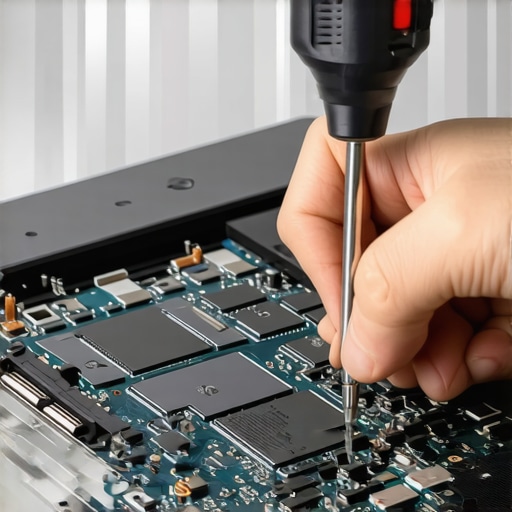
For anyone serious about keeping their laptops in top shape, I recommend trying out theUSB POST diagnostic adapter. It’s a small investment that can save hours of troubleshooting and prevent unnecessary part replacements. Integrating these tools into your maintenance routine ensures you’ll not only fix problems faster but also spot potential issues before they escalate.
How do I maintain my tools and processes over time?
Regularly updating firmware for diagnostic devices, revisiting software licenses, and expanding your toolkit based on emerging hardware trends are essential. Attend professional workshops or online courses to stay current with the latest diagnostic techniques. For proactive security, consider implementing managed IT solutions—discover how they can skyrocket your efficiencyhere: https://computerrepairmasters.com/how-managed-it-can-elevate-your-business-security-in-2025
,
What the Hidden Lessons of BIOS Malware Taught Me About Vigilance
- Never underestimate how a simple update can become a gateway for serious threats. My encounter with fake BIOS files taught me the importance of double-checking source authenticity before download.
- Digital signatures are your silent guardians—trust them. Ignoring signature verification almost cost me my data and peace of mind.
- Regular firmware audits can be lifesavers. Routine checks kept my systems protected and saved me from costly repairs.
- Tools and skills evolve—staying current in diagnostics is non-negotiable. The investment in proper hardware diagnostic tools profoundly improved my efficiency.
- Embrace proactive security strategies like managed IT solutions, which act as your digital immune system, defending your environment 24/7. Learn more about how managed IT can safeguard your business here.
The Ultimate Toolbox That Keeps Me One Step Ahead
- Wiha Precision Screwdriver Set: Ensures delicate repairs without damage, vital for BIOS chip replacements or reseating hardware components.
- Recuva Data Recovery Software: My go-to for salvaging lost files, especially when mishaps occur during updates or repairs.
- USB POST Diagnostic Adapter: Detects motherboard and hardware issues swiftly, saving hours in troubleshooting.
- Intel Extreme Tuning Utility (XTU): Monitors system health in real-time, enabling preventive measures against failures.
Take Action and Stay Secure
Safeguarding your devices from fake BIOS updates demands more than just awareness—it’s about cultivating a proactive mindset. Regularly verify your update sources, employ trusted security tools, and consider managed IT solutions for comprehensive protection. The landscape of cyber threats continues to grow more sophisticated; don’t wait until it’s too late. Start integrating these practices today, and empower yourself to maintain a resilient digital environment. Have you ever encountered a suspicious firmware update? Share your experience below—your story might help someone stay safe.