

I was sitting at my desk last Tuesday, right in the middle of a screen-share with a new client, when the dreaded ‘Connection Unstable’ yellow bar appeared. My heart sank. I pay for a gigabit connection—the kind of speed that is supposed to make everything instant—yet my video looked like a pixelated mess from the dial-up era. It is infuriating. You check the bill, see the 1000 Mbps promise, and then run a speed test only to see a fraction of that. If you have ever felt like your expensive internet is a total scam, you are definitely not alone. Today, I am going to show you exactly how to stop the signal drops and finally get the speed you are actually paying for.
Your Fast Internet Is Getting Trapped in the Walls
Most people think Wi-Fi is like air—it just fills the room effortlessly. In reality, it is more like light. If you put a lamp in a closet, the hallway stays dark. Early in my career, I made the classic blunder of tucking the main office router deep inside a server closet surrounded by thick drywall and metal racks. I figured the high-end hardware could punch through anything. I was wrong. I was basically smothering my signal before it could even reach the coffee machine. This is exactly why your new router still isn’t covering the back of your office properly. When you are dealing with business-grade speeds, the physical environment matters more than the sticker on the box.
Is Gigabit Speed Just a Marketing Gimmick?
It feels like a bait-and-switch when the speed test hits 900 Mbps next to the router but drops to 40 Mbps in the conference room. But it is not necessarily a lie from your ISP. According to technical standards analyzed by the IEEE, Wi-Fi overhead and environmental interference can cut your theoretical speeds by over 50% before you even factor in distance or wall density. You are paying for the pipe coming into the building, but your internal plumbing—your routers, old cables, and network congestion during peak hours—is where the real slowdown happens. Have you ever found yourself wandering the halls with your laptop, searching for that one ‘magic spot’ where the Wi-Fi actually works?
Stop Hiding Your Router Behind the Filing Cabinet
We often treat routers like ugly appliances we need to hide. I once spent three hours troubleshooting a ‘dead zone’ for a friend, only to realize they had placed the router directly behind a massive metal filing cabinet. Metal is the natural enemy of your signal. If you want to see a real difference, you need to treat your access points like the centerpiece of the room. This is especially true if you are trying to find the secret to getting your office Wi-Fi through thick concrete walls or multi-floor layouts. By shifting the position by just a few feet, I have seen speeds double instantly without spending a dime on new gear.Once you have physically moved your router, the real work begins inside the settings. Think of your Wi-Fi frequency like a highway. Most older devices and common office appliances—microwaves, older headsets, and even some wireless mice—live on the 2.4GHz band. It is essentially a narrow, pothole-ridden one-lane road. If every device in your office is fighting for space on that same lane, nobody moves. To get the speeds you are paying for, you need to force your high-demand devices onto the 5GHz band. It is the equivalent of opening a wide, ten-lane expressway. I remember a specific project for a local law firm where their connection dropped every single day at noon. We discovered their router was defaulting everyone to 2.4GHz, and the breakroom microwave was literally ‘jamming’ the signal every time someone heated up lunch. By manually splitting the bands and moving the workstations to 5GHz, the ‘crashing’ vanished. This is one of those moves that stops your business network from crashing during peak hours without needing a service call. 
Check Your Cables for Stealthy Bottlenecks Before Buying New Gear
You can have the fastest router in the world, but if the cable connecting it to the wall is fifteen years old, you are stuck in the slow lane. Ethernet cables have specific categories printed on their side. A standard Cat5 cable is capped at 100 Mbps. If you are paying for a 1000 Mbps gigabit plan, that old cable is acting like a kink in a garden hose, letting only a trickle of data through. You need at least Cat5e or Cat6 cabling to actually see the throughput you are paying for. This is why your hardware upgrades should focus on bottlenecks first rather than just throwing money at the most expensive router on the shelf. I once watched a business owner spend thousands on a new server only to realize a five-dollar cable in the wall was the reason his file transfers were crawling.
Update Your Firmware to Patch Hidden Performance Leaks
Router manufacturers release updates for the same reason phone makers do: to fix bugs, improve efficiency, and patch security holes. An outdated router is often a sluggish router because its software is struggling with modern web protocols. Log into your admin panel and check for firmware updates immediately. Not only does this often provide a slight speed boost, but it is a core part of managed IT strategies to keep your business secure in 2025.
Isolate Your Guests to Save Your Core Bandwidth
If your customers and your employees are sharing the same Wi-Fi password, you are inviting a massive slowdown. Guest traffic is unpredictable; one person downloading a massive update in the lobby shouldn’t lag your critical conference call. You need to set up a Virtual LAN (VLAN). This keeps guest traffic in its own isolated ‘box’ so it cannot hog the main supply. It is a critical performance step and the main reason why your business needs a separate VLAN for guest Wi-Fi immediately. Finally, remember the golden rule of networking: if a device doesn’t move, plug it in. Every desktop or printer you take off the Wi-Fi and put on a physical wire makes the wireless signal stronger and faster for the laptops and tablets that actually need to be mobile. This principle is even found in the checklist for securing employee home offices without invading privacy effectively.
While fixing the physical layout of your office is a great first step, there is a much deeper layer to managing a business network that most people completely misunderstand. Everyone tells you to ‘save your work to the cloud,’ and while that sounds like solid advice, I have seen it backfire more times than I can count. The biggest myth in modern computing is that syncing services like Dropbox or OneDrive are the same thing as a real backup. They aren’t. In fact, relying on them as your primary safety net is often the mistake that makes your backups completely useless in a real emergency.
Syncing Isn’t Backing Up and It Might Cost You Everything
Here is the contrarian truth: cloud syncing can actually accelerate data loss. If a ransomware strain hits your local machine and encrypts your files, your ‘sync’ service will faithfully upload those corrupted versions to the cloud, overwriting your good data in seconds. I once worked with a creative agency that lost three years of project history because they thought ‘syncing’ was ‘backing up.’ They realized too late that your business backup plan is actually just a sync plan if it doesn’t have versioned, off-site, and immutable copies. To truly protect yourself, you must follow the 3-2-1 rule—a strategy long championed by organizations like Carnegie Mellon’s Software Engineering Institute—which requires three copies of your data, on two different media, with one copy stored entirely off-site and disconnected from your live network.
The Dangerous Trap of Cheap DIY Screen Kits
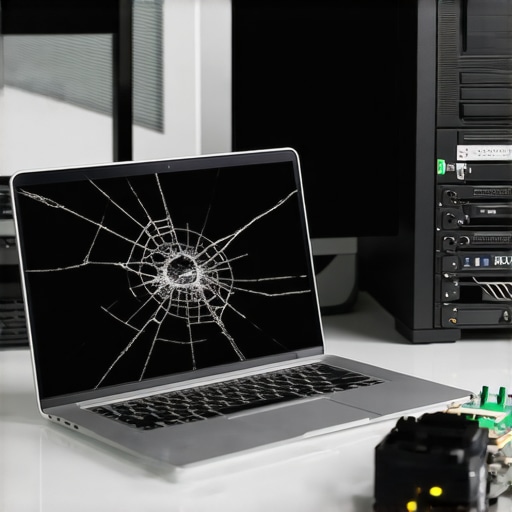
When a laptop screen cracks, the immediate instinct is to find the cheapest replacement on a marketplace and fix it yourself. This is a classic ‘oops’ factor. I have seen hundreds of users buy $40 panels only to realize the color gamut is so poor they can’t even tell the difference between yellow and orange on a spreadsheet. Worse, many of these kits lack proper shielding, leading to electromagnetic interference that can eventually fry your video cable. It is vital to understand the truth about cheap screen replacement kits from overseas before you open your laptop chassis. If you value your eyesight and the longevity of your motherboard, stick to OEM-spec panels. This is a cornerstone of computer repair for beginners to avoid costly mistakes that turn a $150 repair into a $1,000 replacement.
Why does your managed IT provider keep charging for ‘extra’ security audits?
You might feel like your IT partner is ‘nickeling and diming’ you when they suggest quarterly deep dives into your system. However, the threat landscape in 2025 moves faster than standard software updates can handle. A standard ‘maintenance’ plan keeps the lights on, but it doesn’t look for lateral movement—the way hackers jump from a printer to your server. This is precisely why your managed IT service should be providing quarterly security audits as a separate, critical layer of defense. Without these audits, you are essentially flying a plane without a flight recorder. If you have been doing your own maintenance or relying on a ‘set it and forget it’ plan, you might be sitting on a ticking time bomb of hidden vulnerabilities. Have you ever fallen into this trap of assuming ‘everything is fine’ because the Wi-Fi icon is green? Let me know in the comments. If you are worried about your current setup, you can always contact us for a deep-dive assessment. Remember, the goal isn’t just to have a working computer today, but to ensure you still have a working business tomorrow through managed IT strategies to keep your business secure in 2025.
I have spent countless hours cleaning out dust-caked fans and reapplying thermal paste to laptops that should have lasted another three years. The reality of modern tech is that it is built to fail, but it does not have to fail on you. If you want to stop the cycle of constant upgrades, you need to transition from a reactive mindset to a proactive one. This simple habit is exactly how to extend the life of your office pcs by three years without needing a degree in electrical engineering.
Keep the Heat Away Before It Kills Your Motherboard
Heat is the silent killer of every laptop screen and internal circuit board. When your fans are clogged, your system throttles itself to prevent a fire, which is the real reason your laptop keeps throttling its performance when you are trying to render a video or open a dozen browser tabs. I personally recommend using a utility like HWiNFO to monitor your internal temperatures once a month. If you see your CPU hitting 90°C during basic tasks, you need to learn how to fix an overheating laptop with a simple can of compressed air before the solder joints on the motherboard begin to crack. I have seen $2,000 workstations saved by a ten-second blast of air.
How can I keep my office hardware running fast forever?
The short answer is: you can’t, but you can come close by managing your drive health and screen calibration. According to the SFF Committee’s SFF-8035 specification, S.M.A.R.T. data is the only reliable way to catch a drive failure before the ‘click of death’ starts. I use tools like CrystalDiskInfo to monitor the ‘Total Host Writes’ on my SSDs. This allows me to spot the sign your ssd is reaching its write limit and about to die months before it actually disappears. When the health drops below 10%, I immediately use Macrium Reflect. It is the easiest way to clone a failing hard drive to a new ssd without reinstalling Windows or losing your license keys.
Predict Failures Before They Cost You a Client
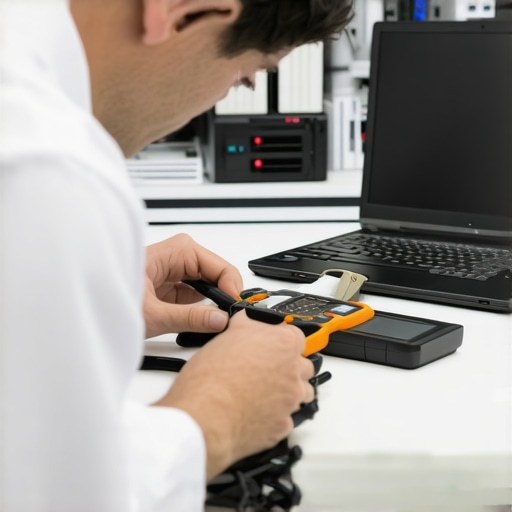
The next frontier of tech maintenance is Predictive AI. We are already seeing tools that can analyze fan vibrations to predict a motor failure before it happens. In the near future, your managed IT dashboard will likely tell you which laptop screen is about to develop dead pixels based on usage patterns. Until then, you have to be the eyes and ears of your office. If you notice your display looks dim, it is often just a calibration issue. Knowing why your laptop screen looks washed out and how to calibrate it can save you the cost of a replacement panel. I recommend using a hardware colorimeter like the Datacolor Spyder if you do any creative work; it is a game-changer for accuracy. For those looking to keep older gear relevant, remember that the hardware swap that gives old office pcs five more years of life is usually just a simple RAM and SSD upgrade. I challenge you to download a disk health monitor today and check your primary drive; catching one failing SSD this afternoon could save your entire business from a week of downtime.
Hard-Won Truths from a Decade in the Server Room
Over the years, I have learned that the loudest component isn’t always the one that’s failing, and the most expensive fix isn’t always the right one. One of the biggest shifts in my perspective happened when I realized that most ‘slow’ computers are actually just ‘starving’ for air or clean power. I have seen perfectly good workstations tossed in the trash because a simple $10 fan replacement was ignored. Another epiphany: Your data is only as safe as your most recent ‘cold’ backup. If your backup drive is permanently plugged in, a single surge or a smart piece of ransomware can take it out along with your PC. This is why I always emphasize computer repair for beginners to avoid costly mistakes like over-relying on automated cloud tools that sync but do not truly protect.
#IMAGE_PLACEHOLDER_E#
My Essential Toolkit for Peak Performance
If you want to move beyond basic troubleshooting, you need a toolkit that provides real data, not just ‘green checkmarks.’ Here are the three pillars of my maintenance routine:
- CrystalDiskInfo: This is the only way to see if your SSD is silently dying. I check this every quarter for every client. If you see ‘Caution,’ use the easiest way to clone a failing hard drive to a new ssd immediately before the data becomes unrecoverable.
- OEM Display Parts: Never settle for generic panels. When I do a laptop screen repair with diy tips for clearer displays, I only use parts with the exact manufacturer SKU to ensure the color and brightness match the original quality.
- Airflow Monitoring: Tools like HWiNFO aren’t just for enthusiasts; they are the ‘check engine light’ for your business laptops. If the internal temperatures stay high, you are essentially shortening the life of your motherboard by years.
Your Path to a Frictionless Office
Technology should be the wind in your sails, not an anchor dragging you down. By taking a few proactive steps today—checking an ethernet cable category, moving a router out of a closet, or verifying a 3-2-1 backup—you are buying yourself peace of mind. You don’t need to be a technical genius to have a fast, secure network; you just need to be consistent and observant. Whether you handle this yourself or rely on managed IT strategies to keep your business secure in 2025, the goal remains the same: a system that works so well you forget it’s even there. Have you ever discovered a surprisingly simple fix for a ‘major’ tech headache in your office? Let me know in the comments below.