

I’ll never forget the sound of fifteen people sighing in unison. It was a humid Tuesday afternoon, and a quick flicker of the lights—hardly enough to make the clock on the microwave reset—sent my entire office into a tailspin. I had spent weeks following computer repair for beginners tips to keep our workstations healthy, but I’d missed one critical detail. My servers were on a battery backup, but the main network switch wasn’t. That three-second blip caused the switch to reboot, which took nearly ten minutes to fully cycle back up. In the meantime, every single cloud-based document, VOIP phone call, and database sync crashed. I felt like the guy who bought a vault for his gold but left the front door of his house wide open. Today, I’m going to show you why that humble black box in your server closet needs its own dedicated Uninterruptible Power Supply (UPS) and how it saves you from the ‘silent’ downtime that kills productivity. Have you ever had your entire workflow ruined by a split-second power hiccup that didn’t even turn off your computer?
Your Network Switch is the Forgotten Hero of the Rack
Most of us focus all our energy on protecting the big stuff. We make sure the server doesn’t lose power and we look for managed IT solutions that promise 99.9% uptime. But here’s the mistake I made: I assumed that if the server stayed up, the network stayed up. That’s just not how it works. Your switch is the central nervous system of your business. When it loses power, even for a millisecond, it drops every connection. Re-establishing those ‘handshakes’ between your devices and the internet takes way longer than you’d think. If you’ve noticed why your business server keeps rebooting at 3 am, you might actually be seeing the symptoms of dirty power affecting your network hardware first. According to research from Gartner, the average cost of IT downtime is roughly $5,600 per minute, and much of that cost stems from the ‘reboot lag’ that happens after the power is already back on.
Does a Simple Battery Really Make That Much Difference?
You might be thinking this is just another piece of gear to manage. Is it really worth the extra rack space? Absolutely. Think of it as insurance for your sanity. When you implement the move that stops your business network from crashing during peak hours, a UPS for your switch is the foundation. It filters out ‘dirty’ power—those small surges and dips that wear down your electronics over time. Without it, you aren’t just risking a reboot; you’re shortening the lifespan of your most expensive networking gear. [IMAGE_PLACEHOLDER]
Pick a UPS That Actually Speaks Your Switch’s Language
You cannot just grab the cheapest black box off the shelf at a big-box store and expect it to protect a high-end PoE (Power over Ethernet) switch. Most entry-level backup units use what is called a ‘simulated sine wave’ output. While a standard desktop PC power supply is usually forgiving enough to handle that, sensitive networking gear often is not. I learned this lesson the hard way at a local law firm. I thought I was being a hero by saving them $200 on a consumer-grade backup unit. A week later, a minor brownout hit. The UPS kicked in, but the switch didn’t recognize the choppy, stepped power signal and rebooted anyway. We lost fifteen minutes of billable time while the VOIP phones re-registered and the database re-synced. This is where effective managed IT solutions for growing companies prove their worth—they prioritize ‘Pure Sine Wave’ units that mimic the clean, smooth power coming out of your wall outlet.
Calculations That Keep You From Going Dark
When you are shopping, don’t just look at the Watts; look at the Volt-Amps (VA). Your switch likely pulls less than 100W, but you want a UPS that can keep it humming for at least 30 to 45 minutes. Why that long? Because your ISP modem and fiber terminal also need to stay powered up. If you only backup the switch but the modem dies, you are still effectively offline. When troubleshooting common computer repair issues effectively, you eventually realize that half of the ‘internet is down’ calls are actually just unpowered peripherals. Aim for a unit with at least 1000VA to 1500VA for a small rack; this gives you the buffer needed for the switch, the modem, and perhaps a small NAS device without draining the cells to zero in five minutes.
The Five-Minute Wiring Change That Saves Your Afternoon
Physical placement is everything. I’ve seen people tuck their UPS deep behind a desk where it chokes on dust and carpet fibers. Heat is the number one killer of lead-acid batteries. If your switch is mounted in a rack, use a rack-mount UPS. If it is on a shelf, ensure it has at least six inches of breathing room on all sides. And for the love of your hardware, never plug a laser printer into the battery-backed outlets. I once saw an entire server rack go dark because a secretary’s printer fuser warmed up, drew a massive spike of current, and tripped the UPS internal breaker. It looked like a hardware failure masquerading as a software bug, but it was just poor outlet management. Always separate your high-draw appliances from your sensitive logic boards.

Stop Guessing How Much Battery You Have Left
If your UPS has a USB or Ethernet management port, use it. Modern managed IT strategies to keep your business secure in 2025 involve proactive monitoring rather than reactive repairs. I set up my personal systems to email me the second the power dips or the internal battery fails a self-test. This way, you aren’t discovering a dead battery only when the power actually goes out. It is a lot like checking for a dying GPU before it fries your motherboard; you want to see the warning signs while you still have the luxury of time to swap the hardware. If you are following computer repair for beginners, remember that the most successful repair is the one you performed before the equipment actually failed.
Let’s dig deeper into why these hardware choices matter beyond just keeping the lights on. Most business owners I talk to think they are perfectly safe because they use cloud syncing services like Dropbox or OneDrive. This is the biggest ‘trap’ in the industry today. Everyone says cloud storage is a backup, but in my experience, a sync service is often just a way to delete your files in two places at once. If a user accidentally deletes a folder and the sync protocol kicks in, that data is wiped from the server as well. This is exactly why your business backup plan is actually just a sync plan rather than a true disaster recovery system. Have you ever fallen into this trap of trusting a sync service only to lose a file? Let me know in the comments.
The Illusion of Unlimited Support Plans
Another common myth involves the ‘all-you-can-eat’ support model. I’ve seen companies get lured in by the promise of flat-fee monthly rates, only to realize that ‘unlimited’ usually translates to ‘unlimited waiting.’ When you are choosing the cheapest managed IT plan, you are often deprioritized during a crisis. True unlimited IT support plans should be audited for their actual scope of work, because if they aren’t managing your local power redundancy or monitoring your SSD health, you aren’t actually covered; you’re just paying for a help desk. A study by Backblaze on drive longevity suggests that while newer storage is faster, it fails with far less warning than the old mechanical drives we grew up with. If your IT provider isn’t watching those specific telemetry signs, you’re flying blind.

Will Your SSD Actually Warn You Before It Dies?
Unlike old hard drives that would click or grind, modern NVMe and SSD storage often fails ‘silently.’ You might notice a slight stutter in Windows or a file that takes an extra second to open. In the world of data recovery secrets, the biggest nuance is the write-limit. Every flash-based drive has a finite lifespan of how much data it can record. If you are running high-intensity database software on a consumer-grade drive, you are essentially driving a race car on lawnmower tires. You need to know the sign your SSD is reaching its write limit before the controller locks the drive into a ‘read-only’ state—or worse, a total brick. I’ve had clients spend thousands on professional recovery because they ignored a simple SMART error that appeared three months prior. Proactive managed IT strategies to keep your business secure in 2025 must include real-time hardware telemetry, or you’re just waiting for the next humid Tuesday to ruin your afternoon again.
To get these results, I’ve had to curate a survival kit of tools that don’t just report errors, but predict them. For instance, I never set up a workstation without HWiNFO64 running in the background. Most people think their laptop is fine until it burns their lap, but monitoring thermal throttling percentages is the only way to catch a clogged heatsink before it cooks the CPU. I’ve seen fans that spin but don’t move air because they’re packed with lint. If you’ve been wondering how to tell if your laptop fan is actually broken or just dusty, the answer usually lies in the sensor data, not your ears. I also swear by the Hiren’s BootCD PE. These environments allow you to run the power of data recovery tools in a vacuum, without the operating system’s background processes interfering with a failing sector.
How do I maintain my hardware health over the long haul?
The secret isn’t just cleaning the dust out, though how to fix an overheating laptop with a simple can of compressed air is a great starting point. It’s about auditing the ‘invisible’ wear. I set a quarterly calendar reminder to check the battery cycle count and the SSD wear level on every machine I manage. If a battery is swelling, you need to catch it before it warps the chassis—or worse, breaks the trackpad from the inside. This is where laptop screen repair diy tips for clearer displays often fail; if the internal battery is pushing against the frame, no software calibration will fix the resulting screen artifacts. 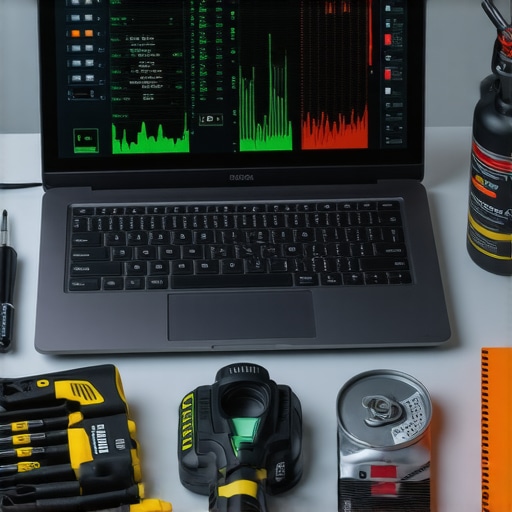
Stop Trusting Your Task Manager
Windows Task Manager is like a car’s speedometer; it tells you how fast you’re going, but it won’t tell you if the oil is low. For a deeper look, I study the Backblaze Drive Stats report. This niche expert data set provides real-world failure rates that help me decide which drives to buy and which to avoid for my clients. They’ve taught me that a drive that works perfectly today can have a 5% higher failure rate just based on its model number. Looking ahead, I predict we are moving toward a ‘self-healing’ infrastructure. Soon, managed IT strategies to keep your business secure in 2025 will include AI agents that don’t just alert us; they’ll automatically throttle a CPU or migrate a virtual machine to another server the second a hardware anomaly is detected. We are moving from ‘break-fix’ to ‘predict-prevent.’ My challenge to you: Download a tool like CrystalDiskInfo tonight. Check your ‘Reallocated Sectors Count.’ If that number is anything other than zero, stop what you are doing and look into the easiest way to clone a failing hard drive to a new ssd immediately. Don’t wait for the click of death.
Why Proactive Hardware Care Beats a Crisis Every Time
I’ve realized over the years that the most expensive part of a tech failure isn’t the replacement part; it’s the frantic energy of trying to fix things while your work is piling up. Many business owners think they are saving money by waiting for things to break, but why managed IT is a game changer for growing companies often comes down to one thing: preventing that panic. It’s about creating an environment where you don’t have to think about your hardware because you already know it’s healthy. One of the biggest shifts you can make is moving from a ‘break-fix’ mindset to one focused on managed IT strategies to keep your business secure in 2025. It’s the difference between driving a car until the engine smokes and actually changing the oil on schedule.
My Personal Hardware Health Kit
If you’re serious about protecting your setup, you need a few reliable tools that go beyond the basics. I personally rely on CrystalDiskInfo to keep an eye on drive health—it’s the fastest way to see if an SSD is reaching its limit. I also recommend checking out the Backblaze Drive Stats regularly; seeing which drive models fail most often helps me make better buying decisions for my clients. For anyone just starting out, troubleshooting common computer repair issues effectively starts with having these diagnostic tools ready before the problem occurs. If you ever find yourself in a worst-case scenario, knowing data recovery secrets expert techniques to save your files fast can be the ultimate safety net for your most important documents.
Build a Workflow That Never Stops
The journey toward a resilient office doesn’t happen overnight. It starts with small, deliberate actions—like finally plugging that network switch into its own UPS or spending ten minutes checking your server’s thermal readings. My goal is to help you feel empowered rather than overwhelmed by your technology. Even if you are just diving into computer repair for beginners, remember that every preventive step you take is a massive win for your future self. You now have the tools and the perspective to stop the next ‘silent’ crash before it even starts. Have you ever lost data because a drive failed without a single warning click? Let me know in the comments below.