

It started at 11:45 PM on a Tuesday. I was deep in a flow state, finishing up a client project, when my laptop screen suddenly became… two. Every line of text had a ghost hovering right above it. I blinked. I rubbed my eyes. I even checked my glasses. But the ‘double vision’ wasn’t me—it was my hardware betraying me at the worst possible moment. I remember panicking and hitting the side of the casing, thinking a little physical persuasion would knock the pixels back into place. Spoiler: it didn’t. I spent the next four hours trying to troubleshoot the display issue, only to realize I was looking in all the wrong places. If you are staring at a screen that looks like a 3D movie without the glasses, I know exactly how frustrating that is. Today, I am going to walk you through the actual solutions that work, so you don’t have to waste your night like I did.
That Night My Screen Decided to Clone Everything
The biggest mistake I made early on—and I still kick myself for it—was assuming it was a virus. I wasted hours running deep scans and even tried to remove a rootkit that wasn’t even there. I was convinced some malware was playing a cruel joke on my display drivers. The reality is that a double image, or ‘ghosting,’ is almost always a physical synchronization issue between your graphics card and the LCD panel. Sometimes it is a simple refresh rate mismatch, but more often, it is a hardware failure masquerading as a software bug. According to data from independent repair technicians at iFixit, display-related issues remain one of the top three reasons for laptop hardware service requests globally. The good news? It does not always mean your screen is toast. Sometimes it is just a loose ribbon cable or a settings glitch that you can flip back in five minutes. Have you ever seen your desktop icons suddenly sprout twins? Drop a comment and tell me if it happened out of nowhere or after a small bump!
Is it even worth fixing a ghosting screen on an old laptop?
I get this question all the time from neighbors who see me tinkering in my garage. They worry that once the screen starts acting up, the whole motherboard is next. While it is true that a failing GPU can cause artifacts, a double image is usually localized to the display assembly itself. If your laptop is less than five years old, learning a few DIY repair tips can save you hundreds of dollars compared to a professional replacement. Before you run out and buy a new machine, we need to determine if the problem is a ‘liar’ (software) or the ‘truth’ (hardware). We can do this by checking the BIOS or connecting to an external monitor. If the double image stays on the laptop but disappears on the external monitor, you have narrowed the culprit down to the internal display cable or the panel itself. Often, the fix is as simple as knowing how to spot a dying ribbon cable before it completely snaps.
Does the Double Image Follow You to Another Monitor?
The first thing you need to do is play detective. Grab an HDMI cable and plug your laptop into your TV or a spare desktop monitor. This is the ultimate ‘truth test’ for your hardware. If the image on your TV looks perfectly crisp while your laptop screen is still seeing double, your graphics card (GPU) is actually fine. This is a relief because a fried GPU often means a dead motherboard. Instead, you are likely looking at a failing LCD panel or a loose internal connector. I remember working on a neighbor’s Dell Latitude that had a severe case of vertical ghosting. He was ready to toss it in the bin, but when we plugged it into his living room TV, the image was flawless. That simple five-second test saved him from a $800 replacement bill. If you find the external monitor also shows a double image, then you need to start troubleshooting common computer repair issues effectively at the software level, specifically focusing on your drivers.
Reset the Software Handshake
Before you grab a screwdriver, check your refresh rate. Sometimes, a Windows update or a heavy gaming session can push your screen to a frequency it can’t quite handle, leading to ‘interlacing’ artifacts that look like double vision. Go to your Display Settings, find the Advanced Display options, and ensure your refresh rate is set to the manufacturer’s recommendation (usually 60Hz or 120Hz). If it is already correct, try rolling back your display driver. I once saw a laptop screen that looked like a blurry mess simply because the latest ‘Game Ready’ driver didn’t play nice with an older LCD controller. If the screen looks washed out too, you might need to know how to calibrate it to ensure the color channels aren’t bleeding into each other.
Reseating the Cable Instead of Buying a New Panel
If the software is clean and the external monitor is clear, it is time to look at the ‘nervous system’ of your laptop: the LVDS or eDP cable. This is a thin, multi-strand cable that runs from your motherboard, through the hinge, and into the back of your screen. Because we open and close our laptops thousands of times, this cable can wiggle loose or even start to fray. Think of it like a garden hose with a tiny kink; the water (data) still gets through, but it comes out messy and pressurized. 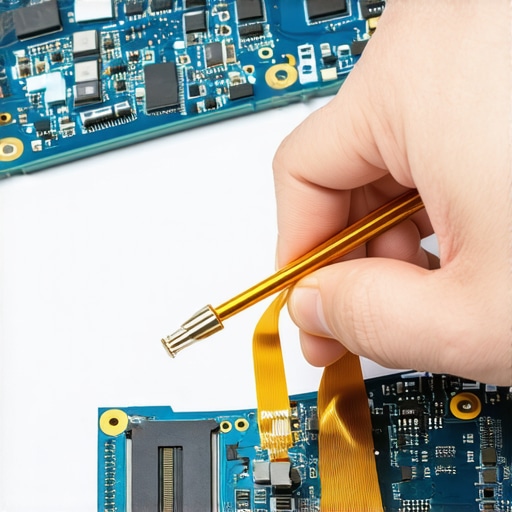 Opening the bezel around your screen usually reveals the connector. I once spent two hours diagnosing a ‘dead’ screen only to find that the gold pins on the connector were just slightly tilted. I unplugged it, blew out a speck of dust, and snapped it back in. The double image vanished instantly. This is why learning common at-home screen fixes is so valuable; you often don’t need new parts, just a better connection.
How to Identify a Physical Cable Pinch
If the ghosting changes when you tilt the lid back and forth, you have 100% confirmed it is the cable. If the image stays static and doubled regardless of the angle, the LCD panel itself has likely suffered an internal failure. At that point, you aren’t just looking at a loose plug; you are looking at a hardware swap. You can follow a step-by-step screen replacement guide to swap the panel out yourself. Just remember to always disconnect the battery before touching these cables. I learned that the hard way once and saw a tiny blue spark that cost me a backlight fuse. Always keep that battery out of the equation when you are working near the screen’s power pins.Most people assume that if the screen is doubling, the panel is dead. But here is the contrarian truth: I have seen dozens of cases where the issue was actually internal electromagnetic interference (EMI) caused by a poorly shielded aftermarket battery or a degraded ground wire near the hinge. Everyone tells you to buy a new panel immediately, but if you do not address the underlying interference, your new $150 screen might start ghosting within a month. It is a classic example of hardware failure masquerading as a software bug, but with a specific electrical twist. The ‘Oops’ factor here is the ‘firmware panic.’ I have seen users try to flash their BIOS to fix a flickering or doubled image, only for the screen to glitch mid-update, leaving them with a bricked motherboard. Never update firmware on a device with an unstable display. If you cannot see what you are doing with 100% certainty, you are playing Russian roulette with your hardware. 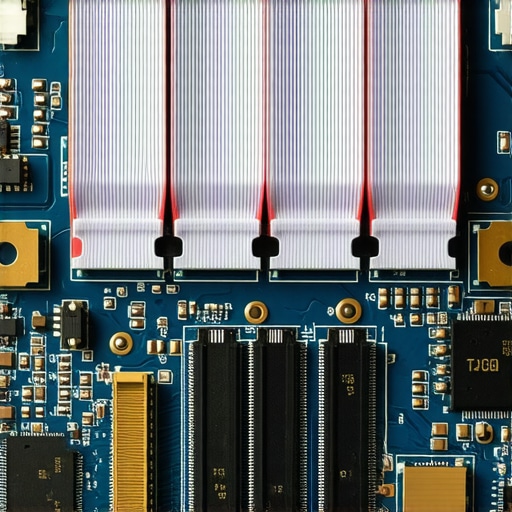
Your Timing Controller Might Be the Secret Enemy
For the more tech-savvy, we need to talk about the Timing Controller (T-CON) board. This small component translates the signal from your GPU into something the LCD can understand. When the clock signal—specifically the vertical synchronization (V-Sync) data—drifts, the screen refreshes the new frame before the old one has fully cleared. This is what creates that ‘double’ or ‘ghost’ effect. According to standards established by the Video Electronics Standards Association (VESA), even a few milliseconds of signal lag in the eDP (embedded DisplayPort) lanes can result in significant visual artifacts. If you have already tried fixing a blurry laptop screen after a driver update and saw no change, your T-CON is likely the culprit.
What happens if the T-CON board timing goes out of sync?
When the timing goes out of sync, the liquid crystals do not have enough time to reset their orientation. This is technically known as ‘pixel response lag,’ and it is often mistaken for a dying graphics card. Another advanced mistake is neglecting the power rails. If the screen is not getting a clean 3.3V or 5V from the motherboard, the logic on the panel starts to fail. This is why troubleshooting common computer repair issues effectively requires a multimeter, not just a screwdriver. You might find that your screen looks like static or has ghosting simply because a capacitor on the logic board is leaking voltage. Have you ever fallen into this trap where you replaced a part only to find the problem was a tiny cable or simple interference? Let me know in the comments!
Why Pressure Spots Mimic Ghosting Issues
One often overlooked nuance is the ‘gate driver’ failure on the glass itself. When these tiny transistors on the edge of the panel fail, they cannot ‘turn off’ pixels fast enough, leaving a trail of the previous image. This is distinct from a cable issue because it usually appears as a fading ghost rather than a sharp second image. If you see this, learning common at-home screen fixes might not be enough; the panel is physically wearing out. Before you commit to a full laptop screen replacement, check those ground connections and ensure your bezel is not pinching the panel. It might save you a fortune and a lot of unnecessary frustration.If you have reached the point where you are ready to open the chassis, you need to stop using the butter knife from your kitchen. I have seen too many beautiful magnesium alloy frames scarred by ‘good enough’ tools. My personal go-to is the iFixit Pro Tech Toolkit, specifically for the Pentalobe and Torx bits that manufacturers use to keep us out. Using a precision spudger instead of a flathead screwdriver is the difference between a clean repair and a snapped plastic clip. If you are dealing with persistent ghosting, I also recommend running HWiNFO64 to monitor your GPU thermals in real-time. Sometimes that double image is actually a thermal throttle response that how to fix an overheating laptop with a simple can of compressed air can solve before things get permanent. 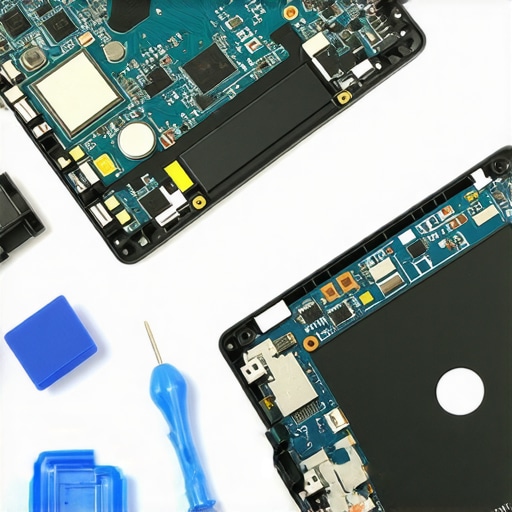
How do I maintain my display and hardware health over time?
Consistency is the secret sauce. I tell my clients that a laptop is like a car; you do not wait for the engine to smoke before checking the oil. For businesses, this is why managed IT solutions streamlining operations for small businesses are so vital—they handle the ‘invisible’ maintenance like firmware updates and driver stability that prevent hardware desync in the first place. On a personal level, keep your screen clean with 70% isopropyl alcohol and a microfiber cloth, but never spray the liquid directly on the glass. Gravity will pull that moisture into the bottom bezel, right where the T-CON board lives, potentially causing the exact ghosting you are trying to avoid. If you have already suffered a catastrophic failure, remember that data recovery secrets and expert techniques can often save your work even if the screen is totally black.
Futureproof Your Setup Against Display Decay
Looking ahead, I suspect we are moving toward a world of ‘self-healing’ display cables. According to recent research in the Journal of Applied Physics, scientists are experimenting with liquid metal alloys that can bridge microscopic cracks in circuitry autonomously. Until that tech hits your local Best Buy, you have to be the primary line of defense. If you are scaling a business, you cannot afford for five laptops to go down with ‘double vision’ in one week. This is why I suggest learning how to extend the life of your office PCs by three years through proactive hardware audits. Do not wait for the pixels to fail. Grab an HDMI cable tonight and run that ‘truth test’ I mentioned earlier. If you see even a hint of a shadow, it is time to check your refresh rates and cable seating before a minor glitch becomes a permanent hardware replacement. Trust me, your future self will thank you for the ten minutes of prep work.
Three Hard Truths About Display Repairs That Saved My Sanity
One thing I have realized after years of laptop screen tinkering is that 90% of the battle is psychological. When you see a double image, your brain assumes the worst, but it is often just a physical disconnect. First, never underestimate the power of a reset—not just a software reboot, but a physical power drain. Second, troubleshooting common computer repair issues effectively starts with the cheapest component first. I once saw someone buy a $200 motherboard when a $15 cable was the real culprit. Finally, the environment matters; I have seen screens clear up just by moving a high-powered desk lamp or a set of unshielded speakers away from the laptop casing.
My Go-To Kit for Saving Distorted Displays
I do not travel anywhere without my specialized toolkit. I highly recommend the iFixit Pro Tech Toolkit for the sheer variety of bits, but for software, HWiNFO64 is my secret weapon for checking if a GPU is actually overheating and causing those artifacts. If you are managing a fleet of devices for work, knowing why your IT support costs are higher than they should be can help you realize that simple display maintenance could have been caught during a routine audit. For those deeper hardware issues, checking the official service manual for your specific model is non-negotiable—never guess where the hidden screws are.
Bring Your Screen Back to Life Today
Fixing a laptop screen that is seeing double is about patience and precision. Whether you are performing a hardware swap that gives old office PCs five more years of life or just reseating a cable, the satisfaction of a crisp image is worth the effort. Do not let a few ghosting pixels convince you to scrap a perfectly good machine. Take it one step at a time, check your connections, and you will be back to a single, clear view before you know it. If things go sideways during your repair, remember that data recovery secrets every business should know today can protect your files even if the display stays dark.
Have you ever tried to fix a screen yourself only to find a loose cable was the only problem? Let me know your success stories below!