

It was a rainy Tuesday, and I was just trying to finish up a client proposal before the 5 PM deadline. I double-clicked my ‘Project_Final’ folder, and instead of the usual hum, I heard it: a rhythmic, metallic click… click… click. My stomach dropped. I did what most people do – I clicked faster, hoping it was just a temporary glitch. I even tried the ‘old-school’ trick of giving the side of my tower a firm pat. Looking back, that was the exact moment I started making things worse. I didn’t realize then that my hard drive’s read/write head was literally slamming against the internal stop, trying to find data that was becoming increasingly unreachable. If you are hearing that sound right now, I want you to take your hand off the mouse. We are going to walk through why this is happening and exactly how to protect your business data before that drive gives up the ghost entirely.
What Is Actually Happening Inside Your Computer Case
The clicking sound you hear when you try to access files is almost always a mechanical failure within a traditional Hard Disk Drive (HDD). Unlike silent Solid State Drives (SSDs), HDDs rely on a physical arm moving across spinning platters. When you open a file, that arm has to move to a specific ‘address’ on the disk. If the drive is failing, the arm can’t find the track, resets to its home position, hits a physical stop, and tries again. This creates that repetitive clicking noise often called the ‘Click of Death.’ Early in my career, I made the mistake of running a heavy disk defragmentation on a clicking drive, thinking it just needed to ‘reorganize’ itself. That mistake cost me weeks of work because the constant movement finished off the mechanical arm. According to data from Backblaze’s 2023 drive stats, mechanical failure remains a leading cause of data loss in older enterprise hardware. This is why you need to know how to check if your hard drive is about to fail using S.M.A.R.T. data before the clicking starts, but if it has already begun, the rules change immediately.
Is a clicking sound actually a death sentence for my data?
It is natural to hope it is just a software bug or a loose cable, but I have to be the bearer of bad news: mechanical clicking is rarely a software issue. However, it does not mean your files are gone yet. It just means the window to save them is closing fast. Have you ever experienced that heart-pounding moment where your computer starts making a noise you’ve never heard before? If so, the worst thing you can do is keep the power on. You should never open a clicking hard drive in a normal room because even a speck of dust can destroy the platters. Instead, your focus should be on getting the drive imaged or using data recovery secrets and expert techniques to pull what you can while the drive still spins. If the noise is constant, your best bet is cloning a failing hard drive to a new SSD as quickly as possible. In the next section, I’ll show you the exact steps to take to triage your PC without losing your most important work files.
Pull the Plug Immediately to Save Your Data
The very first thing you must do when you hear a mechanical click is cut the power. I know it feels counterintuitive when you have a half-finished document open, but every rotation of those platters is a gamble. Think of the read/write head like a record player needle. If that needle starts jumping and scratching the surface, you don’t keep the record spinning; you lift the arm. I once worked with a local law firm where an office manager heard a ‘faint tick’ and decided to run a disk check overnight. By morning, the drive wasn’t just clicking; it was grinding. We had to tell them that 30 days of billable hours were physically carved off the disk. If you act fast, you can often pull critical data from a hard drive that makes a scratching sound or clicking noise before the surface is destroyed. 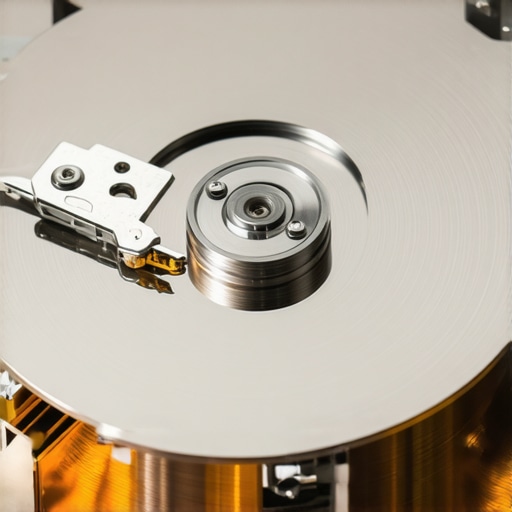
Stop Using Standard Windows Repair Tools
The biggest mistake I see beginners make is reaching for built-in tools like CHKDSK or ‘Startup Repair.’ These utilities are designed to fix software file system errors, not mechanical hardware failures. They work by intensely scanning every sector of the drive, which is the worst possible stress test for a dying motor. Instead, you need to focus on how to spot a hardware failure masquerading as a software bug before you accidentally torture your drive to death. If the BIOS can still see the drive, your only goal is a bit-level clone. Using the easiest way to clone a failing hard drive to a new SSD allows you to work on a healthy copy of your data rather than the ticking time bomb itself.
Move Your Data to a Healthy SSD First
Once you have stopped the immediate damage, you need to decide if you can clone the drive yourself or if you need a clean-room professional. If the drive is still being recognized by the computer, you might have one final chance to use data recovery secrets and expert techniques. I usually use a Linux-based tool like ddrescue because it is designed to skip ‘bad’ sectors and come back to them later, rather than getting stuck on a single error and burning out the motor. For business owners, this is why managed IT solutions streamlining operations are so vital; they often catch these hardware warnings through S.M.A.R.T. monitoring weeks before the clicking even starts. Knowing these data recovery secrets every business should know can be the difference between a minor afternoon hiccup and a total company shutdown. If you are struggling to get the OS to load at all, you might need to learn how to recover Word documents that didn’t save before a crash by slaving the drive to another machine, but only if the clicking is intermittent. If that sound is constant, stop everything and call a specialist.The reason I’m being so blunt about pulling the plug is that most people treat a clicking drive like a slow leak in a tire—they think they can just keep ‘pumping’ data out until it’s flat. This is the ultimate ‘oops’ factor in modern tech support. In reality, every second that drive is powered on while clicking, the actuator arm is potentially carving a circular groove into the magnetic coating of the platter. This is called a ‘head crash,’ and once it happens, the data isn’t just ‘lost’—it’s physically gone, turned into a fine magnetic dust inside the casing. Knowing these computer repair for beginners and how to avoid costly mistakes is what separates a successful recovery from a permanent loss.
The Most Dangerous Advice You Will Hear Online
You have probably seen people on forums recommend the ‘freezer trick’ where you put your drive in a Ziploc bag and stick it in the freezer overnight. Let me be clear: this is a nightmare for modern high-capacity drives. It introduces internal moisture that can cause the heads to stick to the platters instantly when you power it back up. Another common myth is that if you can still ‘see’ the folder structure in Windows Explorer, the drive is fine to stay on. This is a massive trap because the computer is often just reading a cached version of the file table while the physical hardware is actively dying. According to data from the experts at Secure Data Recovery, amateur recovery attempts on physically damaged drives reduce the chances of professional success by over 50%. This is why the ‘set it and forget it’ mentality is often the mistake that makes your backups completely useless.
Why Your Sync Folder Is Failing You
There is a huge misconception about what a ‘backup’ actually is for a business. Many growing companies believe that because they use OneDrive or Dropbox, they are 100% protected. But why your business backup plan is actually just a sync plan is a critical distinction to understand. A sync service replicates the ‘death’ of a file across all devices. If your clicking drive corrupts a file before it dies, the service will sync that corruption to the cloud, overwriting your good copy. This is why managed IT solutions streamlining operations focus on point-in-time snapshots rather than just real-time syncing.
Can software tools actually recover a clicking drive?
The short answer is almost never if the issue is purely mechanical. While the power of data recovery tools is immense for deleted files or formatted partitions, they are built on the assumption that the drive can read and write sectors reliably. If your hardware is screaming at you, software will only accelerate its demise by forcing the arm to scan every sector repeatedly. Instead, you need to learn how to spot a hardware failure masquerading as a software bug before you ever hit ‘scan.’ If you catch it early, you can use data recovery secrets and expert techniques to clone the drive at a low level, which is much safer than letting a Windows utility thrash the disk for hours. Have you ever fallen into this trap? Let me know in the comments.
Stop playing Russian Roulette with your hardware
I have seen too many entrepreneurs lose years of work because they waited for a symptom like a clicking sound to take action. The reality of modern computing is that hardware is a consumable resource with a finite lifespan. If you want to avoid the panic of a dead drive, you have to shift from a reactive mindset to a proactive one. This starts with monitoring. I personally use S.M.A.R.T. (Self-Monitoring, Analysis, and Reporting Technology) data daily. If you do not know how to check if your hard drive is about to fail using S.M.A.R.T. data, you are essentially driving a car without a fuel gauge. For businesses transitioning to flash storage, you must also watch for the sign your SSD is reaching its write limit and about to die, which often presents as a drive suddenly becoming read-only to protect its remaining integrity.
The specific toolkit I use for every recovery job
When I am called into a ‘data emergency,’ I do not just rely on hope. I carry a specific kit of software and hardware that has saved me more times than I can count. My primary tool for cloning is ddrescue, a Linux-based utility that is far superior to standard Windows software because it does not stop when it hits a bad sector. Instead, it logs the error and moves on, allowing us to get a 99% clone of the healthy data before coming back to struggle with the damaged parts. I also highly recommend the power of data recovery tools like R-Studio or PhotoRec for the logical side of the recovery process. These are the same data recovery secrets and expert techniques that high-end labs use. According to technical documentation from Ontrack Data Recovery, the failure modes of modern NVMe drives are significantly more complex than old mechanical disks, often involving controller firmware corruption that requires specialized hardware emulators to bypass.
How do I maintain my hardware health as my business grows?
Scaling your business means you cannot personally check every hard drive in the office. This is where effective managed IT solutions for growing companies become your safety net. By implementing managed IT strategies to keep your business secure in 2025, you can use remote monitoring and management (RMM) tools that alert a technician the moment a single drive in your network reports a temperature spike or a growing number of reallocated sectors. This allows you to perform computer repair for beginners and avoid costly mistakes like letting a drive fail during a major project. For larger teams, managed IT solutions streamlining operations ensures that your ‘sync’ plans are backed up by actual point-in-time snapshots.
Where drive maintenance is heading in the AI era
Looking forward, the trend is moving away from simple threshold alerts toward AI-driven predictive failure analysis. We are already seeing enterprise-grade NAS systems that can predict a mechanical failure within a 48-hour window based on minute fluctuations in motor voltage and vibration patterns. This level of foresight will eventually become the standard for all business workstations. If you want to take control of your data today, I have one advanced tip: Download a portable S.M.A.R.T. viewer like CrystalDiskInfo right now and check your ‘Reallocated Sectors Count.’ If that number is anything other than zero, stop what you are doing and back up that drive immediately.
Hard Lessons from the Front Lines of Data Rescue
After years of hearing that dreaded click, I’ve realized that the most dangerous emotion in tech is hope. When you hope a drive will ‘just work one last time,’ you are actually risking permanent data loss. One big lightbulb moment for me was discovering that S.M.A.R.T. data is your only real early warning system. If you aren’t already using how to check if your hard drive is about to fail using S.M.A.R.T. data, you are flying blind. Another harsh truth is that most ‘free’ recovery software is actually designed for deleted files, not failing hardware. Trying to use them on a clicking drive is like asking a marathon runner to keep going with a broken leg. Finally, remember that data recovery labs are expensive for a reason; they have the clean rooms and donor parts you simply can’t replicate at home. Avoiding computer repair for beginners and avoid costly mistakes starts with knowing when to stop.
The Recovery Tools I Keep in My Emergency Kit
When I’m faced with a drive that is barely hanging on, I rely on a small, battle-tested group of resources. First, I always keep a bootable Linux USB with ddrescue. It is the gold standard for cloning because it doesn’t give up when it hits a bad sector. For anyone wanting to understand the deeper logic behind this, I recommend looking into data recovery secrets and expert techniques to see how the pros handle raw data. I also trust CrystalDiskInfo for daily health checks. It’s a simple, free tool that gives you a clear ‘Caution’ or ‘Good’ status. If you want to see the full scope of what is possible, check out the power of data recovery tools to see which one fits your specific situation, especially if you are dealing with accidental deletions rather than mechanical hardware failure.
Secure Your Future Success Today
Your data is the lifeblood of your business, and it deserves more than a reactive strategy. By shifting your focus toward managed IT solutions streamlining operations, you can ensure that your hardware is monitored 24/7. Don’t wait for the click of death to remind you of the value of your work. Start implementing proactive measures now, and you’ll never have to experience that heart-sinking Tuesday afternoon I had years ago. Have you ever had a hard drive fail right before a major deadline? Let me know in the comments below!