

I was sitting at a local roast house, espresso in hand, ready to finally finish that quarterly report. The moment I yanked the charger cable out, my screen started twitching like it had too much caffeine. Every few seconds, the brightness would dip and jump, making the text dance before my eyes. I felt that familiar pit of dread in my stomach—the kind you get when you think your expensive hardware is dying. I’ve been there, and I know exactly how much it stings to see your productivity vanish into a rhythmic blink. Have you ever felt like your laptop was possessed the second it lost its tether to the wall?
That Jittery Screen is Usually Not a Hardware Death Sentence
Most people assume the worst. They see a flicker and think they need a laptop screen replacement immediately. I’ll be honest with you: I made that exact mistake years ago. I spent a weekend tearing apart a perfectly good chassis because I was convinced the cable was loose. I ended up with a pile of screws and the same flickering screen on the other end. The truth is, when the problem only happens on battery, it’s rarely about the hardware itself and almost always about how your computer tries to save energy.
Is my laptop screen actually dying?
It’s the first question everyone asks. The fear is real because screens are pricey and delicate. But if the flicker vanishes the moment you plug back into the wall, your hardware is likely fine. You aren’t dealing with a cracked panel or a failing backlight. Instead, you’re fighting a software setting that thinks it’s being helpful by dimming and brightening the display to squeeze out five more minutes of battery life. It’s a classic case of hardware failure masquerading as a software bug. Before you start looking for repair shops, we need to talk about the smart features that are actually making your life harder.
The Stealthy Power Settings Ruining Your Workflow
The most common culprit is a feature buried deep in your graphics driver settings. For instance, Intel’s Display Power Saving Technology (DPST) is notorious for this. According to Intel’s official support documentation, DPST works by reducing the backlight brightness based on the image displayed to save power, but it often results in the visible flickering or breathing effect users hate. You might also want to verify if your laptop battery is actually failing, because inconsistent voltage delivery can sometimes trigger these shifts, though it’s less common than a simple configuration tweak. I once spent hours troubleshooting common computer repair issues only to find out that a single checkbox in the Intel Graphics Command Center was the whole problem. We are going to dig into how to disable these features and reclaim your steady, solid display so you can work in peace.
Kill the Power Savings That Kill Your Eyes
To fix the most common cause of flickering, you need to target the Intel Graphics Command Center. Even if you have a powerful dedicated GPU, your laptop usually relies on the integrated Intel chip to handle the display when you’re unplugged. Open the Command Center, navigate to the System tab, and find the Power sub-menu. You’ll see a toggle for Display Power Saving Technology. Turn it off. This feature is the hidden reason your laptop screen brightness keeps flickering because it constantly adjusts the backlight based on the colors on your screen. When you switch from a dark terminal to a white Word document, the software panics and tries to adjust, causing that jittery sensation. 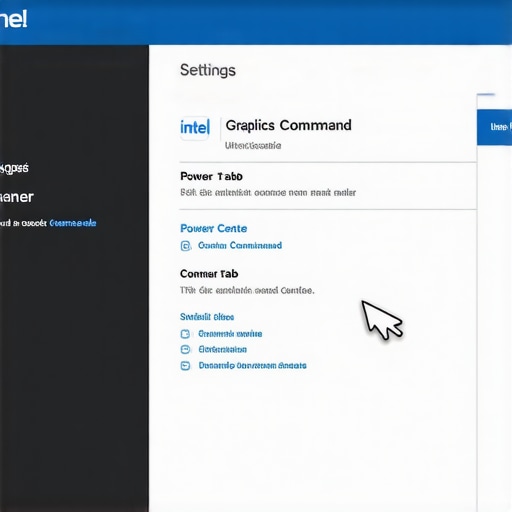
Tell Windows to Stop Chasing Pennies
Windows has its own layer of power management that can be just as aggressive as your graphics drivers. You need to disable Adaptive Brightness. Go into your Windows Settings, head to System, then Display. Look for the ‘Brightness’ dropdown and uncheck ‘Help improve battery by optimizing the content shown and brightness.’ This is a classic example of laptop screen repair diy tips for clearer displays that requires zero technical skill but provides instant relief. I remember a client, Sarah, who walked into my office clutching her Dell XPS like it was a wounded pet. She was ready to pay for a full screen swap because the flickering made her spreadsheets look like a strobe light show. I didn’t even pick up a screwdriver; I just unchecked this box, and the problem vanished instantly.
Ditch the Dynamic Refresh Rate
Modern laptops often use a ‘Dynamic Refresh Rate’ to save juice. It might drop from 120Hz down to 60Hz or even lower when you aren’t moving the mouse. This transition can look like a flicker to sensitive eyes. If you’re tips for troubleshooting laptop screen problems seamlessly, you should lock your refresh rate. Go to Advanced Display Settings and set your ‘Choose a refresh rate’ to a solid, static number (usually 60Hz or 120Hz). Don’t let the OS decide for you. Consistency is the enemy of the flicker.
Force a Driver Reset When Things Get Messy
Sometimes the software gets ‘stuck’ in a bad state after an update. If your screen started acting up right after a Windows update, you might be seeing why your screen looks blurry after a driver update or why it’s flickering now. You can try a ‘soft reset’ by pressing Win + Ctrl + Shift + B. Your screen will go black for a second and beep; this restarts your graphics driver without closing your apps. If that fails, you may need to use Display Driver Uninstaller (DDU) to wipe the slate clean and install a fresh driver from your manufacturer’s website rather than relying on Windows Update’s generic versions. This is a staple move in laptop screen repair how to fix common issues at home because it rules out corrupted files that a standard ‘update’ won’t touch.Let’s dig deeper. Most technicians will tell you to just ‘reinstall Windows’ if a basic software fix doesn’t work. In my experience, that’s often using a sledgehammer to kill a fly. We need to talk about Pulse Width Modulation (PWM). While the settings I mentioned earlier handle the ‘smart’ side of things, the physical way your screen dims can be the real culprit. According to the IEEE 1789-2015 standard on flicker, lower-frequency backlight strobing—which laptops often switch to when saving power—can cause what looks like a rhythmic jitter to the human eye. This isn’t a bug; it’s a design choice that prioritizes battery life over visual stability.
Does inconsistent voltage cause physical display artifacts?
It’s a question I get from users who notice the flicker coincides with heavy CPU usage. The answer is yes. When your battery ages, it struggles to maintain a steady ‘ripple-free’ voltage. This electrical noise can bleed into the display’s power rail, causing horizontal lines or a subtle shimmer. It’s a perfect example of how to spot a hardware failure masquerading as a software bug. If you’ve tweaked every setting and the screen still dances, you should verify if your laptop battery is actually failing before you blame the panel itself. One massive ‘oops’ factor I see constantly is the blind trust in Windows Update. Most people think clicking ‘Update Driver’ in the Device Manager is the final word. In reality, Windows often pulls ‘stable’ generic drivers that haven’t been optimized for your specific laptop’s power-switching nuances. This is how you end up with vertical green lines or washed-out colors that look like hardware death but are just bad code. Always grab the OEM drivers directly from the manufacturer’s support page.  I’ve seen too many people pay for a full laptop screen replacement when all they needed was a BIOS flash to stabilize the power delivery to the eDP (Embedded DisplayPort) cable. If you’re attempting laptop screen repair how to fix common issues at home, check for firmware updates first. A single BIOS update can sometimes recalibrate how the motherboard handles the transition between AC and DC power, instantly smoothing out that jitter. Have you ever fallen into the trap of replacing hardware only to find out it was a simple setting? Let me know in the comments. By avoiding costly mistakes for beginners, you save both your wallet and your sanity.
The Diagnostics Kit I Actually Use
When I’m deep into troubleshooting common computer repair issues effectively, I don’t just poke around in the Windows GUI. I rely on HWiNFO64. This isn’t some generic ‘optimizer’ tool; it’s a hardware info powerhouse. According to the HWiNFO64 technical documentation, the utility accesses the motherboard’s Embedded Controller (EC) to provide real-time sensor data that the OS usually hides. I use it to monitor the ‘GPU Rail Voltage’ and ‘Battery Discharge Rate’ simultaneously. If the screen flickers exactly when the voltage dips below a certain threshold, I know the battery cells are failing to handle the transient loads. This kind of data-driven approach is what separates a guess from a professional repair.
How do I keep my laptop display healthy for the long haul?
Maintenance isn’t just about wiping the screen with a microfiber cloth—it’s about managing the heat that lives behind it. Most people don’t realize that the display cable (the eDP cable) often runs right over or near the heat pipes. If your fans are clogged, that cable is literally baking. You can extend the life of your office PCs by three years by blowing out the dust every few months to keep those internal temperatures down. I also recommend checking your drive’s health regularly; as I often say when discussing how to check if your hard drive is about to fail using s.m.a.r.t. data, a failing system drive can cause high CPU interrupts that look like graphical lag or flickers. 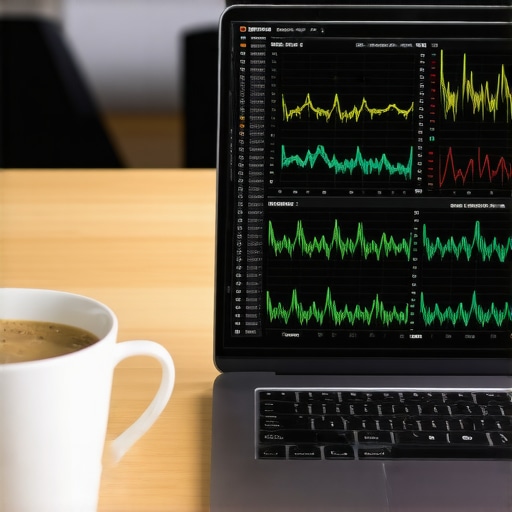
Where the Future of Display Tech is Heading
We are entering the era of Mini-LED and OLED, which changes the power-saving game entirely. In the next few years, I predict we will see ‘AI-Managed Backlights’ that use local machine learning to adjust individual pixel zones based on your eye tracking. This will eliminate the ‘global’ flickering we see today because the laptop won’t have to dim the entire panel to save a few milliwatts. For businesses, this is why effective managed IT solutions for growing companies are starting to focus more on hardware lifecycle management—as displays become more complex, their failure modes become more subtle. Don’t wait for the screen to go black; my advanced tip for you today is to create a ‘Linux Live USB.’ If your screen flickers in Windows but stays rock-solid while running Ubuntu from a thumb drive, you’ve proven it’s a software conflict. This simple test can save you from a needless laptop screen replacement and hours of frustration. It’s the same level of precision I use when performing data recovery secrets expert techniques to save your files fast—always isolate the variable before you open the case.
The Hard Truth About Screen Jitter That Took Me Years to See
After a decade of cracking open laptops, the biggest lesson I’ve learned is that a screen glitch is rarely about the glass itself. It’s usually a conversation between your battery and your processor that got lost in translation. I used to jump straight to ordering parts, but now I know that software optimization is the first line of defense. If you realize that the hardware is often just following bad instructions, you’ll save a fortune. This is why I always tell my clients that computer repair for beginners starts with the settings, not the screwdriver. Heat is also a hidden signal disruptor; if your fans are loud while the screen is jumping, you might be looking at thermal interference rather than a bad panel. Batteries have noisy days, and as they age, their power output becomes a jagged wave that some screens just cannot handle. Ultimately, I have learned to trade five minutes of battery life for a perfectly stable screen any day of the week.
My Go-To Tools for Taming a Wild Display
When I am moving beyond the basic Windows menus, I have a specific first-aid kit I trust. For tracking those tiny voltage drops that cause a shimmer, I use HWiNFO64 because it gives me the raw data the OS hides. If I suspect a corrupt update, Display Driver Uninstaller (DDU) is my nuclear option to wipe the slate clean. For anyone wanting to keep their view pristine without a trip to the shop, these laptop screen repair diy tips for clearer displays are the best place to start. I also recommend keeping a Linux Live USB handy, as it is the fastest way to how to spot a hardware failure masquerading as a software bug. If the flickering stops in Linux, you know your hardware is healthy. #IMAGE_PLACEHOLDER_E#
Reclaiming Your Steady Workspace
You do not have to live with a screen that acts like it is in a strobe-light disco. By following these steps, you are not just fixing a technical glitch; you are reclaiming your ability to focus and produce without distraction. A flickering laptop screen is a nuisance, but it is a solvable one when you stop chasing ghosts and start looking at the power settings. Take a breath, uncheck those adaptive boxes, and watch the stability return. You now have the tools for tips for troubleshooting laptop screen problems seamlessly from your own desk. Have you ever had a simple setting fix a problem you thought was going to cost hundreds? Let me know in the comments below!