

I was sitting in a dim airport terminal, nursing a lukewarm latte and trying to finish a report that was due in three hours. My battery indicator showed a healthy 42%. Then, without a single flicker or warning, the screen went black. I hit the power button. Nothing. I felt that cold pit of dread in my stomach—the kind you get when you realize your “portable” workstation has just become a very expensive paperweight. I assumed I was looking at a costly hardware failure, something I’d seen dozens of times while helping folks with computer repair for beginners. But as it turns out, I was wrong. Dead wrong. [image1]
Stop Reaching for Your Wallet Just Yet
Most of us are conditioned to think that once a battery starts acting up, it’s time for the recycling bin. We see a laptop that won’t charge even when plugged in and panic. I made that exact mistake years ago. I spent eighty bucks on a third-party replacement that ended up being worse than the original, all because I didn’t know how to differentiate between a physical failure and a software glitch. Today, I want to show you how to tell the difference so you don’t waste your hard-earned cash.
Can a simple reset really save a dead battery?
It sounds like snake oil, doesn’t it? You might be thinking your hardware is physically degraded and no amount of “resetting” will bring back those chemical ions. While it’s true that every battery has a finite lifespan—lithium-ion batteries typically lose about 20% of their capacity after 300 to 500 charge cycles, according to Battery University—the way your laptop talks to that battery can get out of sync. Sometimes, the hardware is fine, but the “brain” is confused.
Why Your Laptop is Lying to Your Face
I once helped a neighbor who was ready to toss a perfectly good MacBook because it would jump from 100% to 50% in ten minutes. We didn’t need a soldering iron or a laptop screen replacement; we just needed a systematic approach to troubleshooting common computer repair issues. Have you ever had your laptop shut down on you when the meter said you still had plenty of juice left? If so, you’re exactly who I wrote this for. We’re going to dive into the “Why” before we get to the “How,” because understanding the logic saves you from buying parts you don’t actually need.
Let’s Get the Software and Hardware Talking Again
Think of your laptop’s charging system as a restaurant. The battery is the kitchen, the power adapter is the delivery truck, and the BIOS or OS drivers are the waitstaff. If the waiter forgets the order, the food never arrives, even if the truck is outside and the kitchen is hot. Before you assume you need a new battery, we need to reset the ‘waitstaff’ and clear the lines of communication.
Drain the Residual Ghosts from Your Motherboard
Static electricity can do weird things to your power management chips. I’ve seen laptops that refuse to turn on simply because a tiny bit of residual charge is stuck in the capacitors. To fix this, you need a ‘hard reset.’ Shut down your laptop completely. If your battery is removable, pop it out. Unplug the AC adapter. Now, hold down the power button for a full 60 seconds. I know it feels like an eternity, but this forces any remaining electricity to dissipate. I once did this for a friend who thought they needed to identify a failing motherboard, and the laptop roared back to life like it had never been ‘dead.’ It’s the most satisfying five-minute fix in the world of computer repair for beginners.
Force a Re-handshake with the Battery Driver
Windows uses a specific driver called the ‘Microsoft ACPI-Compliant Control Method Battery’ to communicate with your hardware. Sometimes this driver gets corrupted or stuck. To fix it, right-click your Start button and open Device Manager. Find the ‘Batteries’ section. You’ll likely see two or three entries. Right-click the ACPI-compliant one and hit ‘Uninstall device.’ Don’t panic—your laptop won’t explode. Once it’s gone, click ‘Action’ at the top and select ‘Scan for hardware changes.’ Windows will realize it’s missing its battery translator and install a fresh, clean version. 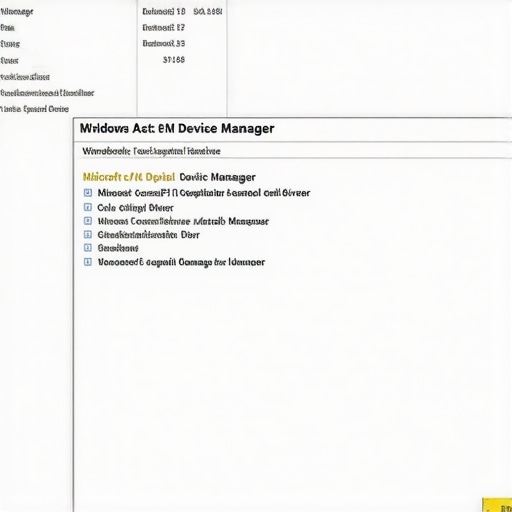 This simple step is a classic move when troubleshooting common computer repair issues effectively because it clears out software-side confusion without touching your data.
Inspect the Physical Connection Points
If the software reset doesn’t work, we have to look at the ‘delivery truck.’ I remember a frantic call from a small business owner who thought they were suffering a massive hardware failure. They were looking into managed IT solutions just to handle their hardware refreshes. I drove over, took one look at their charger, and noticed the ‘barrel’ of the plug was bent. They had been jamming it into the port for weeks. Before you buy a new battery, try the simple trick to fix a loose laptop charging port at home or test with a known good charger. Use a flashlight to peek inside the charging port. If you see dust, lint, or green corrosion, that’s your culprit. Often, what looks like a hardware failure masquerading as a software bug is really just a bit of grime blocking the connection.
Calibrate Your Battery to Stop the Lying
If your laptop stays on but the percentage is all over the place, it needs calibration. Charge it to 100%, then keep it plugged in for at least two more hours. Then, unplug it and use it until it dies completely and shuts itself off. Leave it dead for about five hours, then charge it back to 100% in one go. This ‘re-teaches’ the sensor where the true top and bottom of the battery’s capacity are. It’s similar to how we have to check if your hard drive is about to fail using S.M.A.R.T. data—it’s all about getting accurate reporting from the hardware so you don’t get stranded in an airport with a 0% charge when the meter promised you 40%.
While those quick resets work for minor glitches, I’ve seen people take the ‘DIY spirit’ a step too far. Everyone tells you that you can fix anything with a YouTube video, but in my experience, knowing when to put the screwdriver down is the real pro skill. For instance, most folks assume a flickering monitor is a death sentence for the panel. They rush out for a laptop screen replacement without checking the eDP cable first. I’ve saved clients hundreds simply by reseating a connector or identifying the fix for a laptop screen that only works at a certain angle. 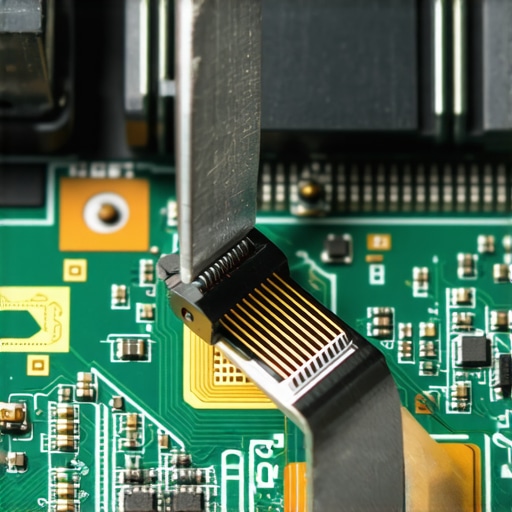
What happens when the hardware actually starts ‘screaming’?
This is the advanced ‘Oops’ factor. If you hear a clicking sound coming from your drive, do not—I repeat, do not—run software recovery tools. I once watched a small business owner lose five years of tax records because they tried to ‘force’ a scan on a failing platter. While it’s tempting to try data recovery secrets you found online, physical damage requires a cleanroom environment. According to a study by Backblaze, SSDs have a very specific ‘burn-out’ point called the write limit. Once that’s hit, your data is in a race against time. If you see the sign your SSD is reaching its write limit, your focus should be on cloning the data immediately, not trying to ‘repair’ the drive’s file system.
The Myth of the ‘Fix-It’ IT Guy
The biggest myth I encounter in managed IT solutions is that you only pay for ‘repairs.’ That is a reactive trap. A real pro focuses on how to extend the life of your office PCs through proactive thermal management and firmware audits. If you’re only calling the IT guy when things break, you’re already losing money to downtime. This is why choosing the cheapest managed IT plan always leads to more downtime—you’re paying for a fire extinguisher when you should be paying for fireproofing. I’ve often seen hardware failure masquerading as a software bug because the underlying infrastructure was ignored for years. Have you ever fallen into this trap of trying to fix something yourself, only to realize you were making it worse? Let me know in the comments below!But avoiding mistakes is only half the battle. The other half is having the right gear and the right mindset before the crisis hits. I’ve found that the difference between a machine that lasts three years and one that lasts seven usually comes down to what the owner does during the quiet months when everything seems to be working just fine.
The Two Tools I Never Leave the House Without
If you peeked into my work bag, you wouldn’t see a mountain of gadgets. You’d see a Ventoy-enabled USB drive and a precision driver set. I swear by Ventoy because it allows me to boot dozens of different diagnostic ISOs from a single stick without ever reformatting. Whether I need to use the power of data recovery tools or run a memory test, it’s all right there. If you’re still burning a new USB every time you need a different tool, you’re wasting time you don’t have. 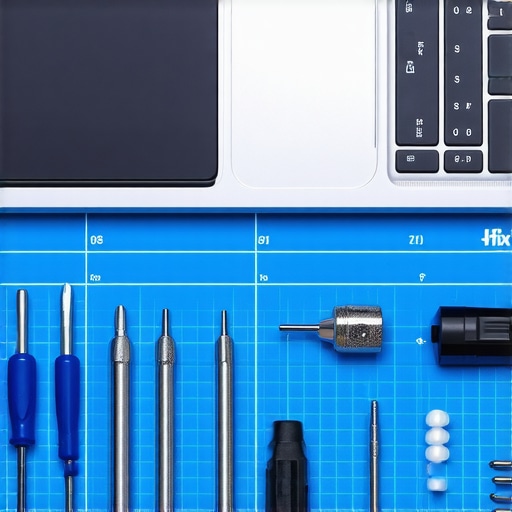
Kill the Dust Before It Kills Your Motherboard
Heat is the silent killer of every laptop I’ve ever worked on. As noted in the official iFixit ‘Laptop Maintenance 101’ guide, skipping a thermal paste re-application every three years can lead to permanent micro-fractures in the CPU’s solder balls due to heat cycling. You might notice the fix for a noisy laptop fan that sounds like a jet engine is often just a deep clean and a fresh dab of paste. If you ignore it, you’ll eventually see the sign your CPU is thermal throttling and slowing down your work, which is basically your computer’s way of screaming for help before it melts.
How do I keep my hardware from aging prematurely?
It’s all about consistency. For my business clients, we focus on how to extend the life of your office PCs by three years by implementing semi-annual ‘digital physicals.’ This includes checking the S.M.A.R.T. data on every drive and ensuring the firmware is up to date. This proactive approach is exactly how managed IT can elevate your business security in 2025—it moves you away from the ‘break-fix’ cycle that drains bank accounts. According to the Microsoft Sysinternals documentation by Mark Russinovich, observing process threads in real-time is the only way to catch ‘zombie’ processes that cause long-term hardware strain.
A Look at the AI Diagnostics of Tomorrow
I predict that by 2027, we won’t even need to manually check these stats. We are already seeing the rise of NPUs (Neural Processing Units) that will likely handle real-time health monitoring at the hardware level. Imagine a laptop that orders its own replacement fan two weeks before the bearings fail. Until that day comes, you are the pilot. My best advice? Take 30 seconds right now to download a tool like CrystalDiskInfo and check your drive’s health. If it says ‘Caution,’ don’t wait—cloning it today is a $50 job; recovering it tomorrow could be a $1,000 disaster.
Three Hard Truths That Will Save Your Next Device
I used to think every hardware issue required an expensive replacement part. After years of teaching computer repair for beginners, I realized that 90% of the battle is just knowing how to isolate the problem. The biggest ‘lightbulb moment’ for me was discovering that a ‘dead’ battery is often just a software synchronization error rather than a physical failure. Also, never underestimate the power of a physical clean; dust causes more damage than software bugs ever will. Finally, remember that troubleshooting common computer repair issues effectively is a skill you build through patience and observation, not by rushing to the store to buy new gear.
Resources That Keep My Hardware Running for Years
I don’t rely on luck or random forum posts. When a business needs managed IT solutions, I turn to verified documentation. I highly recommend the iFixit repair guides for their unmatched step-by-step clarity. For deep-level hardware health, the CrystalDiskInfo tool is my absolute go-to for checking drive longevity and S.M.A.R.T. data. I also frequently revisit the Microsoft Sysinternals blog for high-level insights into how the OS communicates with your hardware. These are the foundations that help me provide managed IT that elevates business security by preventing catastrophic failures before they even start.
Take Charge of Your Tech Right Now
Technology can be incredibly frustrating when it fails at the wrong moment, but you have more control over your devices than you think. Whether you’re handling a simple battery reset or preparing for a complex laptop screen replacement, the key is to stay calm and take it one step at a time. Don’t be afraid to experiment with the non-destructive software fixes we’ve discussed today. You are the pilot of your machine, and every fix you complete makes you more confident for the next challenge. Have you ever successfully brought a ‘dead’ laptop back to life with a simple reset or a deep clean? Let me know your success stories in the comments below!