

I’ll never forget the Tuesday afternoon I tried to finish a report in a pin-drop silent local library. One second I’m typing away, and the next, my laptop decides it’s actually a Boeing 747 preparing for a cross-Atlantic flight. The screeching was so loud the librarian actually shushed my computer. I wanted to crawl under the mahogany table. It wasn’t just embarrassing; it was a warning sign I had ignored for weeks. That’s the thing about a noisy fan—it’s the machine’s way of begging for help before something expensive melts. This isn’t just about the noise; it’s about survival for your hardware.
Stop the Screaming Before Your Laptop Quits
If you’re reading this, you’ve probably reached that same point of desperation. Maybe you’re worried that your hard drive is about to give up the ghost, or perhaps you’ve noticed the real reason your laptop keeps throttling its performance is that it’s literally gasping for air. I’m here to tell you that you don’t need a degree in mechanical engineering to fix this. We’re going to silence that jet engine today and get your peace of mind back. I remember my first “fix” years ago. I thought I could solve the noise by just sticking a toothpick into the vent to stop the spinning while I worked. Big mistake. I snapped a fan blade, and the resulting vibration felt like a jackhammer. Don’t do that. Instead, we’ll look at the smart, safe ways to handle computer repair for beginners so you don’t end up like me with a permanently rattling machine and a dead motherboard.
Does a noisy fan mean your laptop is dying?
Not necessarily, but it’s a symptom you shouldn’t ignore. According to research published by the IEEE, excessive heat is one of the primary killers of semiconductor components, significantly reducing the lifespan of your CPU through thermal degradation. Most of the time, the noise is just a cry for a good cleaning or a simple software tweak. We need to figure out how to tell if your laptop fan is actually broken or just dusty before you go spending hundreds on a replacement you might not need.
The Culprits Behind the Chaos
Usually, it’s a battle between physical blockage and digital overload. Over time, your laptop acts like a tiny vacuum cleaner, sucking up pet hair, carpet fibers, and dust bunnies. This gunk clogs the heatsink, forcing the fan to spin at max RPMs just to keep the temperature from hitting the emergency shutdown threshold. You might even find that you can fix an overheating laptop with a simple can of compressed air if you catch it early enough. Have you ever felt like your laptop was actually going to burn your lap because the fan just couldn’t keep up? Before we open anything up or start uninstalling programs, let’s break down why this is happening right now and how to diagnose the source of the racket correctly.The first thing I do isn’t grabbing a screwdriver; it’s checking the software. Think of your Task Manager like a security guard for your CPU. If a rogue program is hogging 90% of your resources, the fan will never stop spinning. Open it up and how to spot a suspicious process in your task manager to see if a background update or a piece of malware is the real culprit. Once you’ve killed the digital drain, you can focus on the physical side. I once helped a friend whose laptop sounded like a lawnmower. When we opened it, the fan was choked with what looked like an entire sweater’s worth of cat hair. We used a simple cleaning method, and the noise dropped from ‘airport runway’ to ‘library whisper’ in ten minutes.
Blast the Dust Out Properly
You need a can of compressed air, but there’s a technique to it. If you just spray wildly, you risk spinning the fan too fast and ruining the bearings or, worse, blowing moisture onto the circuitry. You must stop using canned air on your motherboard until you read this warning about liquid discharge.
Hold That Fan Blade Still
Always use a toothpick or a plastic spudger to gently hold the fan blades in place while you spray. If the fan spins freely from the high-pressure air, it can actually generate electricity (like a tiny turbine) and fry your board. Short, sharp bursts are better than one long spray. 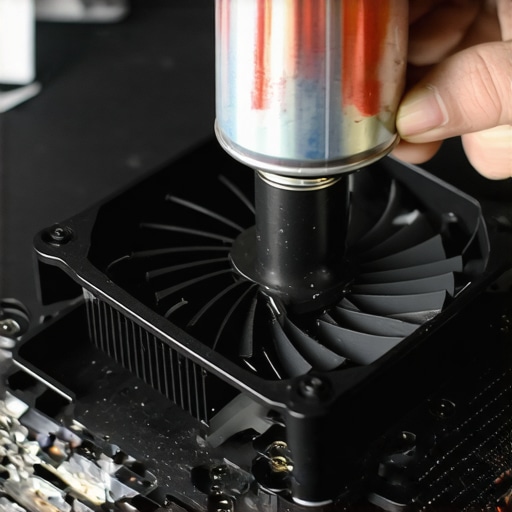
Look for Mechanical Grinding Instead of Just Whooshing
If the noise is a high-pitched whine or a grinding sound, cleaning won’t help. That’s a sign of a failing bearing. You need to know how to tell if your laptop fan is actually broken or just dusty. If it’s broken, you’re looking at a physical replacement. Don’t panic; it’s usually a $20 part and some screws. However, if you’ve never touched the insides of a PC, review computer repair for beginners-avoid-costly-mistakes first.
Stop the Thermal Throttling
When the fan fails, your computer slows down to protect itself. This is the real reason your laptop keeps throttling its performance. If cleaning doesn’t work, the thermal paste between the CPU and the heatsink might have dried out. This paste acts like a bridge for heat. If the bridge is cracked and dry, the heat stays on the chip, and the fan goes into overdrive trying to clear air that isn’t even reaching it. Replacing paste is an intermediate step, but it’s the ultimate way to keep an old machine running cool for another five years.
I’ve seen it a hundred times: a user thinks they’re being smart by running a ‘disk repair’ utility on a drive that’s making a faint clicking noise. They think the software will magically realign the stars and save their files. But here’s the cold, hard truth: if your hardware is physically failing, running recovery software is like forcing a person with a broken leg to run a marathon to ‘see if it still works.’ You are effectively grinding the read-write heads into the platters. This is why you must understand why you should never open a clicking hard drive in a normal room and why software isn’t always the solution. Most beginners think they can ‘software-fix’ their way out of a mechanical nightmare, but that’s the fastest way to turn a $300 professional recovery into a multi-thousand-dollar forensic operation.
Software Fixes That Actually Kill Your Hardware
The biggest trap I see people fall into is the ‘more is better’ approach to cooling and performance. Everyone says to just buy a cooling pad and forget it, but in my experience, a cooling pad is often just a Band-Aid on a sucking chest wound. If your thermal paste has fossilized, a fan blowing on the plastic bottom of your case won’t do a thing. In fact, relying on external cooling while your internal system is the real reason your laptop keeps throttling its performance can lead to localized hotspots that eventually pop a capacitor on your motherboard. It’s a classic case of ignoring the internal rot because the outside feels slightly cooler to the touch.
Is it worth trying to recover data from an encrypted SSD yourself?
This is where things get really hairy. With modern laptops using NVMe drives and hardware-level encryption like BitLocker or FileVault, a ‘simple’ crash is never simple. A study by the data experts at Backblaze indicates that while SSDs have a lower annualized failure rate than HDDs early on, their failure mode is often ‘total silence’—no clicking, no warning, just a dead controller. If that controller dies and your data is encrypted, the ‘cheap’ recovery tools you find online are useless. You need to understand the truth about recovering data from an encrypted SSD that wont mount before you accidentally wipe the encryption keys permanently. One wrong command in a Linux terminal and those keys are gone forever, leaving you with a very expensive paperweight full of gibberish.
The Screen Flicker That Isn’t a Screen Issue
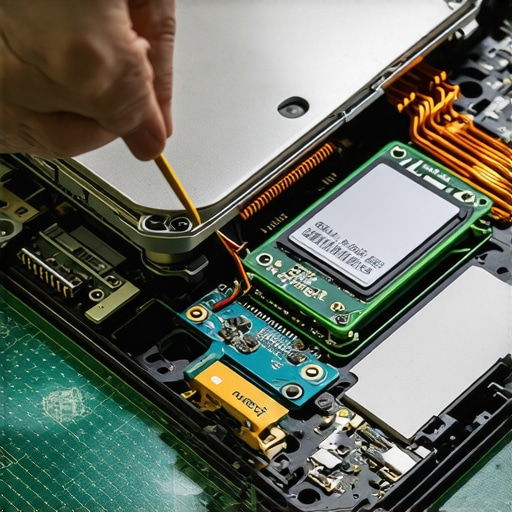
Don’t rush to buy a new panel the moment you see a glitch. One of the most common nuances people miss involves power delivery. I’ve had clients ready to pay for a full laptop screen replacement, only to find out the issue was actually a failing battery or a cheap third-party charger causing ‘dirty power’ to the backlight inverter. You can often the hidden reason your laptop screen flickers when the battery gets low by simply testing the laptop while plugged into a known-good OEM charger. Always isolate the power source before you start tearing the bezel off your display. It saves time, money, and the risk of snapping those tiny plastic clips that never seem to go back quite right. Have you ever fallen into this trap of replacing the most expensive part first only to find it didn’t fix the problem? Let me know in the comments.
The One Toolkit That Stops You From Stripping Screws. You can’t do surgery with a butter knife, and you shouldn’t open a $1,000 laptop with a dollar-store screwdriver. I’ve seen too many people ruin their chassis because they used the wrong bit size. Personally, I don’t go anywhere without my iFixit Pro Tech Toolkit. The bits are hardened steel, which is vital when you’re attempting a laptop screen repair and need to pull those tiny M2 screws without stripping the heads. Having a grounding strap included in the kit is also non-negotiable; one static spark can end your motherboard’s life before you even find the dust.
How do I maintain my hardware performance over several years?
It comes down to a cycle of ‘clean, repaste, and refresh.’ Every two years, you should replace the thermal compound on your CPU. If you don’t, you’ll find the real reason your laptop keeps throttling its performance is just dried-out gunk that can no longer transfer heat. Combine this physical maintenance with a fresh OS install every few years, and you can easily extend the life of your office PCs by three years without buying a single new chip. This ‘bottleneck first’ approach ensures you aren’t wasting money on upgrades that won’t actually speed up your specific workflow. 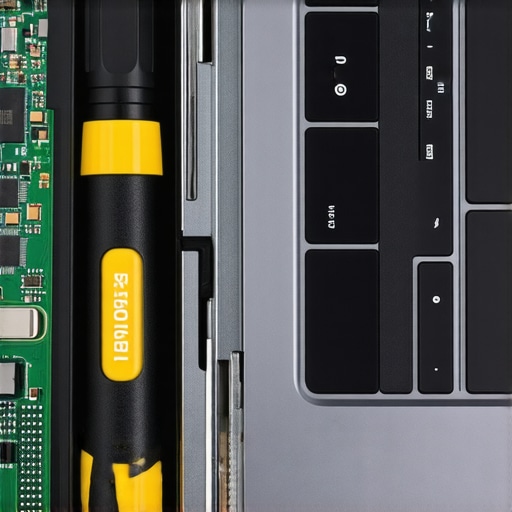 Free Up Your Time by Outsourcing the Tech Headaches. If you’re running a business, you shouldn’t be the one holding the canned air or worrying about firmware updates. This is why managed IT is a game changer for growing companies; it moves the responsibility of maintenance to experts who use professional monitoring tools. Instead of waiting for a fan to scream or a server to crash, they see the thermal spikes in a centralized dashboard and fix it before you even notice a slowdown. It’s about shifting from reactive ‘fire-fighting’ to proactive stability. When things do go south and a drive fails, experts rely on specialized software that handles bit-level imaging. While most people use basic ‘undelete’ tools, professionals use R-Studio or DMDE. According to technical documentation from Google’s study on Flash Reliability in Production, SSDs can develop uncorrectable errors that require sophisticated ECC handling during the recovery process. You need to understand the power of data recovery tools before you attempt a DIY fix that might overwrite your metadata. Looking forward, I predict we will see AI-integrated BIOS that can ‘predict’ a fan bearing failure or an SSD controller death weeks in advance based on subtle voltage fluctuations and SMART attribute trends. Until then, stay proactive. My challenge to you: download a hardware monitor today and check your CPU temps—if they are idling above 50°C, it’s time to clean that fan and repaste that processor.
The Hard Truths I Learned While Rescuing Dying Hardware
Over the years, I’ve realized that the loudest fan isn’t always the one closest to death; sometimes it’s just the one trying the hardest. I once spent three hours cleaning a fan only to realize the real issue was a background process I should have caught in the Task Manager. Before you even grab a screwdriver, make sure you have a backup strategy and know how to recover a deleted folder when the recycle bin is empty just in case of a software mishap. Another vital lesson: static electricity is the silent assassin of the tech world. I’ve seen more motherboards killed by a wool carpet than by actual overheating. If you think you’ve already made a mistake during a repair, learn how to test if your motherboard is dead or just sleeping before you give up on the machine. Lastly, don’t ignore a screen flicker while you’re focused on the fan; it could be the sign of a shared power rail failing. You might eventually need to know how to fix horizontal lines on a laptop screen for under twenty bucks instead of replacing the whole unit.
The Gear and Knowledge That Keeps My Lab Quiet
I don’t gatekeep the tools that make my life easier. First, the iFixit Pro Tech Toolkit is my holy grail; the precision bits prevent the nightmare of stripped screws which can turn a five-minute job into a weekend disaster. For software, I swear by HWiNFO for real-time thermal tracking, which helps you how to spot a hardware failure masquerading as a software bug by showing you exactly which sensor is hitting its limit. When it comes to thermal paste, Thermal Grizzly Kryonaut is the only thing I trust on my CPU for long-term stability. If you’re managing more than just one laptop, it is worth looking into managed IT solutions streamlining operations for small businesses to see how the pros handle preventative maintenance at scale. These resources ensure your hardware upgrades focus on bottlenecks first, saving you from wasting money on fast RAM when your CPU is actually thermal throttling.
Take the First Step Toward a Faster Machine
Repairing your own tech can feel like performing open-heart surgery, but I promise the satisfaction of a silent, cool-running machine is worth the initial nerves. Don’t let the fear of a small mistake stop you from maintaining your gear properly. Start with a simple cleaning with compressed air, and if you feel overwhelmed, remember that successful computer repair is all about patience and having the right guide by your side. Your hardware is a significant investment—protect it with regular maintenance, and it will serve you faithfully for years to come. Have you ever opened up your laptop only to be shocked by the amount of dust inside? Let me know in the comments below!