

The fan on my laptop sounded like a jet engine taking off from a wet runway. I wasn’t even doing anything—just reading a news article—but my cursor was stuttering across the screen like it was drunk. I did what we all do: I hit Ctrl+Shift+Esc. There, staring back at me in the Task Manager, was a list of names that looked like a cat walked across a keyboard. One process, “svch0st.exe” (notice the zero?), was gobbling up every bit of my processing power. I thought I was being a hero when I clicked “End Task.” Instead, I watched my screen flicker to a dull grey and my entire afternoon’s work vanish into the digital void. I hadn’t just closed a virus; I’d panicked and killed a legitimate Windows process because I didn’t know how to spot the imposter hiding right in front of me. It was a rookie move, the kind I usually warn people about when they dive into computer repair for beginners to save a few bucks. Today, I’m going to make sure you never have to feel that “oh no” moment when your PC goes dark because you guessed wrong. We’re going to pull back the curtain on those mysterious background tasks and learn how to tell the difference between a helpful system worker and a digital thief.
Stop Guessing Which Windows Processes Are Real
Most people treat the Task Manager like a haunted house—they only go in there when they hear a noise, and they’re terrified of what they’ll find. You see fifty instances of “Service Host” and wonder if your computer has been drafted into a botnet. I get it. It’s overwhelming. But here’s the reality: if you can’t tell a memory leak that is slowing down your business PC apart from a routine update, you’re flying blind. I remember a client who was convinced their laptop was possessed because the disk usage was at 100%. They were ready to throw the whole thing out and pay for a laptop screen replacement just because they thought the hardware was failing. In reality, it was just a poorly optimized cloud sync app. We solved it in three clicks. That’s the power of actually knowing what you’re looking at.
Is it actually worth the stress to micromanage your CPU?
You might be thinking, “Can’t my antivirus just handle this for me?” Well, sort of. While a good security suite is essential, hackers are getting clever. According to a surprising technical breakdown by BleepingComputer, many modern threats use a technique called “process hollowing,” where they take over a legitimate, “safe” process and use its skin as a disguise. If you rely solely on automated tools, you might miss the subtle red flags that a human eye—even a neighborly one like mine—can catch in seconds. Have you ever stared at your Task Manager and felt like you were looking at a foreign language? You aren’t alone, and you don’t need a degree in computer science to translate it.
The Dead Giveaways That a Process Is Faking It
The first thing I always tell people is to look at the name—really look at it. Malicious software loves to play “Spot the Difference.” They’ll name a process “lsass.exe” (correct) but swap the lowercase ‘L’ for a capital ‘I’ so it looks identical. Or they’ll add a tiny “s” at the end of a common process. It’s a cheap trick, but it works because we’re usually in a rush. When I first started out, I overlooked a “taskmgr.exe” that was actually running from a temp folder instead of the System32 directory. That one mistake nearly cost me an entire drive of family photos. If you think you’ve already been hit, you need to know how to stop a malware infection before it reaches the point of no return. We’re going to walk through the “Open File Location” trick and the “Search Online” feature—two tools already built into your PC that are absolute game-changers for identifying how to spot a fake antivirus or a hidden miner. By the time we’re done, you’ll be the person your friends call when their computer starts acting “weird.”The very first thing you need to do is right-click that suspicious process and select ‘Open file location.’ This is the digital equivalent of asking a stranger for their ID. In a healthy system, critical files like svchost.exe or lsass.exe should almost always live in the C:\Windows\System32 folder. If that right-click takes you to a Temp folder, your Downloads, or some obscure folder in AppData, you haven’t just found a bug; you’ve found a squatter. I remember helping a local accounting firm that was convinced they needed a laptop screen repair because their display was stuttering and flickering every five seconds. After opening Task Manager, I found a process named ‘winupdate.exe’ running from the user’s ‘Pictures’ folder. It was a crypto-miner eating every cycle of the GPU. By simply tracing the file path, we saved them a hardware replacement fee and cleared a massive security hole. 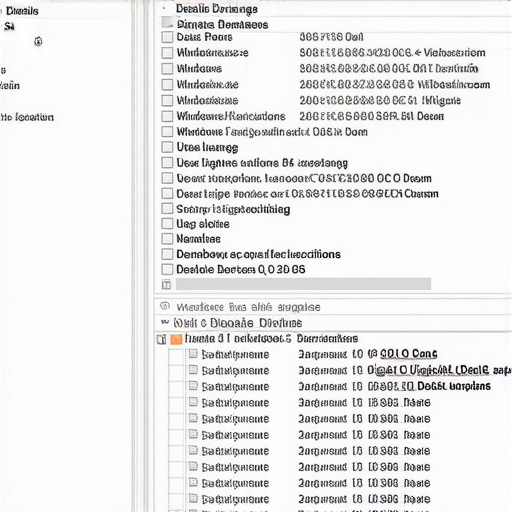
Audit Your Task Manager Before Hitting Delete
Once you know where the file lives, the next layer of defense is checking the ‘Details’ tab. This is where the real detective work happens. Look for the ‘User Name’ column. System-critical processes usually run under ‘SYSTEM,’ ‘LOCAL SERVICE,’ or ‘NETWORK SERVICE.’ If you see a core Windows process running under your own username—like ‘Bob’ or ‘Admin’—that’s a massive red flag. This happens often when hackers use hidden malware that hides inside your browser extensions to launch local processes. It’s a sneaky way to bypass certain permissions.
Verify the Digital Signature to Confirm Authenticity
Think of a digital signature as a wax seal on a medieval letter. To check it, right-click the process in the Details tab, select ‘Properties,’ and head to the ‘Digital Signatures’ tab. If it says ‘Microsoft Windows’ or the name of a reputable software vendor like Adobe or Google, you’re usually in the clear. If that tab is missing entirely for a system file, you are likely looking at a counterfeit. This simple check is one of the most effective managed IT strategies to keep your business secure in 2025 because it doesn’t rely on an antivirus database that might be out of date; it relies on the intrinsic identity of the file itself.
Distinguish Between Real Bugs and Malicious Attacks
Not every high-resource process is a virus. Sometimes, you’re just dealing with a poorly coded application. If you see ‘Service Host’ taking up 40% of your RAM, you might actually need to isolate a memory leak that is slowing down your business PC rather than hunting for a hacker. I once spent three hours chasing what I thought was a rootkit on a client’s workstation, only to realize that a legitimate cloud backup tool was stuck in a recursive loop. The process was real, the signature was valid, but the behavior was broken. This is why why your computer is slowing down after a recent Windows update is often a software conflict rather than a direct attack. Always look at the ‘Description’ column in Task Manager. If the description is blank or contains gibberish, it’s time to disconnect the internet and start a deep scan. Knowing these nuances prevents you from panic-deleting files that your OS actually needs to stay upright.The most dangerous advice you will hear in computer repair circles is ‘just format the drive and start over.’ It sounds like a clean slate, but it is often a lazy way out that ignores the underlying cause. In my years of troubleshooting, I have seen users wipe their entire digital lives only to find the same stuttering performance twenty minutes after the reinstall. Why? Because they failed to realize that how to spot a hardware failure masquerading as a software bug is a more vital skill than knowing how to use a bootable USB. If your system is lagging because of a failing controller, no amount of fresh Windows installs will fix the physics of a dying chip. According to data from Backblaze’s 2023 drive stats report, SSDs often show perfectly ‘healthy’ SMART status even while they are internally failing at the controller level, leading to those phantom system freezes that look exactly like a virus. 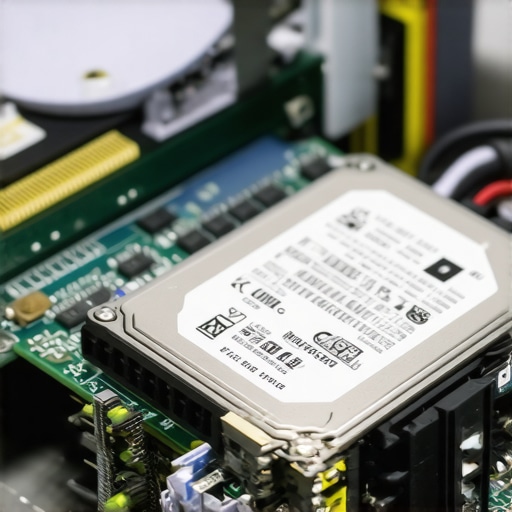
What happens when the malware is actually a hardware bottleneck?
I have had clients spend hundreds on software cleanup when they actually needed to see the sign your SSD is reaching its write limit and about to die. If you are constantly seeing 100% disk usage in Task Manager but ‘Open File Location’ shows a legitimate Windows system file, you are not fighting a hacker—you are fighting entropy. This is the ‘Oops’ factor of DIY repair: treating a hardware symptom with a software cure. It is also why why your computer is slowing down after a recent Windows update is not always Microsoft’s fault; sometimes, the update just pushes an old component past its breaking point and exposes a latent hardware defect.
Don’t Let Your Managed IT Team Sleep on the Job
For those of you running a business, do not assume your tech support is seeing the nuances of your system’s health. Many providers rely on automated alerts that only trigger when a server goes down completely. They miss the subtle ‘process hollowing’ that sophisticated threats use to blend in. This is exactly why your managed IT service should be providing quarterly security audits. They need to be looking at the digital signatures and execution paths manually, not just waiting for an antivirus to beep. If they are not doing this deep-dive analysis, you are paying for a firewall that might have the back door wide open. There is a specific kind of how to clear a stubborn virus that reinstalling windows didn’t fix which involves clearing the UEFI or BIOS level persistence that modern rootkits love. Have you ever fallen into the ‘nuke and pave’ trap only to have the same problem come back? Let me know in the comments.Once you have identified the imposter processes, the real work begins: ensuring they never have a reason to come back. Most people treat maintenance like a trip to the dentist—only necessary when something hurts. I prefer to think of it like oil changes for a car. If you wait for the engine light to blink, you are already too late. In my own workshop, I rely heavily on HWiNFO64. While others use generic monitoring apps, I use HWiNFO because it allows me to see the per-core thermal throttling in real-time. If I see one core hitting 95 degrees while others sit at 70, I know exactly which part of the thermal paste has dried out. This level of granularity is the hardware swap that gives old office pcs five more years of life without spending a dime on new components. Most people just buy a new machine when things get loud, but a simple repaste and a blast of air can do wonders.
Stop the Grind Before Your Components Give Up
Maintaining a PC isn’t just about software; it is about the physical environment. I have seen countless machines die because the owner thought a laptop belonged on a thick shag carpet. This is how to tell if your laptop fan is actually broken or just dusty. If you can hear the bearings grinding, the damage is done. But if it is just a high-pitched whine, you might still be in the ‘saveable’ zone. According to a technical study by Puget Systems on hardware reliability, thermal stress is the number one silent killer of workstations, often leading to motherboard failures that people mistake for software glitches. If you are running a business, this isn’t just a nuisance; it is a liability. That is why managed IT strategies to keep your business secure in 2025 must include physical hardware audits alongside digital ones. You cannot protect data that is sitting on a melting motherboard. 
How do I keep my workstation running like new for years?
The secret is a quarterly deep-clean and a monthly check of your drive’s SMART status. I tell my clients that if they can how to extend the life of your office pcs by three years by simply checking their internal temperatures, they are saving thousands in the long run. I predict that in the next few years, we will see local AI models built directly into the BIOS that will predict fan failure weeks before it happens based on acoustic signatures. For now, we have to use our ears and the right tools. If you are managing a team, why your managed IT service should be providing quarterly security audits is just as important as checking if the hardware is physically holding up. You don’t want to find out the sign your ssd is reaching its write limit and about to die when you’re in the middle of a deadline. My advanced tip for today: Download a portable version of CrystalDiskInfo and check your ‘Power On Hours’ and ‘Total Host Writes.’ If that health bar is anywhere near the yellow zone, back up your data immediately and get a replacement drive ready. It is the single most effective way to prevent a data recovery nightmare.
Hard Truths from My Years Behind the Repair Bench
Having spent a decade looking at blue screens and spinning fans, I’ve realized that most “hacks” are just someone else taking advantage of a user’s hesitation. Here are the lightbulb moments that changed how I approach every machine:
- The 10-Second Rule: If your mouse stutters for more than ten seconds without a heavy app opening, stop what you’re doing and check Task Manager immediately. It’s the most reliable early warning system you have.
- Reinstalling is Often a Crutch: I used to think a fresh install fixed everything, but that’s a dangerous myth. If you don’t find the source, you’ll likely face the same rootkit that survives a standard windows reset later on.
- Hardware and Software are Married: You can’t troubleshoot one without the other. Sometimes a software glitch is just the OS trying to read from a bad sector. Learning how to spot a hardware failure masquerading as a software bug will save you more time than any registry cleaner ever could.
The Diagnostics Stack I Carry Everywhere
To truly move beyond guessing, you need the right tools. I don’t go into any repair job without these three essentials:
- Process Explorer: This is Task Manager’s older, smarter brother. It highlights new processes in green and terminating ones in red, making it much easier to catch a malware infection trying to hide.
- CrystalDiskInfo: I trust this because it gives me the raw data on drive health. It’s the fastest way to see the sign your ssd is reaching its write limit and about to die before you lose your family photos.
- HWiNFO64: This is my go-to for thermal monitoring. If your PC is slow, it might just be an overheating laptop throttling itself to stay alive.
#IMAGE_PLACEHOLDER_E#
You Are Now the Master of Your Machine
Don’t let the technical jargon of the Task Manager intimidate you. By knowing where a file should live and who should be running it, you’ve already taken a massive leap toward securing your digital life. Whether you are performing basic computer repair or managing a fleet of office workstations, that sense of control is your best defense. You don’t need to be a coding genius to keep your system clean; you just need to be observant and equipped with the right knowledge. Have you ever found a weirdly named process that turned out to be a virus or a crypto-miner? Let me know your story in the comments below!