

I still remember the cold sweat that broke out on my forehead three years ago. I was finishing a thirty-slide deck for a major pitch, the kind that determines whether you get a bonus or a polite ‘we will keep in touch.’ I saw the ‘Saving’ progress bar reach 95 percent, and in a moment of sheer exhaustion-fueled stupidity, I yanked the thumb drive out before it finished. The screen flickered, my laptop groaned, and when I plugged it back in, the folder was empty. My work had vanished into the digital void. We have all been there—that split second where your brain moves faster than the hardware can handle. It feels like a punch to the gut when you realize you just corrupted the only copy of your work. Most people assume that once you interrupt a write-cycle, the data is shredded forever. I used to think the same thing. In fact, one of my biggest early mistakes was trying to ‘fix’ the file by manually changing the extension from .tmp to .pptx, which actually made the corruption worse. I learned the hard way that [computer repair for beginners](https://computerrepairmasters.com/computer-repair-for-beginners-avoid-costly-mistakes) starts with one rule: stop touching things once they break. Today, I am going to show you that your presentation isn’t necessarily dead; it is likely just hiding in a temporary directory or a shadowed sector of your drive. [image_placeholder_1]
The Sickening Reality of the Mid-Save Disconnect
We are going to dive into the [data recovery secrets](https://computerrepairmasters.com/data-recovery-secrets-expert-techniques-to-save-your-files-fast) that the pros use to bring files back from the brink of extinction. Have you ever felt that heart-stopping moment when a drive just goes blank? Let me know in the comments, because you are definitely not alone. According to data provided by Kingston Technology, failing to use the ‘Safely Remove Hardware’ feature remains the leading cause of logical file system damage in flash storage, yet most of us ignore the warning every single day until it is too late.
Can Cheap Software Actually Save My Corrupted Presentation?
You might be skeptical. After all, if the OS says the file is gone, it must be gone, right? Surprisingly, research from data experts at Kroll Ontrack suggests that up to 80 percent of data ‘lost’ due to logical errors—like pulling a drive too early—is actually still on the storage media, just waiting for the file table to be rebuilt. This isn’t magic; it is just how file systems work. When you pull that stick out, you aren’t usually erasing the data; you are just breaking the ‘table of contents’ that tells your computer where the data lives. By using the [ultimate guide to data recovery after accidental deletion](https://computerrepairmasters.com/ultimate-guide-to-data-recovery-after-accidental-deletion), we can bypass the broken index and find the raw pieces of your presentation.
Why Your Laptop Might Be Hiding a Backup Copy
Your computer is actually more paranoid than you are. Most modern office suites create ‘shadow’ copies or temporary save files while you work. When I had my 2 AM disaster, I eventually found a version of my slides buried in a hidden AppData folder that I didn’t even know existed. If your computer started acting up during the save, you might also want to check for other hardware issues, like [troubleshooting common computer repair issues effectively](https://computerrepairmasters.com/troubleshooting-common-computer-repair-issues-effectively), just to make sure a failing port didn’t contribute to the data loss. Let’s get into the nitty-gritty of where those hidden files are actually stashed.
Stop Everything Before You Overwrite the Evidence
Think of your hard drive like a giant chalkboard. When you ‘delete’ a file or a save fails, the computer doesn’t actually erase the chalk; it just puts a small ‘Available’ sign over that section. If you keep working, saving new cat memes or downloading updates, the computer will eventually write new data right over your lost presentation. This is why computer repair for beginners stresses the importance of isolation. The moment things go sideways, stop saving anything to that drive. I once spent six hours trying to recover a spreadsheet for a friend, only to realize she had been downloading a 50GB game update in the background. By the time I got to the sectors where the data lived, they had been paved over by high-definition textures.
Where Your Computer Hides the Emergency Backups
Most people don’t realize that Windows and MacOS are like digital squirrels—they are constantly hiding bits of work in dark corners. Before you panic, you need to learn how to recover work from a word document that didn’t save by hunting through the AutoRecover and Temp directories. Specifically, you want to navigate to the ‘AppData’ folder. It’s usually hidden, but once you unhide it, look for ‘Local’ and then ‘Temp’. I’ve found half-finished PowerPoints there that saved my career more than once. Sometimes the files have weird names like ‘~WRL0002.tmp’, but if you check the timestamp, you can often find the ghost of your work. 
Force the Drive to Give Up Its Secrets
If the temp folders are dry, it’s time to move to the deeper layers. This is where the power of data recovery tools comes into play. These tools don’t look at the ‘File Table’—the library’s index card system—they scan the ‘Stacks’ or the actual physical sectors for file signatures. It’s like finding a book by its cover when the index card is missing. When I was helping a small law firm last year, their main drive showed up as ‘Unallocated Space’ after a power surge. They thought everything was gone. However, by knowing how to pull data from a drive that shows up as an unallocated space, we were able to ignore the broken partition table and pull the raw data directly.
Don’t Let a Broken Index Ruin Your Week
Sometimes the file is there, but the ‘map’ to it is corrupted. This is common with USB drives. If your computer says the drive needs to be formatted, DO NOT click yes. That is the system’s way of saying it has no idea where the index is. Instead, you should look into the move that saves your data when a partition table is corrupted. By using a specialized utility to rebuild that table, your files can often ‘reappear’ as if they never left. This isn’t just about luck; it’s about preparation. Every company should have a plan, which is why your business needs a disaster recovery plan before the storm hits to ensure these ‘unrecoverable’ moments are just minor speed bumps.
Stop Trusting Those Built-in Windows Repair Tools
Everyone tells you to run ‘Scan and Repair’ the moment a drive acts up. In my experience, that is the single fastest way to turn a recoverable logical error into a permanent hardware tragedy. The ‘Oops’ factor here is huge: most people assume that software can fix physical problems. If your drive is making a clicking sound or acting sluggish, running a utility like CHKDSK is like forcing someone with a broken leg to run a marathon just to see where it hurts. This stress can cause the read-write heads to crash into the platters, shredding your data into metallic dust. When you are troubleshooting common computer repair issues effectively, your first move should be to listen to the drive, not just read the screen.
Why Does My Computer Suggest Repairs That Actually Destroy Data?
The operating system is designed to keep the system running, not necessarily to protect your specific files at all costs. It wants a clean file system, even if that means ‘fixing’ the index by deleting the orphaned bits of your presentation. This is the nuance the average user misses: ‘Repairing’ a volume often involves pruning data that the OS can’t immediately verify. According to a study by the data recovery experts at Gillware, user-initiated software repairs are a leading cause of secondary data loss in professional recovery cases. Instead of clicking ‘Fix,’ you should be looking at the sign your SSD is reaching its write limit and about to die. Modern drives are incredibly good at hiding their own death until the very last second.
The Silent Betrayal of Solid State Storage
Unlike old-school hard drives, SSDs don’t give you the courtesy of a clicking sound. They just stop. A common mistake is trusting ‘Health’ percentages in free software. These tools only report what the drive’s controller allows them to see. I’ve seen drives reporting 98% health that were actually suffering from massive NAND cell failure. If you find yourself wondering how to pull data from a drive that shows up as an unallocated space, you are already in the danger zone. At this stage, every second the drive is powered on, it’s performing background tasks like ‘garbage collection’ that might be erasing the very data you’re trying to save. This is especially true for those dealing with the truth about recovering data from a water-damaged SSD, where electricity is the enemy.
Don’t Let Your Backup Strategy Become Your Downfall
I’ve seen businesses lose everything because they thought they were protected. They had the drives, they had the software, but they fell for the mistake that makes your backups completely useless: never testing the restore process. Data isn’t ‘saved’ until you have verified you can actually open it from the backup media. Have you ever fallen into this trap, thinking you were safe only to find an empty folder when it mattered most? Let me know in the comments, because these nuances are what separate a minor inconvenience from a total digital catastrophe.
Stop the Damage with Hardware Write-Blockers
If you are serious about moving beyond basic software fixes, you need to look at what the digital forensics experts use. Personally, I never attempt a recovery on a failing drive without a hardware write-blocker like those from Tableau or WiebeTech. These devices sit physically between the drive and your computer, ensuring the operating system cannot send a single bit of ‘write’ data to the target disk. This is the absolute gold standard in the power of data recovery tools because it removes the risk of accidental overwrites by background system processes or indexing services. For the software side, I swear by using `ddrescue` in a Linux-based environment. Unlike standard Windows utilities that often hang or crash when they encounter a physical bad sector, `ddrescue` is designed to skip the damage and grab the healthy data first, then circle back for the difficult bits. It is patient, methodical, and has saved more of my clients’ data than any $99 commercial application ever has.
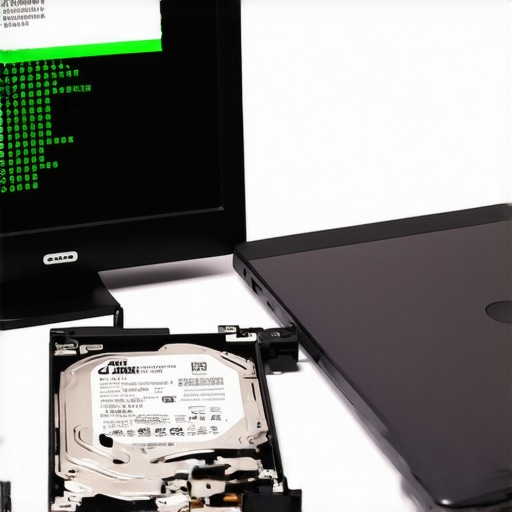
How can I keep my hardware healthy without a degree in engineering?
Maintenance often comes down to two simple things: thermal management and power stability. In my years of work, I’ve found that troubleshooting common computer repair issues effectively usually reveals that heat killed the component long before the software failed. If you are running a business, this is where managed IT solutions streamlining operations for small businesses become a literal lifesaver. You aren’t just paying for someone to fix a broken laptop after it dies; you are paying for constant monitoring of the S.M.A.R.T. data across your entire network. According to the 2023 Backblaze Drive Stats report, certain enterprise drive models show a nearly 10% jump in annualized failure rates once they hit the four-year mark. If you aren’t tracking these hardware telemetry logs, you are essentially driving a car without a fuel gauge.
Predictive Failures and the Future of Your Data
I predict we are rapidly moving toward a world where AI doesn’t just recover data but predicts the death of a storage sector days before it happens. We are already seeing ‘predictive maintenance’ models in high-end enterprise servers, and soon, your standard office workstation will likely warn you to save your work because the SSD controller is showing signs of thermal stress. This proactive approach is exactly why managed IT is a game-changer for growing companies; it transforms technology from a reactive ‘firefighter’ expense into a proactive shield. If you are managing a growing fleet of devices, effective managed IT solutions for growing companies ensure that write-limits and thermal throttling are caught before the blue screen of death appears. This long-term stability is part of why your business needs a disaster recovery plan before the storm hits. If you want to get ahead of the curve, my best advice is to download a reputable S.M.A.R.T. monitoring tool right now and check your ‘reallocated sector count.’ If that number is anything above zero, stop reading and back up your work immediately. It is far better to be paranoid and prepared than to be the person sweating over a recovery at 2 AM.
Hard Truths About Digital Immortality
Reflecting on a decade of rescuing files, I have realized that the hardest lesson isn’t about code; it is about restraint. Most users destroy their own chances of recovery by frantically trying every ‘fix’ they find on a forum. I have seen more data lost to the ‘Try Again’ button than to actual hardware failure. This is why data recovery secrets every business should know today always focus on isolation and patience. If your computer isn’t seeing the file, it isn’t necessarily gone; it is just waiting for you to stop writing new data over it. Also, remember that no matter how good your recovery software is, it cannot repair a physical scratch on a platter or a burnt-out NAND chip. Recognizing the sign your SSD is reaching its write limit and about to die is your only real defense against permanent loss.
The Software and Gear I Bet My Career On
I don’t trust my data to just anything. My go-to kit starts with a bootable Linux USB drive because Windows often tries to ‘fix’ things it doesn’t understand. For monitoring, I rely on tools that read raw S.M.A.R.T. data—they are far more honest than any built-in system warning. If you are dealing with an older machine, sometimes the hardware swap that gives your old office pc a massive speed boost is the perfect time to audit your drive’s health before it becomes a rescue project. I also keep a set of high-quality SATA-to-USB adapters because the bridge chip in cheap external enclosures is a common point of failure that mimics a dead drive.
Building a Data-Resilient Future
At the end of the day, your goal shouldn’t just be to survive a crash, but to render it irrelevant. The emotional weight of losing a presentation or a month’s worth of accounting vanishes the moment you realize your secondary copy is only minutes old. This is why your business needs a local backup even if you use the cloud; it provides that immediate safety net when the internet or the hardware lets you down. Mastering data recovery is about shifting from a reactive mindset to a proactive one. You have the tools and the knowledge now—use them before you need them. Have you ever managed to pull a file back from the dead just minutes before a big deadline? Let me know in the comments how you handled the pressure!