

The sound started at 2:14 AM. A steady, rhythmic click… click… click… that cut through the silence of my home office like a ticking time bomb. I froze. My old desktop, the one I’d been meaning to back up for months, was finally giving up the ghost. I spent the next three hours frantically searching for how to fix a clicking drive, and honestly, I made every mistake in the book. I shook the drive. I put it in the freezer. I even tried to force a reboot until the clicking turned into a sickening grind. I lost five years of personal projects that night because I didn’t know when to quit. I don’t want that to be your story. Today, I’m going to walk you through how to handle that terrifying mechanical noise and whether you can actually pull your data back from the brink.
Stop What You Are Doing and Unplug That Drive
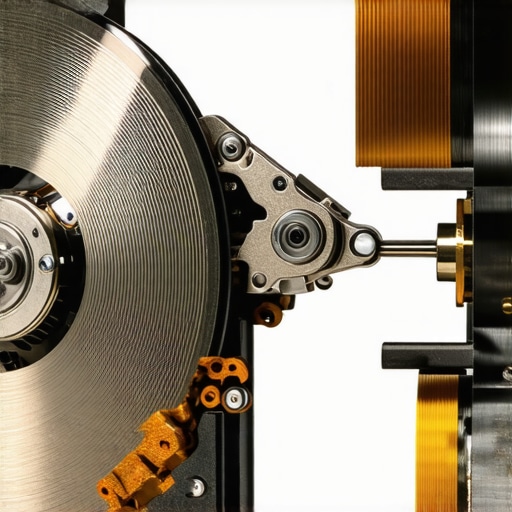
If you hear that sound right now, the very best thing you can do is pull the plug. Seriously. That clicking noise is usually the actuator arm—the needle of your hard drive—struggling to find its place or physically hitting the stop. Every time it clicks, it could be scratching the very platters where your wedding photos or tax returns live. I’ve seen people try to run the easy way to check your hard drive’s health using SMART data while the drive is literally dying, which is like asking a marathon runner to finish the race while they’re having a heart attack. You need to treat this as a mechanical emergency. While some software tricks work for data recovery after accidental deletion, a clicking sound is a different beast entirely. It’s physical.
Is This Really the End for Your Data?
You might be thinking this sounds a bit dramatic, or that maybe a good smack on the side of the case will “realign” things. I get it. I was a skeptic too, until I realized that the distance between the read/write head and the platter is thinner than a human hair. According to research by Backblaze, mechanical failures are among the most common reasons for drive retirement, and they don’t fix themselves. Have you ever felt that sinking pit in your stomach when a device starts making a noise it definitely shouldn’t? Tell me in the comments if you’ve ever ignored a weird sound only to regret it later. We need to look at why your mechanical hard drive makes a high-pitched whining noise or clicking sound before we try to use expert techniques to save your files fast. If we’re lucky, it might just be the enclosure failing, not the drive itself.
Rule Out a Faulty External Enclosure First
Before you assume the internal mechanisms of your drive have failed, check the housing. Many ‘clicking’ drives are actually perfectly functional; it’s the bridge chip in the USB enclosure that has gone haywire. I’ve seen countless people panic over the signs your external hard drives enclosure is failing, not the drive. If you have an external drive, carefully pop the case open and plug the drive directly into a desktop motherboard using a SATA cable. This bypasses the middleman and gives the drive a stable power source. Often, a cheap 12V adapter is the culprit, providing just enough juice to spin the platters but not enough to move the actuator arm, which results in that rhythmic, frustrating clicking sound.
The One Tool You Actually Need for a Dying Drive
If the drive is still clicking when connected directly to a motherboard, you have a very narrow window of time. Do not—I repeat, do not—try to copy and paste folders in Windows Explorer. This is the most common mistake in computer repair for beginners. Standard file copying puts immense stress on the drive as it tries to read the file table, then the file, then update the last-access timestamp. Instead, you need to use a tool that performs a raw bit-for-bit clone. Check out the power of data recovery tools to understand how cloning software like HDDSuperClone or DDRescue works.
Why Cloning Always Beats Copy-Pasting
I learned this the hard way with a client’s family photo collection years ago. I spent four hours trying to cherry-pick the ‘Best of’ folders manually. The drive was clicking intermittently, and halfway through the ‘2018’ folder, the head physically crashed into the platter. Because I was jumping all over the disk to find specific files, the drive worked ten times harder than it needed to. If I had started a linear clone from the first sector to the last, I would have captured the bulk of the data before the hardware gave out. When you clone, you are creating a digital ‘stunt double’ of your drive. Once you have that image on a healthy SSD, you can use the trick to getting files off a drive with a corrupted file system to extract your files without ever touching the dying hardware again.
Is Your Power Supply Secretly Killing the Drive?
Sometimes the click isn’t a total failure of the drive, but a symptom of a weak power supply unit (PSU). If your PC is older, your drive might be struggling to pull the consistent voltage required for the motor to sustain speed. It sounds identical to a mechanical failure because the arm keeps resetting. Before you send the drive to an expensive lab, check the easy way to check your hard drives health using SMART data. Look specifically for the ‘Spin Up Time’ and ‘Reallocated Sector Count.’ If these numbers are rising rapidly while the drive is active, the mechanics are definitely the issue. However, if the SMART data looks relatively clean but the drive clicks under load, you might just need a new power cable or a different rail on your PSU.
The Freezer Trick is Actually a Death Sentence
You’ve likely seen the viral advice suggesting that putting a clicking hard drive in the freezer can shrink the metal components enough to unstick a seized motor. While this worked on some drive models from the early 2000s, it is a catastrophic mistake for modern high-density hardware. When you take a freezing drive out and plug it in, condensation forms instantly on the platters. This moisture acts like a glue between the head and the disk, or worse, it creates a microscopic bump that the head will eventually strike. In my experience, this ‘hack’ is the number one reason why simple recoveries turn into permanent losses. If you are tempted to try this, remember that computer repair for beginners should never involve kitchen appliances. According to experts at Ontrack, the thermal expansion and contraction can actually cause the head to crash into the platter more violently once it starts spinning again.
Don’t Let CHKDSK Finish the Job
The most dangerous ‘trap’ in the world of dying drives is the Windows Check Disk (CHKDSK) utility. When Windows detects a problem, it often prompts you to ‘Scan and Fix’ the drive. Do not do this. CHKDSK is designed to fix logical file system errors, not physical mechanical failures. If your drive is clicking because of a failing head, CHKDSK will force the drive to work overtime, scanning every sector and moving the failing head across the entire platter surface. It’s like trying to reorganize a library while the building is on fire. This often leads to a cyclic redundancy check error that becomes impossible to bypass. Have you ever fallen into the trap of letting an automated Windows repair tool run on a drive that was clearly making noise? Let me know in the comments.
Why Is My Recovered Data Still Unreadable?
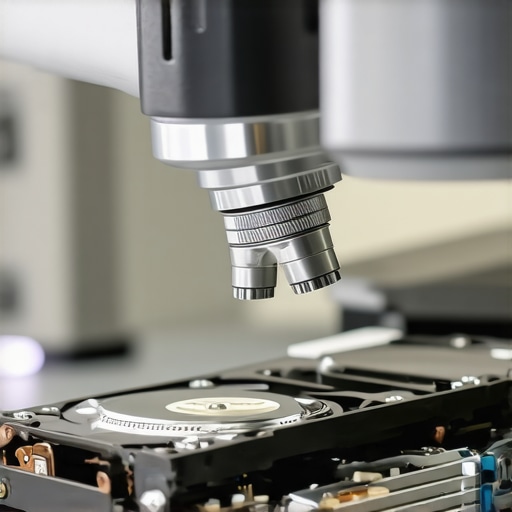
Even if you manage to clone the drive, you might find that your files look like garbled junk. This is where the nuance of ‘logical’ vs ‘physical’ corruption comes in. A clicking drive often drops bits of data during the read process, creating ‘holes’ in your files. If those holes are in the file header, the entire document becomes unreadable. This is why the trick to getting files off a drive with a corrupted file system is so vital; you need software that understands how to rebuild those headers. For businesses, this level of complexity is why why your business needs a documented disaster recovery plan today. It’s much cheaper to have a backup than to pay a lab thousands of dollars to piece together a fragmented database. If you’re managing a larger fleet, integrating managed IT strategies to keep your business secure in 2025 can ensure that these hardware failures are caught by telemetry before the clicking even starts.
The Hidden Cost of DIY Software Attempts
Many people assume that running five different ‘pro’ recovery programs will eventually find their files. In reality, each scan puts more wear on the mechanical components. Every minute the drive is powered on while failing, the probability of successful recovery drops by a measurable percentage. If the data is truly irreplaceable—think baby photos or critical financial ledgers—stop searching for troubleshooting common computer repair issues effectively and call a professional. Sometimes, knowing when to put the screwdriver down is the most ‘expert’ move you can make.
Stop Reacting to Failures and Start Predicting Them
Putting the screwdriver down doesn’t mean giving up; it means shifting your strategy from rescue to prevention. I’ve found that the most successful ‘recoveries’ are the ones that never actually have to happen because the failure was spotted weeks in advance. For my personal workstations and the clients I manage, I rely on automated telemetry. If you aren’t using a tool like CrystalDiskInfo to monitor your ‘Critical Warning’ flags, you are essentially flying blind. For companies, this level of oversight is a cornerstone of managed IT strategies to keep your business secure in 2025. By the time a drive starts clicking, you’ve already lost the battle for 100% data integrity. The goal is to move the data while the drive is still ‘limping,’ not after it has collapsed.
The Software Toolkit I Keep on My Emergency USB
I never go into a repair without my specific set of tools. While many people gravitate toward flashy, expensive recovery suites, I prefer the surgical precision of Macrium Reflect for imaging and R-Studio for file-level extraction. Macrium is particularly powerful because of its Rapid Delta Cloning, which only copies the sectors that have changed, drastically reducing the physical strain on a failing drive. This is a level of detail often missed in computer repair for beginners. If you are scaling up to a professional environment, managed IT solutions streamlining operations for small businesses often include these tools as part of a standard deployment, ensuring every machine is backed up before the hardware reaches its five-year expiration date.
How Can I Keep My Hardware Running for the Long Haul?
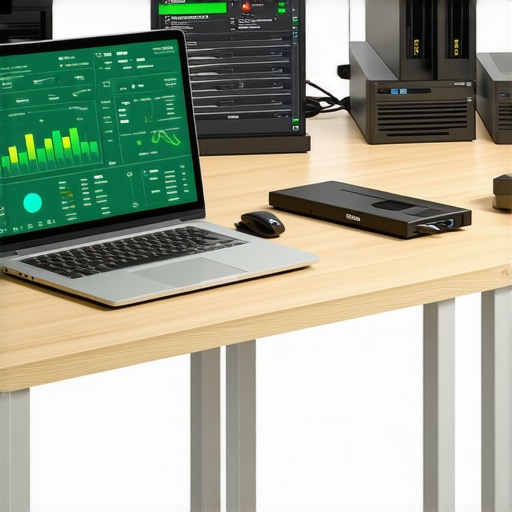
Maintenance is more than just running a virus scan. I recommend a ‘physical and logical’ audit every six months. Physically, you should be checking for dust buildup that leads to thermal throttling. Logically, you should be performing a full read-pass on your drives. I use a specific method called ‘Data Scrubbing’ on my NAS drives to ensure that ‘bit rot’—the natural decay of data on a platter—isn’t setting in. This proactive approach is exactly why effective managed IT solutions for growing companies are so valuable; they handle the mundane scrubbing so you don’t have to. You should also be aware of the 3-2-1-1-0 backup rule, a technical standard often cited by Rick Vanover of Veeam. It suggests three copies of data, on two different media, one offsite, one offline (air-gapped), and zero errors after backup verification. Without this, you’re just gambling.
The Future of Self-Healing Storage
We are entering an era where hardware will become increasingly self-aware. I predict that within the next decade, NVMe drives will feature integrated AI micro-controllers capable of rerouting data to healthy NAND cells in real-time without the OS ever knowing there was a hardware fault. This will make the ‘clicking drive’ a relic of the past, but it introduces new challenges in the power of data recovery tools since the hardware complexity will be much higher. For now, your best defense is a strong offense. I challenge you to run a SMART health check on your primary drive today. If the ‘Reallocated Sectors Count’ is anything other than zero, stop what you are doing and create an image. Don’t wait for the click to tell you what the software already knows. This proactive mindset is exactly why your business needs a documented disaster recovery plan today to survive the inevitable hardware cycles.
The Lightbulb Moments That Saved My Most Critical Files
Over the years, I’ve realized that data recovery is as much about temperament as it is about technical skill. When that rhythmic clicking starts, your adrenaline spikes, but that is exactly when you need to be the most calculated. Here are the hard-won insights from my years at the workbench:
- The Quiet Before the Crash: I used to think a drive that suddenly went silent was ‘resting.’ In reality, silence after clicking often means the head has physically parked itself on the platter. If you hear this, stop immediately.
- One Shot at Success: Every time you power on a clicking drive to ‘try one more thing,’ you are shaving off the probability of a professional being able to help you later.
- The Fallacy of ‘Pro’ Software: Most commercial software is designed for logical errors. Using it on a physical failure is like trying to heal a broken leg with a band-aid; you’re just putting unnecessary pressure on the injury.
My Personal Arsenal for Hard Drive Emergencies
You don’t need a hundred utilities to be successful; you need three that work with surgical precision. For bit-for-bit cloning, I never leave home without HDDSuperClone. It is specifically designed to handle the ‘hiccups’ of a failing actuator arm better than any standard imaging tool. To monitor the health of my fleet, I rely on CrystalDiskInfo because it translates complex hex values into a simple ‘Good’ or ‘Bad’ status that anyone can understand. To truly master the craft, I recommend studying the power of data recovery tools to understand how sector-level access differs from file-level access. If you are just starting your journey, my guide on computer repair for beginners will help you avoid the common pitfalls that lead to permanent data loss.
#IMAGE_PLACEHOLDER_E#
Turn This Crisis Into Your New Standard
Hardware failure is an inevitability, but losing your data doesn’t have to be. Whether you manage to pull your files back today or you’re mourning a total loss, let this moment be the last time you feel that sinking pit in your stomach. By implementing managed IT strategies to keep your business secure in 2025, you can move from a reactive ‘rescue’ mindset to a proactive ‘prevention’ one. Data recovery is a powerful skill, but a solid backup is a superpower. You have the tools and the knowledge now—go build a system that is clicking-proof. What is the one file or folder you’d be most devastated to lose if your drive failed right now? Let me know in the comments below and let’s talk about the best way to protect it.