

I still remember the cold sweat that broke out on my forehead three years ago when I tried to restart my workstation after a long day of editing. I pressed the power button, expecting the familiar Windows chime, but instead, I was met with that dreaded, sterile BIOS menu staring back at me like a brick wall. It didn’t matter how many times I hit ‘Save and Exit,’ the computer just looped right back to the same blue and gray screen. It felt like my digital life was locked behind a door I didn’t have the key for. If you are sitting there right now, staring at a screen that refuses to load your desktop, I know exactly how frustrating and utterly helpless you feel. [image_placeholder_1]
Break the Cycle of the Endless BIOS Loop
When your computer gets stuck at the BIOS screen, it’s essentially a cry for help. Your hardware is alive, but it can’t find the instructions it needs to actually start the operating system. Most people assume the worst—that their hard drive has breathed its last breath or the motherboard is fried. But here’s the secret I learned the hard way: it’s often something much simpler. Whether you are dealing with the no bootable device error on a modern laptop or a simple boot order glitch, we are going to walk through the logic of your machine today so you can get back to work without calling an expensive tech support line.
Is your motherboard actually trying to tell you it’s dying?
It’s the question that keeps us up at night. Is this the end of the road for my PC? Skepticism is healthy here, especially when experts online tell you to just buy a new computer. Before you panic, remember that BIOS (Basic Input/Output System) is just a gatekeeper. It’s checking your hardware before handing the keys to Windows. According to reliability data from industry leaders like Backblaze, hard drive failure rates remain a primary concern for aging hardware, but even then, a ‘stuck’ BIOS isn’t always a death sentence for your data. I’ll admit, early in my career, I made a massive mistake that cost me a lot of time and money. I had a PC that kept resetting to the BIOS setup screen every time I unplugged it. I was convinced the motherboard was toast, so I replaced the whole thing. It turned out I just needed to identify a failing CMOS battery—a three-dollar fix that I turned into a three-hundred-dollar ordeal. Don’t be like younger me. We need to test if your motherboard is dead or just sleeping before we pull the trigger on new parts. Have you ever spent a fortune on a repair only to realize it was something tiny you could have fixed yourself? The goal today is to give you a roadmap. We’ll look at everything from avoiding costly mistakes to checking your drive connections. If you’re worried about your files, don’t touch that ‘Format’ button yet; there are plenty of data recovery tools that can help if the drive is actually the culprit. Let’s dig into the first steps of getting you past that screen once and for all.
Force Your Computer to Look for the Right Door
Think of your BIOS as a bouncer at a high-end club. It has a list of guests allowed to enter (your drives), and if your operating system isn’t on that list, or if the bouncer is looking at the wrong door, you’re stuck on the sidewalk. The first thing you need to do is navigate to the ‘Boot’ or ‘Storage’ tab. Ensure your primary hard drive or SSD is set as the ‘Option 1’ boot device. I’ve seen countless cases where a simple USB thumb drive left in a port overnight convinced the computer it should try to start from a piece of plastic instead of the actual OS. If you see your drive but it still won’t load, you’re likely facing the no bootable device error on a modern laptop, which often requires a quick toggle between ‘Legacy’ and ‘UEFI’ boot modes.
Reset Your Settings to the Factory Baseline
Before you start tearing your hair out, try the ‘Load Setup Defaults’ option. It’s usually mapped to the F9 key. This clears any weird configurations that might have been changed by a power surge or a dying CMOS battery. Once I was helping a small business that thought they needed expensive managed IT solutions because three of their workstations wouldn’t boot. It turned out a trainee had changed the SATA mode to RAID on all of them. A simple reset to ‘AHCI’ mode brought them all back to life in five minutes. Learning to troubleshoot common computer repair issues effectively starts with knowing when to hit the ‘reset’ button on your own assumptions.
Look for the Physical Loose End
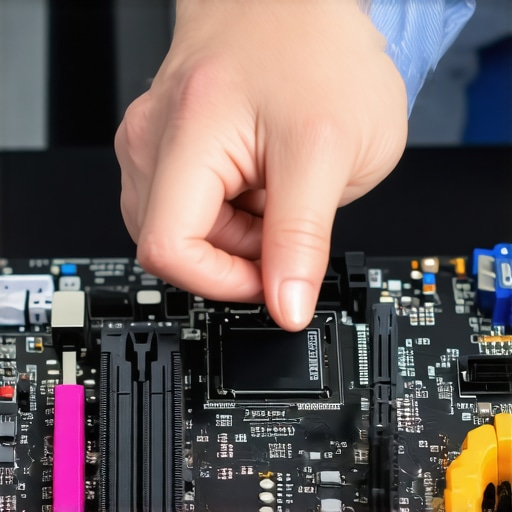 If the software side is clear, we have to talk about the physical connections. A loose cable inside your desktop or a dislodged M.2 drive in your laptop is like a disconnected phone line; the person on the other end is talking, but you can’t hear a word. I remember a frantic Sunday afternoon where I completely disassembled my own gaming rig because it kept looping to BIOS. I was already looking up the power of data recovery tools because I was sure my drive had died. I felt like a total amateur when I realized the SATA power cable had just wiggled loose enough to lose contact but stayed in the socket. To avoid costly mistakes, always re-seat your RAM and storage drives before assuming a part is broken.
Identify if the Problem is the Screen or the System
Sometimes, what looks like a BIOS loop is actually a hardware failure that prevents the OS from initializing the display driver. If you see the BIOS splash screen but then everything goes black, it might not be a boot issue at all. It could be that your laptop screen needs some DIY tips for testing, or you might be looking at a GPU failure. Try plugging in an external monitor. If the external screen shows Windows loading but your laptop screen is stuck in the dark, the BIOS isn’t your enemy; your display hardware is. It’s a subtle distinction that saves hours of unnecessary software tinkering.When you realize the BIOS loop isn’t just a software glitch, your mind immediately jumps to your files. Most people think data recovery is a magic trick performed by expensive software, but I’m here to tell you that’s often a dangerous misconception. If your drive has a mechanical or firmware failure, running ‘recovery’ software repeatedly is like asking a person with a broken leg to run a marathon; you’re only making the injury worse. In my years of troubleshooting, I’ve seen more data lost to ‘recovery attempts’ than to the actual hardware failure itself.
Why SSDs Are a Nightmare for Traditional Recovery
We’ve been conditioned to think SSDs are more reliable because they have no moving parts. While they are faster, they are also significantly more complex when things go south. When a traditional hard drive deletes a file, the data stays there until overwritten. But SSDs use a process called TRIM that actively wipes that ‘deleted’ data to keep the drive fast. According to research by data recovery leaders like Kroll Ontrack, the success rate for SSDs can be lower because once the controller fails, the encryption and wear-leveling algorithms make the raw data look like random noise. This is why understanding the truth about recovering data from an encrypted ssd that wont mount is vital for anyone serious about their digital security. If you see the sign your ssd is reaching its write limit, you don’t have days to decide—you have minutes. 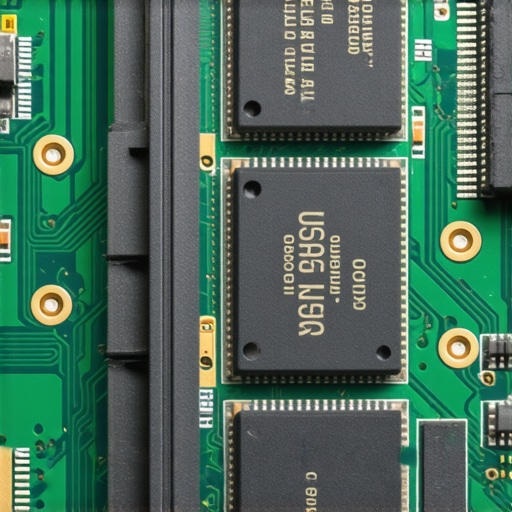
How Do Pros Handle Encrypted Drives That Won’t Mount?
Advanced users often ask if encryption is the final nail in the coffin. It’s a sophisticated challenge, but not impossible. The nuance lies in the difference between a corrupted file system and a failed controller. Professionals use hardware imagers to bypass the OS entirely—this is the move that recovers files from a raw drive without software by communicating directly with the drive’s firmware. If you try to do this at home with a USB-to-SATA adapter, you’ll likely time out the connection and kill the drive for good.
The Catastrophic Mistake of Opening Your Drive at Home
Here is the absolute ‘oops’ factor I see every year: a user hears a clicking sound and decides to open the hard drive casing to ‘see what’s stuck.’ This is the quickest way to turn a recoverable $300 job into a $3,000 tragedy. A single speck of dust is like a boulder to a hard drive head flying nanometers above the platter. You must understand why you should never open a clicking hard drive in a normal room. If you hear that rhythmic ticking, stop. You need to know how to pull critical data from a hard drive that makes a scratching sound by shutting it down immediately and seeking professional help.
Don’t Let Your Safety Net Fail You
Many business owners I consult think they are safe because they have a ‘sync’ folder. This is the mistake that makes your backups completely useless. If you delete a file or a virus corrupts it, that corruption syncs instantly to the cloud. A true backup is versioned and isolated. Have you ever fallen into this trap of trusting a sync service as a backup? Let me know in the comments. We need to move beyond basic fixes and start thinking like experts to truly protect our systems.
Stop Your Hardware from Dying a Slow Death
I’ve seen more laptops killed by a simple dust bunny than by any sophisticated malware or software glitch. It sounds silly, but heat is the silent killer of every component inside your case. When your fan starts sounding like a jet engine, your computer is essentially gasping for air. I personally make it a habit to perform a deep clean every six months. Learning how to fix an overheating laptop with a simple can of compressed air is probably the most cost-effective maintenance skill you can acquire. If you neglect this, you aren’t just slowing down; you’re actively shortening the lifespan of your motherboard and GPU. Overheating causes the solder joints to expand and contract until they eventually crack, leading to those mysterious intermittent failures that drive users crazy.
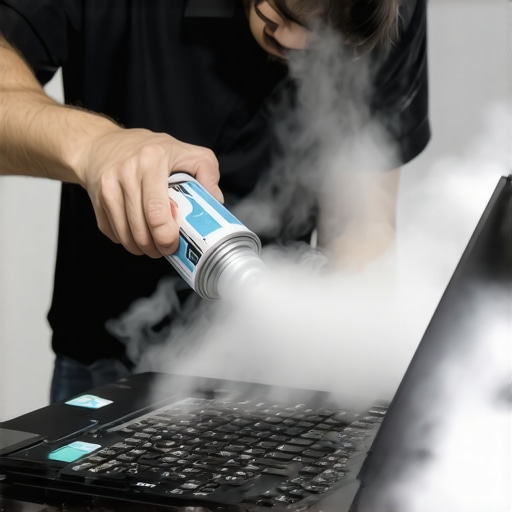
How do I maintain my PC’s health without a degree in engineering?
The secret isn’t in constant manual tinkering; it’s in consistent monitoring. I rely heavily on a tool called HWInfo64. I use it because it gives me real-time sensor data that Windows often hides from the casual user. I am specifically looking for voltage fluctuations and thermal spikes that indicate a failing power supply or dried-out thermal paste. This kind of proactive checking is exactly how to extend the life of your office PCs by three years. It is also about knowing how to spot a hardware failure masquerading as a software bug. I once spent three days reinstalling Windows and drivers only to realize a five-dollar SATA cable was failing. Now, I check my hardware logs before I touch a single line of code or setting.
Why My Business No Longer Handles Its Own Updates
As my business grew, I realized that I couldn’t be the CEO and the IT guy simultaneously. There is a point where the DIY approach becomes a liability rather than a cost-saving measure. This is where effective managed IT solutions for growing companies become essential. Scaling is about delegation and specialized knowledge. I switched to a managed model because I needed someone to monitor our network security while I focused on revenue. According to the JEDEC JESD218 standards, SSD data retention is highly sensitive to environmental factors; having a professional team monitoring those server environments ensures we never hit the threshold of ‘unrecoverable bit errors’ due to simple environmental neglect. I predict that in the next few years, we will see AI-integrated BIOS firmware that doesn’t just report errors but predicts them months in advance based on minor electrical resistance changes. If you are serious about your data and your uptime, stop treating your computer like an appliance and start treating it like a critical investment. My challenge to you: Download a reputable hardware monitor tonight and check your SSD’s ‘Remaining Life’ percentage. If it’s under 20%, don’t wait for the next BIOS loop—cloning that drive now will save you a week of headaches later.
The Brutal Truth About What Usually Kills Your Files
I’ve spent a decade staring at flickering screens, and if there is one thing I’ve learned, it’s that your gut instinct is usually more expensive than the actual fix. I used to think that a computer not booting meant the motherboard was a paperweight, but I was wrong. Here are the lightbulb moments that saved my career:
- Software can’t fix a physical break: If you hear a mechanical grind, put down the mouse. You need to understand the power of data recovery tools before you turn a minor glitch into a permanent loss.
- The BIOS is your best friend: It isn’t trying to lock you out; it’s trying to protect your hardware from booting into a corrupt state. Respect the warning.
- Maintenance is cheaper than repair: Spending ten minutes every few months to troubleshoot common computer repair issues effectively saves hundreds in professional fees later.
- Don’t trust ‘The Cloud’ blindly: A sync service is a mirror, not a safety net. If one side breaks, the mirror reflects the break instantly.
The Equipment I Trust to Keep My Systems Alive
You don’t need a massive laboratory to keep your PC healthy, but you do need the right information. These are the tools and sources I rely on every single day to stay ahead of the curve:
- HWInfo64 and CrystalDiskInfo: These are my vital sign monitors. They tell me exactly when an SSD is failing before the BIOS even knows there is a problem. This is the first step for avoiding costly mistakes.
- Backblaze Reliability Reports: I check these stats annually to see which drive brands are actually holding up in the real world. It influences every purchase I make for my clients.
- Code by Charles Petzold: This book changed how I view hardware. It demystifies how a processor actually thinks, making it much easier to spot a hardware failure masquerading as a software bug.
Stop Fearing the Blue Screen and Start Solving
The next time your computer decides to stay stuck on that gray BIOS menu, take a deep breath. You now have the roadmap to distinguish between a loose cable and a catastrophic failure. Whether you are implementing data recovery secrets or just cleaning out some dust, you are in control. Your machine is a tool, and you are the master of its maintenance. Don’t let a simple boot loop stand in the way of your productivity. Have you ever had a simple computer fix turn into a multi-day nightmare? Let me know your experience in the comments below!