

I remember the cold sweat that hit me at 2 AM on a Tuesday. I had just finished assembling my dream rig, the culmination of three months of saving and meticulously picking out parts. I pressed the power button, the fans spun up with a satisfying whir, and the RGB lights bathed my desk in a glorious neon glow. I waited for that familiar, reassuring ‘beep’ from the internal speaker. But it never came. My monitor stayed black, staring at me like a giant, expensive obsidian mirror. It’s a visceral kind of frustration, isn’t it? You’ve got power, you’ve got movement, but your computer is effectively a high-tech brick. I’ve been in that exact spot more times than I’d like to admit, and I’ve learned the hard way that silence isn’t always golden—sometimes it’s just a sign that your hardware is having a mid-life crisis. Today, we’re going to walk through how to break that silence and get your system back to life.
Why Your PC is Giving You the Silent Treatment
When your computer fans spin but the motherboard stays quiet, it usually means the system is failing its initial Power On Self Test (POST) before it even gets to the point where it can tell you what’s wrong. It’s trapped in a loop of confusion. Early in my career, I made the amateur mistake of assuming the motherboard was fried every time this happened. I once spent nearly three hundred dollars on a replacement board, only to realize I hadn’t properly seated the 24-pin power connector. Talk about a blow to the ego. That’s why computer repair for beginners emphasizes checking the simple stuff first. Silence often points to a power delivery issue or a critical component that isn’t making a clean connection. It could be as simple as a dust bunny in your DIMM slot or why a cheap power supply is the biggest threat to your hardware when it fails to provide that tiny ‘power good’ signal the motherboard requires to start.
Is my motherboard actually dead or just confused?
That is the million-dollar question that keeps us up at night. The reality is that motherboards are surprisingly resilient. According to data from Puget Systems, modern motherboard failure rates hover around 2.1%, which means there is a 98% chance your board is just fine but is being blocked by a different component. Before you start mourning your wallet, we need to strip the system down to its bare essentials. This process of troubleshooting common computer repair issues effectively is about isolation. We need to find out if the hardware component that causes the most blue screens—the RAM—is actually the silent killer here. Have you ever experienced that moment of panic where your PC lights up but refuses to talk back to you? Tell me your story in the comments, because I’ve likely been there too. We’re going to dive into the ‘Breadboarding’ technique next to see if we can force a beep out of that machine. If all else fails and you fear for your data, don’t forget there are data recovery secrets that can save your files even if the board stays dead.
Strip the System Down to the Bare Essentials
To get that elusive beep, we have to perform what is known as ‘breadboarding.’ Think of it as taking the engine out of a car and putting it on a workbench to see if it fires up without the interference of the chassis. You want to remove the motherboard from the case entirely and place it on a non-conductive surface, like the cardboard box the motherboard originally came in. I remember a particularly grueling night with a client’s rig where I spent four hours swapping parts inside the case, only to find a stray case standoff was shorting the back of the board. Once I pulled the board out and placed it on its box, it POSTed instantly. This process of isolation is the gold standard for troubleshooting common computer repair issues effectively. By removing the case from the equation, you eliminate potential shorts and front-panel wiring mistakes that might be keeping the system in a permanent ‘reset’ state.
Reseat Your RAM Like You Mean It
It sounds overly simple, but improperly seated memory is a leading cause of a black screen. RAM is statistically the hardware component that causes the most blue screens of death and boot failures. Don’t just look at it—physically remove the sticks, blow out the slots with compressed air, and click them back in until you hear a distinct ‘snap’ from both ends. If you have multiple sticks, try booting with just one. I’ve seen countless systems come back to life simply because a single DIMM slot had a microscopic bit of debris in it. If your motherboard has four slots, try a different channel entirely to rule out a dead slot on the board. 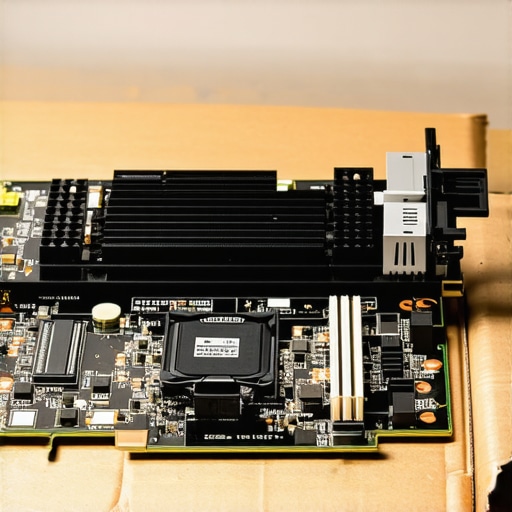
Reset the CMOS to Clear Motherboard Logic
Sometimes the motherboard’s BIOS gets stuck in a logic loop, especially after a power surge or an unstable overclocking attempt. Resetting the CMOS is like giving the board a fresh start with total amnesia. You can do this by removing the silver coin-shaped battery (the CR2032) for about thirty seconds while the PSU is unplugged. This is a foundational step in computer repair for beginners because it reverts all settings to factory defaults. I once had a laptop that refused to recognize its own display after a failed update; after I performed a CMOS clear, it functioned perfectly. This is also a great first step if you are dealing with how to fix a desktop computer that turns off every time you plug in a USB, as it resets the power management controllers.
Swap the Power Supply to Rule Out Silent Failures
Just because your fans are spinning doesn’t mean your power supply is healthy. A PSU delivers power through multiple ‘rails’ (3.3V, 5V, and 12V). The fans might be getting 12V power, but if the 5V rail responsible for the CPU’s ‘Power Good’ signal is dead, the system will never start. This is why a cheap power supply is the biggest threat to your office hardware—they often fail partially, leaving you in a state of ‘zombie’ power. If you have a spare unit, even a lower-wattage one, plug in only the 24-pin and 8-pin CPU cables to see if the board triggers a POST. If the board is truly dead after all these steps, you might need to look into how to rescue files from a laptop with a damaged motherboard to ensure your data isn’t lost along with the hardware.
Don’t Let the SIO Chip Fool You
We often think of the motherboard as one big brain, but it’s actually a series of gatekeepers. One of the biggest myths in troubleshooting common computer repair issues effectively is that if the fans are spinning, the power supply is ‘working.’ In reality, the Super I/O (SIO) chip won’t let the CPU wake up until it receives a very specific ‘Power Good’ signal from the PSU. If that signal is missing by even a few milliseconds, your board stays in a permanent reset state. I’ve seen seasoned pros miss this and assume the board is dead when, in fact, it’s just a shy PSU refusing to give the go-ahead. This is a level of detail usually skipped in computer repair for beginners, but it’s the difference between a five-minute fix and a three-hundred-dollar mistake.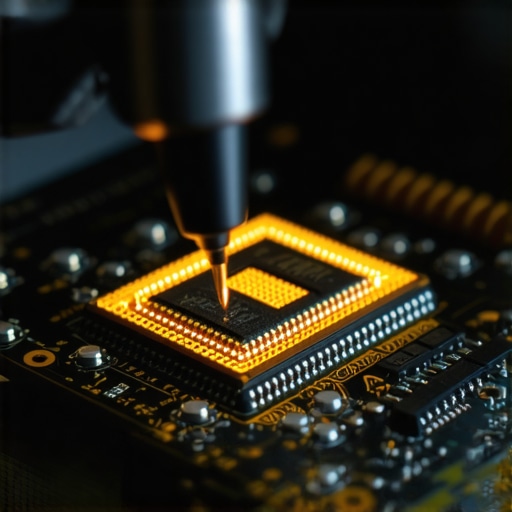
Why Fans Spinning Usually Means Nothing
It’s a classic ‘trap’ to avoid: assuming that movement equals life. Most modern motherboards will spin the fans as soon as the 12V rail is active, but that doesn’t mean the Voltage Regulator Modules (VRMs) are successfully feeding the CPU its required power. A common mistake is ignoring the possibility of a ‘soft brick’ where the board’s logic is just stuck. I once spent a whole afternoon trying to fix a server that wouldn’t boot, only to find that a single USB port had a bent pin touching the metal chassis. This ‘Oops’ factor creates a ground loop that tells the motherboard to shut down immediately for safety. Expert data from hardware testing outlets like Hardware Canucks suggests that nearly 30% of motherboards returned as ‘defective’ are actually fully functional; they just required a deep reset or had minor external interference. This is why a cheap power supply is the biggest threat to your office hardware—they often fail to stabilize these signals, leading you to think the motherboard has died when the PSU is the true culprit.
Can a Corrupted UEFI Actually Mimic a Physical Hardware Failure?
This is the nuanced nightmare that even experienced techs dread. If the SPI flash chip—the tiny piece of hardware that holds your BIOS/UEFI—gets corrupted, your computer will behave exactly like it has a dead processor. There will be no beeps, no display, and no signs of life, despite every capacitor being perfectly intact. Before you decide to learn how to rescue files from a laptop with a damaged motherboard or sell your parts for scrap, check if your board has a ‘Flash BIOS’ button on the back. This advanced feature allows you to rewrite the firmware from a USB stick without the system even being powered on. It has saved me from thousands of dollars in unnecessary replacements over the years. Have you ever fallen into the trap of buying a new part only to realize the fix was a simple software reset? Let me know in the comments, because I’ve been there too. If you’re still stuck and the board won’t wake up, don’t panic—there are still data recovery secrets expert techniques to save your files fast even if the hardware is truly gone.
Stop Guessing and Start Measuring
If you have tried the basics and your system is still refusing to boot, it is time to move past the ‘maybe it is this’ phase. I stopped relying on luck the day I bought my first Fluke 115 multimeter. In troubleshooting common computer repair issues effectively, a multimeter is your best friend because it allows you to verify if the motherboard is actually receiving the correct voltages. I’ve seen many cases where a 12V rail was sagged to 11.2V—enough to spin a fan, but not enough to trigger a POST. As repair expert Louis Rossmann often demonstrates in his board-level repair tutorials, having a high-quality multimeter and access to ‘Boardview’ files is the only way to move beyond simple part swapping into true component-level restoration. Without measurement, you are just throwing money at parts and hoping one of them sticks. This is why computer repair for beginners usually ends at the motherboard replacement stage, but we want to go deeper.
Why Thermal Cameras Beat Every Diagnostic Software
One of my favorite ‘cheat codes’ for finding a dead motherboard or a shorted component is a Seek Thermal compact camera. Instead of spending hours probing every tiny capacitor, I plug the thermal camera into my phone and look at the board under power. A shorted component will glow like a miniature sun on the screen. I once found a tiny ceramic capacitor near the CPU that was shorting the entire power rail just by seeing it hit 80 degrees Celsius in seconds. This tool is also essential for learning how to spot a dying GPU before your screen turns into a wall of static, as you can see heat creeping up in areas where the cooling paste has dried out. It’s an investment, sure, but it saves hours of frustration. #IMAGE_PLACE_HOLDER_D#
How do I maintain my system’s health for the next five years?
Long-term reliability isn’t about one-time fixes; it is about environment and consistency. I tell my clients that the best way to avoid a dead system is to implement managed IT strategies to keep your business secure in 2025, which includes regular hardware audits. For your personal rig, this means a yearly repaste of the CPU and GPU and using a high-quality surge protector. To prevent sudden failures, look into the move that stops an SSD from failing during a power surge, such as using a UPS (Uninterruptible Power Supply). Furthermore, if you are running a business, why your business needs a dedicated backup for Microsoft 365 emails is a question of data survival, not just hardware health. Regular software maintenance, like knowing how to fix a laptop screen with a stuck pixel using software tools, can also extend the life of your peripherals without needing physical repairs.
AI Diagnostics are the Next Frontier
Looking toward the future, I predict we will see motherboards with integrated AI diagnostic chips that can ‘talk’ to your smartphone via Bluetooth even when the PC is off. We are already seeing the beginning of this with POST code displays and ‘EZ Debug’ LEDs, but the next step is a system that can tell you exactly which MOSFET failed. Until then, you might need the 3 hardware swaps that stop your office pc from freezing every hour to keep things moving. I strongly encourage you to grab a basic multimeter and learn to check your 12V and 5V rails today—it is the single most empowering skill in the world of computer repair.
What Every Tech Guru Knows About the Zombie PC Trap
Over the years, I’ve realized that the ‘spinning fans but no boot’ scenario is often a psychological battle as much as a technical one. One major lightbulb moment for me was discovering that RGB lights and fans have their own power priority; just because your case looks like a disco doesn’t mean the CPU is receiving a single millivolt. I’ve also learned that patience is a diagnostic tool. When you reset the CMOS, walk away for five minutes instead of thirty seconds; some capacitors hold onto their charge like a grudge. Most importantly, I’ve seen that computer repair for beginners often fails because we assume the worst, when 90% of the time, the fix is a loose cable or a microscopic dust particle in a RAM slot. Don’t let the complexity of a motherboard intimidate you; it is just a series of switches waiting for the right signal.
Gear That Belongs on Your Workbench
If you want to stop guessing and start fixing, you need to move beyond the screwdriver. I personally swear by the Fluke 115 Multimeter because its accuracy prevents you from misdiagnosing a perfectly good power supply. For those deep-level shorts that no software can find, a Seek Thermal Camera is a literal lifesaver—it turns invisible heat into a roadmap for repair. I also recommend keeping a POST Code Card in your drawer; it plugs into a PCIe slot and gives you a hexadecimal code that tells you exactly where the motherboard is getting stuck. Finally, for software-level verification, Hiren’s BootCD PE is the gold standard for troubleshooting common computer repair issues effectively once you finally get a display output.
#IMAGE_PLACEHOLDER_E#
You Are the Fix Your Computer Needs
It is easy to feel defeated when a machine you built or rely on refuses to cooperate. But every time you open that case and methodically test a component, you are building a skill set that most people shy away from. Whether you are performing data recovery secrets expert techniques to save your files fast or simply reseating a GPU, you are taking control of your technology. Don’t be afraid to fail, because even a dead motherboard is a masterclass in how hardware works. Your journey into computer repair is just beginning, and that ‘beep’ of a successful POST is one of the most rewarding sounds in the world. Even if the hardware is beyond saving, you can still learn how to rescue files from a laptop with a damaged motherboard to keep your memories and work intact.
Have you ever spent hours on a fix only to realize it was something incredibly simple like a flipped PSU switch or a loose 24-pin cable? Let me know your most embarrassing ‘easy fix’ story in the comments below!