

I remember the cold sweat I broke into when my first big client handed me a drive that Windows refused to recognize. It wasn’t clicking, it wasn’t dead, but the OS just stared back at me with that cursed prompt: ‘You need to format the disk in drive D: before you can use it.’ I almost did it. I really did. That is the moment I learned that a drive isn’t necessarily empty just because the front door is locked and the key is broken. If you are seeing that message right now, take a deep breath. Your files are likely still sitting there in a sort of digital purgatory, and I am going to help you walk them out. We are dealing with a corrupted file system header—the digital map that tells your computer where your wedding photos end and your tax returns begin. When that map is torn up, your computer panics and assumes there is nothing there. But we know better.
Stop Before You Click That Format Button
The biggest mistake I ever made in my early days was assuming that formatting would somehow reset the drive and make it readable again. It won’t. In fact, it is the fastest way to turn a recoverable situation into a permanent nightmare. If your drive is still spinning and isn’t making a clicking sound, you are in the logical failure zone. This is actually great news. It means the physical platters are fine, but the move that saves your data when a partition table is corrupted involves using tools that look past the broken header. You need to treat the drive like a library where the index cards were tossed in a blender. The books are still on the shelves; you just need a new way to find them. Before you try free file recovery tools on a failing mechanical drive, we need to verify the health of the hardware. This often happens because of a sudden power loss or because of how to recover data from a USB stick that was pulled out while writing.
Is my data actually gone forever?
It is the question that keeps you up at 2 AM. The short answer is: probably not. According to technical data from Ontrack, logical failures—where the drive is physically healthy but the data is inaccessible—account for a massive chunk of recovery requests and have some of the highest success rates. Your computer is just confused because the Table of Contents is missing. Have you ever seen that terrifying ‘Drive Not Formatted’ message and felt your stomach do a somersault? Trust me, you aren’t alone. We are going to use some data recovery secrets to rebuild that map virtually and get your documents back into safety. This is a classic lesson in computer repair for beginners: don’t let the software scare you into making a hardware-erasing mistake. If you’ve been ignoring that SMART status bad warning, this might be the drive finally giving up the ghost, but even then, we have options before we call it quits.If you want to get your files back, you have to stop treating the drive like a regular storage device and start treating it like a digital crime scene. You don’t walk into a crime scene and start moving furniture; you take photos and preserve evidence before anything changes.
Look for the hardware warning signs first
Before we even think about data, we need to know if the drive is physically capable of the job. I always start by checking the S.M.A.R.T. data—the internal health log of the drive. If you are ignoring that SMART status bad warning on your pc, any attempt to run a common Windows fix like CHKDSK will literally grind the internal platters into dust. I once had a client with a ‘stuttering’ external drive; Windows kept begging to format it. The SMART report showed the drive was moments from a mechanical seizure. If I had followed the OS prompts, that data would be in a landfill now. This is a vital lesson in computer repair for beginners avoid costly mistakes: never trust the operating system’s repair suggestions when the hardware itself is crying for help.
Work on a digital clone instead of the original drive
This is the golden rule of data recovery. You should never, ever perform intensive recovery operations on the original drive. Instead, you create a bit-level clone—a sector-by-sector replica of the entire disk. Think of this like making a perfect photocopy of a document before you try to use chemicals to reveal invisible ink. If you spill the chemicals on the copy, you still have the original. Using the power of data recovery tools what you need to know, you can create a flat image file that you can safely scan a thousand times without damaging the original hardware further. 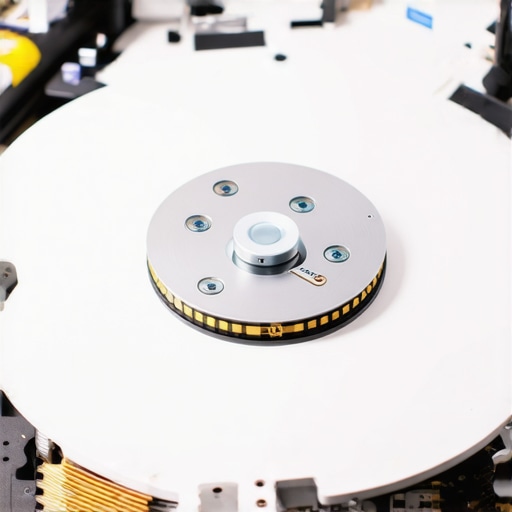 I remember a wedding photographer who lost a whole weekend of shots because of a sudden power surge. The drive was clicking intermittently. By making a bit-for-bit clone immediately, we saved every single RAW file from the ‘image’ even after the physical drive stopped spinning forever an hour later.
Scan for raw file signatures to bypass Windows errors
Once you have your clone, you use professional software to perform a ‘Signature Scan’ or ‘Raw Scan.’ This ignores the ‘Drive Not Formatted’ error entirely and looks for the unique digital fingerprints of your files—like the specific header that tells a computer ‘this is a JPEG.’ Even when the move that saves your data when a partition table is corrupted doesn’t bring back the folders, a raw scan will find the files. A small business owner once brought me a payroll drive that her ‘tech-savvy’ nephew had already tried to fix. He’d run a disk utility that successfully ‘fixed’ the errors but accidentally wiped the file names in the process. I had to use a raw signature scan to recover 4,000 unnamed documents and then manually search for keywords like ‘Salary’ just to identify which file was which. It was a mess, but we got the payroll out on time by using data recovery secrets expert techniques to save your files fast. This is exactly how we handle the situation when someone asks how to recover data from a USB stick that was pulled out while writing. We don’t worry about the broken ‘map’ of the drive; we just go straight to the ‘books’ on the shelves.Let’s dig deeper into why that ‘Format’ prompt is often a red herring for a much larger issue. Most people think that if a drive shows up in Windows Disk Management, it is purely a software problem that a quick utility can fix. In my experience, that is exactly where the most expensive mistakes happen. Everyone tells you to try a partition recovery tool immediately, but I’ve found that running any software on a drive with ‘Weak Heads’—a condition where the physical reading mechanism is failing—is like trying to run a marathon on a broken ankle. You might get a few miles in, but you’ll cause permanent damage. If your drive is struggling to read, every second it is powered on and spinning is a second closer to the heads crashing into the platters.
Don’t let Windows Disk Management bait you into a disaster
One of the most common ‘traps’ I see involves the ‘Initialize Disk’ pop-up. When a drive’s partition table is corrupt, Windows might see it as ‘Unknown’ and ‘Not Initialized.’ It feels like a simple fix: just click initialize, right? Wrong. Initializing the disk writes a new signature to the drive, effectively wiping the original pointers to your data. This turns a logical recovery into a complex forensic reconstruction. This is a classic case of computer repair for beginners avoid costly mistakes. Instead of clicking ‘OK,’ you should be looking at the drive’s behavior. Is it slow to mount? Does it disconnect when you try to copy a large folder? These are signs of physical fatigue that no software can patch.
Can software actually fix a drive that is physically failing?
The short answer is no, and believing otherwise is a dangerous myth. According to a study by the data erasure and recovery experts at Blancco, over 30% of data loss incidents that start as ‘logical’ errors are actually symptoms of underlying physical degradation. If the drive has bad sectors, the danger of using free file recovery tools on a failing mechanical drive is that they don’t know how to stop. A professional tool will skip bad sectors to save the healthy ones; a free tool will ‘retry’ the bad sector 1,000 times, generating heat and friction until the drive dies completely. This is why for serious mechanical issues, why Drive Savers remains the only choice for physically damaged drives because they operate in cleanrooms where the hardware can be safely disassembled. 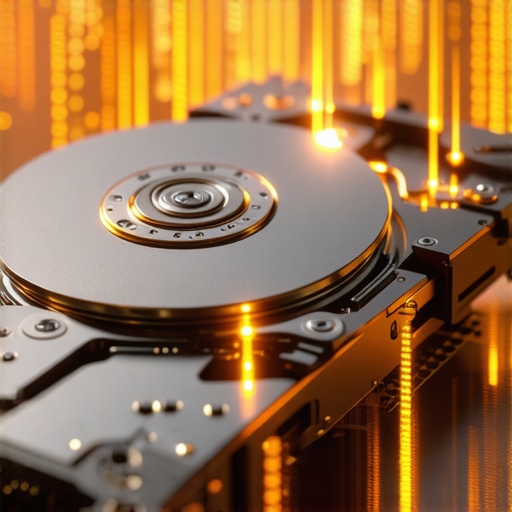
Stop gambling with second-hand components
I often see small business owners trying to save money by swapping parts from old machines to keep a ‘failed’ drive running. This is another major ‘oops’ factor. I once saw a client use a power supply from an old workstation to power an external recovery bay. The voltage ripple from that aging PSU fried the controller board of the drive they were trying to save. It’s a harsh lesson: the hardware part you should never buy used for your business often includes anything that regulates power or stores data. This is where having effective managed IT solutions for growing companies pays for itself; they ensure your hardware is vetted before it can cause a cascade failure. If you want to dive into the nitty-gritty of how pros handle these scenarios, check out these data recovery secrets every business should know today. Have you ever fallen into this trap or accidentally clicked ‘Initialize’? Let me know in the comments.So, what do I actually use when I’m staring down a drive that won’t mount? I’ve moved away from ‘easy-click’ consumer tools. Instead, I rely on R-Studio or DMDE. These aren’t flashy, but they allow for deep, manual intervention. For instance, when I’m dealing with the power of data recovery tools what you need to know, I need to be able to tell the software to ignore specific bad sectors rather than retrying them until the drive dies. This is the level of control you need to avoid computer repair for beginners avoid costly mistakes. If you are running a business, you can’t afford to play guessing games with your server’s life. That is why managed IT solutions streamlining operations for small businesses often include proactive monitoring of these exact parameters.
The toolkit that actually pulls data from the brink
I look at Backblaze’s quarterly hard drive stats religiously. Their technical documentation shows that failure rates aren’t just about age; they are about environment and specific models. It’s a great reminder that even the ‘best’ drives are ticking time bombs. This is why I always tell my clients that why your business needs a local backup even if you use the cloud is non-negotiable. The cloud is great for accessibility, but when 4TB of data vanishes, downloading it back over a standard office connection is a multi-day nightmare. A local, versioned backup on a NAS is your real safety net.
Bet on local hardware instead of just the cloud
Maintaining your hardware isn’t just about blowing out the dust, though that helps. It’s about active observation. You should be running a background SMART monitor—something like CrystalDiskInfo or DriveDx—that will alert you the second a ‘Reallocated Sector’ appears. By the time you are ignoring that SMART status bad warning on your pc, you’ve already lost the lead time you needed to migrate data safely. For larger setups, effective managed IT solutions for growing companies use centralized dashboards to watch these metrics across every workstation.
How do I keep my drives healthy for years?
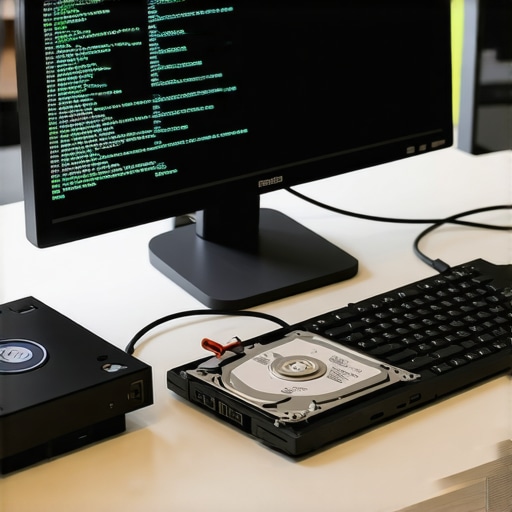 Looking ahead, I predict we are going to see AI integrated directly into NVMe controller firmware. Instead of waiting for a threshold to be hit (like current SMART tech), these drives will analyze read/write latency patterns in real-time to predict a crash weeks before it happens. Until then, you have to be your own advocate. My best tip? Go download a trial of a professional hex editor today and just look at the raw data on a healthy USB stick. Once you see the ‘code’ behind your files, using data recovery secrets expert techniques to save your files fast won’t feel like magic anymore—it will feel like a manageable technical task. If you’re ready to stop guessing, try creating your first bit-level image tonight using a tool like DDRescue; it’s the single most important skill you can learn to protect your digital life.
The Day I Almost Lost Everything to a Formatting Prompt
The most profound realization I ever had wasn’t about software code; it was about patience. Most people panic and rush, which is exactly how files get deleted forever. I’ve learned that a RAW partition is just a cry for help, not a death sentence. Always remember that software can’t fix a physical scratch, but it can navigate a broken map if you give it the right compass. If you’re just starting, remember that computer repair for beginners involves avoiding costly mistakes like clicking Yes on every Windows prompt. I once spent three days recovering a single database because I didn’t verify the hardware health first—a mistake I will never make again after seeing the risk of ignoring that SMART status bad warning on your pc firsthand.
My Go-To Kit for Digital Resurrections
If you want to move beyond basic consumer apps, you need professional-grade utilities. I personally swear by R-Studio for complex filesystem reconstructions and DMDE for surgical partition repairs. These tools offer the power of data recovery tools that generic one-click solutions simply cannot match. For businesses, I always recommend integrating these practices into managed IT solutions streamlining operations for small businesses to ensure that recovery isn’t a reactive panic, but a standard protocol. Also, keep CrystalDiskInfo running in the background; it is the early warning system that has saved more data for my clients than any other tool I own.
Your Data is Waiting to Be Found
Recovering data can feel like trying to solve a puzzle in the dark, but the light is there if you follow the right steps. Don’t let a Drive Not Formatted message be the reason you lose your business records or family history. By mastering these data recovery secrets expert techniques to save your files fast, you are taking control of your digital life. You have the knowledge now, so take a deep breath and start that first bit-level clone. Every bit of information counts. Have you ever successfully recovered a partition after Windows told you it was empty? Let me know your story in the comments below!