

I was sitting in my office, staring at a blinking red light on a server rack that should have been solid green. I’d just “saved” my client a few hundred dollars by sourcing a “lightly used” enterprise SSD from a reputable reseller. Three weeks later, that “bargain” turned into a $5,000 emergency recovery bill. My stomach dropped. I had to explain to a small business owner why their customer database was inaccessible because I wanted to shave a few bucks off the invoice. It was a visceral, painful realization that in the world of hardware, “pre-owned” can sometimes mean “pre-broken.” [IMAGE_PLACEHOLDER]
The Day I Almost Lost Everything Over a $200 Bargain
When you’re running a business, the urge to cut costs is constant. I get it. I’ve been there, trying to make every dollar in the IT budget stretch as far as humanly possible. But through years of performing computer repair for beginners and managing complex infrastructures, I’ve learned that some components have a very literal, finite expiration date. We’re talking specifically about storage—the hard drives and SSDs that hold your life’s work. Unlike a CPU or a stick of RAM, which typically either works perfectly or fails immediately, storage devices wear out with every single byte written to them. It’s a slow, invisible decay. Think of it like buying used tires for a cross-country delivery van. They might look okay on the surface, but you have no idea if they’ve been driven through a desert for 50,000 miles. Why would you trust a used drive with your company’s entire digital existence? I once saw a firm try to save money by picking up second-hand drives for their main server; they ended up losing a week of productivity. That’s why I’m so vocal about this. If you aren’t careful, you’ll be the one searching for data recovery secrets at 3 AM.
Is Saving a Few Bucks Actually Worth the Potential Data Loss?
You might think, “It’s enterprise-grade hardware; it’s built to last a decade.” That’s exactly what I told myself back in 2018. But here’s the kicker: you have no idea how the previous owner treated that drive. Was it kept in a pristine, climate-controlled data center, or was it shoved in a dusty closet with poor airflow? According to a massive, multi-year study by Backblaze, drive failure rates can spike significantly after the first three years of heavy use, making used drives a statistical nightmare for reliability. If you’re already seeing the sign your SSD is reaching its write limit, it’s already too late to prevent a catastrophe. I’ve seen businesses crumble because they tried to save on the one part that holds their most valuable asset. Have you ever gambled on used hardware only to have it bite you back? It’s a gut-wrenching feeling that I wouldn’t wish on my worst competitor. Today, I’m going to walk you through exactly why storage is the one area where “brand new” is the only acceptable standard for your business. We’ll look at how to spot a hardware failure masquerading as a software bug and why your managed IT strategy must prioritize fresh, warrantied hardware to keep things running smoothly.
Stop Treating Your Storage Like a Monitor
A used monitor might have a few dead pixels or a slight yellow tint, but it will generally keep showing an image until it doesn’t. Storage doesn’t work that way. SSDs use NAND flash memory, which has a finite lifespan based on write cycles. Think of it like a pencil and an eraser; every time you write data, you use up a bit of that eraser. Once the eraser is gone, you’re just scratching the paper. If you buy used, you’re buying a drive where someone else has already used 90% of the eraser. This is why you must understand the sign your SSD is reaching its write limit before your data vanishes. When I first started out, I thought I was being clever by buying refurbished drives for my home lab. Within six months, two of them failed simultaneously. I wasn’t just out the money; I was out the time it took to rebuild everything from scratch. In a business setting, that ‘cleverness’ is just negligence.
Check Your S.M.A.R.T. Stats Before They Check You
Every modern drive has an internal reporting system called S.M.A.R.T. (Self-Monitoring, Analysis, and Reporting Technology). It is the diagnostic brain of your hardware. I always use a professional utility to pull these reports the moment a drive arrives at the office. You are looking for ‘reallocated sector counts’ or ‘media wearout indicators.’ If these numbers are anything other than zero on a drive sold as ‘new,’ you have a problem. Learning how to check if your hard drive is about to fail using s-m-a-r-t-data is an essential skill for any office manager. I once saved a medical clinic from a total blackout because I noticed their ‘refurbished’ server drive had over 50,000 power-on hours during a routine check. We replaced it that afternoon; it would have likely died by the weekend.
Spot the Hidden Red Flags in Refurbished Gear
Resellers are masters of marketing. They use terms like ‘Renewed’ or ‘Open Box’ to hide the fact that a drive has been spinning in a data center for three years. I have seen ‘Recertified’ drives that still had the dust of their previous life inside the SATA ports. If you hear a rhythmic ticking, pay attention. Understanding why your office pc makes a clicking sound when you open files can help you catch a failing mechanical drive before it seizes up. A solid managed IT strategy doesn’t leave hardware health to chance; it involves verifying serial numbers against manufacturer databases to see exactly when that warranty actually started.
Move Your Data Without Breaking the OS
If you find yourself stuck with a used drive that is showing signs of age, do not just drag and drop your files. That is the slowest and most dangerous way to handle a failing device. Instead, use sector-level cloning. I have found that the easiest way to clone a failing hard drive to a new SSD is to use a dedicated bootable tool that mirrors the entire drive bit-for-bit. This ensures your OS, your specialized software, and your local settings remain intact. I once spent eighteen hours trying to manually recover a ‘buggy’ system, only to realize I was dealing with a hardware failure masquerading as a software bug. Don’t make that mistake. If the drive is soldered, you might need to learn how to upgrade the ssd in a laptop that has a soldered primary drive by using external boot solutions or professional board-level repair. 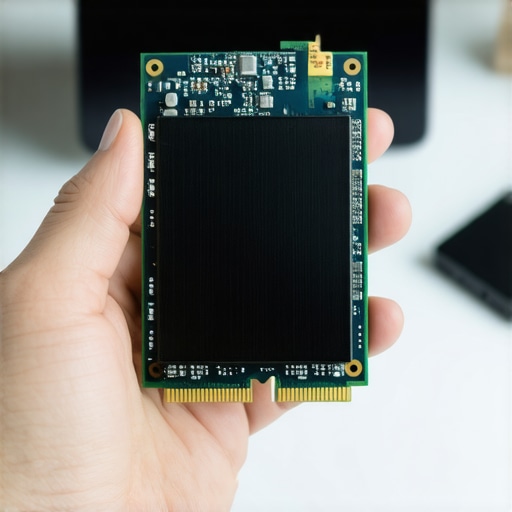 People often tell me, ‘I don’t care if my hardware fails because everything is in OneDrive.’ This is the single most dangerous assumption in modern business. I’ve watched seasoned CEOs break down because they realized that why your business backup plan is actually just a sync plan isn’t just a technicality—it’s a fatal flaw. If you accidentally delete a folder or a virus encrypts your files, that ‘sync’ feature faithfully replicates the destruction to the cloud in milliseconds. You haven’t backed up your data; you’ve just automated its disappearance. In my experience, a true managed IT strategy requires the ‘3-2-1 rule’: three copies of data, two different media types, and one offsite. According to the Veeam 2023 Data Protection Trends Report, nearly 85% of organizations had at least one ransomware attack in the past year, and many found their cloud-only ‘backups’ were the first things targeted or corrupted.
Why Does Your 10Gbps Network Still Feel Like Dial-Up During Backups?
It’s usually not the cable; it’s the processing overhead. Most people don’t realize that your office wi-fi is slow even with a gigabit connection because of the way packet inspection and encryption are handled at the router level. When you’re pushing terabytes of data to a local NAS, your firewall might be choking on the sheer volume of traffic it’s trying to scan. This is where how to tell if your office firewall is actually blocking threats without killing performance becomes an art form. You need hardware that matches your bandwidth, or you’re just paying for speed you can’t use.
The Sync Trap That Wipes Your Office Clean
The ‘Oops’ factor here is massive. I once had a client who tried to ‘clean up’ his desktop by moving 10GB of ‘old’ files to the trash. Because his laptop was synced to the company server, it ‘cleaned up’ the server too. By the time he realized he needed those files for a tax audit, the 30-day retention window had closed. This is exactly why your business needs a local backup even if you use the cloud. Local hardware gives you an ‘air-gapped’ layer of protection that the cloud simply cannot provide. Furthermore, I see people confuse a dead motherboard with a dead screen all the time. If you have the fix for a laptop screen that only works at specific angles, it’s a $50 cable, not a $500 board. Knowing how to identify a failing motherboard before it stops working vs a simple peripheral failure can save your budget from unnecessary ‘upgrades.’
Don’t Put Your SSD in Rice
Let’s address the elephant in the room: liquid damage. Everyone says to put your tech in rice. In reality, rice does nothing for the internal corrosion that starts the moment the coffee hits the logic board. In fact, it often traps moisture and dust in the ports. The truth about recovering data from a water damaged ssd is that professional ultrasonic cleaning is the only way to stop the rot. If you’re dealing with a spill, the first step is always how to salvage a laptop after a coffee spill by cutting the power immediately—not reaching for the pantry. Have you ever fallen into this trap where you thought you were safe only to find your ‘backup’ was empty or your DIY fix made things worse? Let me know in the comments.
Keep Your Gear Alive Without Breaking the Bank
I’ve learned that knowing how to extend the life of your office pcs by three years isn’t about luck; it’s about having a ruthless maintenance schedule. Most people ignore their hardware until it starts smoking, but by then, the cost of repair has already tripled. I personally use HWiNFO64 once a month to check the thermal sensors on every mission-critical machine in my office. If I see temperatures spiking above 90°C during a standard file export, I know the sign your cpu is thermal throttling and slowing down your work is right around the corner. I don’t wait for the blue screen of death; I open the case and blast the dust out of the heat sinks right then and there.
How do I maintain my hardware for the long haul?
The secret is never letting your firmware fall behind. Many people think updates are only for software, but manufacturers release microcode updates to fix hardware-level bugs that can actually physically damage your components over time. For my clients, I implement effective managed it solutions for growing companies that automate these BIOS and driver updates during off-hours. This isn’t just about speed; it’s about long-term stability. According to Seagate’s technical documentation on Mean Time Between Failures (MTBF), environmental factors like heat and erratic power are the primary killers of high-capacity drives. This is why I insist on a high-quality UPS for every server rack—it’s the cheapest insurance policy you’ll ever buy. 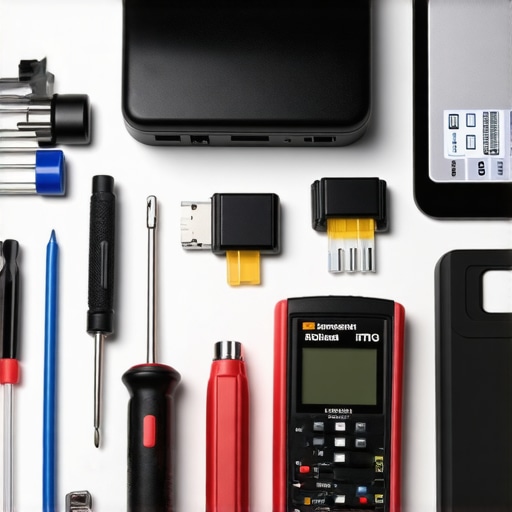
The Forensic Tools That Save My Sanity
When a drive does start to act up, I don’t reach for Windows Explorer to copy files. I go straight for a hardware-level cloner like the StarTech Standalone Duplicator. It bypasses the operating system’s attempts to ‘fix’ file system errors that usually just end up making things worse. If you are a business owner, your managed it strategies to keep your business secure in 2025 should include a clear path for the best way to phase out old workstations without losing data. I’ve seen too many people try to squeeze five years out of a three-year machine and lose a week’s worth of billable hours when the motherboard finally gives up.
Predictive AI is the Future of Tech Repair
We are moving toward a world where ‘reactive’ repair is a relic of the past. Companies like Backblaze are already using massive datasets to predict drive failures before they happen with startling accuracy. In the next few years, I expect AI-driven diagnostics to be built directly into your managed it solutions streamlining operations for small businesses, notifying your technician to replace a component before you even notice a lag. My best advice? Don’t wait for that future to arrive. Download a free tool like CrystalDiskInfo today and check your health status—if it’s anything but ‘Good,’ it is time to act before you’re forced into an emergency recovery.
Hard-Earned Lessons from the Server Room Trenches
Over the years, I’ve realized that technical specs only tell half the story. The other half is written in the sweat of emergency 2 AM restores. One of the biggest shifts in my mindset was realizing that a warranty period isn’t just a legal safety net; it’s the manufacturer telling you exactly how long they expect the component to survive under stress. If you’re using consumer-grade gear for an enterprise workload, you’re already behind. I’ve seen that many computer repair for beginners guides miss the nuance of ‘write endurance,’ which is the number one killer of modern office setups. Another lightbulb moment was discovering that heat is the silent thief of data. A server tucked in a closet without ventilation isn’t just hot; it’s actively degrading. This is why I always tell my clients that data recovery secrets every business should know today start with physical environment checks, not just software scans.
[IMAGE_PLACEHOLDER]
Tools That Stay in My Professional Tech Bag
I don’t leave my office’s health to chance, and neither should you. To keep everything running smoothly, I rely on a specific stack of tools that have never let me down. For real-time monitoring, CrystalDiskInfo is my go-to for catching those early S.M.A.R.T. warnings. For thermal management, I keep HWiNFO64 running on a side monitor to ensure no CPU is hitting the throttle point. When it comes to the bigger picture, I advocate for why managed IT is a game changer for growing companies because it automates the ‘boring’ stuff like firmware patches and log reviews that humans inevitably forget. If you find yourself in a bind where a drive is failing, I recommend the StarTech Standalone Duplicator—it’s a hardware-level lifesaver that bypasses OS corruption. These aren’t just gadgets; they are the foundation of a proactive managed IT strategy.
Building a Business That Can’t Be Erased
At the end of the day, hardware is just metal and silicon. It’s the work you do and the data you create that truly matters. Investing in new, reliable storage and a robust cooling system isn’t an ‘expense’—it’s a shield for your legacy. I’ve seen too many brilliant entrepreneurs lose momentum because they were fighting with a $50 part. You deserve better than that. By implementing how managed IT can elevate your business security in 2025, you shift from being a fire-fighter to being a builder. Don’t let the the mistake that makes your backups completely useless be the reason your growth stalls. Take control of your infrastructure today, and give your business the solid ground it needs to thrive.
Have you ever had a piece of hardware fail at the absolute worst possible moment? Let me know in the comments—I’d love to hear how you handled it!