

I remember the exact moment I felt that sinking feeling in my chest. I had just unboxed a beautiful, razor-thin ultrabook, thinking I was set for the next five years. Then, I tried to sync my primary work folder. A little red bubble popped up in the corner of my screen: ‘Disk space is critically low.’ I laughed, thinking I’d just swap the drive like I always do. But when I popped the back off, my heart hit the floor. There was no drive to pull out. Just a row of tiny, silver chips soldered directly to the motherboard. It felt like I’d bought a beautiful house only to find out the front door was welded shut. If you’re staring at that same ‘Storage Full’ warning and feeling stuck, take a deep breath. You aren’t as trapped as the manufacturers want you to think. Today, I’m going to show you exactly how to bypass that soldered limitation and give your machine the breathing room it deserves based on my own trial-and-error in the shop.
The Day I Realized My 256GB Drive was a Dead End
I’ll be the first to admit that even experts make silly mistakes. A few years back, I tried to ‘hack’ my way out of a small drive by deleting what I thought were useless Windows system files. I thought I was being clever, but all I did was earn myself a weekend of frustration learning how to fix the no bootable device error on a modern laptop. It was a humbling lesson in why we don’t mess with the OS to save a few gigabytes. Since then, I’ve found much better ways to deal with soldered storage that don’t involve breaking your software. Most people don’t realize that even when the primary drive is permanent, there are often ‘ghost slots’ left behind by the engineers. Have you ever actually opened your laptop to see what is under the hood, or does the idea of those tiny screws make your palms sweat? Let me know, because overcoming that fear is the first step to a faster computer.
Does Opening the Case Automatically Void the Warranty?
This is the number one question I get over the backyard fence. Everyone is terrified that breaking a seal means you’re on your own. While you should always check your local laws, in many places, merely opening your device to add a component doesn’t legally void your protection unless you actually break something in the process. When you focus on computer repair for beginners to avoid costly mistakes, you realize that adding a secondary drive is one of the safest things you can do. Manufacturers love the soldered-on-board trend because it encourages planned obsolescence, but we aren’t going to let them win that easily.
Hunt for the Ghost Slot on Your Motherboard
Here is a secret that the big tech companies don’t broadcast: it is often cheaper for them to manufacture one motherboard for five different laptop models. This means your ‘soldered-only’ laptop might actually have a completely empty M.2 NVMe slot sitting right next to the battery, just waiting for a drive. According to a hardware analysis report by Strategy Analytics, nearly 60% of mid-to-high-end laptops with soldered primary storage still include an expansion port to streamline the assembly process. Finding this slot is like finding a twenty-dollar bill in your winter coat. If you don’t find a slot, we have to look at high-speed external solutions, which are vital if you start seeing the sign your SSD is reaching its write limit. Remember, once a soldered drive dies, it’s not just a storage issue; it becomes a data rescue mission, much like recovering data from a damaged SSD. Identifying your expansion options now, or even how to identify a failing motherboard before it takes your data with it, is the smartest move you can make today.
Check for the Hidden M.2 Expansion Slot
The first thing you need to do is stop guessing and start looking. Most people are terrified of the internal components, but modern laptops are just like Lego sets for adults. I once had a client bring in a ‘sealed’ ultrabook that was supposedly impossible to upgrade. They were ready to throw it away. When I cracked it open using a plastic spudger and a precision screwdriver kit, I found a vacant M.2 NVMe slot hiding right under a ribbon cable. It’s a common trick; manufacturers use the same board for multiple tiers of laptops. When you perform computer repair for beginners to avoid costly mistakes, your first goal is to identify this ‘ghost’ slot. If you find one, you can double or triple your storage for the price of a standard drive and bypass that soldered chip entirely. If you aren’t sure what you’re looking at, it helps to know how to test if your motherboard is dead or just sleeping because a dead slot is just as bad as no slot at all.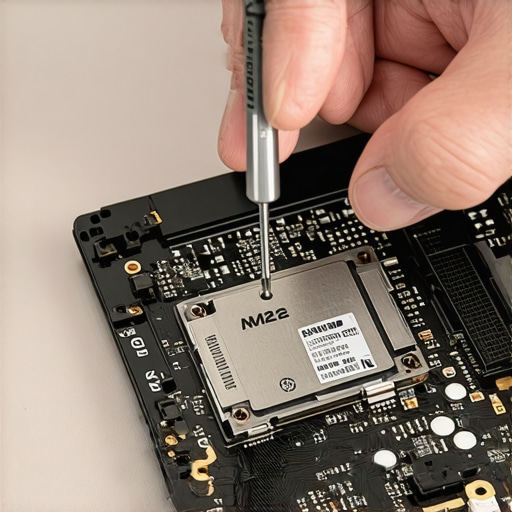
Turn a Thunderbolt Port into Your Primary Workspace
If you’ve opened the case and confirmed there truly is no expansion port, don’t panic. You aren’t relegated to slow USB thumb drives. The secret is an NVMe enclosure paired with a Thunderbolt 3 or 4 port. These ports have enough bandwidth to run an operating system directly from an external drive without any noticeable lag. I’ve set up several small offices using this method when their primary drives hit the sign your SSD is reaching its write limit and about to die. Think of it as an external heart for your computer. It’s a strategy often used in effective managed IT solutions for growing companies where replacing hardware every two years isn’t budget-friendly. By moving your heavy ‘Work’ folders and creative assets to this high-speed external drive, you stop the wear and tear on the soldered chip that you can’t replace.
Redirect Your Data Before the Soldered Chip Fails
A soldered drive failing is a nightmare because the data isn’t just on a disk; it’s physically part of the logic board. To prevent a total loss, you need to change how Windows or macOS handles your user folders. Go into your system settings and redirect your ‘Documents,’ ‘Pictures,’ and ‘Downloads’ folders to your secondary drive—whether that’s the new internal one you found or the high-speed external one. This keeps the soldered drive nearly empty, reserved only for the OS and essential apps. I learned this the hard way after a coffee spill fried a motherboard, and I had to use data recovery secrets and expert techniques to save files fast. If the data had been on a separate, removable drive, I could have just plugged it into another machine and been back to work in seconds. While you’re working on the internals, it’s also a great time to check your screen cables; knowing tips for troubleshooting laptop screen problems seamlessly can save you from a second repair job down the road. Focus on offloading the ‘write’ burden from the motherboard, and you’ll easily squeeze another three years out of that ‘non-upgradable’ machine.One of the biggest myths I encounter in my shop is the idea that ‘The Cloud’ is an indestructible safety net. I’ve had clients walk in with a dead motherboard, completely calm because they use OneDrive or Dropbox. They are devastated to find out that a sync error happened weeks ago, and their local files—the only ones that existed—are now trapped on a soldered chip. This is why I always tell folks that your business backup plan is probably just a sync plan in disguise. A real backup is immutable, versioned, and disconnected from the ‘delete’ command on your desktop. If you’re running a business, you can’t afford to learn this lesson the hard way. Have you ever lost a file because you thought it was syncing but wasn’t? Let me know in the comments; I’ve heard some real horror stories.
Why Does My High-Speed External Drive Still Feel Sluggish?
If you’ve followed my advice and moved your workspace to an external NVMe drive via Thunderbolt, you might be wondering why you still see the occasional stutter. The nuance lies in the ‘Direct Memory Access’ (DMA) and thermal throttling. Even a Thunderbolt 4 port can get bottlenecked if your laptop’s internal controller is sharing bandwidth with a 4K monitor or a docking station. Furthermore, a study by Backblaze on drive reliability highlights that SSDs don’t just ‘die’—their performance degrades significantly as they reach their write limits. If you are pushing your external drive too hard without proper cooling, the controller will slow down to save itself from melting. This is a common trap: people buy the fastest drive but put it in a cheap, plastic enclosure that acts like an oven. 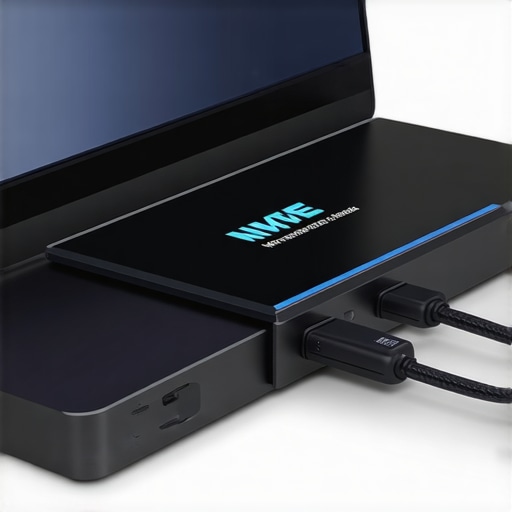
Look Beyond the Software When Your Screen Starts Acting Up
Another advanced mistake is misdiagnosing the ‘Screen Flicker’ or ‘Ghosting.’ Most users assume it’s a software driver issue or a Windows update gone wrong. In reality, it’s often the physical eDP (Embedded DisplayPort) cable rubbing against the hinge every time you open the lid. Before you go reinstalling your OS, you should check for the fix for a laptop screen that has a ghosting effect or see if it’s just a loose connection. I’ve seen people spend hundreds on managed IT solutions for small businesses only to have the consultant miss a simple $15 cable replacement because they were too focused on the software side.
The Diagnostic Data Your Repair Tech Might Be Missing
Truly expert troubleshooting of common computer repair issues involves looking at the hardware-software bridge. For instance, if your laptop works fine in the BIOS but crashes the moment the desktop loads, don’t just assume the SSD is dead. It could be a failing power phase on the motherboard that can’t handle the voltage jump of the OS. Knowing how to spot hardware failure masquerading as a software bug is what separates the weekend warriors from the pros. Don’t let a ‘repair expert’ sell you a new motherboard when a simple firmware update or a thermal paste refresh could save the day. This type of oversight is exactly why your IT support costs are higher than they should be in many corporate environments. Always ask for the diagnostic data—specifically the voltage rails and S.M.A.R.T. logs—before you sign off on a major replacement. Have you ever been told a repair was impossible only to find a simple fix later?I am not just someone with a drawer full of screwdrivers; I am someone who has stripped far too many screws to let you make the same mistakes I did. When I talk about gear, I am talking about the specific kit that sits on my bench every day. If you are serious about keeping a ‘sealed’ laptop alive, you need more than just a positive attitude. You need a dedicated precision bit set, specifically one with Pentalobe and Torx Plus bits, because manufacturers love to use weird fasteners to keep you out. I personally swear by the iFixit Pro Tech Toolkit because the metal spudgers are thin enough to pop clips without snapping them. This isn’t just about vanity; it is about troubleshooting common computer repair issues effectively before they require a total motherboard replacement. Having the right tools means you can actually see what is happening inside rather than just guessing based on a fan noise. 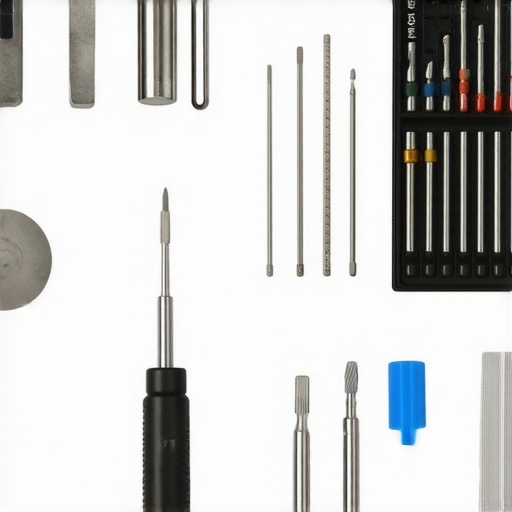
The Software Toolkit That Predicts the Future
Beyond the physical, I rely on a very specific software stack to keep my machines from redlining. I never trust the built-in Windows health reports. Instead, I use HWiNFO64 to monitor thermal sensors in real-time. If I see my CPU hitting 95 degrees while just browsing, I know it is time to repaste the heatsink. According to hardware reliability reports from Puget Systems, which tracks failure rates across thousands of custom builds, the specific combination of thermal stress and high-intensity writes is the leading cause of early component death in compact workstations. This is why I always teach my clients how to check if your hard drive is about to fail using S.M.A.R.T. data. You don’t want to wait for the blue screen of death; you want to see the ‘Reallocated Sectors’ count climbing so you can act while the drive is still readable. If you catch it early, you can use the easiest way to clone a failing hard drive to an external NVMe drive and keep your entire environment intact.
How do I keep my hardware healthy for years?
Maintenance isn’t a one-time event; it is a quarterly habit. Every three months, use a can of compressed air (or better yet, an electric duster) to blow out the exhaust ports. Dust is the silent killer of soldered components because it traps heat exactly where the silver solder is most vulnerable to micro-fractures. If you are using your laptop in a dusty environment, you are effectively baking your motherboard. This simple act is one of the best ways to how to extend the life of your office PCs by three years or more. While you are at it, wipe down that display with a dry microfiber cloth; following laptop screen repair DIY tips for clearer displays prevents the oils from your keyboard from etching permanently into the glass coating when the lid is closed.
The Inevitable Move Toward Modular Computing
Looking ahead, I suspect we are at the peak of the ‘soldered-everything’ era. The backlash is already starting. We are seeing companies like Framework proving that thin and light doesn’t have to mean disposable. In the next few years, I predict we will see a massive shift where the ‘internal’ drive becomes almost irrelevant as Thunderbolt 5 and high-speed external interfaces reach speeds that match internal bus lanes. We will reach a point where you buy a ‘brain’ and simply plug in the storage and screen you want. Until then, you have to be your own advocate. Don’t let a ‘sealed’ chassis be the reason you lose your data. Master the power of data recovery tools and always have a backup plan that doesn’t rely on the motherboard’s survival. If you want to take the first step today, pop your laptop’s serial number into a search engine tonight along with the phrase ‘service manual’ and see if that ghost slot actually exists. You might be surprised by what you find hidden under the hood.
Lessons from a Thousand Stripped Screws
After years of opening supposedly unserviceable machines, I’ve realized that the biggest barrier isn’t the hardware—it’s the marketing. Here are the lightbulb moments that changed how I approach modern devices. First, the term non-upgradable is usually a suggestion, not a law. Manufacturers want you to buy a whole new machine when you run out of space, but identifying the ghost slot on your board can save you a fortune. Second, I’ve seen far too many people panic because they think a simple repair will void their warranty. In reality, most jurisdictions protect your right to repair. If you focus on computer repair for beginners to avoid costly mistakes, you will find that adding a secondary drive is well within your capabilities.
Another hard lesson? A sync is not a backup. If you delete a file on your laptop, it’s gone from the cloud too. This is why your business backup plan is actually just a sync plan and it will eventually fail you if you don’t use versioning. Lastly, heat is the ultimate killer. If your machine is running hot, you are literally baking the lifespan out of your soldered storage. While you are under the hood, check your fans; the fix for a noisy laptop fan that sounds like a jet engine is often just a bit of compressed air, but it preserves your motherboard for years to come.
#IMAGE_PLACEHOLDER_E#
The Gear That Never Leaves My Workbench
I don’t recommend products lightly, but these four things are essential for surviving the era of soldered tech. First, a dedicated precision bit set is non-negotiable—using the wrong size screwdriver is the fastest way to turn a five-minute job into a disaster. Second, I always use HWiNFO64 to see what the motherboard sensors are reporting in real-time. Third, always keep a high-quality external NVMe enclosure on hand. It allows you to use the power of data recovery tools if your internal drive ever goes dark. Finally, if you’re dealing with a device that’s been sitting in a drawer, watch out for the battery. Knowing how to safely remove a bulging laptop battery before it explodes is a skill that saves both your data and your safety.
Take Back Control of Your Machine
Modern laptops are designed to feel like magical, sealed black boxes, but they are still just computers. You have the right to know what is inside them and the power to extend their life far beyond what the manufacturer intended. Whether you find a hidden M.2 slot or decide to boot from a high-speed external Thunderbolt drive, you are no longer a victim of planned obsolescence. Every time you perform a successful computer repair, you’re not just saving money; you’re gaining the confidence to never be held hostage by a storage warning again. Have you ever opened your laptop only to find a surprise expansion slot you didn’t know existed? Let me know in the comments!