

I remember the cold sweat that broke out when I plugged my camera’s SD card into my laptop after a once-in-a-lifetime trip. Instead of a gallery of memories, a blunt Windows dialogue box popped up: “You need to format the disk in drive E: before you can use it.” My heart hit the floor. It felt like my photos were trapped behind a locked door and the computer was telling me the only way in was to burn the house down. It is a terrifying moment, especially when those files represent hours of work or irreplaceable family moments. You sit there, staring at the screen, wondering if the last three days of shooting just evaporated into thin air. I have been there, and I know that desperate urge to just click ‘OK’ and hope for a miracle, but that is exactly where most people go wrong.
Why Windows Is Lying to You About Your Memory Card
When your computer demands a format, it is usually because the file system has become “RAW” or corrupted. It doesn’t mean the photos are gone; it just means the index—the table of contents for your card—is shredded. In my early days of DIY tech, I made the mistake of thinking I could just format the card and then use an “undelete” tool later. I learned the hard way that [the mistake that makes your backups completely useless](https://computerrepairmasters.com/the-mistake-that-makes-your-backups-completely-useless) is often acting in haste. Formatting often overwrites critical sectors, making recovery much harder. Today, we are going to look at how to [pull data from a drive that shows up as unallocated space](https://computerrepairmasters.com/how-to-pull-data-from-a-drive-that-shows-up-as-an-unallocated-space) without following that destructive prompt. It is a similar process to [how to recover files from a usb drive that wont format](https://computerrepairmasters.com/how-to-recover-files-from-a-usb-drive-that-wont-format), focusing on preservation first. We want to treat the card like a crime scene—don’t touch anything, don’t change anything, just observe and extract. I recall a specific instance where I was helping a neighbor who had lost their daughter’s graduation photos. They were ready to throw the card in the trash. We spent the evening carefully scanning the drive, and seeing those images pop up one by one was better than any paycheck. That is why I am writing this—because nobody should lose their memories to a glitchy dialogue box.
Is it actually possible to get files back without formatting?
It is a fair question to be skeptical. If the computer cannot read it, how can a piece of software? The truth is that specialized [data recovery tools](https://computerrepairmasters.com/the-power-of-data-recovery-tools-what-you-need-to-know) can bypass the operating system’s standard mounting process to scan the raw sectors of the flash memory. According to research from the University of California, San Diego, flash memory storage is surprisingly resilient even when logical errors occur, often keeping data intact even when the controller chip is confused. We aren’t doing magic; we are just using [data recovery secrets](https://computerrepairmasters.com/data-recovery-secrets-expert-techniques-to-save-your-files-fast) to find the fragments of your JPEGs and RAW files. Have you ever been tempted to just hit ‘OK’ on that format prompt just to see what happens? Don’t do it! We are going to get those files back the right way, step by careful step. [IMAGE_PLACEHOLDER]
The first rule of data recovery is simple: stop writing to the drive. Think of your SD card like a wet oil painting; every time you touch it or let the computer try to ‘fix’ it, you are smearing the details. To avoid costly mistakes, the very first thing you should do is look for the physical write-protect switch on the side of the card. Slide it down to the ‘Lock’ position. This acts as a physical barrier that prevents the operating system from accidentally overwriting the very sectors we are trying to save.
Start by Locking the Door to Your Data
When Windows asks to format a card, it is often because it can’t find the boot sector. If you were to hit ‘Yes,’ you would be telling the computer to build a new foundation right on top of your old house. Instead, we want to treat the card as a read-only archive. In my shop, I once had a photographer come in with a card that was physically failing—it was actually getting hot to the touch. If I had tried to run a standard scan through a heavy interface, the card would have died before we got a single JPEG. Instead, we used the write-protect method and immediately moved to a bit-by-bit clone.
Create a Digital Safety Net Before Scanning
You should never run recovery software directly on a corrupted card if you can help it. Instead, you want to create an ‘image’ of the card—a single massive file that contains every zero and one from the device. This is similar to the process used when you clone a failing hard drive to a new SSD. By working on a copy, you can fail as many times as you want without risking the original hardware. I recall a specific instance where the original card gave up the ghost halfway through a second attempt. Because I had that disk image on my desktop, I was able to keep working through the night to pull the data. 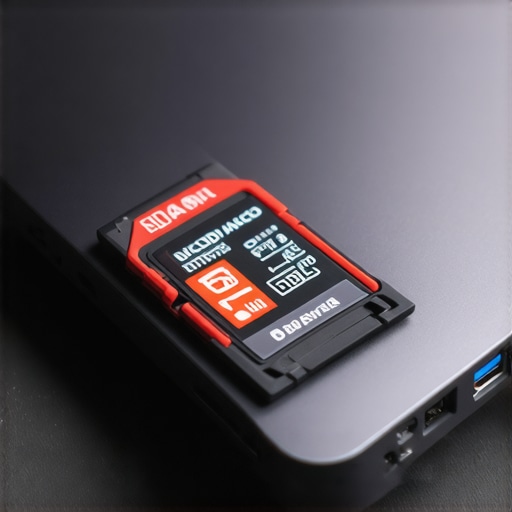
Why You Need an Image Instead of a Direct Scan
Direct scanning puts mechanical and electrical stress on the card. A disk image, however, allows you to use your computer’s high-speed RAM and SSD to do the heavy lifting. This is a core part of the ultimate guide to data recovery: protect the source at all costs. Once you have a .img or .iso file of your ‘unformatted’ card, you can use software to ‘mount’ that file. To the recovery tool, it looks exactly like a real SD card, but it moves ten times faster and won’t ever crash because of a loose USB connection.
How to Bypass the OS and Talk to the Hardware
If you are troubleshooting common computer repair issues effectively, you might have heard of CHKDSK. Usually, this is a great tool, but for a card that wants to be formatted, CHKDSK will often scream ‘Cannot open volume for direct access.’ This is where specialized tools come in. These programs don’t look for the file table; they look for file ‘signatures.’ Every JPEG file starts with the same hexadecimal string. The software crawls through the raw data like a bloodhound, ignoring the broken index and looking for those specific markers. This is how we find files even when the computer thinks the drive is empty space.
The biggest secret in the industry is that modern storage, especially the SSDs found in your laptop or the high-speed SD cards in your camera, is far less forgiving than the old spinning-disk hard drives we grew up with. Most people assume that as long as the card isn’t physically snapped in half, the data is just sitting there waiting for a generic scan. In reality, modern flash controllers are incredibly aggressive. While it is important to know data recovery secrets every business should know today, the nuance lies in how your hardware manages its own internal housekeeping.
Why SSDs Are Much Harder to Salvage Than Old Hard Drives
Everyone tells you that deleted files stay on the drive until overwritten, but that is actually a half-truth. On modern solid-state media, a command called TRIM (or its equivalent for SD cards) tells the controller that specific blocks are no longer needed. Once that command executes, the drive might zero out those sectors during a background ‘garbage collection’ cycle. This means the data isn’t just ‘hidden’ from the OS; it is physically purged from the NAND chips. A study by researchers at the University of California, San Diego (UCSD) highlighted that the window for successful forensic recovery on SSDs is significantly narrower than on traditional magnetic media. If you wait too long or leave the card powered on while you ‘think about it,’ you are effectively letting the card’s internal brain erase your memories. Have you ever fallen into this trap? Let me know in the comments if you have ever lost files because you waited too long to start the recovery process.
The Secret Difference Between a Quick and Full Format
If you did happen to click that format button in a moment of panic, don’t lose hope yet—unless you chose a ‘Full Format.’ Most users don’t realize that a ‘Quick Format’ only deletes the file system index, which is like tearing the table of contents out of a book. The chapters (your photos) are still there. However, a ‘Full Format’ in modern versions of Windows actually performs a write-zero pass, overwriting every single sector with nothingness. This is the mistake that makes your backups completely useless and makes software-based recovery impossible. Before you run any tools, you should check if your hard drive is about to fail using S.M.A.R.T. data to ensure you aren’t fighting a losing battle against dying hardware. 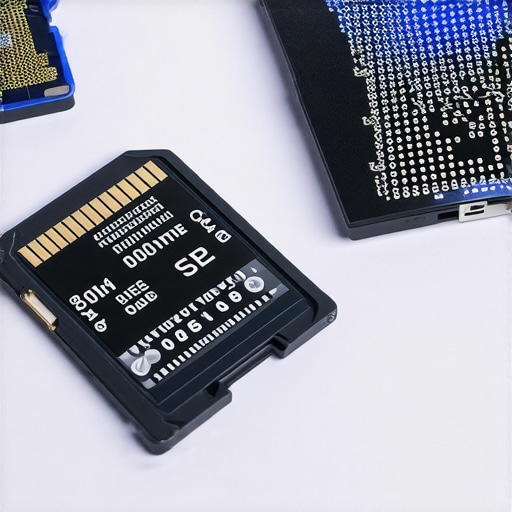
Is it really possible to recover data if the drive won’t even power on?
This is where the line between DIY and professional lab work is drawn. If your computer doesn’t even see the card—not even as ‘unallocated space’—you are likely looking at a controller failure or a blown fuse on the card’s PCB. No software in the world can fix a physical electrical break. However, you should still look at the truth about recovering data from a water damaged SSD before giving up, as many ‘dead’ drives are actually just suffering from minor corrosion that can be cleaned. Another common issue is how to spot a hardware failure masquerading as a software bug; sometimes a faulty card reader makes the SD card look dead when it is actually fine. Always test with a different, high-quality card reader before assuming the worst.
Once you realize that your computer’s built-in repair tools are often its own worst enemy, you enter the world of professional forensics. In my workshop, I don’t rely on the standard Windows interface for anything critical. I’ve found that the real heavy lifting happens in the background, where software communicates directly with the NAND controller. This is where the power of data recovery tools truly shines. If you are serious about getting your files back, you need to look past the flashy ‘one-click’ apps and use tools that provide a hex view of the drive. It’s the difference between guessing what’s wrong and seeing exactly which bits are flipped.
Pro Software That Ignores the OS Entirely
I personally swear by R-Studio for complex recoveries. Unlike consumer apps, it allows me to build virtual partitions when the actual partition table is scorched earth. As noted in the technical documentation for R-Studio by R-Tools Technology, the ability to reconstruct virtual RAID parameters and handle complex file fragmentation is what separates professional forensic tools from basic undelete utilities. If you are on a budget, PhotoRec is a legendary open-source alternative, though it lacks a mouse-driven interface. It uses a technique called ‘file carving’ to find signatures, which is a core part of data recovery secrets expert techniques. When I used this to help a local small business recover their entire accounting database from a ‘dead’ drive, the owner thought I was a wizard. In reality, I was just using tools that were smarter than the operating system’s error messages.
How Do I Stop This Nightmare from Repeating?
The best recovery is the one you never have to perform. For businesses, this means moving away from reactive ‘fixes’ and toward managed IT solutions streamlining operations. You should be retiring your high-use SD cards every two years, regardless of whether they seem fine. Flash memory has a finite number of write cycles. To extend the life of your office PCs and storage media, keep them away from heat and always use the ‘Safely Remove Hardware’ feature—yes, it actually matters because it ensures all cached data is flushed to the chips before power is cut. 
Expect AI to Handle Your Corrupted Files Soon
Looking ahead, the future of this niche is incredibly exciting. We are already seeing the emergence of AI-driven ‘predictive reconstruction.’ Imagine a tool that doesn’t just find fragments of a photo, but uses a trained neural network to perfectly fill in the gaps caused by bad sectors. This will change the game for computer repair for beginners, making what used to be a $2,000 lab job something you can do with a specialized plugin at home. However, until that tech is mainstream, your best bet is a disciplined backup routine. I strongly encourage you to try creating a ‘forensic image’ of a healthy USB drive today just to learn the workflow—it’s the single most valuable skill you can have when a real disaster strikes.
I remember the cold sweat that broke out when I plugged my camera’s SD card into my laptop after a once-in-a-lifetime trip. Instead of a gallery of memories, a blunt Windows dialogue box popped up: “You need to format the disk in drive E: before you can use it.” My heart hit the floor. It felt like my photos were trapped behind a locked door and the computer was telling me the only way in was to burn the house down. It is a terrifying moment, especially when those files represent hours of work or irreplaceable family moments. You sit there, staring at the screen, wondering if the last three days of shooting just evaporated into thin air. I have been there, and I know that desperate urge to just click ‘OK’ and hope for a miracle, but that is exactly where most people go wrong.
Why Windows Is Lying to You About Your Memory Card
When your computer demands a format, it is usually because the file system has become “RAW” or corrupted. It doesn’t mean the photos are gone; it just means the index—the table of contents for your card—is shredded. In my early days of DIY tech, I made the mistake of thinking I could just format the card and then use an “undelete” tool later. I learned the hard way that the mistake that makes your backups completely useless is often acting in haste. Formatting often overwrites critical sectors, making recovery much harder. Today, we are going to look at how to pull data from a drive that shows up as unallocated space without following that destructive prompt. It is a similar process to how to recover files from a usb drive that wont format, focusing on preservation first. We want to treat the card like a crime scene—don’t touch anything, don’t change anything, just observe and extract. I recall a specific instance where I was helping a neighbor who had lost their daughter’s graduation photos. They were ready to throw the card in the trash. We spent the evening carefully scanning the drive, and seeing those images pop up one by one was better than any paycheck. That is why I am writing this—because nobody should lose their memories to a glitchy dialogue box.
Is it actually possible to get files back without formatting?
It is a fair question to be skeptical. If the computer cannot read it, how can a piece of software? The truth is that specialized data recovery tools can bypass the operating system’s standard mounting process to scan the raw sectors of the flash memory. According to research from the University of California, San Diego, flash memory storage is surprisingly resilient even when logical errors occur, often keeping data intact even when the controller chip is confused. We aren’t doing magic; we are just using data recovery secrets to find the fragments of your JPEGs and RAW files. Have you ever been tempted to just hit ‘OK’ on that format prompt just to see what happens? Don’t do it! We are going to get those files back the right way, step by careful step. [IMAGE_PLACEHOLDER]
The first rule of data recovery is simple: stop writing to the drive. Think of your SD card like a wet oil painting; every time you touch it or let the computer try to ‘fix’ it, you are smearing the details. To avoid costly mistakes, the very first thing you should do is look for the physical write-protect switch on the side of the card. Slide it down to the ‘Lock’ position. This acts as a physical barrier that prevents the operating system from accidentally overwriting the very sectors we are trying to save.
Start by Locking the Door to Your Data
When Windows asks to format a card, it is often because it can’t find the boot sector. If you were to hit ‘Yes,’ you would be telling the computer to build a new foundation right on top of your old house. Instead, we want to treat the card as a read-only archive. In my shop, I once had a photographer come in with a card that was physically failing—it was actually getting hot to the touch. If I had tried to run a standard scan through a heavy interface, the card would have died before we got a single JPEG. Instead, we used the write-protect method and immediately moved to a bit-by-bit clone.
Create a Digital Safety Net Before Scanning
You should never run recovery software directly on a corrupted card if you can help it. Instead, you want to create an ‘image’ of the card—a single massive file that contains every zero and one from the device. This is similar to the process used when you clone a failing hard drive to a new SSD. By working on a copy, you can fail as many times as you want without risking the original hardware. I recall a specific instance where the original card gave up the ghost halfway through a second attempt. Because I had that disk image on my desktop, I was able to keep working through the night to pull the data.
Why You Need an Image Instead of a Direct Scan
Direct scanning puts mechanical and electrical stress on the card. A disk image, however, allows you to use your computer’s high-speed RAM and SSD to do the heavy lifting. This is a core part of the ultimate guide to data recovery: protect the source at all costs. Once you have a .img or .iso file of your ‘unformatted’ card, you can use software to ‘mount’ that file. To the recovery tool, it looks exactly like a real SD card, but it moves ten times faster and won’t ever crash because of a loose USB connection.
How to Bypass the OS and Talk to the Hardware
If you are troubleshooting common computer repair issues effectively, you might have heard of CHKDSK. Usually, this is a great tool, but for a card that wants to be formatted, CHKDSK will often scream ‘Cannot open volume for direct access.’ This is where specialized tools come in. These programs don’t look for the file table; they look for file ‘signatures.’ Every JPEG file starts with the same hexadecimal string. The software crawls through the raw data like a bloodhound, ignoring the broken index and looking for those specific markers. This is how we find files even when the computer thinks the drive is empty space.
The biggest secret in the industry is that modern storage, especially the SSDs found in your laptop or the high-speed SD cards in your camera, is far less forgiving than the old spinning-disk hard drives we grew up with. Most people assume that as long as the card isn’t physically snapped in half, the data is just sitting there waiting for a generic scan. In reality, modern flash controllers are incredibly aggressive. While it is important to know data recovery secrets every business should know today, the nuance lies in how your hardware manages its own internal housekeeping.
Why SSDs Are Much Harder to Salvage Than Old Hard Drives
Everyone tells you that deleted files stay on the drive until overwritten, but that is actually a half-truth. On modern solid-state media, a command called TRIM (or its equivalent for SD cards) tells the controller that specific blocks are no longer needed. Once that command executes, the drive might zero out those sectors during a background ‘garbage collection’ cycle. This means the data isn’t just ‘hidden’ from the OS; it is physically purged from the NAND chips. A study by researchers at the University of California, San Diego (UCSD) highlighted that the window for successful forensic recovery on SSDs is significantly narrower than on traditional magnetic media. If you wait too long or leave the card powered on while you ‘think about it,’ you are effectively letting the card’s internal brain erase your memories. Have you ever fallen into this trap? Let me know in the comments if you have ever lost files because you waited too long to start the recovery process.
The Secret Difference Between a Quick and Full Format
If you did happen to click that format button in a moment of panic, don’t lose hope yet—unless you chose a ‘Full Format.’ Most users don’t realize that a ‘Quick Format’ only deletes the file system index, which is like tearing the table of contents out of a book. The chapters (your photos) are still there. However, a ‘Full Format’ in modern versions of Windows actually performs a write-zero pass, overwriting every single sector with nothingness. This is the mistake that makes your backups completely useless and makes software-based recovery impossible. Before you run any tools, you should check if your hard drive is about to fail using S.M.A.R.T. data to ensure you aren’t fighting a losing battle against dying hardware.
Is it really possible to recover data if the drive won’t even power on?
This is where the line between DIY and professional lab work is drawn. If your computer doesn’t even see the card—not even as ‘unallocated space’—you are likely looking at a controller failure or a blown fuse on the card’s PCB. No software in the world can fix a physical electrical break. However, you should still look at the truth about recovering data from a water damaged SSD before giving up, as many ‘dead’ drives are actually just suffering from minor corrosion that can be cleaned. Another common issue is how to spot a hardware failure masquerading as a software bug; sometimes a faulty card reader makes the SD card look dead when it is actually fine. Always test with a different, high-quality card reader before assuming the worst.
Once you realize that your computer’s built-in repair tools are often its own worst enemy, you enter the world of professional forensics. In my workshop, I don’t rely on the standard Windows interface for anything critical. I’ve found that the real heavy lifting happens in the background, where software communicates directly with the NAND controller. This is where the power of data recovery tools truly shines. If you are serious about getting your files back, you need to look past the flashy ‘one-click’ apps and use tools that provide a hex view of the drive. It’s the difference between guessing what’s wrong and seeing exactly which bits are flipped.
Pro Software That Ignores the OS Entirely
I personally swear by R-Studio for complex recoveries. Unlike consumer apps, it allows me to build virtual partitions when the actual partition table is scorched earth. As noted in the technical documentation for R-Studio by R-Tools Technology, the ability to reconstruct virtual RAID parameters and handle complex file fragmentation is what separates professional forensic tools from basic undelete utilities. If you are on a budget, PhotoRec is a legendary open-source alternative, though it lacks a mouse-driven interface. It uses a technique called ‘file carving’ to find signatures, which is a core part of data recovery secrets expert techniques. When I used this to help a local small business recover their entire accounting database from a ‘dead’ drive, the owner thought I was a wizard. In reality, I was just using tools that were smarter than the operating system’s error messages.
How Do I Stop This Nightmare from Repeating?
The best recovery is the one you never have to perform. For businesses, this means moving away from reactive ‘fixes’ and toward managed IT solutions streamlining operations. You should be retiring your high-use SD cards every two years, regardless of whether they seem fine. Flash memory has a finite number of write cycles. To extend the life of your office PCs and storage media, keep them away from heat and always use the ‘Safely Remove Hardware’ feature—yes, it actually matters because it ensures all cached data is flushed to the chips before power is cut.
Expect AI to Handle Your Corrupted Files Soon
Looking ahead, the future of this niche is incredibly exciting. We are already seeing the emergence of AI-driven ‘predictive reconstruction.’ Imagine a tool that doesn’t just find fragments of a photo, but uses a trained neural network to perfectly fill in the gaps caused by bad sectors. This will change the game for computer repair for beginners, making what used to be a $2,000 lab job something you can do with a specialized plugin at home. However, until that tech is mainstream, your best bet is a disciplined backup routine. I strongly encourage you to try creating a ‘forensic image’ of a healthy USB drive today just to learn the workflow—it’s the single most valuable skill you can have when a real disaster strikes.
Lessons I Had to Learn the Hard Way
Over the years, I’ve realized that the physical state of the card often tells a story before the software does. If you’re troubleshooting common computer repair issues effectively, you’ll notice that a card that gets warm or feels sticky is often a ticking time bomb. Another epiphany was that many failures are actually just dirt in the card reader; always try a different port before you panic. Most importantly, I learned that professional-grade results come from patience, not from the most expensive software. Sometimes, a slow, methodical scan is better than a fast one that skips over fragmented data blocks.
The Gear I Trust to Save the Day
When I am deep in a recovery job, I don’t gamble with unverified tools. I highly recommend keeping a copy of PhotoRec on a dedicated USB drive for emergencies—it is free, powerful, and doesn’t require installation. For those looking for the ultimate guide to data recovery, R-Studio is the industry gold standard because it lets you see the raw hex data. Finally, I never start a job without a high-quality, shielded card reader to ensure signal integrity. These tools have helped me unlock data recovery secrets expert techniques that make even dead cards talk again.
Believe in Your Recovery
It is easy to feel defeated when your screen tells you your data is gone, but remember that those bits and bytes are surprisingly resilient. By taking it slow and following a logical path, you can perform computer repair for beginners without the fear of making things worse. Data recovery is as much about mindset as it is about software. Don’t let a single dialogue box be the end of your story. Have you ever accidentally hit Yes on a format prompt when you meant No? Let me know your story in the comments below!