

I still remember the cold pit in my stomach back in 2012 when I sold my first refurbished office tower. I had performed what I thought was a thorough cleaning: I deleted the folders, emptied the recycle bin, and even did a quick Windows reinstall. A week later, the buyer sent me a friendly email asking if I wanted my old tax returns and scanned social security cards back. My heart stopped. That was the moment I realized that “empty” is a dangerous lie in the world of computer storage. It is one of those common computer repair mistakes that can haunt you for years if you aren’t careful. Today, I want to make sure that never happens to you. We are going to walk through the exact steps to turn your old workstation into a digital blank slate. No ghosts, no lingering spreadsheets, and definitely no tax returns for the next owner to find.
Stop Assuming That a Windows Reset Protects Your Privacy
When you delete a file on a standard hard drive, the computer doesn’t actually grab a digital eraser and scrub the physical disk. Instead, it just deletes the “pointer” that tells the system where that file is. It’s like removing the entry for a book in a library’s card catalog but leaving the book sitting right there on the shelf for anyone to browse. I’ve spent years learning data recovery secrets, and let me tell you, it’s terrifyingly easy for even a novice to bring back a “ghost” file using free tools they found online. If you want to keep your business records private, you need to understand that simply hitting ‘Reset this PC’ isn’t always enough, especially on older mechanical drives. You really need to know how to properly decommission old office PCs to ensure that every bit and byte is overwritten multiple times. According to the NIST Special Publication 800-88, simply clearing data may not be sufficient for all media types; a true ‘purge’ is often necessary to prevent even laboratory-level recovery attempts. It might sound like overkill for an old Excel sheet, but in an era of identity theft, there is no such thing as being too safe.
Can an Amateur Really Dig Up My Deleted Spreadsheets?
The short answer is a resounding yes. If you haven’t used a dedicated data-wiping tool that overwrites the empty space with random gibberish, your data is still there. Think about it: have you ever bought a used device or found an old thumb drive and discovered the previous owner’s photos? It happens more often than people admit. Whether you are dealing with a standard desktop or a mobile device with a black screen, the data persists until it is physically overwritten. Most people are skeptical that a stranger would go to the trouble of scanning their old drive, but why take the risk? My goal today is to give you the peace of mind that comes with knowing your old office equipment is truly a clean slate. Have you ever found someone else’s files on a ‘new’ used computer you bought? It’s a bit of a shock, isn’t it? Let’s make sure your buyers don’t have that same experience.
Pick a Tool That Does More Than Just Delete
To get this right, you have to stop thinking about your hard drive as a digital filing cabinet and start thinking about it like a chalkboard. If you just erase the chalk, the ghost of the previous writing is still visible if you look closely. You need to wash the board. For standard mechanical drives, this means using software that follows the 3-pass or 7-pass overwrite method. This process replaces your sensitive spreadsheets with layers of random binary noise. While many people look for the ultimate guide to data recovery after accidental deletion to save their own files, you are doing the exact opposite. You are ensuring that recovery is impossible.
Why Overwriting Is Your Only Real Defense
If you are troubleshooting common computer repair issues effectively, you know that software can often reach parts of the drive you can’t see. Using a tool like DBAN (Darik’s Boot and Nuke) or a professional-grade alternative is the gold standard. I remember a chaotic afternoon back in 2015 when I tried to wipe a batch of twenty workstations for a client. One drive started making a rhythmic clicking sound halfway through the process. It was a failing mechanical drive, and my software wiper just froze. This taught me that the danger of using free file recovery tools on a failing mechanical drive applies to wiping tools too. If the hardware is physically dying, the software can’t complete the overwrite. In that specific case, I had to pull the drive and destroy it physically because I couldn’t verify the wipe was 100% successful.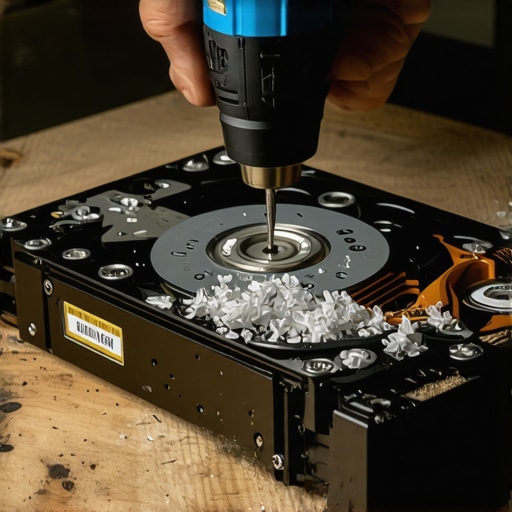
Handle Your SSDs With a Different Strategy
Modern Solid State Drives (SSDs) are a different beast entirely. You cannot simply overwrite them seven times like a mechanical drive; doing so just wears out the flash memory without necessarily hitting all the storage cells due to wear-leveling algorithms. Instead, you need to use the manufacturer’s ‘Secure Erase’ command. This is a built-in firmware feature that tells the SSD controller to apply a voltage spike to all NAND cells simultaneously, effectively flushing the entire drive in seconds. If you are managing a fleet of these, you should look into managed IT strategies to keep your business secure in 2025, as they often include automated decommissioning protocols. It is much easier to manage these risks as part of a larger plan rather than as a one-off task. I once saw a business owner try to use an old-school ‘shredder’ program on an NVMe drive; it took four hours and did absolutely nothing to the data stored in the over-provisioned areas of the chip. Don’t be that person.
Go Physical When the Drive Is Dying
Sometimes, the hardware is just too far gone for software to communicate with it. If you hear grinding, clicking, or if the drive won’t mount at all, you cannot trust that your data is gone just because the computer won’t boot. This is where the power of data recovery tools what you need to know becomes a threat. A specialist could still potentially swap the platters in a clean room and read your data. If you can’t wipe it, destroy it. I’m talking about a drill through the platters or a specialized industrial shredder. It might feel aggressive, but when you consider why your business needs a disaster recovery plan before you need it, protecting your legacy data from falling into the wrong hands is the final, crucial step of that plan.
The Myth of the Seven-Pass Wipe
In the tech world, there is a lingering obsession with the ‘DoD 5220.22-M’ standard, which suggests overwriting a drive seven times to ensure data is gone. I’m going to go against the grain here: for any drive manufactured in the last decade, seven passes is a complete waste of time. On modern high-density mechanical drives, a single pass of random data followed by a single pass of zeros makes data recovery physically impossible, even with an electron microscope. If you are spending three days wiping a single workstation, you are wasting resources that could be better spent on managed IT strategies to keep your business secure in 2025. The real danger isn’t that one pass isn’t enough; it’s that your software might not be reaching the entire drive.
What Happens to the Data Hiding in Your Drive’s Host Protected Area?
This is the nuance most beginners miss. Hard drives have ‘hidden’ sectors known as the Host Protected Area (HPA) and Device Configuration Overlay (DCO). These are areas of the disk that the operating system can’t normally see or touch. Many specialized data recovery secrets expert techniques to save your files fast involve looking into these sectors because malware or sensitive configuration data can be tucked away there. Standard wiping tools often bypass these areas entirely. If you want a true blank slate, you need to use a tool capable of sending a ‘Secure Erase’ command at the firmware level, which forces the drive controller to address every single sector, including the hidden ones. Have you ever fallen into the trap of thinking a quick format was enough? Let me know in the comments.
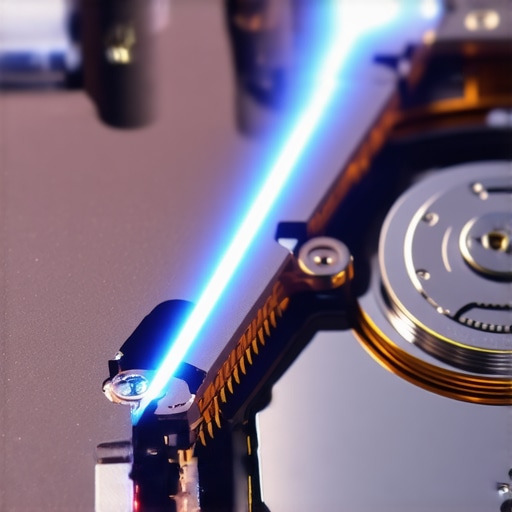
The ‘Oops’ factor often comes down to hardware health. I’ve seen many IT managers start a wipe on a drive and walk away, only to find the process failed halfway through. If you are ignoring that smart status bad warning on your pc, a wiping tool might hit a bad sector and simply stop. This leaves the most sensitive part of the drive—the part you were trying to erase—completely intact. In these cases, software is no longer your friend; you need physical destruction.
The Critical Difference Between Clearing and Purging
There is a massive distinction in professional circles between ‘clearing’ data and ‘purging’ it. Clearing is for reuse within your own office; purging is for when that device leaves your control. A study by the University of California, San Diego (UCSD) on SSD sanitization revealed that many built-in ‘secure erase’ commands were implemented incorrectly by manufacturers, occasionally leaving data fully recoverable. This is why for high-security environments, we don’t just rely on the SSD’s firmware. We encrypt the entire drive first, then throw away the encryption key, and then trigger the secure erase. This ‘crypto-erase’ method is the only way to be 100% sure that the data is unreadable, especially on NVMe drives where traditional overwriting is ineffective. If you aren’t sure how to properly decommission old office pcs without leaking sensitive data, you are essentially gambling with your company’s reputation. It’s better to be overly clinical now than to be the subject of a data breach notification later.
The Tools That Actually Get the Job Done
I’ve tried every free ‘shredder’ app in the Microsoft Store, and most of them are junk. For my daily bench work, I rely almost exclusively on Parted Magic. It’s a Linux-based bootable environment that includes the precise utilities needed to trigger a true ‘Internal Secure Erase’ on both SATA and NVMe drives. If you are handling this for a small team, look into managed IT strategies to keep your business secure in 2025 because manual wiping becomes a nightmare once you have more than five machines. According to a technical brief by Kingston Technology on SSD Sanitization, many software-level ‘overwrites’ fail because they can’t access the spare blocks used for wear leveling. This is why I always recommend hardware-level commands over third-party ‘eraser’ apps that run inside Windows. They reach the parts of the silicon that standard software simply ignores.
How do I maintain data security across multiple workstations over time?
The secret isn’t just a one-time wipe; it’s a lifecycle. You need to decide early on how to choose between repairing an old workstation and buying a new one so you aren’t stuck with a closet full of ‘zombie’ PCs that contain sensitive data. For my clients, I implement effective managed IT solutions for growing companies that include ‘crypto-shredding’ as a standard part of the decommissioning process. By the time a laptop reaches its end of life, the data is already encrypted and the key is destroyed. It turns a potentially stressful three-hour wiping session into a thirty-second task that is 100% foolproof.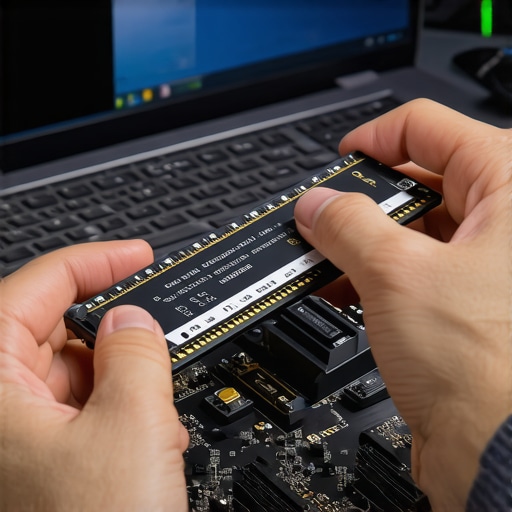
Scaling Without the Data Headache
As your business grows, you’ll find that why managed IT is a game changer for growing companies is primarily about consistency. You can’t rely on every employee to remember to format their old laptop correctly. You need managed IT solutions streamlining operations for small businesses that include centralized asset tracking and remote wipe capabilities. I predict that in the next few years, we will see AI-integrated firmware that automatically ‘self-destructs’ data if the drive detects it’s been removed from its ‘home’ motherboard without authorization. We’re already seeing the beginnings of this with modern TPM 2.0 chips. If you’re still doing this manually, you’re working harder, not smarter. Consider the hardware upgrade that actually speeds up your daily workflow by moving to a centralized server model where local drives don’t even store sensitive information in the first place. Check your own drives today; open your preferred disk utility and see if you are ignoring that SMART status bad warning on your PC. If your drive is healthy, try downloading a bootable wiping tool and performing one ‘Secure Erase’ on an old spare drive to get the hang of the interface before it becomes a high-stakes emergency.
What the Scrap Yard Taught Me About Digital Ghost Hunting
Over a decade of handling hardware has taught me that the most dangerous part of a computer isn’t the battery or the broken screen; it’s the history left on the platters. One of the biggest data recovery secrets expert techniques to save your files fast is knowing where the OS hides fragments of your identity. I have learned that if you don’t feel a little bit paranoid during the wiping process, you probably aren’t doing it right. First, never trust a progress bar that finishes too quickly; if a 500GB drive wipes in five minutes, it likely only cleared the file table. Second, always verify. After I run a wipe, I use a free hex editor to spot-check the drive; if I see anything other than strings of zeros or random noise, the job isn’t done. Finally, remember that physical health dictates digital success. If you are ignoring that SMART status bad warning on your PC, your wiping software might skip over the very sectors that contain your most sensitive passwords.
My Go-To Resources for a Guaranteed Blank Slate
When I need to be absolutely certain a drive is clean, I don’t just rely on standard Windows tools. I recommend building a ‘security toolkit’ that includes Parted Magic for its robust Internal Secure Erase tools which are essential for modern SSDs. For older mechanical drives, DBAN (Darik’s Boot and Nuke) remains a classic for a reason—it is relentless. I also suggest reading the NIST Special Publication 800-88; it is the gold standard for media sanitization and will help you understand how to properly decommission old office PCs like a pro. If you are managing more than a few machines, looking into VeraCrypt for full-disk encryption before you even start the decommissioning process is a move that saves hours of anxiety. Using these tools is how you move from being an amateur to someone who truly understands computer repair for beginners avoid costly mistakes.
Take Charge of Your Data Destiny Today
Protecting your business isn’t just about the firewalls you build while the computers are running; it’s about how you say goodbye to them when they reach the end of the line. Taking the time to properly scrub your hardware ensures that your company’s past doesn’t become a liability in the future. Whether you are a solo entrepreneur or looking into why managed IT is a game changer for growing companies, the principles of data hygiene remain the same. Don’t be afraid to get your hands dirty with these tools. A little extra effort today means you can sleep soundly tonight knowing your private records are gone for good. Have you ever discovered old files on a device you thought was empty? Let me know your story in the comments below.