

I will never forget the smell of ozone that wafted from my workstation last Tuesday. I was right in the middle of editing a critical client spreadsheet, reached down to plug in a standard USB flash drive, and—boom. Black screen. The immediate, agonizing silence of a sudden reboot. All my unsaved data vanished into the ether. It is the kind of quiet panic that makes your stomach drop. I spent years in computer repair for beginners learning how to avoid these exact heart-stopping moments, yet there I was, staring at a blank monitor because of a tiny piece of metal and plastic.
The Sudden USB Crash is More Common Than You Think
When your machine instantly cuts power the moment a USB device makes contact with the port, you are not dealing with a minor software glitch. You are dealing with an immediate physical or electrical emergency. In my early days as a tech enthusiast, I made the classic mistake of repeatedly forcing the USB drive back into the port, thinking it was a one-time fluke. That stubbornness ended up frying an entire motherboard. What actually happens is a sudden, massive surge or drop in voltage that triggers your system’s built-in safety shutdown to prevent a fire.
Is your computer power supply actually failing under the load?
Many folks assume their operating system is just throwing a tantrum, but the real culprit is usually physical. A major suspect is a direct short circuit inside the USB port itself, where the tiny metal pins bend and touch the outer grounded shielding. Another sneaky culprit is a weak power supply unit (PSU) that simply cannot handle the microscopic, instantaneous electrical draw of a new device. Understanding how to tell if your computer power supply is failing is crucial here, as a degrading PSU loses its ability to regulate these tiny voltage spikes, leading to an instant system restart to protect your hardware.
Have you ever experienced this incredibly frustrating loop where your PC dies the second you try to copy a file? Tell me about your hardware struggles in the comments below! According to electrical engineering standards outlined by the USB Implementers Forum, USB ports are designed to manage specific inrush currents, but physical wear or cheap third-party cables easily bypass these safety limits, leading to immediate system instability.
We are going to solve this mystery today so you never have to fear plugging in a mouse, keyboard, or external drive again. Let’s dive straight into the physical checks and electrical troubleshooting steps that will save your sanity and your motherboard.
When your system drops dead the moment metal touches metal, you have to approach the problem like a bomb technician. The very first thing we need to rule out is physical grounding. It is incredibly common for the tiny, paper-thin metal spring fingers on your computer case’s rear I/O shield to accidentally bend inward and slip directly inside the USB port during assembly, touching the internal power pins. Think of it like a fork jammed inside a wall outlet; as soon as you plug anything in, it completes the short circuit and triggers the safety switch on your power supply unit.
Inspect the Port for Physical Damage
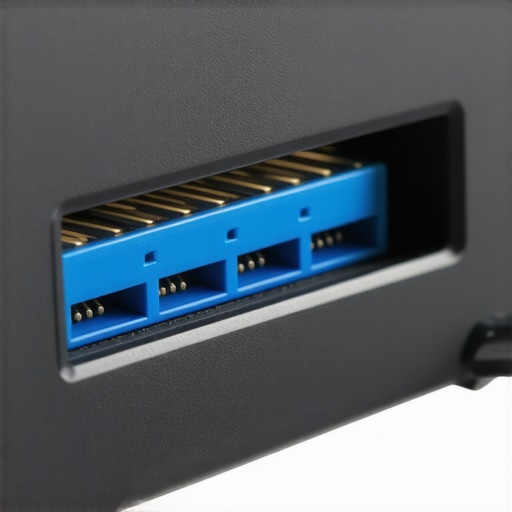
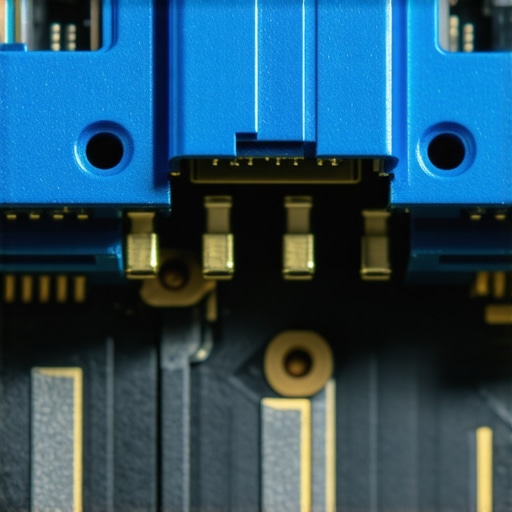
Grab a flashlight and peer directly inside the offending USB port. You are looking for the plastic tongue inside the port. If that plastic guide has snapped off, the four gold contact pins inside are now floating free. When you push a USB plug into a broken port, it pushes those loose pins back until they twist and touch the metal outer casing of the computer. I once worked on a designer’s rig where a snapped front panel USB port was causing intermittent blue screens. After five minutes of inspecting with a magnifying glass, I realized a bent pin was bridging the 5V power line directly to the ground shield. I carefully bent it back using a wooden toothpick—never use metal tools for this—and the system booted perfectly.
Isolate the Motherboard from the Case
If the port looks clean, the issue often lies in the cheap wiring harness connecting your front-panel USB ports to the motherboard headers. These thin wires rub against the sharp metal edges of the computer case over time, wearing away the insulation. To test this, open up your computer case and trace the thick cable running from the front USB ports directly to the motherboard. Unplug that header—it is usually labeled USB or JUSB1. If the computer stops crashing when you use the rear ports on the back of the motherboard, you have isolated the issue to a damaged front panel assembly, which is cheap and easy to replace.
Test Your USB Devices One by One
Sometimes the culprit is not your computer at all, but a faulty device drawing too much current. A damaged flash drive or a keyboard with a frayed cable can act as an electrical black hole. If you have a snapped USB stick or an external drive that took a hard fall, the internal circuit board might be cracked, bridging the power lines. When dealing with precious business data on damaged storage, attempting to force it to read can cause permanent damage, which is why understanding data-recovery secrets to save your files fast can prevent total data loss before you plug that problematic drive into another machine.
Check for Driver and Controller Overload
While electrical shorts account for ninety percent of instant shutdowns, a severe software resource conflict can occasionally mimic a hardware crash. When the USB controller chip on your motherboard receives corrupted data, it can panic and freeze the system bus. Open Device Manager, expand the Universal Serial Bus controllers section, right-click each host controller, and select Uninstall device. Restart your computer to let Windows automatically reinstall clean copies of the controller drivers. This eliminates the possibility of a corrupted driver sending invalid voltage instructions to the controller chipset.
When your workstation drops dead from a simple USB insertion, standard tech support forums will almost always tell you to reinstall your operating system or update your BIOS. In my years of diagnosing tricky hardware failures, I have found this advice to be not only useless but occasionally dangerous. The contrarian truth is that trying to solve an active electrical short-circuit with software updates is like trying to put out a house fire by rewriting the building codes. You are forcing a struggling machine to reboot repeatedly, which only increases the risk of a catastrophic voltage jump frying your CPU or memory modules.
The Dangerous Illusion of Software-Only Fixes
The biggest trap people fall into when troubleshooting physical port issues is assuming that if a device lights up, it must be receiving the correct power. This is a massive mistake. USB ports carry separate lines for data transfer and power delivery. A damaged port can easily deliver five volts of power while having its data pins completely crushed or bridged together. Continuing to plug devices into a port with bridged data pins will eventually burn out the southbridge controller on your motherboard. If you suspect your hardware has suffered from bad power regulation, you should focus on how to choose a power supply that won’t fry your components rather than cycling your system through endless Windows diagnostics.
Why are some USB ports more prone to sudden electrical death than others?
The answer lies in how modern computer cases are manufactured. Front-panel USB ports are almost always mounted on cheap, thin circuit boards that lack proper electrostatic discharge protection. According to hardware testing by the electrical safety compliance group TÜV SÜD, low-cost computer cases often skip the dedicated transient-voltage-suppression diodes on their front I/O panels to save pennies. This means a tiny spark of static electricity from your fingertip when plugging in a flash drive has a direct path to the motherboard’s main power rail, causing an instant safety shutdown. Rear ports, which are soldered directly to the motherboard, benefit from multi-layer shielding and are vastly more resilient.
If you find yourself in a situation where your system has crashed and refuses to read your essential storage devices, do not panic and start formatting drives. You might be dealing with a damaged connector rather than corrupted data. Knowing the move that recovers files from a snapped USB stick can save you thousands of dollars in professional recovery fees before you make the mistake of throwing the physical drive away. Have you ever fallen into this trap and blamed your operating system for a physical hardware short? Let me know in the comments below!
My absolute favorite diagnostic weapon for electrical troubleshooting isn’t a complex piece of software; it is a physical USB power multimeter. I personally carry a small, digital inline USB safety tester everywhere I go. If a client’s computer dies when a drive is inserted, I plug this tiny multimeter into the port first. It physically blocks the data lines from bridging while instantly reading out the voltage and current draw. If I see the voltage drop below 4.75V or surge past 5.25V before a device is even fully inserted, I immediately know the hardware regulator is shot, saving me from risking a secondary test machine.
How do I maintain my physical ports to prevent future electrical failures?
Maintaining physical USB connectivity over time is all about minimizing mechanical wear and environmental dust. To keep my workstation and server racks in top shape, I perform a deep cleaning routine every six months. I blow out each USB port with compressed air, then use an ESD-safe micro-brush dipped in 99% isopropyl alcohol to clear out microscopic pocket lint and oxidation. If you run a business with multiple workstations, this kind of preventative care is a cornerstone of managed IT solutions streamlining operations for small businesses. Taking ten minutes to clear out physical debris today prevents a catastrophic electrical short tomorrow that could compromise your entire local network.

Looking ahead, I predict that the industry transition to the USB-C standard will drastically reduce physical short-circuiting due to its symmetry and robust internal pin arrangement. However, USB-C also carries much higher power delivery capabilities—often up to 240W. This means that a physical failure in a modern port will be far more destructive than it was with older USB 2.0 standards. Because of these escalating electrical risks, having access to advanced the power of data recovery tools what you need to know will remain an absolute necessity for anyone managing critical storage drives.
If you are serious about protecting your data and hardware from sudden power fluctuations, I highly recommend buying a basic USB multimeter online. It costs less than twenty dollars and will instantly tell you if a port or cable is safe to use. Test your most-used USB ports today and see if they are delivering a clean, steady five volts before you plug in your next external drive!
I will never forget the smell of ozone that wafted from my workstation last Tuesday. I was right in the middle of editing a critical client spreadsheet, reached down to plug in a standard USB flash drive, and—boom. Black screen. The immediate, agonizing silence of a sudden reboot. All my unsaved data vanished into the ether. It is the kind of quiet panic that makes your stomach drop. I spent years in computer repair for beginners learning how to avoid these exact heart-stopping moments, yet there I was, staring at a blank monitor because of a tiny piece of metal and plastic.
The Sudden USB Crash is More Common Than You Think
When your machine instantly cuts power the moment a USB device makes contact with the port, you are not dealing with a minor software glitch. You are dealing with an immediate physical or electrical emergency. In my early days as a tech enthusiast, I made the classic mistake of repeatedly forcing the USB drive back into the port, thinking it was a one-time fluke. That stubbornness ended up frying an entire motherboard. What actually happens is a sudden, massive surge or drop in voltage that triggers your system’s built-in safety shutdown to prevent a fire.
Is your computer power supply actually failing under the load?
Many folks assume their operating system is just throwing a tantrum, but the real culprit is usually physical. A major suspect is a direct short circuit inside the USB port itself, where the tiny metal pins bend and touch the outer grounded shielding. Another sneaky culprit is a weak power supply unit (PSU) that simply cannot handle the microscopic, instantaneous electrical draw of a new device. Understanding how to tell if your computer power supply is failing is crucial here, as a degrading PSU loses its ability to regulate these tiny voltage spikes, leading to an instant system restart to protect your hardware.
Have you ever experienced this incredibly frustrating loop where your PC dies the second you try to copy a file? Tell me about your hardware struggles in the comments below! According to electrical engineering standards outlined by the USB Implementers Forum, USB ports are designed to manage specific inrush currents, but physical wear or cheap third-party cables easily bypass these safety limits, leading to immediate system instability.
We are going to solve this mystery today so you never have to fear plugging in a mouse, keyboard, or external drive again. Let’s dive straight into the physical checks and electrical troubleshooting steps that will save your sanity and your motherboard.
When your system drops dead the moment metal touches metal, you have to approach the problem like a bomb technician. The very first thing we need to rule out is physical grounding. It is incredibly common for the tiny, paper-thin metal spring fingers on your computer case’s rear I/O shield to accidentally bend inward and slip directly inside the USB port during assembly, touching the internal power pins. Think of it like a fork jammed inside a wall outlet; as soon as you plug anything in, it completes the short circuit and triggers the safety switch on your power supply unit.
Inspect the Port for Physical Damage
Grab a flashlight and peer directly inside the offending USB port. You are looking for the plastic tongue inside the port. If that plastic guide has snapped off, the four gold contact pins inside are now floating free. When you push a USB plug into a broken port, it pushes those loose pins back until they twist and touch the metal outer casing of the computer. I once worked on a designer’s rig where a snapped front panel USB port was causing intermittent blue screens. After five minutes of inspecting with a magnifying glass, I realized a bent pin was bridging the 5V power line directly to the ground shield. I carefully bent it back using a wooden toothpick—never use metal tools for this—and the system booted perfectly.
Isolate the Motherboard from the Case
If the port looks clean, the issue often lies in the cheap wiring harness connecting your front-panel USB ports to the motherboard headers. These thin wires rub against the sharp metal edges of the computer case over time, wearing away the insulation. To test this, open up your computer case and trace the thick cable running from the front USB ports directly to the motherboard. Unplug that header—it is usually labeled USB or JUSB1. If the computer stops crashing when you use the rear ports on the back of the motherboard, you have isolated the issue to a damaged front panel assembly, which is cheap and easy to replace.
Test Your USB Devices One by One
Sometimes the culprit is not your computer at all, but a faulty device drawing too much current. A damaged flash drive or a keyboard with a frayed cable can act as an electrical black hole. If you have a snapped USB stick or an external drive that took a hard fall, the internal circuit board might be cracked, bridging the power lines. When dealing with precious business data on damaged storage, attempting to force it to read can cause permanent damage, which is why understanding data-recovery secrets to save your files fast can prevent total data loss before you plug that problematic drive into another machine.
Check for Driver and Controller Overload
While electrical shorts account for ninety percent of instant shutdowns, a severe software resource conflict can occasionally mimic a hardware crash. When the USB controller chip on your motherboard receives corrupted data, it can panic and freeze the system bus. Open Device Manager, expand the Universal Serial Bus controllers section, right-click each host controller, and select Uninstall device. Restart your computer to let Windows automatically reinstall clean copies of the controller drivers. This eliminates the possibility of a corrupted driver sending invalid voltage instructions to the controller chipset.
When your workstation drops dead from a simple USB insertion, standard tech support forums will almost always tell you to reinstall your operating system or update your BIOS. In my years of diagnosing tricky hardware failures, I have found this advice to be not only useless but occasionally dangerous. The contrarian truth is that trying to solve an active electrical short-circuit with software updates is like trying to put out a house fire by rewriting the building codes. You are forcing a struggling machine to reboot repeatedly, which only increases the risk of a catastrophic voltage jump frying your CPU or memory modules.
The Dangerous Illusion of Software-Only Fixes
The biggest trap people fall into when troubleshooting physical port issues is assuming that if a device lights up, it must be receiving the correct power. This is a massive mistake. USB ports carry separate lines for data transfer and power delivery. A damaged port can easily deliver five volts of power while having its data pins completely crushed or bridged together. Continuing to plug devices into a port with bridged data pins will eventually burn out the southbridge controller on your motherboard. If you suspect your hardware has suffered from bad power regulation, you should focus on how to choose a power supply that won’t fry your components rather than cycling your system through endless Windows diagnostics.
Why are some USB ports more prone to sudden electrical death than others?
The answer lies in how modern computer cases are manufactured. Front-panel USB ports are almost always mounted on cheap, thin circuit boards that lack proper electrostatic discharge protection. According to hardware testing by the electrical safety compliance group TÜV SÜD, low-cost computer cases often skip the dedicated transient-voltage-suppression diodes on their front I/O panels to save pennies. This means a tiny spark of static electricity from your fingertip when plugging in a flash drive has a direct path to the motherboard’s main power rail, causing an instant safety shutdown. Rear ports, which are soldered directly to the motherboard, benefit from multi-layer shielding and are vastly more resilient.
If you find yourself in a situation where your system has crashed and refuses to read your essential storage devices, do not panic and start formatting drives. You might be dealing with a damaged connector rather than corrupted data. Knowing the move that recovers files from a snapped USB stick can save you thousands of dollars in professional recovery fees before you make the mistake of throwing the physical drive away. Have you ever fallen into this trap and blamed your operating system for a physical hardware short? Let me know in the comments below!
My absolute favorite diagnostic weapon for electrical troubleshooting isn’t a complex piece of software; it is a physical USB power multimeter. I personally carry a small, digital inline USB safety tester everywhere I go. If a client’s computer dies when a drive is inserted, I plug this tiny multimeter into the port first. It physically blocks the data lines from bridging while instantly reading out the voltage and current draw. If I see the voltage drop below 4.75V or surge past 5.25V before a device is even fully inserted, I immediately know the hardware regulator is shot, saving me from risking a secondary test machine.
How do I maintain my physical ports to prevent future electrical failures?
Maintaining physical USB connectivity over time is all about minimizing mechanical wear and environmental dust. To keep my workstation and server racks in top shape, I perform a deep cleaning routine every six months. I blow out each USB port with compressed air, then use an ESD-safe micro-brush dipped in 99% isopropyl alcohol to clear out microscopic pocket lint and oxidation. If you run a business with multiple workstations, this kind of preventative care is a cornerstone of managed IT solutions streamlining operations for small businesses. Taking ten minutes to clear out physical debris today prevents a catastrophic electrical short tomorrow that could compromise your entire local network.
Looking ahead, I predict that the industry transition to the USB-C standard will drastically reduce physical short-circuiting due to its symmetry and robust internal pin arrangement. However, USB-C also carries much higher power delivery capabilities—often up to 240W. This means that a physical failure in a modern port will be far more destructive than it was with older USB 2.0 standards. Because of these escalating electrical risks, having access to advanced the power of data recovery tools what you need to know will remain an absolute necessity for anyone managing critical storage drives.
If you are serious about protecting your data and hardware from sudden power fluctuations, I highly recommend buying a basic USB multimeter online. It costs less than twenty dollars and will instantly tell you if a port or cable is safe to use. Test your most-used USB ports today and see if they are delivering a clean, steady five volts before you plug in your next external drive!
What Most Technicians Miss About USB Voltage Spikes
Over the years, I have seen brilliant technicians waste days troubleshooting motherboard logic boards when the culprit was a completely different physical bridge. Here is the insider secret: sometimes, it is the static electricity built up on your own body that is causing the instant shutdown, rather than a broken connector pin. When your home or office has low humidity, you carry a charge. The moment you touch the metal shroud of a USB port, you ground yourself, sending thousands of volts through the chassis grounding system. If your outlet is ungrounded or poorly wired, this transient charge has nowhere to escape but through your motherboard’s ground plane, triggering a safety shutoff. Always check your wall outlets with a simple socket tester first before writing off your computer’s built-in ports.
My Recommended Diagnostic Toolkit for Port Issues
You do not need an expensive lab setup to diagnose electrical shorts or recovery emergencies. Over my career, I have relied on these specific tools to keep hardware running safely:
- An Inline USB Multimeter: I prefer the MakerHawk USB Tester. It is a brilliant, cheap little display unit that plugs directly between your port and the device to show real-time voltage and amperage curves.
- A High-Quality Wooden Toothpick Pack: Never use metal tweezers or sewing needles to straighten bent pins inside a live port. Wood does not conduct electricity and will not trigger a spark.
- 99% Isopropyl Alcohol and Micro-swabs: Standard rubbing alcohol contains too much water, which can corrode physical contacts. The high-purity stuff evaporates almost instantly, leaving contacts clean and dry.
- Professional Data Software: If your machine crashed mid-transfer and corrupted your partition, check out troubleshooting common computer repair issues effectively to get a handle on software-level data rescue strategies.
Save Your Motherboard Before the Next Crash
Electrical issues can be intimidating, but you now have the knowledge and tools to face them head-on. By performing these simple physical inspections and keeping a basic multimeter on hand, you can prevent a minor short from turning into a costly hardware replacement. Do not wait for the next smell of ozone to take action; protect your workstation and your valuable data today by taking a closer look at your physical connections. Have you ever experienced a sudden computer crash right after plugging in a USB drive? Let me know what the culprit was in the comments below!