

I was staring at a spreadsheet at 2 AM when my world literally turned upside down—well, at least the colors did. My vibrant blue background became a muddy orange, and every white cell turned into a soul-crushing black. I thought I had fried my graphics card or that some malicious ghost had inhabited my motherboard. It was terrifying, especially since I had a deadline looming. But here’s the kicker: it wasn’t a virus or a broken screen. It was me. I’d accidentally performed a keyboard gymnastics move that flipped my display settings into high-contrast “negative” mode.
That Moment Your Screen Becomes a Film Negative
If you’re looking at your laptop right now and everyone in your photos looks like a haunting specter, take a deep breath. You aren’t necessarily looking at a hardware death sentence. Most of the time, this “negative” effect is actually a software feature designed for accessibility that got triggered by mistake. I’ve seen this happen to dozens of clients who come in panicked, thinking they need a laptop screen replacement when all they really need is a five-second setting adjustment. However, it’s not always a simple click. Sometimes, it’s a symptom of a deeper issue. I remember one specific time I told a friend to just “hit the shortcut,” only to find out their ribbon cable was actually fraying. It made me feel like a total amateur for oversimplifying the problem. We’re going to look at both the quick fixes and the effective troubleshooting steps to determine if your hardware is truly the culprit.
Is your screen actually broken or just confused?
One of the biggest fears is that a weird color shift means the LCD is toast. I get it. But according to experts at Microsoft’s Accessibility department, high-contrast and color inversion modes are among the most frequently misidentified “bugs” reported by users who aren’t aware of the keyboard shortcuts. Before you start looking into how to fix common issues at home, we need to isolate the cause. Is it happening in the BIOS? Does it persist across different user accounts? I once made the mistake of factory resetting a whole machine because I didn’t check the Magnifier tool settings first—don’t be like 2015 me. We’re going to walk through the “Oops, I hit a button” checks first, then move into the “My hardware is failing” territory. Have you ever had your screen suddenly change colors without you touching anything? It’s a jarring experience that can make you want to throw the whole laptop out the window, but we will fix it together.
Kill the High Contrast Ghost First
If you’re on Windows 10 or 11, there’s a shortcut—Left Alt + Left Shift + Print Screen—that toggles High Contrast Mode. It’s the digital equivalent of accidentally putting your shirt on inside out; it feels wrong, looks weird, but it’s an easy fix. I once spent forty minutes on a support call with a client named Sarah whose cat had literally walked across her keyboard, activating “Inverted Colors.” She was convinced she needed to pay for a whole new setup. Instead of jumping to conclusions, we used these tips for troubleshooting laptop screen problems seamlessly. We simply went to Settings > Accessibility > Color Filters and toggled the “Inverted” switch to off. The relief in her voice was worth more than any repair fee I could have charged.
The Screen-Swap Secret to Finding the Fault
Think of your laptop screen like a TV and the motherboard as the cable box. If the picture is fuzzy or inverted, you need to know if the TV is broken or if the signal is bad. Grab an HDMI cable and plug your laptop into an external monitor or your living room television. If the colors on the external screen look perfectly normal, you’ve just performed a successful process of elimination: your graphics card is fine, but your internal laptop display or the ribbon cable connecting it is likely the culprit. This is exactly how to spot a hardware failure masquerading as a software bug. If the external screen also looks like a psychedelic nightmare, then we’re looking at a driver issue or a failing GPU that requires professional attention. 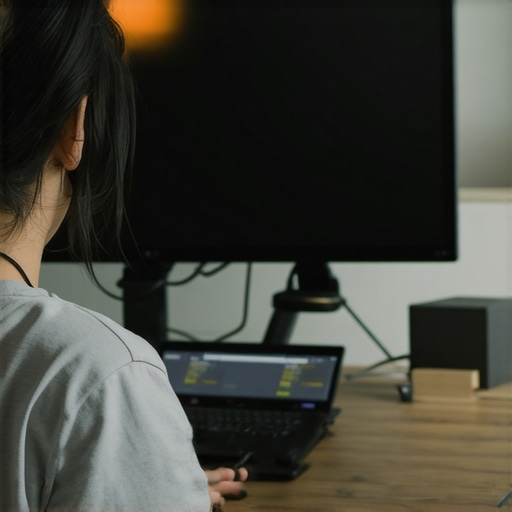
Force Your Laptop to Tell the Truth in BIOS
The BIOS (or UEFI) is the rawest form of your computer’s interface, operating before Windows even loads. To get there, restart your machine and tap F2, F10, or Del repeatedly. If the screen still looks like a negative image in the BIOS, it’s a physical hardware issue—no amount of software updates will fix a pinched wire. I’ve seen cases where a simple drop caused horizontal bars of color or total inversion because the video cable was slightly unseated. If the BIOS looks clean and crisp, you know for a fact that your hardware is healthy and the problem lies within your operating system’s configuration.
When Your Graphics Driver Throws a Tantrum
Sometimes the “brain” of your display—the driver—gets confused after an update. It’s like a translator suddenly speaking gibberish. You can reset this connection quickly by pressing Win + Ctrl + Shift + B. You’ll hear a beep and the screen will flicker; that’s just Windows restarting the graphics driver. If that doesn’t work, head to Device Manager and roll back your display adapter to a previous version. This is one of the most effective laptop screen repair DIY tips for clearer displays when colors go wonky.
Listen to Your Motherboard Before It Quits
If you’ve tried the software resets and the external monitor test, and the BIOS is still inverted, you have to look at the “spine” of your laptop—the hinge. Constant opening and closing can fray the delicate video cable over years of use. In some cases, color distortion is the first warning sign of a much larger disaster. Knowing how to identify a failing motherboard before it stops working is crucial here, as it saves you from losing data when the whole system eventually gives up. If shifting the screen angle changes the colors back to normal, you’ve found your smoking gun: a loose or damaged internal cable.
Let’s dig deeper into the “why” behind these failures because, honestly, the “how” is usually the easy part. A common myth I hear in the shop is that hardware just “gives up” one day without any prior notice. People come in saying their screen worked perfectly until it suddenly inverted or went dark. But in my years of doing this, I’ve realized that hardware is rarely that dramatic. It usually tries to talk to you first through subtle performance dips or minor visual glitches. For instance, understanding why your screen looks washed out after a software update might actually be the first sign that your GPU is struggling to maintain proper voltage. Experts at Backblaze, who manage thousands of storage units, have consistently noted in their health reports that random performance spikes and minor errors often mimic software bugs for weeks before the actual hardware failure occurs.
Hardware Rarely Dies Without a Warning
One major “oops” factor I see with DIY enthusiasts is the temptation to dive into the casing the moment they hear a weird noise or see a color shift. If you’ve ever wondered why you should never open a clicking hard drive in a normal room, it’s because a single speck of dust is basically a mountain to a read-head moving at 7,200 RPM. You aren’t just looking at the data; you’re physically destroying the chance of using expert techniques to save your files fast. I’ve seen $200 recovery jobs turn into $2,000 “clean room” nightmares because of one curious screwdriver and a lack of patience. Before you crack the seal on your device, you must ensure you aren’t turning a software glitch into a permanent physical catastrophe.
Can your SSD actually predict its own funeral?
The answer is a resounding yes, but most people don’t know where to look. While you’re worried about your screen looking like a film negative, your storage might be whispering its last words. You need to recognize the sign your SSD is reaching its write limit and about to die. This isn’t just for the tech-obsessed; it’s vital for business owners who think “the cloud” is a magic shield. You still need to proactively check if your hard drive is about to fail using S.M.A.R.T. data to avoid the dreaded Monday morning total system failure. Many users ignore these logs because they aren’t as visually alarming as an inverted screen, but they are far more dangerous to your productivity.
Why Proactive Support Beats Reactive Repair
This brings us to the nuance of business continuity. Many small business owners think they only need IT support when something breaks. That’s reactive, and in the long run, it’s significantly more expensive. The real reason why managed IT is a game changer for growing companies is that it shifts the focus from “fixing” to “preventing.” Instead of you panicking over an inverted screen or a static-filled display at 2 AM, a managed service provider would have likely caught the driver instability or the failing ribbon cable during a routine audit weeks prior. When you wait for a failure to happen, you aren’t just paying for the repair; you’re paying for the lost revenue while your team sits idle. Have you ever fallen into this trap where you ignored a “small” glitch only for it to become a total system meltdown? Let me know in the comments. We’ve all been there—thinking a quick reboot solved a problem that was actually just warming up. Sometimes, the “ghost” in the machine is really just a loose wire waiting for the right moment to disconnect forever.
When I’m out in the field, I don’t rely on luck. I rely on a small, battered silver USB drive that contains my holy trinity of diagnostic tools. First on that list is CrystalDiskInfo. While Windows has some basic health checks, they are notoriously optimistic. This tool lets me see exactly how to check if your hard drive is about to fail using s.m.a.r.t. data by exposing raw error rates that the operating system normally hides. I’ve found that seeing a ‘Caution’ yellow light on an SSD is the best motivator for a business to finally invest in effective managed IT solutions for growing companies. It transforms a potential disaster into a scheduled 15-minute hardware swap. For the visual side of things, I always keep a copy of DisplayHDR Test. If you’ve been struggling with why your colors look like a muddy mess, it helps verify if your panel is actually meeting its brightness specs or if you need to look into laptop screen repair DIY tips for clearer displays.
How do I maintain my hardware over time?
Maintenance isn’t just about blowing dust out of fans, though that certainly helps. It’s about environment and consistency. I tell my clients that the best way to how to extend the life of your office PCs by three years is to keep them off the floor and away from carpet fibers, which act like a magnet for static and heat-trapping lint. More importantly, you should be checking for the sign your ssd is reaching its write limit and about to die at least once a quarter. According to the 2023 Backblaze Drive Stats report, the annualized failure rate for drives can jump significantly once they hit the four-year mark, so if your fleet is aging, you’re effectively walking on thin ice without a monitoring plan.
Stay ahead of the next crash with these habits
The biggest mistake I see small businesses make is treating IT like a plumbing problem—only calling someone when there’s a leak. If you’re constantly dealing with weird screen glitches or slow boot times, you’re losing more in productivity than you’d ever spend on professional oversight. Implementing managed it strategies to keep your business secure in 2025 is about getting that bird’s eye view of your hardware health. I predict that in the next few years, we will see AI-driven BIOS updates that can automatically throttle failing components to prevent a total crash before the replacement part even arrives. It’s an exciting shift toward self-healing systems. For now, the best thing you can do is take control of your data. Don’t wait for the film negative screen or the clicking drive to remind you that your hardware is mortal. Try this today: Download a portable hardware monitor and check your CPU temperatures under load. If you’re hitting 90°C just opening a few browser tabs, it’s time to stop guessing and start fixing.
The transition from a working screen to a digital nightmare is often faster than a single mouse click. In my years of working with hardware, I’ve found that the psychological weight of a ‘broken’ screen is often worse than the repair itself. We tend to jump to the most expensive conclusion first, but as we’ve discussed, the solution is usually hiding in plain sight—either in a settings menu or a slightly unseated cable.
The Day a Tiny Ribbon Cable Taught Me Humility
If there is one thing I’ve learned from thousands of hours of computer repair, it is that the most expensive-looking problems often have the cheapest fixes. I once spent three hours trying to ‘fix’ a client’s motherboard, only to realize the screen was flickering because they had a magnet on their wristband that was tripping the laptop’s lid-close sensor. It was a humbling reminder to always look for the simplest explanation first.
- Trust the BIOS, not the OS: If the screen looks perfect before Windows loads, you aren’t looking at a hardware death sentence. You’re looking at a software conflict.
- Hinges are physical fuses: If your screen only works at a 45-degree angle, you aren’t just dealing with a glitch; you’re dealing with physical wear that requires a laptop screen repair of the internal cable.
- Software is a stubborn guest: Even after you fix a setting, some drivers need a ‘forced’ refresh. Don’t be afraid to use the Win+Ctrl+Shift+B shortcut multiple times.
Tools That Saved My Sanity More Than Once
I don’t go anywhere without a specific set of tools that strip away the guesswork. If you’re serious about maintaining your setup, I highly recommend keeping these in your digital utility belt. First, use CrystalDiskInfo to monitor your drive health. It’s the best way to get data recovery secrets every business should know today before the drive actually dies. Second, keep a copy of Hiren’s BootCD PE on a thumb drive. It’s a pre-built environment that helps in troubleshooting common computer repair issues effectively without even booting into your potentially corrupted Windows installation. Finally, for the visual perfectionists, use the Lagom LCD test pages to ensure your colors and contrast are balanced correctly after you’ve cleared that ‘negative’ image ghost.
Stop Reacting and Start Protecting
Don’t wait for your screen to turn purple or for your hard drive to start clicking before you take action. The most successful businesses I work with have moved away from the ‘break-fix’ cycle and toward managed IT solutions streamlining operations for small businesses. By the time you see a visual glitch, the underlying issue has usually been brewing for weeks. Whether you choose to handle your own computer repair or hire a pro, the goal is the same: stay ahead of the hardware failure curve. Have you ever had a screen glitch that made you think your computer was possessed by a ghost? Let me know your weirdest tech stories in the comments below!