

I was sitting at my desk last Tuesday, sweating through a deadline, staring at a progress bar that hadn’t moved in ten minutes. I’ve got a gigabit connection, but it felt like I was back in 1998 on a dial-up modem. It is that visceral, teeth-grinding frustration when you are trying to be productive and the technology just refuses to cooperate. I had recently spent an afternoon [troubleshooting common computer repair issues effectively](https://computerrepairmasters.com/troubleshooting-common-computer-repair-issues-effectively) for a friend, so I felt like a hero, yet here I was, defeated by my own office network. I’d switched everything over to a trendy public DNS provider, convinced it was the secret sauce to faster browsing. It wasn’t. In fact, I’d accidentally made things worse for my entire team. I’m going to share exactly what I learned from that mistake so you don’t end up wasting hours chasing a ghost in your machine.
Stop Blaming Your Router for Every Slowdown
It is so easy to assume the hardware is the problem. We see a slow page load and immediately start looking for [why your office wi-fi is slow even with a gigabit connection](https://computerrepairmasters.com/why-your-office-wi-fi-is-slow-even-with-a-gigabit-connection) or wondering if the router is finally kicking the bucket. Sometimes, we even jump the gun and think we need [the hardware swap that gives your old office pc a massive speed boost](https://computerrepairmasters.com/the-hardware-swap-that-gives-your-old-office-pc-a-massive-speed-boost) just to handle basic tasks. But the real bottleneck is often invisible. DNS acts as the internet’s switchboard; it’s the service that translates a name like ‘google.com’ into the numbers your computer actually understands. If your switchboard operator is taking a coffee break or lives three states away, every single click you make is going to lag. I once spent a whole morning convinced a server was failing, only to realize I’d manually entered a DNS address with a typo. It was an embarrassing rookie mistake that reminded me how much these small settings matter. Before you buy new gear, you really should check [why your it consultant should be reviewing your internet bill](https://computerrepairmasters.com/why-your-it-consultant-should-be-reviewing-your-internet-bill) and your underlying network configuration.
Is messing with your DNS actually worth the effort?
There is a lot of hype around public DNS providers like Cloudflare or Google, and while they offer great security features, they aren’t always the ‘speed boost’ they claim to be for every location. According to benchmarking data from DNSPerf, while public providers often have the fastest global average, a well-optimized local ISP gateway can sometimes beat them in raw latency because the physical distance is shorter. I’ve seen office managers spend days trying [how to find out which background program is eating your network bandwidth](https://computerrepairmasters.com/how-to-find-out-which-background-program-is-eating-your-network-bandwidth) when the real issue was just a high-latency DNS response time. Have you ever ‘upgraded’ a setting only to feel like your computer was suddenly running through mud? You aren’t alone. Today, we are going to dive into how to actually test your speed and whether you should stick with what you’ve got or make the switch to a public provider.
Measure Exactly How Your Network Communicates
To stop guessing, you need hard data. I use a tool called GRC’s DNS Benchmark because it compares your current settings against dozens of public providers. Last month, I helped a small design firm that was convinced they needed [the 3 hardware swaps that stop your office pc from freezing every hour](https://computerrepairmasters.com/the-3-hardware-swaps-that-stop-your-office-pc-from-freezing-every-hour) because their web apps were constantly hanging. We ran the benchmark and found their ISP’s default DNS was taking nearly 200ms to respond. By switching to a closer, more reliable node, we shaved 150ms off every single web request. It doesn’t sound like much until you realize a single webpage can make 50 to 100 DNS lookups. That is the difference between a snappy interface and a frustrating lag. 
Flush Your DNS Cache to Clear the Path
Even after you change your settings, your computer might be clinging to old, slow, or broken records. This is where most people get tripped up. I remember a frantic call from a lawyer friend last summer. He was convinced his [laptop screen was flickering only on battery power](https://computerrepairmasters.com/how-to-fix-a-laptop-screen-that-is-flickering-only-on-battery-power), but it turned out his network settings were so botched that the browser was hanging and making the whole system stutter. I spent an hour looking for a hardware failure before I just reset his network stack. To do this yourself on Windows, open your Command Prompt and type ‘ipconfig /flushdns’. It is the digital equivalent of clearing the gunk out of a literal pipe. It forces your machine to ask the new, faster operator for directions instead of relying on a map from three years ago.
Check Your Hardware for Quiet Failures
Sometimes the software is perfect, but the physical path is crumbling. If you have done the software tweaks and things still feel sluggish, you might be seeing [the sign your office switch is failing and dropping connections](https://computerrepairmasters.com/the-sign-your-office-switch-is-failing-and-dropping-connections). I’ve seen cheap plastic switches overheat in a server closet and start introducing ‘micro-latency’ that no DNS change can fix. If your internet feels fine on one computer but terrible on another, swap the ethernet cables or ports. This simple process of elimination is at the core of [troubleshooting common computer repair issues effectively](https://computerrepairmasters.com/troubleshooting-common-computer-repair-issues-effectively).
Stop Chasing Ghosts with Better Managed IT
If you are running a business, you shouldn’t be playing ‘detective’ with your DNS settings every Tuesday. This is why many growing companies move toward [managed IT solutions streamlining operations for small businesses](https://computerrepairmasters.com/managed-it-solutions-streamlining-operations-for-small-businesses). A managed service doesn’t just wait for things to break; they monitor the health of your ‘switchboard’ in real-time. For instance, there is a massive [hidden benefit of switching your office to a local server model](https://computerrepairmasters.com/the-hidden-benefit-of-switching-your-office-to-a-local-server-model) where your DNS is handled internally. This makes internal file sharing instantaneous because your computers aren’t going out to the public internet just to find a printer sitting three feet away. When I set this up for a local medical clinic, their internal database speed doubled overnight without them buying a single new computer. It was all about how the data was directed.
Most people think that if they can find a tutorial online, they can fix any tech issue. But here is the contrarian truth I’ve learned after a decade in the trenches: sometimes, the ‘obvious’ software fix is actually the fastest way to kill your hardware. We often treat computers like magic boxes where if we just click the right button, everything resets. In reality, these are physical machines with finite lifespans and delicate tolerances. If you aren’t careful, a well-intentioned fix can turn a minor glitch into a total data loss event.
Stop Trusting Recovery Software With a Clicking Drive
Everyone says the first thing you should do when you lose a file is download a recovery tool. In my experience, that is the single most dangerous piece of advice you can follow if your drive is physically failing. If you hear a faint clicking or grinding sound, that’s not a software bug; it’s a mechanical failure. When you run a ‘deep scan’ with free software, you are forcing the read/write heads to thrash across a degrading platter. I’ve seen clients turn a simple $300 recovery into a $3,000 clean-room nightmare because they didn’t understand the danger of using free file recovery tools on a failing mechanical drive. If the hardware is screaming, the software is your enemy.
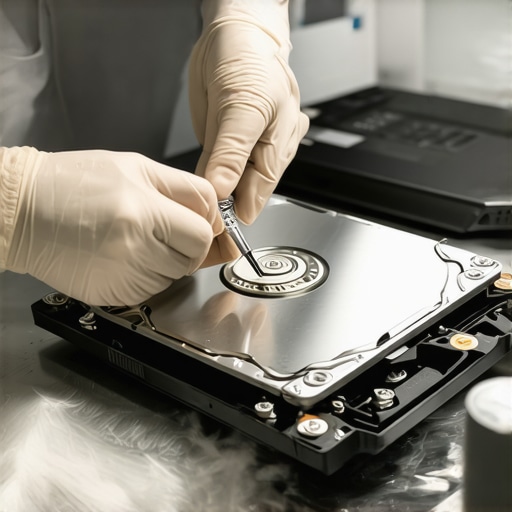
A study by Backblaze on drive failure rates emphasizes that once a drive starts reporting SMART errors, its probability of total failure within 60 days increases by over 30%. This is why it is critical to how to check if your hard drive is about to fail using s-m-a-r-t-data before you start a massive backup or recovery operation. You have to know the health of the vessel before you try to save the cargo.
Why a Tiny Screen Crack Is a Threat to Your Entire Laptop
Another common myth is that a cracked screen is just a cosmetic annoyance. People think, ‘I can still see 90% of the display, so I’ll just live with it.’ This is a massive trap. Modern laptop lids are incredibly thin, and the pressure from a crack can actually squeeze the internal layers of the LCD together, causing a short circuit. I once had a client who ignored a small hairline fracture until it sent a power surge back through the video cable, frying the GPU on the motherboard. What could have been a simple laptop screen replacement step-by-step repair guide project turned into a ‘buy a new laptop’ situation. You need to understand why a cracked laptop screen can eventually damage your motherboard before you decide to wait on the repair.
Can Professional Labs Really Pull Data From a Burnt Circuit Board?
This is where the real expertise comes in. When the controller chip on a drive dies, or a laptop is submerged in water, standard DIY methods are useless. Advanced recovery involves desoldering NAND flash chips and reading them directly through specialized hardware. This is why you see data recovery secrets expert techniques to save your files fast being discussed in professional circles; it’s about bypass, not just repair. If you are a beginner, please avoid costly mistakes by recognizing when a problem has moved from the ‘setting’ menu to the ‘soldering iron’ level.
Spot the Hidden Fees in Your Service Contract
Finally, for business owners, the biggest mistake isn’t hardware at all—it’s the fine print. Many companies sign up for ‘Unlimited Support’ only to find out that on-site visits or ’emergency’ weekend calls aren’t included. You must be able to identify red flags in your managed it service agreement that signal future costs. A good provider is transparent about what ‘managed’ actually covers. Have you ever fallen into this trap where a ‘simple’ fix ended up costing you double? Let me know in the comments below.
I’ve realized over the years that the most expensive part of technology isn’t the purchase price; it’s the unexpected downtime. After a decade of fixing the same preventable mistakes, I shifted my focus from reactive repair to predictive maintenance. I stopped waiting for the blue screen and started looking at the system telemetry. If you want to scale a business or even just keep your home office from becoming a source of stress, you need a proactive kit that tells you when trouble is brewing. I swear by a few specific tools that every power user should have. For disk health, I always use CrystalDiskInfo. It reads the raw S.M.A.R.T. data that Windows often ignores until it’s far too late. When you know how to check if your hard drive is about to fail using s-m-a-r-t-data, you can migrate your data while the drive is still healthy, rather than fighting with the power of data recovery tools after a physical head crash. For performance monitoring, HWiNFO is my go-to for catching the sign your cpu is thermal throttling and slowing down your work. I once diagnosed a ‘slow’ laptop that a client was ready to throw away as just needing a five-dollar tube of thermal paste because HWiNFO showed the cores hitting 100°C while idling.
The Tools That Saved My Sanity Last Quarter
If you’re ready to move beyond the basics, you have to look at the Microsoft Sysinternals suite. Specifically, Process Explorer. According to Mark Russinovich, the creator of Sysinternals and currently the CTO of Microsoft Azure, Process Explorer provides a level of detail on system handles and DLLs that the standard Task Manager simply cannot match. I use it to find exactly which hidden process is ‘locking’ a file I’m trying to move, or to see if a background task is actually a malicious crypto-miner. This is how you avoid costly mistakes—by seeing the invisible threads running through your operating system. 
How do I maintain my office tech stack for the long haul?
Maintenance isn’t a one-time event; it’s a rhythm. Every six months, I perform a physical blowout of dust from my workstations and check the capacitors on the motherboards for bulging. But software maintenance is where the real wins are. I recommend setting up automated reporting as part of managed it strategies to keep your business secure in 2025. By the time we hit 2026, we will likely see AI-driven diagnostics integrated directly into the BIOS that don’t just tell you a drive is failing, but will automatically spin up a cloud mirror of your local state the moment it detects a fluctuation in power voltage. If you are managing a team, you need effective managed it solutions for growing companies that focus on the asset lifecycle. Don’t wait for a screen to start flickering or showing the reason your laptop screen has vertical green lines; that unit is already end-of-life. Plan for the replacement before it stops a critical presentation. Advanced Tip: Download Process Explorer today and enable the ‘Check VirusTotal’ feature under the Options menu. It will automatically check the hash of every running process against over 70 antivirus engines in real-time. It’s the fastest way to verify your system’s integrity without running a resource-heavy full scan.
What My Decade in IT Taught Me About True Reliability
After years of late-night emergency calls, I realized that the hero who fixes a broken system is less valuable than the architect who prevents it from breaking in the first place. One major lightbulb moment was learning computer repair for beginners avoid costly mistakes: the most expensive errors aren’t made by broken hardware, but by panicked users trying to fix things they don’t fully understand. I also learned that ignoring a small glitch, like a slight flicker or a slow boot, is a gamble you usually lose; that is why I always emphasize laptop screen repair diy tips for clearer displays before the damage spreads to the motherboard or results in data loss. Relying on gut feeling is fine for some things, but for your data, hard metrics are the only thing that matters.
The Essential Toolkit for Any Business Owner
If you want to sleep soundly, you need a stack that alerts you before the fire starts. I personally rely on CrystalDiskInfo for health checks. You should definitely know how check if your hard drive is about to fail using s-m-a-r-t-data because it gives you that 48-hour window to save everything before a crash. For those managing a team, I recommend diving into managed it strategies to keep your business secure in 2025. These aren’t just technical documents; they are survival guides for the modern digital landscape. I trust these tools because they don’t hide the data behind pretty icons—they show you exactly what is happening under the hood so you can make informed decisions before your team loses a full day of work.
Don’t Let Your Technology Hold You Back
The transition from reactive to proactive maintenance changes your entire relationship with work. Instead of fearing the blue screen, you handle your tech with confidence. Whether you are performing a laptop screen replacement step-by-step repair guide or setting up a robust backup, remember that every small step toward maintenance protects your future. Computer repair isn’t just about screws and code; it is about reclaiming your peace of mind and ensuring your tools work for you, not against you. Have you ever had a minor glitch turn into a major headache because you waited too long to address it? Let me know in the comments below!