

It started with a single, hairline fracture in the upper-left corner of my screen. I didn’t even drop the thing; I just closed the lid a little too hard on a stray pen. For months, I told myself it was fine. ‘It is just a scratch,’ I would say, even as the colors started to shift slightly. Then one Tuesday, I smelled something like burnt plastic. My screen didn’t just die; it took the whole brain of the computer with it. That small crack allowed for subtle shifts in the display housing that eventually shorted out the internal circuitry. Today, I want to show you exactly why you cannot afford to wait and how that ‘cosmetic’ damage is actually a ticking time bomb for your hardware.
The Hidden Path from Cracked Glass to Fried Circuits
When I first saw that crack, I thought I was being frugal by not fixing it. I was wrong. The reality is that a laptop’s display is not just a piece of glass; it is a complex sandwich of layers under constant tension. When the structural integrity of the display panel fails, the liquid crystal can leak, but more dangerously, the glass shards can begin to put pressure on the fragile LVDS cable that connects your screen to the motherboard. If that cable pinches or frays, it can send a surge of voltage back into the logic board, causing a catastrophic failure. I learned the hard way that laptop screen replacement is much cheaper than buying a whole new machine after a short circuit. If you are already noticing issues, you might need to identify a failing motherboard before it stops working entirely. Even a small shift in the bezel can lead to situations where your computer smells like burnt plastic because the internal wiring is being ground down by glass fragments.
Is a tiny hairline fracture really worth the worry?
I get the skepticism. You might have a friend who has used a cracked phone for three years with no issues. But laptops are different. The constant opening and closing of the hinge creates mechanical stress that phones simply do not face. Every time you move that lid, you are flexing the area around the crack. According to technical data from Consumer Reports, structural damage to the outer casing or display is one of the top predictors of internal motherboard failure due to environmental exposure and mechanical strain. I once tried to ‘live with it’ and ended up with a dead CPU because I ignored the warning signs. Have you ever tried to ignore a screen crack only to have it suddenly get worse? Let me know in the comments, because I suspect I am not the only one who has made this expensive mistake. If you’re currently staring at a display that won’t behave, you should quickly learn how to fix common issues at home or at least test if your motherboard is dead before the damage becomes permanent.
Stop the Bleed Before the Liquid Crystal Ruins Your Logic Board
Think of your laptop’s hinge like a paperclip. You can bend it back and forth a few times, but eventually, metal fatigue sets in. When you add the jagged edge of a glass fracture into that pivot point, you aren’t just opening a computer; you’re running a saw blade against your internal display cables. Once the glass is compromised, the liquid crystal inside—which is actually more of a toxic paste—can begin to seep out. If this ‘ink’ reaches the bottom bezel, it hits the controller board. I once tried to fix a small crack with clear packing tape, thinking I was clever. The heat from the backlight actually melted the adhesive, which then dripped into the hinge mechanism. By the time I took it to a pro, the tape had gummed up the cooling vents, causing the laptop to overheat. It is much easier to apply laptop screen repair DIY tips early on than to deal with a melted mess later. If your display is already behaving strangely, you might need to learn how to fix a laptop screen that is too dark to read before the backlight circuit fries entirely. 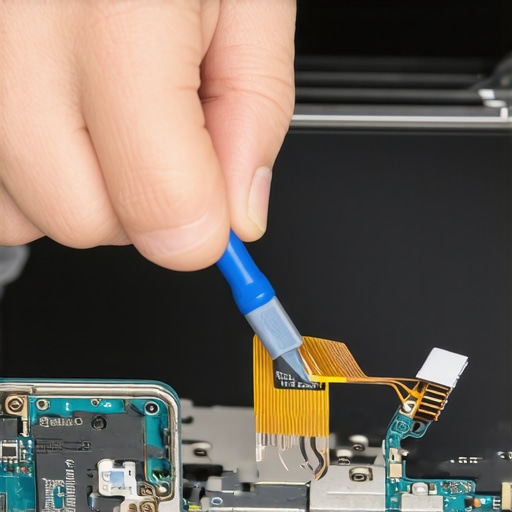
Decide Between Glossy or Matte While You Still Have a Choice
When you finally commit to the repair, you have a rare opportunity to fix more than just the crack. Most people do not realize they can often swap their screen type. If you struggle with reflections from office lights, switching to a matte finish can save your eyesight. Conversely, if you do color-accurate work, a glossy finish might be your best bet. You should weigh the pros and cons of how to choose between a glossy or matte laptop screen replacement before ordering the part. While you are inside the machine, it is the perfect time for other maintenance. I usually recommend a quick hardware swap that gives your old office PC a massive speed boost, like upgrading a mechanical drive to an SSD. Dealing with the screen gives you direct access to the antenna wires and the webcam module, so check those connections for wear while the bezel is off. If you see a tiny green line during the boot process, it is a sign of vertical green lines on your laptop screen which usually means the ribbon cable is already failing.
Pull Your Data Before the Display Fails Completely
The most dangerous phase of a cracked screen is the ‘flicker stage.’ This is when the internal glass shards are actively grinding against the LVDS cable. One wrong move and the screen goes black forever, often shorting out the display’s power rail on the motherboard. If you can still see your desktop, stop everything and back up your files. I have seen countless users lose weeks of work because they thought they had more time. Use data recovery secrets and expert techniques to mirror your drive to the cloud immediately. If your screen is already too far gone to navigate, you might need to learn how to get data off a device with a dead screen using an external monitor and a docking station. Do not assume your hardware is safe just because the computer is still ‘on.’ A short circuit in the display can travel through the ground wire and hit your storage drive. If you find yourself stuck, try to fix a stuck pixel using software tools as a last-ditch diagnostic, but usually, physical damage requires a physical replacement.
Most people assume that if the screen lights up after a repair, the job is done. I am here to tell you that is a dangerous oversimplification. In my years of bench work, I have found that the most common reason for ‘post-repair failure’ is not actually a bad panel—it is ignoring the EMI shielding and the precise seating of the display cable. When you perform a laptop screen replacement, you are disturbing a factory-sealed environment. If that cable is not seated with surgical precision, the high-frequency signals can cause ghosting or, worse, a slow-burn short circuit. 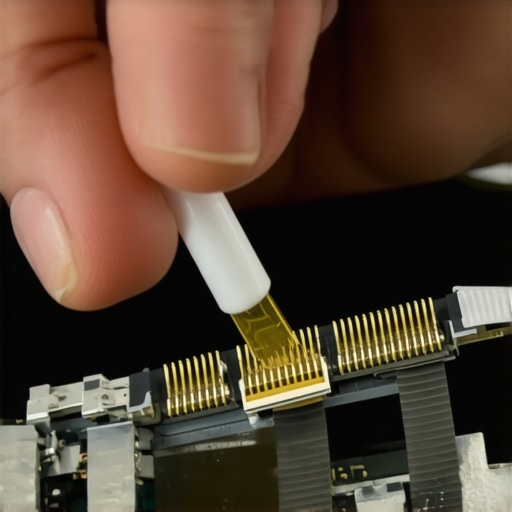
Why did your brand-new replacement screen fail after only three months?
It usually comes down to a phenomenon I call ‘cable memory.’ According to engineering insights from hardware specialists at iFixit, ribbon cables that have been bent for years develop structural weaknesses at the fold points. When you replace the screen and move that cable, you are often finalizing a fracture that was already in progress. This is the ‘Oops’ factor most DIYers miss: they focus on the glass and ignore the nervous system of the machine. If you have ever wondered why your screen looks washed out or why you suddenly see vertical green lines on your laptop screen, you are likely looking at a cable that was pinched or stressed during the reassembly process. You can follow laptop screen repair DIY tips to get the image right, but if the physical routing is off, the fix is temporary.
The one-second mistake that kills your backlight fuse
The biggest trap in the world of computer repair for beginners is forgetting to disconnect the internal battery. Even if the laptop is powered down, the backlight circuit on the motherboard is often ‘hot’ with 19 to 40 volts. The moment you touch the metal connector of the screen cable to the motherboard, a tiny arc can blow the backlight fuse. Suddenly, you have a new screen, but you have to learn how to fix a laptop screen that is too dark to read because the light won’t turn on. I have had to help countless users test if their motherboard is dead simply because they skipped this thirty-second safety step. For business owners managing dozens of devices, this risk is exactly why managed IT is a game changer; pros handle the liability of these microscopic failures so you do not have to. If you have already messed up and the screen will not turn on at all, you will need data recovery secrets and expert techniques to pull your files before a botched repair turns into a total loss of data. Have you ever fallen into the ‘it looks fixed’ trap only for it to break again weeks later? Let me know in the comments.
My toolkit isn’t just a collection of random screwdrivers; it’s a carefully curated set of instruments designed to prevent the very failures we’ve been discussing. I always tell my clients that a high-quality ceramic spudger is worth its weight in gold. Unlike metal tools, ceramic doesn’t conduct electricity, which is your best defense against accidentally shorting a component while you’re working near the motherboard. I also use a specialized USB-C Ammeter to check if the motherboard is drawing the correct current before I even plug in the new display. If the power draw is too low or nonexistent, the backlight circuit is likely blown. This diagnostic step is crucial for troubleshooting common computer repair issues effectively and saves me from installing a brand-new screen onto a dead board. When I’m finishing a screen job, I use specialized ESD-safe tape to re-secure the internal EMI shielding. If you skip this, you’re just asking for signal interference or weird display artifacts later. Beyond the physical tools, I rely heavily on software diagnostics. I never consider a repair finished until I how to check if your hard drive is about to fail using s-m-a-r-t-data because a dying drive can often mimic screen flickering or system lag. 
How do I maintain my laptop display and internal health over time?
Maintaining your machine after a major repair is all about heat management and mechanical care. I recommend a thorough internal cleaning with compressed air every six months. Dust is a silent killer; it acts as insulation, trapping heat right where it shouldn’t be, which eventually causes the adhesives in your display panel to fail. This practice is central to how to extend the life of your office pcs by three years, ensuring you don’t end up back on my bench with a fried logic board. If you’re managing a fleet of laptops for a company, you shouldn’t be doing this one-by-one. That is where effective managed it solutions for growing companies come in—automated health checks can flag a failing fan or a battery that is starting to swell before it cracks your new screen from the inside out. If you ever see horizontal bars of color on your laptop screen, don’t wait for the display to go black; immediately leverage data recovery secrets and expert techniques to protect your business assets while you still have a signal.
The Modular Future of Computer Repair
Looking ahead, the Right to Repair movement is fundamentally changing how we think about hardware longevity. According to technical documentation from The Repair Association, manufacturers are finally being pressured to provide parts and schematics that were previously locked behind proprietary gates. This trend suggests that in the coming years, we’ll see more laptops with user-replaceable batteries and displays, making managed it strategies to keep your business secure in 2025 much more cost-effective as we move toward modular upgrades rather than full replacement cycles. As noted in the IEEE Standards for Thermal Management, keeping your airflow optimized can literally double the lifespan of the VRM components surrounding your CPU. I want you to try one thing today: download a reputable hardware monitor and check your CPU temperatures while you have ten tabs open. If you’re consistently hitting 90 degrees Celsius, it’s time for a cleaning and a repaste. Catching these small thermal signs early prevents you from ever needing the ultimate guide to data recovery after accidental deletion or a total motherboard swap. Don’t wait for the smell of burnt plastic to become your morning reality before you take action.
What My Bench Taught Me About the Fragility of Glass and Logic
Over the years, I have seen hundreds of machines come across my desk, and the most consistent lesson is that a laptop is not a static object; it is a living system under constant mechanical stress. First, never underestimate ‘micro-shards.’ Those tiny splinters of glass do not just sit there; they migrate. I have found glass dust inside cooling fans and even embedded in thermal paste. Second, the ‘Wait and See’ approach is the most expensive strategy you can adopt. A $100 laptop screen repair today prevents a $1,200 logic board replacement next month. Finally, remember that your screen is your primary window into your digital life. If that window is cracked, you are not just seeing a distorted image; you are risking a total blackout that requires the ultimate guide to data recovery after accidental deletion or hardware failure to resolve. #IMAGE_PLACEHOLDER_E#
The Gear That Saves My Sanity Every Day
If you are going to dive into the world of DIY or even just monitor your own hardware, there are a few things I never work without. HWInfo64 is my go-to software because it reveals the internal thermal stress that a cracked bezel might be causing. For physical work, a magnetic project mat is non-negotiable; losing one specialized screw inside a chassis can cause a short circuit that is impossible to find later. I also swear by isopropyl alcohol (99%) for cleaning cable contacts before re-seating them. This small step is often the difference between a successful fix and a screen that flickers because of finger oils. Learning how to spot a hardware failure masquerading as a software bug is the most valuable skill you can develop as a laptop owner.
Your Path to a Stress-Free Workspace
Repairing or replacing your hardware can feel like a daunting task, but you do not have to navigate it alone. Whether you decide to tackle the fix yourself or realize why managed IT is a game changer for growing companies, the most important step is simply taking action before the damage spreads. Your laptop is a tool designed to serve you, not a ticking time bomb of data loss. By addressing that laptop screen issue now, you are securing your digital future and ensuring your work remains uninterrupted. Have you ever noticed a tiny flaw in your display that eventually turned into a major headache? Let me know in the comments below!