

It was 2 AM, and I had just finished the final color grade on a client’s wedding video. I hit ‘Update and Restart’ on my PC, thinking I would wake up to a fresh, faster system. Instead, I woke up to a display that looked like a bowl of radioactive fruit salad. My deep, midnight blues had shifted into a sickly teal, and every skin tone on my screen looked like the person was suffering from a terrible spray tan. That sinking feeling in your gut is unmistakable. You start wondering if you just fried your expensive monitor or if your GPU is finally giving up the ghost. I have been there, staring at a screen that feels alien, and I am here to tell you that you are probably not looking at a hardware death sentence. Today, we are going to fix those wonky hues and get your workspace back to looking professional.
The Morning My Professional Monitor Decided to Go Neon
I have been through this dance more times than I care to admit. Whether it is a major Windows 11 feature update or a sneaky driver patch, things break in the most visual ways possible. Early in my career, I made a massive, embarrassing mistake: I assumed my hardware had physically failed. I actually went out and spent nearly two hundred dollars on a high-end shielded cable, convinced the old one was leaking signal and causing the color shift. It was a total waste of money. The hardware was fine; the software had just lost its mind. This is especially frustrating if you have already been following tips for common laptop screen issues or if you have previously dealt with negative color effects that you thought were settled for good. We are going to tackle the ‘why’ so you do not make the same expensive mistakes I did.
Do updates actually break color profiles on purpose?
It certainly feels like sabotage when you spend hours calibrating a screen only for an update to overwrite your settings with some generic ‘Plug and Play’ garbage. According to research published by Tom’s Hardware, improper color mapping after OS updates often stems from the system overriding custom ICC profiles with default sRGB variants that do not match your panel’s capabilities. It is not a conspiracy to make you buy new gear, but it is a massive oversight in how modern operating systems handle third-party hardware handshake protocols during a migration.
Your Graphics Card and OS are Having a Communication Breakdown
When your system updates, it often tries to be ‘helpful’ by installing what it thinks is the latest driver. Frequently, this ‘latest’ version is a generic Microsoft-signed driver that lacks the nuances of your specific monitor’s color gamut. It is like trying to describe a sunset to someone using only a box of four crayons. I see this happen constantly with people looking for DIY tips for clearer displays. If you have ever noticed your display looks pixelated or washed out immediately after a reboot, you are witnessing this communication breakdown firsthand. Have you ever logged in after a long update only to find your desktop looking like a 1990s arcade game? Let me know in the comments what color your screen turned—I have seen everything from ‘Shrimp Pink’ to ‘Nuclear Green.’ Before we get into the deep-tissue repair of your settings, let’s look at why your registry might be holding onto corrupted data that is poisoning your new installation.
Scrub the System Clean with DDU
When Windows updates your GPU drivers, it often leaves ‘ghost’ registry entries from the previous version. It is like trying to bake a fresh cake in a bowl that still has the crusty batter from last week’s failed experiment; the results are going to be tainted. You need to use a tool called Display Driver Uninstaller (DDU). This is not your standard ‘Add or Remove Programs’ routine. DDU strips every single trace of the old driver, including the corrupted color mapping that is likely causing your screen to look like a bad 80s music video. If you are worried about making a mess of things, check out my advice on computer repair for beginners so you do not accidentally delete something vital. I remember a client who almost threw away a high-end display because it turned neon orange after a BIOS update; we did not even touch the hardware, we just used DDU to force a clean slate.
Reclaim Control of Your Color Profiles
Once the drivers are clean, dive into the ‘Color Management’ menu. This is where Windows hides the keys to your visual kingdom. Most people do not realize that Windows can maintain multiple color profiles simultaneously, and it often defaults to a generic sRGB profile that makes high-gamut screens look washed out. You need to manually associate your monitor with the correct ICC profile provided by the manufacturer. I once spent four hours troubleshooting common computer repair issues effectively only to find out that an update had unchecked the ‘Use my settings for this device’ box. It was a single click that fixed a seemingly ‘broken’ screen. 
Check for Bit Depth and Banding Issues
Finally, check your ‘Advanced Display’ settings for the ‘Refresh Rate’ and ‘Bit Depth.’ Updates have a nasty habit of resetting your 10-bit professional monitor to 6-bit or 8-bit color, which creates immediate banding and strange, blocky gradients. This is a classic symptom I see when people complain that their laptop display looks pixelated or that the shadows in their videos look ‘crunchy.’ If you are seeing actual artifacts like dancing lines or static, you might be moving past software into hardware territory. In that case, you should learn how to spot a dying GPU before the situation becomes permanent. Switching back to the ‘High Performance’ power plan can also stop the OS from throttling the voltage to your display controller, which sometimes causes these weird hue shifts on battery power.It is incredibly tempting to think that hitting the ‘Nuclear Option’—a full Windows factory reset—will wipe away every visual glitch and return your system to its pristine state. However, here is the contrarian truth that most entry-level technicians overlook: software-level resets rarely touch the underlying firmware handshake between your display panel and the motherboard. If you have been troubleshooting common computer repair issues effectively, you have likely realized that the problem often resides in the EDID (Extended Display Identification Data). This is a small, persistent block of metadata that the monitor uses to tell the PC exactly what its color capabilities are. If this data becomes cached incorrectly during a botched update, Windows will keep pulling that same corrupted profile even after a fresh installation.
Can Your Monitor’s Internal Firmware Actually Override Your GPU?
The answer is a resounding yes. According to a technical deep-dive by DisplayMate Technologies, professional-grade and high-refresh-rate panels rely on internal Look-Up Tables (LUTs) that function independently of the operating system. If an OS update triggers a specific type of power-cycle event that desyncs these tables, your GPU can send a perfect, color-accurate signal, but the monitor will interpret it through a ‘broken’ lens internally. This is a classic reason why users find themselves looking for ways to fix a laptop screen that is flickering only on battery power; it isn’t always hardware failure, but rather the display’s internal controller failing to adjust its voltage parameters to the GPU’s power-saving state.
The Dangerous Trap of Automated Driver Optimizers
One of the biggest mistakes—the ‘Oops’ factor—that I see professionals make is relying on third-party driver ‘optimizer’ tools. These programs are often too aggressive, pulling ‘compatible’ drivers that were actually designed for slightly different hardware revisions or OEM-specific builds. In a business environment, this can lead to a cascading failure where an entire fleet of workstations suddenly inherits the same ‘Nuclear Green’ tint or resolution caps. This is a primary reason why managed IT strategies to keep your business secure in 2025 prioritize centralized, tested patch management over allowing individual users to click ‘Update’ on every third-party pop-up. The nuance between a permanent hardware death and a fixable configuration error is subtle. For example, ‘image persistence’ is frequently mistaken for permanent burn-in. While burn-in is a physical degradation of the pixels, persistence is often just a voltage imbalance in the liquid crystals that can be cleared with a simple software-based pixel refresher. Understanding these distinctions is why managed IT is a game changer for growing companies; it prevents the unnecessary expense of replacing hardware that only needs a thirty-second configuration tweak. Don’t let a scary visual glitch push you into a panic that results in accidental data loss. If you start flashing BIOS files or ‘cleaning’ system registries without a clear plan, you might find yourself needing data recovery secrets and expert techniques because you nuked a partition table while trying to fix a simple color shift. Have you ever fallen into this trap and replaced a part only to realize it was a single setting toggle? Let me know in the comments.
Stop Trusting Your Eyes and Start Using a Colorimeter
I have learned the hard way that our eyes are incredibly unreliable narrators. They adapt to whatever lighting or color cast is present in the room, which is why a screen that looked ‘fine’ at midnight looks like a neon nightmare at noon. For my personal workflow, I have moved entirely away from the built-in Windows calibration tools. Instead, I rely on a physical colorimeter paired with an open-source tool called DisplayCAL. Why? Because as noted in the ArgyllCMS technical documentation, hardware-level measurement is the only way to account for the specific spectral output of different LED backlights. If you are tired of inconsistent results, the hardware upgrade that actually speeds up your daily workflow isn’t always a faster CPU; sometimes it is just ensuring your output is correct the first time. 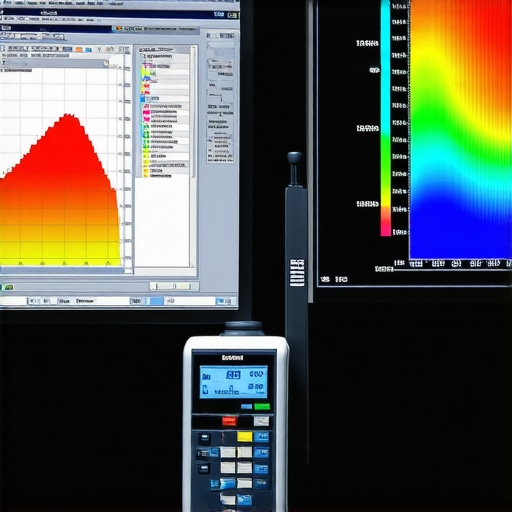
How do I maintain perfect display calibration over the long haul?
Maintenance is not a one-and-done event. Every backlight dims and shifts in temperature as it ages. I set a calendar reminder to recalibrate my primary screens every 200 hours of use. This keeps the delta-E (the difference between the intended color and the displayed color) below a level that the human eye can perceive. If you notice that your laptop display looks pixelated or that the colors are drifting back to that sickly teal, it is likely time for a refresh. For those who have reached the point where software cannot fix the physical degradation of the panel, a laptop screen replacement step-by-step repair guide might be your next logical step to restore that professional-grade clarity.
Moving Beyond the Break-Fix Cycle
In the world of Managed IT, we talk a lot about ‘proactive monitoring.’ This means we don’t wait for the screen to turn purple before we act. I use specialized agents to monitor the health of every component in my system. For example, I always check if your hard drive is about to fail using s-m-a-r-t-data long before the drive actually clicks its last breath. This shift from reactive to proactive is why managed IT is a game changer for growing companies. It stops the ‘2 AM fruit salad’ emergencies from happening in the first place because we catch the voltage fluctuations in the display controller or the driver instability before the update even hits the workstation.
AI and the Future of Self-Healing Hardware
Looking ahead, I see a trend where display controllers and GPUs will use local AI models to predict and correct color shifts in real-time. Instead of us manually calibrating, the system will compare its output to an internal reference standard thousands of times per second. Until that becomes the consumer standard, you need to be familiar with the power of data recovery tools—what you need to know so that if a botched calibration or firmware update ever locks you out of your system, your files remain safe. My best advice? Download DisplayCAL tonight and run a ‘Verification’ report. It will show you exactly how far off your screen actually is, and it might just save your next big project. I want you to try this specific tip: check your current ICC profile’s creation date in the Color Management menu; if it is more than six months old, you are working on a lie.
Your Brain is Frequently the Biggest Obstacle to Accurate Color
The hardest lesson I have learned in my years of technical work is that ‘eyeballing it’ is a recipe for disaster. Our brains use a process called chromatic adaptation, which means if your screen has a slight yellow tint for long enough, your brain starts to perceive it as pure white. I once spent three days editing a video on a screen with a subtle magenta shift I didn’t notice, and when the client opened it on their calibrated iMac, I looked like an amateur. This is why I always tell people starting with computer repair for beginners that the first tool you need is a neutral reference point, not a screwdriver. If you have been troubleshooting common computer repair issues effectively, you know that your perception is the first thing that fails when a driver goes rogue. Always step away from your monitor for fifteen minutes before making final color decisions; your eyes need a ‘hard reset’ just as much as your PC does.
The Small Software Toolkit That Keeps My Screens Honest
You do not always need to drop five hundred dollars on a spectrophotometer to get decent results. I rely on a specific triad of tools that have never let me down. First, DisplayCAL is the gold standard for open-source calibration; it provides depth that the built-in Windows tools simply cannot match. Second, the Lagom LCD test pages are a fantastic, free way to check your black levels and saturation without installing a single byte of software. Lastly, I keep a physical, high-quality printed photograph on my desk that I know perfectly. If the photo on my laptop screen does not match the paper in my hand, I know my software has drifted. These resources are my ‘sanity check’ against the chaos of Windows updates.#IMAGE_PLACEHOLDER_E#
Step Into a More Accurate Professional Workflow
Don’t let a sudden shift to ‘Nuclear Green’ or ‘Shrimp Pink’ convince you that your hardware is ready for the scrap heap. Most of the time, the fix is sitting right there in your Color Management settings or a clean driver sweep. By taking control of your ICC profiles and trusting data over your eyes, you turn your workstation back into a reliable tool rather than a guessing game. It takes a little patience, but the clarity of a perfectly calibrated display is worth every minute of the hunt. Have you ever had a screen color shift so badly it actually made you dizzy? Let me know in the comments below!