

I was halfway through a critical project when my screen did something I will never forget. It did not just turn off; it shivered. A cluster of bright pink pixels danced across my taskbar for a split second, then vanished. Like a fool, I ignored it. I told myself my eyes were just tired or maybe it was just why your screen looks washed out after a software update. Then, the snow started. It looked like a 1980s television with no signal. I learned the hard way that a GPU does not usually die in its sleep—it screams for help first. If you have noticed your laptop screen showing static or snow, you are not just seeing things. You are watching a piece of hardware enter its final act. My biggest mistake early on was assuming that the reason my computer freezes specifically when I plug in a monitor was just a bad HDMI cable. I spent sixty bucks on premium cables only to realize my GPU was literally cooking itself. Don’t be like me. Have you ever seen weird colors on your screen and just hoped a reboot would fix it? Tell me your story in the comments.
Catch the digital ghosts before they haunt your motherboard
Today, we are going to dive into the specific, often ignored warning signs that your graphics card is about to call it quits. I am going to share the exact checklist I wish I had before I watched eight hundred dollars of silicon turn into a very expensive paperweight. We will cover the visual artifacts, the weird system hangs, and why your computer repair for beginners journey should always start with diagnostics rather than a credit card. It is tempting to panic, but spotting these issues early can be the difference between a simple thermal paste refresh and a total system failure. According to data from Jon Peddie Research, high-end GPUs are more susceptible to thermal stress than ever due to their massive power draws, making heat management your number one priority.
Is my graphics card actually dying or is it just a bad driver?
This is the big question that keeps every PC owner up at night. Is it a software glitch or a hardware catastrophe? Most people fear the worst the moment they see a flicker. However, if you see those glitches outside of Windows—like on your motherboard’s splash screen—you have a hardware problem on your hands. If the issues only happen in one specific game, you might just need an update. But when you start noticing that your computer gets loud when you open more than five browser tabs, your cooling system might be failing, which is the gateway drug to a dead GPU.
Spot the visual glitches that scream hardware failure
When a GPU starts to fail, it produces what we call artifacts. These are not just little blips; they are signs that the card’s memory or the processor itself is miscalculating data. It might look like floating triangles, weird stretching textures in games, or horizontal lines that persist even after a reboot. If you see this, stop what you are doing. Continuing to push a failing card is like driving a car with a smoking engine. If you are a business owner, this is exactly why the hardware part you should never buy used for your business is usually the graphics card. You never know how much heat it has already endured. In the next section, we will talk about how to run a stress test safely to confirm your suspicions without killing the card for good.
Run a stress test to force the glitch into the open
To know for sure if your card is dying, you need to push it to its limit in a controlled environment. Think of a stress test like a car diagnostic on a dynamometer; we are redlining the engine to see where the smoke comes from. I recommend using tools like FurMark or Unigine Heaven. If your system crashes or shows horizontal bars of color within minutes of starting the test, your hardware is failing to maintain stable voltages under load. 
Keep a close eye on the heat spikes
Heat is the silent killer of silicon. I once spent an entire afternoon trying to fix a software bug on a client’s machine, only to realize the thermal paste had turned into dry chalk. The card was hitting 100 degrees Celsius and throttling itself into oblivion. When you notice a noisy laptop fan that sounds like a jet engine, it is not just annoying—it is a warning. Use a monitoring tool like HWMonitor or MSI Afterburner. If your idle temps are above 50°C or your load temps exceed 85°C, you are in the danger zone. High heat causes the solder balls under the GPU chip to crack, leading to permanent hardware failure.
Rule out the cables and ports first
Before you mourn your bank account balance, check the basics. A failing DisplayPort or HDMI cable can mimic the symptoms of a dying GPU perfectly. I have seen people almost throw away a perfectly good RTX card because of a five-dollar cable that had a loose pin. Swap the cable, try a different port on the card, and if you can, plug your monitor into a different computer. If the computer freezes specifically when you plug in a monitor, the handshake between the card and the display is failing.
Check your power supply before you blame the card
A GPU is the hungriest component in your PC. If your Power Supply Unit (PSU) is old or underpowered, it will not be able to provide the consistent clean electricity the card needs during high-performance tasks. This often leads to black screens or sudden reboots that look like a dead GPU. You need to tell if your computer power supply is failing by checking for 12V rail stability in your BIOS. If your power delivery is dipping, your GPU is not the problem—your PSU is.
Use diagnostic software to read the hidden logs
Windows keeps a record of every time your graphics driver crashes. This is known as a TDR (Timeout Detection and Recovery) event. If you see dozens of these in your Event Viewer, it means the system tried to reset the GPU because it stopped responding. This is often part of troubleshooting common computer repair issues effectively. If the crashes happen even after a fresh driver install, the physical memory on the card (VRAM) likely has a defect. In these cases, you might even see vertical green lines which indicate a specific failure in the display output stage. Don’t jump to conclusions without looking at these logs; they are the black box of your PC crash. If you find your card is truly failing and you are worried about your files, remember that the power of data recovery tools is immense, but they are much easier to use before the whole system goes dark and refuses to post.
Stop treating hardware issues with software band-aids
Many tech forums will tell you that the first step to any glitch is a fresh OS install or a driver rollback. I’m here to tell you that’s a dangerous waste of time if your hardware is physically failing. If you are seeing artifacts during the BIOS boot sequence, no amount of software tweaking will save you. In fact, the constant rebooting and the high-intensity load of a Windows installation can accelerate the death of a weak solder joint. I’ve seen enthusiasts get stuck in a ‘reboot loop’ trying to fix a hardware issue with software, only to find that the heat cycles eventually caused a total short circuit on the board. This is where troubleshooting common computer repair issues effectively requires a ‘hardware-first’ mindset. If the visual ghosts are there before the Windows logo appears, put the USB installer away; you’re looking at a physical defect.
The oven trick is a recipe for toxic disaster
You might have seen videos of people ‘baking’ their graphics cards in a kitchen oven to reflow the solder. Let me be blunt: do not do this. While it might occasionally provide a temporary fix by expanding the metal just enough to bridge a microscopic crack, it is not a professional repair. Modern GPUs use lead-free solder that requires precise thermal profiles to reflow correctly. Your home oven cannot maintain the specific temperature curves needed, and more importantly, it will outgas toxic chemicals into the place where you cook your dinner. Beyond the health risks, this ‘fix’ usually lasts a few weeks at most. If you’re at the point where you’re considering the oven, you’re better off looking into the hardware part you should never buy used for your business to find a reliable replacement instead of a dangerous gamble. 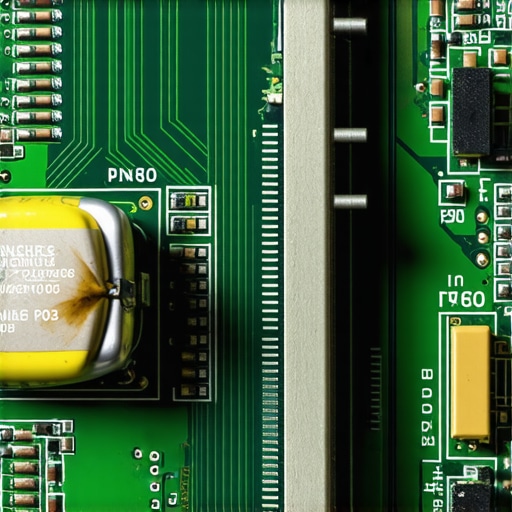
Could your power grid be the actual culprit?
Sometimes the ‘dying’ GPU is actually a victim of poor power delivery. A common nuance experts look for is ‘coil whine’ paired with artifacts. If your card only screams and glitches when the frame rate is uncapped, your power supply might be leaking electrical noise into the PCIe slot. A study by the IEEE on power electronics notes that high-frequency switching noise can interfere with sensitive memory timings in high-performance silicon. This is why why a cheap power supply is the biggest threat to your office hardware; it doesn’t just fail, it takes the GPU down with it. Before you bin a thousand-dollar card, test it with a Gold-rated PSU from a different brand.
Avoid the trap of perpetual stress testing
The ‘Oops’ factor I see most often is ‘death by diagnostics.’ Once you see the first signs of failure, do not run FurMark for six hours. You are essentially taking a person with a heart condition and forcing them to run a marathon to ‘see if their heart is okay.’ If the card fails in five minutes, it’s broken. Pushing it further just risks a catastrophic failure that could surge back through the motherboard. If you find your card is truly on its last legs, your priority shifts from repair to protection. For business owners, this is the moment where managed it strategies to keep your business secure in 2025 become invaluable, ensuring that a single hardware failure doesn’t lead to a week of downtime. Have you ever fallen into the trap of trying to ‘fix’ a hardware problem with a driver update for hours? Let me know in the comments.
Clean out the digital cobwebs with DDU
If you have ruled out the cables but the glitches persist, it is time for a scorched-earth approach to your drivers. I never trust a standard ‘uninstall’ through Windows. I use Display Driver Uninstaller (DDU) in Safe Mode. It is a niche, powerful tool that wipes every trace of old registry entries and file fragments that a standard installer leaves behind. This is a core part of computer repair for beginners journey—learning that software often leaves messy footprints. I have seen countless ‘dying’ cards spring back to life simply because a three-year-old driver remnant was fighting with a new update. If you are managing a fleet of office machines, keeping these environments clean is a pillar of effective managed IT solutions for growing companies.
Why your tool kit needs more than just a screwdriver
When I open up a laptop to investigate a flickering display, I am not just looking for loose screws. I am looking at the quality of the thermal interface. Most people stop at cleaning the fans, but if you really want to save a card that is starting to thermal throttle, you need high-performance materials. I personally swear by Thermal Grizzly Kryonaut or Noctua NT-H2. According to hardware analyst Steve Burke from GamersNexus, even high-end factory thermal applications can degrade significantly after just 24 months of heavy usage, leading to the micro-fractures in solder that I mentioned earlier. If you are comfortable with laptop screen repair DIY tips for clearer displays, you can likely handle a repaste, but be warned: one static shock can end it all. Use an anti-static mat; it is the cheapest insurance you will ever buy. 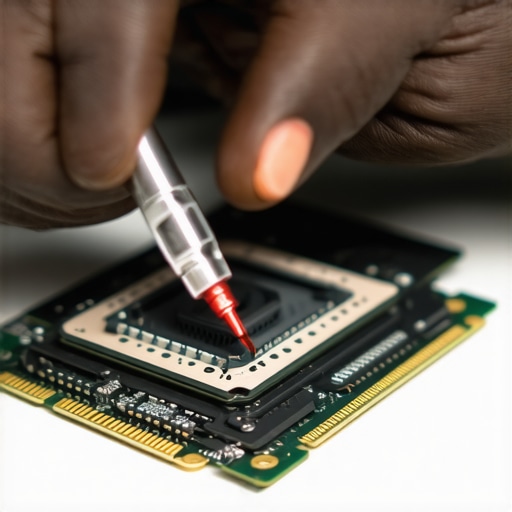
How do I maintain my GPU performance over time?
The secret to longevity is consistency, not just a one-time fix. I set an annual calendar reminder to blow out my chassis with filtered compressed air—not the cheap cans that spit liquid, but an electric duster like the DataVac. Beyond physical cleaning, you should be auditing your system’s ‘idle’ behavior. If your GPU clock speeds are pinned at maximum while you are just looking at a desktop, you likely have a background process or malware eating your resources. This is where managed IT strategies to keep your business secure in 2025 come into play, as they automate the detection of these silent resource hogs before they cook your silicon.
The future of hardware is predictive, not reactive
We are moving into an era where your computer will tell you it is failing months before the first artifact appears. I am already seeing AI-integrated S.M.A.R.T. monitoring tools that analyze voltage fluctuations to predict power supply or GPU failure with incredible accuracy. Instead of waiting for horizontal bars of color to ruin your workday, we will soon have dashboards that flag ‘capacitor wear’ levels. This transition from reactive repairs to predictive maintenance will eventually make the ‘sudden’ hardware death a thing of the past. If you are currently staring at a screen that won’t behave, don’t wait for a total blackout. I want you to try this right now: Download a lightweight monitor like HWInfo64 and check your ‘GPU Hot Spot’ temperature during a five-minute video. If that number is 20 degrees higher than your average GPU temp, your thermal paste has failed. Finding that out today could save you five hundred dollars tomorrow. If you’ve already lost the battle and the screen is black, don’t forget that the power of data recovery tools can still pull your life’s work off that drive even if the display is dead.
What I wish I knew before my first hardware meltdown
Reflecting on a decade of troubleshooting, I’ve realized that the gut-punch of a black screen is usually preventable if you pay attention to the subtle whispers of your machine. First, never ignore the ‘snow’ or static on your display; it is almost never just a glitch. Second, the moment you realize software isn’t the fix is the moment you start the real computer repair for beginners journey. Physical defects require physical solutions, not another driver update. Third, heat is a compounding interest of failure; every time your card hits 90°C, you are shaving weeks off its lifespan. Finally, always have a backup plan. If your card fails during a critical task, knowing the power of data recovery tools will be the only thing that keeps you from losing your sleep.
The diagnostic kit I carry in my bag
I don’t leave my workshop without a few specific tools that have saved me thousands of dollars over the years. For software, Display Driver Uninstaller (DDU) is non-negotiable for a clean slate. For real-time monitoring, HWInfo64 provides the granular voltage data that basic apps miss. If I’m opening a case, I only trust high-end thermal compounds like Thermal Grizzly Kryonaut to bring temperatures back to earth. For business owners who don’t have time to tinker, shifting to managed IT strategies to keep your business secure in 2025 is the best way to ensure these tools are being used proactively by experts before a failure occurs. #IMAGE_PLACEHOLDER_E#
Take control of your silicon destiny
Your graphics card is the heart of your visual experience, and while hardware doesn’t last forever, its life is largely in your hands. By spotting the artifacts early and checking your power supply stability, you move from being a victim of technology to a master of it. Don’t let a few horizontal lines turn into a total system loss. If you feel overwhelmed, you can always reach out for a professional diagnostic before you make a costly mistake. Start your computer repair adventure today by simply checking your temps—it’s the easiest way to prevent a disaster. Have you ever had a GPU die right in the middle of an important project? Let me know in the comments below.