

I’m sitting there, coffee in hand, ready to crush a spreadsheet that’s been haunting me all week. I slide the HDMI cable into the port, expecting that satisfying chime of a second screen coming to life. Instead, my laptop freezes harder than a Maine lake in January. My mouse is stuck, the keyboard is unresponsive, and my heart sinks. If you’ve ever felt that instant flash of “Oh no, did I just fry my motherboard?”, you’re not alone. I’ve been there, and more often than not, the culprit is far less expensive than a total system replacement. It’s that sinking feeling of being mid-flow and having technology slap the tools out of your hand just when you were getting started.
Stop Blaming Your Motherboard for Everything
It’s easy to jump to the worst-case scenario when your screen goes static. When I first started messing with multi-monitor setups, I panicked and assumed my hardware was toast. I once spent $300 on a new graphics card only to find out the issue was a $10 cable and a weird driver conflict. It’s a classic beginner computer repair mistake that haunts many DIYers. Today, I want to walk you through why this specific freeze happens and how to narrow down the cause without spending a fortune. We’ve all been conditioned to think that a “freeze” means the end of the line, but in reality, it’s often just the operating system throwing its hands up in confusion because of a bad signal. Whether you are dealing with a desktop or a laptop screen repair issue, the underlying logic of the digital handshake is usually where the drama begins. I remember helping a neighbor who was convinced they needed a new computer, but we eventually realized their power strip was so overloaded it couldn’t provide the extra millivolts needed for the video port to stabilize.
Is this really just a software glitch?
You might think that hardware is hardware—you plug it in and it works. But the handshake between your PC and a monitor is a complex dance of power signals and data protocols. Sometimes, your computer tries to “talk” to the new monitor, and the troubleshooting process reveals that your drivers are essentially speaking two different languages. Or even worse, you might be dealing with a power supply that is already failing and cannot handle the extra load of pushing pixels to another screen. Have you ever had your entire workflow grind to a halt the second you tried to add a second display? It is incredibly frustrating and honestly a bit insulting when you’ve just spent money on a nice new screen. It is worth noting that according to Microsoft’s telemetry data, driver issues and DPC watchdog violations account for a significant portion of system “hangs” and freezes in modern Windows environments (Source: Microsoft Hardware Dev Center). This isn’t just “bad luck”; it is a documented technical hurdle that can usually be cleared with the right steps. Before we start tearing things apart or calling for an expensive laptop screen replacement, we need to look at the physical connections. If the foundation is shaky, no amount of software updates will help. Let’s get into the nitty-gritty of why your setup is locking up and how to reclaim your productivity.
Swap the Cable and Save Your Sanity
Don’t be like me. I once tore apart a high-end gaming rig thinking the motherboard was toast, only to realize my HDMI cable was as fragile as wet tissue paper. High-resolution monitors demand massive bandwidth. If you are using a cheap, unshielded cable from a decade ago to push a modern signal, your PC will literally trip over its own data. This mismatch causes a momentary surge or a data logjam that freezes the operating system entirely. Before you assume you have made a beginner computer repair mistake, try a certified High-Speed HDMI or DisplayPort 1.4 cable. You might find that fixing a laptop screen that shows static or snow is as simple as spending ten dollars on a properly shielded cord. I once had a client whose dual-monitor setup crashed every time they adjusted their desk; it turned out the cable was so poorly made that a tiny bit of electromagnetic interference from a nearby desk lamp was enough to kill the signal and freeze the Windows kernel.
Force a Driver Handshake Without a Reboot
Drivers are the essential translators between your hardware and your software. When you plug in a second screen, your operating system tries to negotiate a resolution, refresh rate, and color profile in milliseconds. If the driver is outdated or corrupt, that negotiation turns into a technical shouting match that locks the system. One pro trick I swear by is the keyboard shortcut Win + Ctrl + Shift + B. This command restarts your graphics driver without closing your active apps. I remember doing this during a critical live-streamed presentation when my second screen caused a hang; it refreshed the signal and saved the day in three seconds. If that does not work, you should consider a clean installation of your GPU software, which is a core part of troubleshooting common computer repair issues effectively. 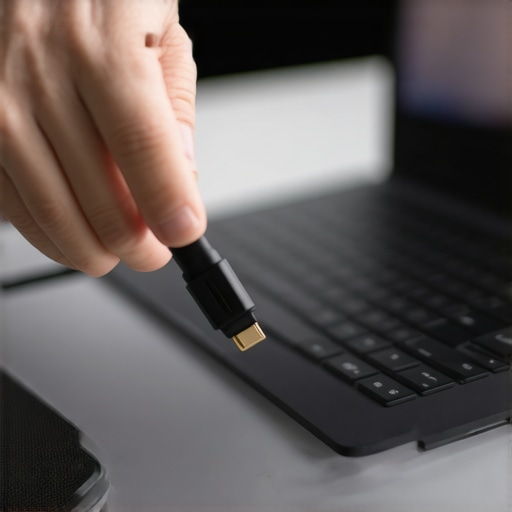
Check if Your Power Supply Is Begging for Mercy
Pushing pixels to a second or third monitor is not “free” when it comes to energy consumption. Your graphics card has to work significantly harder, and that draws more juice from the power supply unit (PSU). If your PSU is on its last legs or just underpowered for your current hardware, that sudden spike in demand can cause a voltage drop. This is a common reason why a laptop charger gets burning hot or the desktop simply gives up and freezes to protect the circuits. Knowing how to tell if your computer power supply is failing can prevent you from replacing parts that aren’t actually broken. Think of it like trying to tow a heavy trailer with a small car; the engine might start, but it will eventually stall out under the extra load. I worked on a workstation last month that only froze when the second monitor displayed a bright white background—the power draw for those specific pixels was the literal tipping point for a dying capacitor in the PSU.
Disable Hardware Acceleration in Your Browser
Sometimes the freeze isn’t the whole computer, but a specific application like Chrome or Edge reacting poorly to the new display. These programs use “hardware acceleration” to offload work to the GPU. If your GPU is already struggling with the new monitor handshake, the browser might crash the entire display driver. I’ve found that toggling this setting off can immediately stabilize a finicky multi-monitor setup, especially on older laptops that weren’t designed for high-refresh-rate external displays.
Don’t Trust the Quick Fix for Data and Displays
Most people assume that if a computer freezes, the hardware is simply broken. But in my experience, the ‘broken’ label is usually a lazy excuse for a deeper configuration error. I see this all the time with data recovery too. People think they can just run a free software tool on a drive that is physically failing. If you hear a noise and try to scan it, you are essentially sandpapering your platters. It is one of those beginner computer repair mistakes that turns a $300 recovery into a $3,000 professional clean-room nightmare. The same applies to screens. I have seen users ignore a small flicker, only to find out later that a cracked laptop screen can eventually damage your motherboard by shorting out the backlight circuit.
Can you actually trust software to save a clicking drive?
The short answer is no. If your hardware is making physical noises, software is your enemy. The ‘oops’ factor here is huge; people try to ‘rebuild’ a partition table when the read-head is physically crashing. Instead, the move that saves your data when a partition table is corrupted is to clone the drive first, not ‘fix’ it live. This is where the pros separate themselves from the hobbyists. We prioritize the physical integrity of the bitstream before we ever touch a ‘repair’ button.
The Managed IT Trap Most Business Owners Fall Into
Many business owners view Managed IT as a glorified help desk. They think, ‘I pay them to fix my printer.’ But that is a fundamental misunderstanding of modern infrastructure. Real Managed IT is about proactive hygiene. If your provider isn’t looking at your software licenses or doing a quarterly security audit, they aren’t managing anything; they are just reacting. According to a 2023 report from IBM, the average cost of a data breach for small businesses has climbed significantly, yet many still rely on consumer-grade antivirus (Source: IBM Cost of a Data Breach Report). This is a massive risk. You shouldn’t just be looking for someone to fix a screen; you need someone who understands why your business shouldn’t rely on consumer-grade antivirus in the first place. 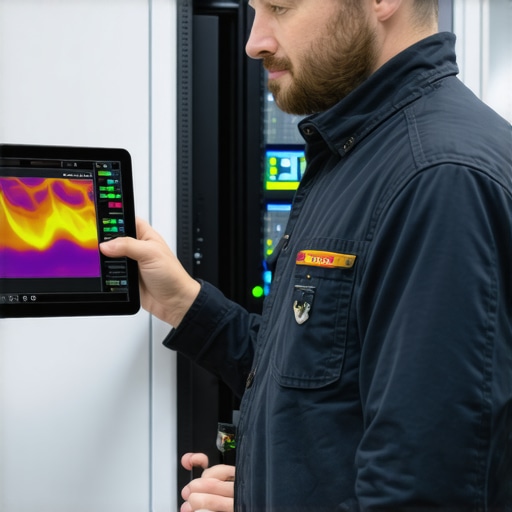
Stop Overpaying for Basic Problems
One nuance that almost everyone misses is the ‘hidden cost’ of an unoptimized network. I once sat with a client who was paying for a gigabit connection but getting 50Mbps at their desks. They were ready to buy all new computers, thinking their machines were slow. We found out their office switch was failing and dropping connections, a classic sign that your office switch is failing and throttling the entire team. It took twenty minutes to identify and saved them thousands in unnecessary hardware upgrades. This is why your IT consultant should be reviewing your internet bill and your hardware lifecycle regularly. Have you ever fallen into the trap of buying a new PC just because the old one ‘felt’ slow, only to find the new one had the same issues? Let me know in the comments. We need to stop throwing money at symptoms and start diagnosing the source. Whether it is a laptop screen repair or a full server overhaul, the nuance is in the data, not just the hardware.
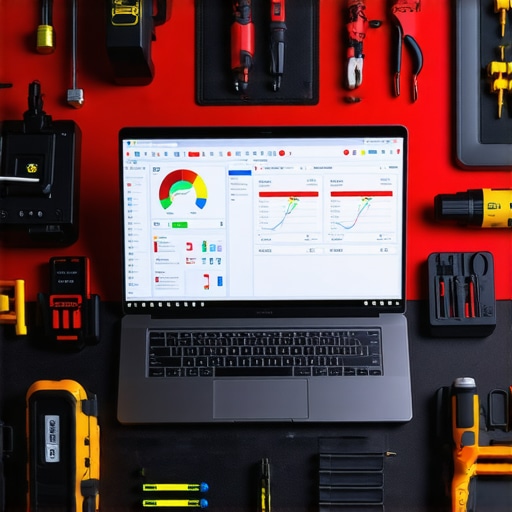
I don’t just fix things when they break; I try to stop them from breaking in the first place. If you are serious about your setup, you need a toolkit that goes beyond a single screwdriver. I personally swear by a combination of physical tools and deep-level diagnostic software. For the physical side, a high-quality anti-static mat and a precision driver set are non-negotiable. But the real magic happens in the data. Knowing how to check if your hard drive is about to fail using s.m.a.r.t. data is the difference between a productive Tuesday and a total catastrophe. I use tools like CrystalDiskInfo or HWInfo64 to keep an eye on thermal throttling and drive health because hardware doesn’t usually die in silence—it whispers its problems long before the final crash.
The Toolkit That Actually Saves My Neck
When it comes to the power of data recovery tools, I always tell people that the best tool is a solid backup routine. I’ve seen too many people lose everything because they relied on a single external drive that eventually failed. Instead, I recommend the 3-2-1 rule: three copies of your data, on two different media types, with one copy offsite. This is the cornerstone of how to extend the life of your office pcs by three years. By offloading the stress of potential data loss, you can focus on the actual performance of the machine. According to the Backblaze 2023 Drive Stats report, the annualized failure rate for certain older drive models can jump significantly after the four-year mark, which is why I start getting nervous once a drive hits that age (Source: Backblaze).
How do I keep my hardware healthy for the long haul?
Maintenance isn’t just about blowing out dust with compressed air, though that’s a great start. It’s about monitoring the software environment that stresses the hardware. I make it a habit to check for bloated background processes that cause unnecessary heat. If you want to dive deeper, troubleshooting common computer repair issues effectively involves looking at your Event Viewer in Windows to find recurring errors before they manifest as a system freeze. For those of you running a business, this is where scaling becomes a factor. You cannot manually check every PC in a ten-person office. This is why managed IT is a game changer for growing companies; it automates the monitoring that would otherwise take up your entire weekend.
The Future of Not Breaking Things
We are moving into an era of predictive maintenance. By 2025, how managed IT can elevate your business security will involve AI-driven sensors that can detect a fan failing by its acoustic signature or a power supply fluctuating by a few millivolts. The trend is moving away from “fix it when it’s broken” toward “replace it before it fails.” This proactive approach saves thousands in downtime. If you’re still using a laptop and noticed the screen is acting up, don’t wait for a total blackout; learning laptop screen repair diy tips can help you identify if it’s a loose cable or a failing panel early on. My advanced tip for today: Download a hardware monitor tonight and check your CPU temperatures under load. If you’re hitting 90°C during a simple video call, it’s time to re-paste your thermal compound before you cook your motherboard.
The Hardware Lies I Finally Stopped Believing
After years of wrestling with tech, the biggest lightbulb moment for me was realizing that “broken” is rarely a permanent state—it is usually just a cry for better maintenance. I used to think a flickering monitor meant I needed an immediate laptop screen replacement, but more often than not, it was just the system’s way of telling me a driver was crashing in the background. Another tough lesson? Software cannot fix physical damage. If you are hearing a clicking sound, stop running scan tools. Many beginner computer repair mistakes happen because we desperately want a free software fix for a mechanical failure that requires a screwdriver. Finally, I learned that heat is the silent killer; if your fans are constantly screaming, your hardware is aging at double speed while your performance drops off a cliff.
Gear and Knowledge That Keep My Setup Running
If you want to stop guessing and start diagnosing like a pro, you need a few specific tools in your digital belt. I always keep CrystalDiskInfo running to monitor s.m.a.r.t. data because knowing a drive is dying before the click of death happens is the only way to save your sanity. For thermal issues, HWInfo64 is my go-to for catching when a CPU is thermal throttling and dragging down my workflow. I also highly recommend investing in VESA-certified cables; they are the only reliable way to ensure a laptop screen that shows static isn’t just a victim of poor electromagnetic shielding. These aren’t just gadgets; they are the eyes and ears of your technical health.
Take Control of Your Digital Workspace
Technology should empower you, not hold you hostage with a frozen screen and a spinning wheel of death. Whether you are performing a DIY laptop screen repair or optimizing a whole office network for a growing team, the key is to stay curious and proactive. Don’t wait for the total blackout to start caring about your hardware’s health. You have the tools and the knowledge now to prevent the next crash before it even thinks about happening and keep your productivity flowing. Have you ever had a mystery freeze that suddenly vanished after a simple cable swap? Let me know below.