

I still remember the smell—that faint, acrid scent of ozone and disappointment—drifting up from under my desk while I was trying to finish a massive project. My PC didn’t just shut down; it sighed. It was the kind of silence that makes your stomach drop because you know your unsaved work is gone. I spent two days convinced my motherboard was fried, only to realize I’d been ignoring a thick layer of golden retriever fur blocking the intake fan of my power supply. It is a classic mistake, and one I have seen over and over again in the years since. Today, I am going to help you determine if your power supply (PSU) is truly at death’s door or if it just needs a good blast of compressed air. We will look at the red flags of hardware failure versus the simple thermal throttling caused by neglect. Have you ever had your computer suddenly cut to black without a single warning message? It is terrifying, but it might not be the expensive disaster you think it is.
Stop Stressing and Grab a Screwdriver
Early in my tech journey, I made the costly mistake of tossing out a perfectly good 750W power supply because I didn’t know how to identify a failing motherboard compared to a PSU issue. I just assumed the worst. Knowing the difference between a component that is dead and one that is just overheating can save you hundreds of dollars. Before you start shopping for new parts, you need to understand that heat is the silent killer of electronics. According to hardware reliability data from Puget Systems, power supplies are statistically one of the most reliable components, yet they are often the first to be blamed when a system becomes unstable. Usually, the issue is environmental rather than mechanical. You might be dealing with computer repair for beginners level problems, like a clogged intake, rather than a catastrophic failure. [image_placeholder_1]
Can a simple cleaning really save a dying PC?
It sounds too good to be true, but many people overestimate how much abuse a power supply can take before it starts to fail. If your fan is struggling to spin, the internal components will heat up until the safety sensors trigger an emergency shutdown. This looks exactly like a hardware failure, but it is actually the PSU doing its job to prevent a fire. If you’ve noticed why your computer smells like burnt plastic, you are already in the danger zone. I’ve learned the hard way that a can of compressed air is the cheapest insurance policy you can own. By learning to troubleshoot common computer repair issues effectively, you can differentiate between a fan that is just loud and one that is physically broken. If your system is rebooting under load, we need to check the temperatures before we check our bank accounts. Let’s dive into the specific signs that your power box is actually toast.
Listen for the Tell-Tale Whine and Watch the Rails
I once spent three hours wrestling with a gaming PC that kept cutting out during heavy video renders. I was so frustrated I started looking up how to recover work from a word document that didnt save because the crashes were costing me hours of progress. I was convinced the unit was trash, but it turned out to be a loose 24-pin connector that had slightly backed out of the socket over months of fan vibrations. Before you reach for your wallet, grab a flashlight and physically re-seat every single power cable. If your system is still acting up, listen closely for ‘coil whine.’ This high-pitched squeal happens when internal inductors vibrate at specific frequencies. While not always a death sentence, it is a clear sign that your internal components are under stress.
Let Your Software Play Detective
Instead of guessing, use free diagnostic software like HWMonitor or OCCT to look at your voltage rails. A healthy power supply needs to stay within 5% of its rated voltage. For example, your +12V rail should never dip below 11.4V under load. If you see that number plunging when you launch a game, your PSU is effectively starving your hardware. In many cases, users mistake this for a CPU issue, when in reality it is the sign your cpu is thermal throttling and slowing down your work because the power delivery is inconsistent. This is a classic example of how to spot a hardware failure masquerading as a software bug. 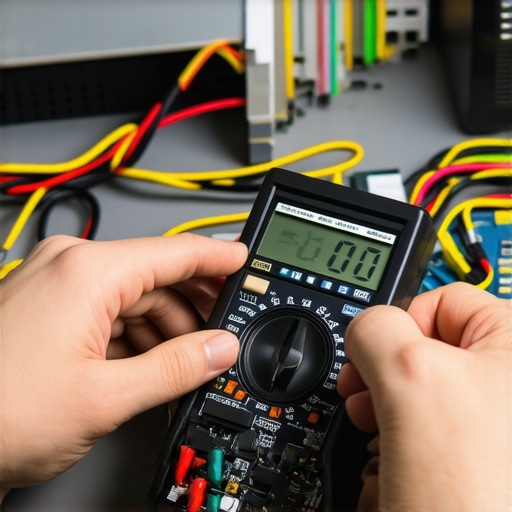
Isolate the Problem to Stop the Guessing Game
When a computer refuses to turn on at all, we use the ‘paperclip test’ to see if the PSU can even start itself. By shorting the green wire with any black ground wire on the 24-pin connector, you can force the unit to wake up. If the fan doesn’t spin, the unit is likely dead. However, if the PSU starts but the computer won’t boot, the problem usually lies elsewhere. At this stage, you need to know how to test if your motherboard is dead or just sleeping. I recommend stripping the PC down to the bare essentials: one stick of RAM, the CPU, and the PSU. If it boots in this ‘breadboard’ state, one of your peripherals or extra drives was pulling too much current or causing a short. If you are working on a portable machine and hear similar symptoms, it’s worth investigating the fix for a noisy laptop fan that sounds like a jet engine, as those smaller units often fail due to simple mechanical blockages rather than electrical death.
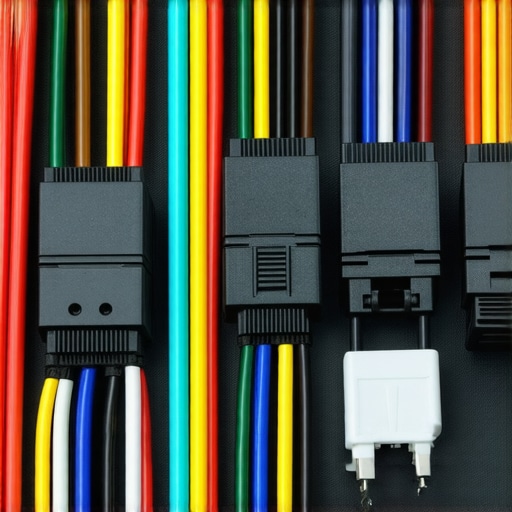
If the paperclip test passes but you are still seeing random instability, we have to look at the invisible culprits that even seasoned builders miss. One of the biggest ‘oops’ moments I see in my shop isn’t actually about the power supply unit (PSU) failing on its own—it is about the cables. Many people assume that because a modular cable fits into the socket of a unit, it is safe to use. This is a lethal assumption. I have seen enthusiasts fry entire arrays of hard drives because they used a SATA cable from an old EVGA unit on a newer Corsair model. The pinouts on the PSU side are not standardized across brands or even across different models within the same brand. Mixing them is the fastest way to force yourself into needing data recovery secrets and expert techniques to save your files fast. It is a catastrophic hardware failure that looks like a manufacturing defect but is actually a simple user error.
Stop Chasing the Highest Wattage Sticker
Common wisdom says you should always buy the highest wattage power supply you can afford to ‘future-proof’ your system. I disagree. Over-provisioning a cheap, high-wattage unit is far more dangerous than using a high-quality, lower-wattage unit. A budget 850W unit often lacks the robust protection circuits—like Over Temperature Protection (OTP) or short-circuit protection—that a premium 650W unit provides. When you are troubleshooting common computer repair issues effectively, you realize that it isn’t just about the total power; it is about how ‘clean’ that power is. According to technical data from the Cybenetics certification labs, efficiency ratings like ’80 Plus Gold’ do not actually measure the quality of the internal components or the voltage ripple. You can have a very efficient PSU that still puts massive stress on your motherboard due to poor voltage regulation.
Why do modular cables kill so many high-end builds?
As I mentioned, the lack of physical standardization on the power supply side of the cable is a trap for the unwary. If you lose your original cables, do not grab spares from a friend or eBay. You must verify the specific compatibility with the manufacturer. Another nuance often overlooked is the ‘transient spike.’ Modern high-end graphics cards can pull massive amounts of current for a fraction of a millisecond—spikes that far exceed their official TDP. If your PSU is high-efficiency but has slow response times, your system will simply shut down under load. This is often why your IT guy keeps recommending hardware you don’t need, like a much larger PSU than your specs suggest; he is accounting for those invisible micro-spikes that crash systems.
Avoid the Efficiency Rating Trap
Finally, we have to talk about the power coming out of your wall. Your PSU is your computer’s first line of defense, but it shouldn’t be the only one. Even the most expensive power supply can be overwhelmed by a ‘dirty’ electrical grid or a sudden brownout. Implementing the move that keeps your office data safe during a power outage—namely, a high-quality Uninterruptible Power Supply (UPS)—is mandatory for any workstation. It cleans the sine wave of the electricity before it ever hits your PSU, extending the life of your hardware by years. Have you ever fallen into the trap of swapping modular cables or ignored your power quality until a crash happened? Let me know in the comments below.
I’ve spent a decade in the trenches of computer repair, and if there’s one thing I’ve learned, it’s that software lies to you. When I’m trying to diagnose a system that’s randomly rebooting, I don’t just look at the BIOS readings. I reach for my Fluke 115 digital multimeter. Software sensors on a motherboard are prone to electrical interference and can be decalibrated by the very voltage fluctuations you’re trying to find. By probing the 12V rail directly at the connector, I get the raw truth. If you want to take your hardware health seriously, stop guessing and start measuring. This proactive approach is the core of managed IT solutions streamlining operations for small businesses, where we prioritize stability over hoping for the best.
How do I maintain my power delivery over the long haul?
Longevity isn’t an accident; it’s a schedule. Every six months, you should be doing more than just blowing out dust. I recommend performing a stability audit. Use a tool like the Thermaltake Dr. Power II—a dedicated PSU tester that checks the timing of the Power Good (PG) signal. If that signal takes longer than 500ms to stabilize, your PSU is aging internally, even if the voltages look okay on the surface. This is a crucial part of how to extend the life of your office pcs by three years. Pair this with a regular check of your storage health; knowing how to check if your hard drive is about to fail using s m a r t data will give you the full picture of your system’s longevity. 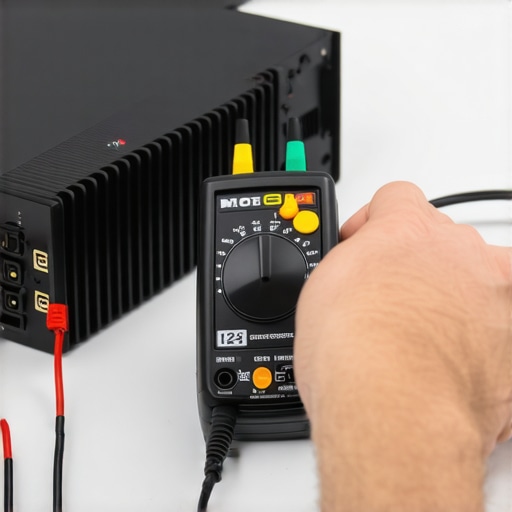 As your business scales, your power strategy must evolve. You cannot just plug ten high-end workstations into the same wall circuit and expect a standard power strip to save you. You need to implement the move that keeps your office data safe during a power outage—the double-conversion UPS. Unlike cheaper standby models, these units constantly regenerate the power, providing a perfect sine wave regardless of the grid’s condition. If you skip this, a single brownout could leave you desperately researching data recovery secrets expert techniques to save your files fast after your RAID array loses its parity bits during a sudden shutdown. Looking ahead, the next big shift in power is Gallium Nitride (GaN) technology. Expert reviewers like Aris Mpitziopoulos from Cybenetics have noted that GaN transistors allow for much higher switching frequencies and better thermal efficiency in smaller footprints. We are moving toward a future where smart PSUs will connect to your network to report their own health metrics in real-time. My advice? Try this one advanced tip: next time you have your case open, check the voltage of your CMOS battery with your multimeter. If it is below 3.0V, replace it immediately; it is a tiny maintenance move that prevents a hundred BIOS-related headaches.
Hard-Earned Lessons From a Decade of Blown Capacitors
I’ve seen too many people lose their entire digital lives because they treated their power supply like an afterthought. One of the biggest ‘lightbulb moments’ in my career was realizing that a PSU can be failing while still providing enough power to boot the system. It isn’t just about ‘on’ or ‘off’; it is about the quality of the electricity being delivered. If you see your system hitching during managed IT solutions streamlining operations for small businesses, it might be voltage ripple eating away at your hardware. Another hard lesson? Never trust a PSU that feels suspiciously light; quality components like heavy-duty capacitors and large heatsinks have physical weight. Finally, remember that your power supply is the only part of your computer that can physically destroy every other component in the case if it fails spectacularly.
The Pro Tools I Use to Save Every System
When I am not using my physical multimeter, I rely on a few gold-standard resources to keep things running. For deep technical data, I always check the Cybenetics Database; they provide much more accurate noise and efficiency ratings than the standard 80 Plus stickers. For real-time monitoring, HWInfo64 is my go-to because it captures the minimum and maximum voltage dips that occur while you are actually working. I also strongly recommend investing in a CyberPower or APC Pure Sine Wave UPS. Implementing the move that keeps your office data safe during a power outage is the single best way to ensure your PSU doesn’t have to work overtime to filter out grid noise. If you are just starting out, check out our guide on computer repair for beginners avoid costly mistakes to build a solid foundation.
Don’t Wait for the Smell of Smoke
Your computer’s power supply is the heart of your entire setup. By taking these proactive steps—cleaning the dust, checking your voltages, and never mixing modular cables—you are doing more than just fixing a PC; you are protecting your creative work and your business’s future. It is much easier to spend thirty minutes on maintenance today than to spend three days researching data recovery secrets expert techniques to save your files fast because a surge fried your drives. You have the tools and the knowledge now to stay ahead of the curve. If you suspect your board might be the real culprit, learn how to identify a failing motherboard before it stops working to be absolutely sure. Have you ever had a power supply failure that took other components down with it? Let me know your story in the comments below.