

I remember sitting in a dimly lit coffee shop, ready to crush a deadline, when I opened my laptop and felt my stomach drop. My entire desktop was perfectly flipped. The clock was on the left, the text looked like some ancient, undecipherable script, and my mouse moved in the opposite direction of my hand. I looked like a madman trying to navigate a mirror world. My first instinct, like many of us, was to assume the worst. I figured I had a catastrophic hardware failure that required a [laptop screen replacement](https://computerrepairmasters.com/laptop-screen-replacement-step-by-step-repair-guide) or that my graphics card had finally surrendered to the heat. It turns out, that wasn’t the case at all. Most people panic because a mirrored display feels like a physical broken part, but more often than not, it is a software ghost in the machine. Today, I am going to walk you through exactly how to flip your world back to right-side up without spending a dime at a repair shop.
That Moment My Desktop Decided to Become a Mirror
I have spent years [troubleshooting common computer repair issues effectively](https://computerrepairmasters.com/troubleshooting-common-computer-repair-issues-effectively), but the mirrored screen still caught me off guard because of how visceral it feels. It’s one thing to have a [laptop screen that shows static or snow](https://computerrepairmasters.com/how-to-fix-a-laptop-screen-that-shows-static-or-snow), which clearly signals a connection issue; it is quite another to see a crisp, clear image that is simply backwards. Early in my tech journey, I made the embarrassing mistake of trying to manually reinstall drivers before checking the most basic display settings. I was so focused on the complex fix that I ignored the simple ‘Orientation’ dropdown menu. We often overcomplicate things because we are afraid of the costs involved in [computer repair for beginners](https://computerrepairmasters.com/computer-repair-for-beginners-avoid-costly-mistakes). Have you ever felt that surge of panic when your screen does something completely inexplicable?
Is a mirrored screen actually a sign of a dying GPU?
While your mind might jump to a hardware funeral, a mirrored image is almost always a configuration error within your Intel, NVIDIA, or AMD graphics control panel. In fact, according to official documentation from Microsoft, certain hotkey combinations in older driver versions could accidentally trigger display rotations or mirroring without the user ever realizing it. It is rarely a sign of a dying chip. If you were seeing [strange horizontal black bars](https://computerrepairmasters.com/the-fix-for-a-laptop-screen-that-shows-strange-horizontal-black-bars), I would be more worried about your hardware. But with a mirror image, we are usually looking at a ‘flipped’ setting or an accidental ‘Theatre Mode’ activation. I’ve learned the hard way that checking your display orientation is much faster than tearing apart a bezel. Let’s look at the quick wins you can try right now to get your text readable again.
Flip Your Screen Back in the Windows Settings Menu
The first and most common reason for a mirrored screen is a simple misconfiguration in your operating system. Windows has a built-in feature to rotate your display, which is great for coders using vertical monitors, but a nightmare if it activates by accident. To fix this, right-click any empty space on your desktop and select ‘Display settings.’ Look for the section labeled ‘Display orientation.’ In a standard setup, this must be set to ‘Landscape.’ If it currently says ‘Landscape (flipped)’ or any of the ‘Portrait’ options, click the dropdown and change it back to the standard ‘Landscape’ setting. This is one of the most essential laptop screen repair diy tips for clearer displays because it addresses the software layer before you ever touch the hardware. 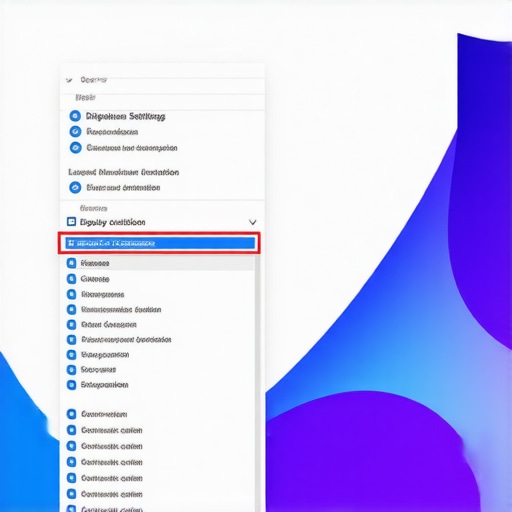
Did Your Keyboard Betray You with a Hidden Shortcut?
I once had a client who was absolutely convinced their laptop was haunted. Every time they cleaned their keyboard, the screen would flip 180 degrees. I spent a few minutes laughing internally before explaining that they were accidentally hitting ‘Hotkeys.’ On many older systems, especially those using Intel Graphics drivers, pressing CTRL + ALT + Arrow Key can instantly rotate the display. If your screen is mirrored, try holding CTRL + ALT + Up Arrow. This is the ‘return to normal’ command. If that doesn’t work, your specific driver might have these shortcuts disabled or assigned differently. Learning these quirks is a vital part of computer repair for beginners to avoid costly mistakes, as it prevents you from thinking a simple keypress is a hardware failure.
Go Straight to the Source with Graphics Control Panels
Sometimes the Windows settings are overruled by your graphics card software. Whether you have an NVIDIA, AMD, or Intel chip, each has its own control panel that manages how images are projected. If the Windows menu didn’t solve it, right-click your desktop again and look for ‘NVIDIA Control Panel’ or ‘Intel Graphics Settings.’ Once inside, navigate to the ‘Display’ or ‘Rotate Display’ tab. Here, you can manually override any mirroring or rotation settings. I recall a time when a buggy driver update caused a workstation to default to ‘Mirror Mode,’ making the user think they had the reason your laptop screen is showing a negative color effect. In reality, it was just a checkbox in the Intel panel that had been toggled by the update installer.
Distinguish a Software Flip from a Real Hardware Failure
It is crucial to know when you are fighting a software ghost and when you are facing a physical issue. If your screen image is perfectly clear but just backwards or upside down, it is almost certainly a software setting. However, if the image is mirrored and accompanied by flickering or distorted lines, you might be dealing with a different beast. For instance, knowing how to fix a laptop screen that shows static or snow is different from fixing a rotation issue. If the ‘Orientation’ settings are correct but the image remains distorted, you might need to look into tips for troubleshooting laptop screen problems seamlessly to rule out a loose internal video cable. Always check the ‘Orientation’ dropdown first; it is the fastest way to get your perspective back to normal without opening the chassis.Let’s dig deeper into why these screen flips happen even when you haven’t touched a single setting. Most ‘tech gurus’ tell you that when a screen acts up, you should immediately update your drivers. In my professional experience, that is often the worst advice you can follow. I have seen more mirrored screens and orientation glitches caused by ‘optional’ Windows updates than by actual file corruption. These ‘preview’ drivers are often poorly tested and can conflict with your specific laptop’s BIOS. If you find yourself in this loop, the goal is stability, not the latest version number. This is one of those computer repair for beginners to avoid costly mistakes lessons: if it was working yesterday and you didn’t physically drop the device, look at what changed in the software environment overnight. Have you ever fallen into this trap where an ‘update’ actually broke your perfect setup? Let me know in the comments.
Stop Using One-Click Driver Fixers Before You Toast Your OS
The hidden ‘oops’ factor that most people miss usually comes from third-party software. Many users try to skip the manual work by downloading ‘one-click’ driver boosters or system optimizers. I cannot stress this enough: stay away from them. These programs often pull generic drivers that aren’t optimized for your specific hardware bridge. Using them is just as risky as the danger of using free file recovery tools on a failing mechanical drive; you might fix one small orientation bug only to find your entire display goes black ten minutes later because of an incompatible kernel-level instruction. If the software fix doesn’t stick after a reboot, you’re looking at a different kind of nuance altogether. 
Why Does My Screen Orientation Reset to Flipped After Every Reboot?
This is where we separate the casual users from the experts. If your screen flips back to a mirrored or upside-down state every time you restart, you’re likely dealing with a corrupted registry key or a persistent profile setting within your GPU control panel that has lost its write permissions. According to research published by security experts at BleepingComputer, certain low-level malware strains actually flip screen orientations as a ‘nuisance’ tactic to distract users while they run malicious background processes. While rare, it proves that display issues aren’t always innocent. If your settings simply won’t save, you might need to dive into tips for troubleshooting laptop screen problems seamlessly to check if your user profile itself is corrupted. In extreme cases, what looks like a software flip can actually be a failing LVDS cable that is shorting out and confusing the motherboard’s EDID detection. This is a critical nuance because why a cracked laptop screen can eventually damage your motherboard often starts with these ‘minor’ electrical ghosts that interfere with the display data. Don’t assume it’s just a setting if the flip is accompanied by a ‘New Hardware Detected’ notification—that’s a sign the internal connection is flaking out and you might actually need a professional laptop screen replacement to prevent a total motherboard short.
Clean the Registry Sludge with DDU
If you want to avoid computer repair for beginners to avoid costly mistakes, you need to stop trusting the ‘Add or Remove Programs’ button for graphics drivers. When a screen flips or colors go haywire, the ‘leftover’ files from old drivers are usually the culprits. I personally never perform a major update without using Display Driver Uninstaller (DDU). This utility completely wipes every trace of previous driver versions, ensuring that the new installation starts from a truly clean slate. According to the official documentation from Wagnardsoft, the developers behind DDU, the standard Windows uninstaller often leaves behind ‘orphaned’ registry keys that can conflict with new instructions, leading to persistent orientation glitches or random black screens. Taking twenty minutes to run this in Safe Mode is the difference between a stable system and one that requires constant troubleshooting common computer repair issues effectively every time Windows decides to push an update. 
How do I maintain a glitch-free display over time?
Consistency is the secret sauce to tech longevity. Beyond just software, physical heat is the silent killer of display stability. I use HWInfo64 to monitor my GPU and CPU temperatures weekly. If I see my laptop hitting thermal limits, I know it is time to clean out the dust before the heat causes a chip to desolder or a display cable to warp. This proactive stance is exactly why why managed IT is a game changer for growing companies; they don’t wait for the screen to turn upside down or for the hardware to fail. They monitor the metrics that predict the failure. If you start seeing the sign your CPU is thermal throttling and slowing down your work, it is a massive red flag that your display might be the next thing to flicker. Pair regular dusting with a monthly driver check, and you will rarely have to deal with the ‘mirror world’ again.
Prepare for the AI-Driven Display Future
We are moving toward a world where ‘Auto-Orientation’ and ‘Smart Scaling’ are managed by neural engines rather than basic driver instructions. I predict that within the next two years, we will see operating systems that can detect if a screen is mirrored via an external webcam or sensor and ‘self-heal’ the display orientation without user input. This will make laptop screen repair and fixing common issues at home much easier for the average person, but it also adds another layer of complexity for those of us who like to tinker. This shift is already mirrored in how we handle data; look at the ultimate guide to data recovery after accidental deletion and you will see that AI is already doing the heavy lifting in identifying file fragments. The same is coming for your display settings. This is part of why managed IT strategies to keep your business secure in 2025 focus so heavily on automated patch management. My advice? Don’t wait for the future to fix your current problems. Go download a portable version of HWInfo right now and check your ‘GPU Thermal Limit’—it’s the fastest way to see if your hardware is being pushed to the brink before a real failure happens.
The Secrets I Learned from a Thousand Flipped Screens
After years in the trenches, I have realized that a mirrored display is less about a broken part and more about a breakdown in communication between your software and your eyes. One major lightbulb moment for me was discovering that Windows doesn’t always remember your orientation settings if your user profile is slightly corrupted. This often leads people to think they need a laptop screen replacement when they really just need a fresh user account or a registry fix. I’ve also found that many users over-rely on basic menus when they should be troubleshooting common computer repair issues effectively by looking at the low-level GPU control panels first. Lastly, never underestimate the power of a clean start; if a setting keeps reverting, it is usually a registry key that has been locked by a previous, buggy driver installation.
My Personal Toolkit for Display Sanity
I don’t go into any repair without a few trusted digital companions. First on my list is Display Driver Uninstaller (DDU). It is the only way to ensure that you aren’t building your new setup on top of old, broken data that might be forcing a mirror effect. For monitoring, I swear by HWInfo64 because it catches thermal issues before they cause permanent damage. If you are running a company, you should move beyond individual fixes and look into managed IT strategies to keep your business secure in 2025. These tools and frameworks prevent the ‘mirror world’ from ever happening in the first place by automating patch management. For home users, simply knowing laptop screen repair and how to fix common issues at home can save you hundreds in unnecessary bench fees and technical headaches.
Take Back Control of Your Pixels
Don’t let a simple software glitch convince you that your hardware is dying. Whether it was a cat walking across your keyboard or a rogue Windows update, you now have the roadmap to flip your world back to normal. Remember that most display issues are solved with patience and a few clicks, not a screwdriver. If you ever feel overwhelmed, remember that even the pros started by panicking at a flipped screen once. Getting your perspective back is the first step toward becoming your own tech hero. Have you ever had a screen flip so bad you thought the hardware was fried? Let me know in the comments below.